How to Remove Partition on External Hard Drive in Windows 11/10
| Workable Solutions | Step-by-step Troubleshooting |
|---|---|
|
Solution 1. Qiling Partition Master Free |
Step 1. Deleting a partition will erase data on it, so make sure you've made a backup of important data...Full steps |
|
Solution 2. Disk Management |
Step 1. Open Windows 10 Disk Management program. You got the three easiest ways to go...Full steps |
|
Solution 3. Windows 11/10 Command Prompt |
Step 1. Press Windows + X to invoke a list where you can find Command Prompt (Admin)...Full steps |
How to remove partition on external hard drive:
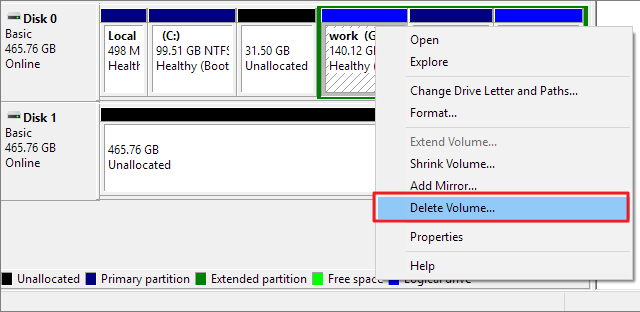
- In Windows 10, you can easily open the Disk Management console by right-clicking the Start button and choosing the "Disk Management" option from the Start menu.
- In Disk Management, locate the external hard disk and the partition you want to remove.
- Right-To delete a partition, click on it and select "Delete Volume" from the context menu.
How to Remove a Partition From External Hard Drive in Windows 11/10
To delete the small 400mb partition, you can follow these steps: Open Disk Management, select the external drive, right-click on the small partition, and choose "Delete Volume". Be cautious as this will erase all data on the small partition. Alternatively, you can use a third-party software like Qiling Partition Master to merge the small partition with the large NTFS partition, effectively deleting the small partition while preserving the data. However, it's recommended to back up the data on the small partition first, as it's reported as a CD drive and UDF file system. Make sure to choose the correct method based on your specific situation.

3 Ways to Remove Partition on External Hard Drive Windows 11/10
The guide of external hard drive partition removal in Windows 10 is applicable to individuals who need to remove a partition from an external hard drive, such as those who want to merge two partitions into one, delete a partition to free up space, or remove a partition that is no longer needed.
- 1. To partition a new external hard drive into several chunks, you can follow these steps: First, connect the external hard drive to your computer and ensure it's recognized by your operating system. Next, open the Disk Management tool (usually found in the Control Panel or by typing "diskmgmt.
- 2. Windows is asking you to delete a partition on an external hard drive because it needs to be formatted for a clean install, which means all data on the drive will be erased. This is a common step in the installation process when you're setting up a new Windows operating system on the external hard drive.
- 3. Remove all the external hard drive partitions before sending it away.
- 4. Can't delete external hard drive partitions in your way.
This post aims to cover all possible solutions for deleting a partition or partitions on an external hard drive in various Windows versions, including 10/8.1/8/7/XP/Vista and Windows Server. With so many scenarios to consider, it can be overwhelming, but this post is designed to provide a comprehensive guide to help you manage the process.
- Solution 1. Use Qiling Partition Master Free (Recommended)
- Solution 2. Try Windows 10 Disk Management
- Solution 3. Run Windows 10 Command Prompt
To transfer your Windows 10 installation to an external hard drive, prepare an external hard drive enclosure to house your drive and plug it into your computer. Ensure your computer recognizes the external drive and assigns it a drive letter, allowing you to work with it as you would with an internal drive.
Solution 1. Remove Partition on External Hard Drive via Qiling Partition Master Free
To delete a partition or partitions on a hard drive or external hard drive, using third-party software is the most reliable method. This approach is preferred over other methods due to its effectiveness and safety. Third-party software, such as free partition software, provides a controlled and secure environment for deleting partitions, reducing the risk of data loss or damage to the drive.
- It is free and easy-to-use
- The user interface is clear and easy
- You can get additional tech support
- The software has many other highlights, including migrating an operating system, wiping a hard drive, resizing partitions, and more.
To remove hard drive partitions, click the download button to download Qiling Partition Master Free, a free partition manager that comes with tons of hard drive partition management features. Follow the steps below to remove hard drive partitions. (Note: the instructions for removing partitions are not provided in the original text, so I left it as is)
Step 1. To delete a partition, connect your external device to the computer using the correct method. This may involve using a USB cable, SD card slot, or other connection method specific to your device. Once the device is properly connected, you can proceed with deleting the partition.
To delete a partition using Open Qiling Partition Master, right-click on the desired partition and select the "Delete" option. This will remove the partition and free up the associated disk space.
Step 2. Confirm the message "Are you sure you want to delete the selected partition?" and click "OK" to delete the partition.
Solution 2. Remove Windows 11/10 Partition on External Hard Drive with Disk Management
You can remove external hard drive partitions using Windows 10 Disk Management, a tool provided by Windows OS for basic disk management operations such as deleting partitions, formatting partitions, creating partitions, shrinking volumes, and more.
Step 1. To open Windows 10 Disk Management program, you can right-click on the Start button and select Disk Management, or press the Windows key + X and select Disk Management, or go to File Explorer, right-click on the This PC option, and select Manage, then select Disk Management from the list of available tools.
- Navigate to "This PC > Manage > Disk Management".
- To open the Disk Management console, type diskmgmt.msc in the search box in the lower-left corner of the screen and click on the "diskmgmt.msc" result that appears in the list.
- To open the Disk Management console in Windows, press the Windows key + R to open the "Run" dialog box, then type "diskmgmt.msc" in the empty box and click "OK".
Step 2. To delete an unwanted partition on an external hard drive, go to the Disk Management interface, right-click on the partition you want to delete, and select "Delete Volume..." from the context menu. This will remove the partition, making the space available for new data.
Step 3. Windows 10 will delete the selected partition of the external hard drive, allowing you to use the drive again. This will erase all data on the partition, so make sure you have backed up any important files before proceeding.
After the operation, the deleted partition will be transformed into an unallocated space without a drive letter.
Solution 3. Delete Partitions on External Drive via Windows 11/10 Command Prompt
If you are familiar with the command line, you can remove partitions in this way. Here are the details on how to remove a partition on external hard drive Windows 10.
Step 1. To open the Windows 10 Command Prompt as an administrator, press the Windows key + X, then click Command Prompt (Admin) from the list that appears. This will open the Command Prompt window with administrator privileges.
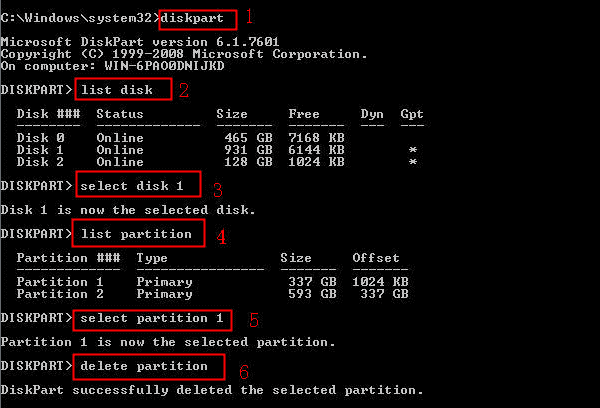
Step 2.To create a bootable USB drive using Diskpart, follow these steps:
- list disk All your hard disks will be displayed, listed as disk 0, disk 1, and so on.
- select disk + number (Select disk 1 if your external hard drive is disk 1)
- list partition (All your external hard drive partitions will appear)
- select partition If you're trying to delete partition 1 on your external hard drive, please select partition 1. (1)
- delete partition (This command deletes the selected partition)
You can delete the partition from your external hard drive by right-clicking on the drive in File Explorer, selecting "Format," and confirming the action. This will erase the partition and make the drive available for use again.
Additional Help - How to Partition a Hard Drive in Windows 11/10/8/7
After deleting the partitions, the partition space will be turned into unallocated space, allowing you to resize the external hard drive by extending partition space, creating a new partition, and more. This can be done with the help of software like Qiling Partition Master, which can partition a hard drive or external hard drive with simple steps.
Conclusion
To remove/delete a partition on an external hard drive in Windows 10/8/7, you can use the built-in Disk Management tool to delete the partition. Alternatively, you can use third-party software like Qiling partition software to manage disk space and improve performance. This method can also be applied to other devices such as SD cards, USB drives, and SSD drives. If you need to repartition your device after removal, Qiling partition software can be a helpful tool.
Related Articles
- How to Hide or Unhide Partition in Windows 11 [3 Tools]
- Three Simple Ways to Format a Bootable SD Card (Useful Tips)
- How Do I Run Fdisk on Windows 10/11: A Beginner's Guide
- [Fixed] Boot Device Not Found Error in Windows 10/8/7
- Detailed Guide: Get Toshiba Laptop to Boot From USB
To boot a Toshiba laptop from USB, first, ensure that the USB drive is formatted in FAT32 and contains a valid bootable operating system. Next, enter the BIOS settings by pressing the corresponding key (usually F2, F12, or Del) during startup. Save the changes and exit the BIOS settings. - Fixed: Green Screen of Death on Windows 10/11 - 6 Tips 💡
The Green Screen of Death (GSOD) is a critical error that can occur on Windows 10/11 computers, causing the system to crash and display a green screen with an error message, similar to the Blue Screen of Death (BSOD).
Products
Articles & Tutorials
- Data Recovery
- Data Backup
- File Recovery
- File Backup
- System Backup and Restore
- Disk and Partition Clone
- Technical articles
- Mobile articles
- Disk Master Help
- Windows Data Recovery Tutorials
- Windows Secure Delete Tutorials
- Windows Partition Management Tutorials
- Windows File Backup and Restore Tutorials
- Windows System Backup and Restore Tutorials
- Windows Disk Backup and Restore Tutorials
- Windows Clone Tutorials