4 Ways to Troubleshoot Reboot and Select Proper Boot Device Error
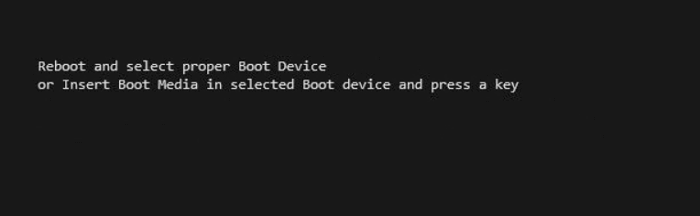
When you start your computer, you may encounter the error "reboot and select proper boot device". This error indicates that the computer or laptop is unable to find a hard drive with Windows on it, and restarting won't solve the problem. To fix it, you'll need to troubleshoot the issue, which may involve checking the boot order, checking for loose connections, or running a disk check to ensure the hard drive is functioning properly.
PAGE CONTENT:
Fix 1. Select Proper Boot Device by Changing Boot Order
Fix 2. Check If the Boot Device Is Detected
Fix 3. Repair the Windows Boot File
Fix 4. Rebuild MBR (Recommended Solution)
What Causes Reboot and Select Proper Boot Device
The "Reboot and Select Proper Boot Device" error has been a persistent problem for many Windows users. Fortunately, this issue can be resolved with the help of this post. Before taking action, it's essential to identify the underlying causes of this error.
- Hardware failure
- Improper settings of the BIOS
- The wrong boot order in BIOS
- Set wrong partition active
- Boot files get lost or corrupted
With knowing the exact cause for this error, you could take these measures accordingly. I have listed multiple solutions for this problem. We start with the most common solutions, just follow the post and try the steps.
Fix 1. Select Proper Boot Device by Changing Boot Order
To set the boot priority drive, you should enter your BIOS settings by pressing a key (usually F1, F2, F12, or Del) as your computer starts up. Then, navigate to the Boot Order or Boot Priority section, and select your new system disk as the first boot device. Save your changes and exit the BIOS settings. This should allow your computer to boot from the new system disk.
Step 1. Restart PC and press F2/F12/Del keys to enter BIOS.
Step 2. To change the boot priority, go to the boot option, set the bootable drive as the first priority, and the OS will boot from that drive.
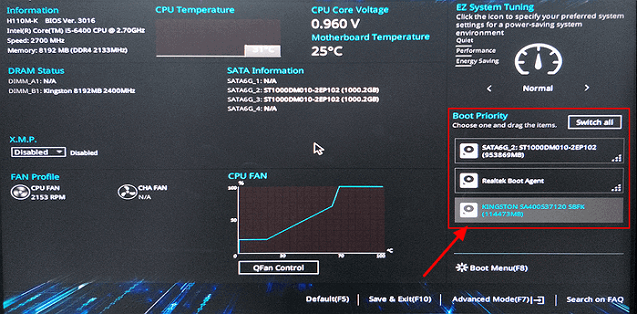
Step 3. Save the changes, exit BIOS, and restart the PC. Wait patiently to let the computer start.
Fix 2. Check If the Boot Device Is Detected
If Windows prompts you to insert a boot device and press any key, you should verify that the boot disk or installation media is recognized by the BIOS.
For desktops:
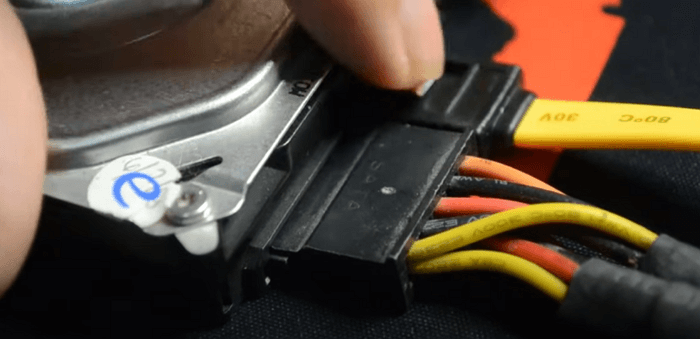
- Make sure the computer is turned off and remove the power cable.
- To troubleshoot a computer issue, start by locating the hard drive. Check if the data and power connectors are securely connected to the motherboard and other components.
- Plugin the power cable back in and restart the PC.
For laptops:
- Remove the battery if possible
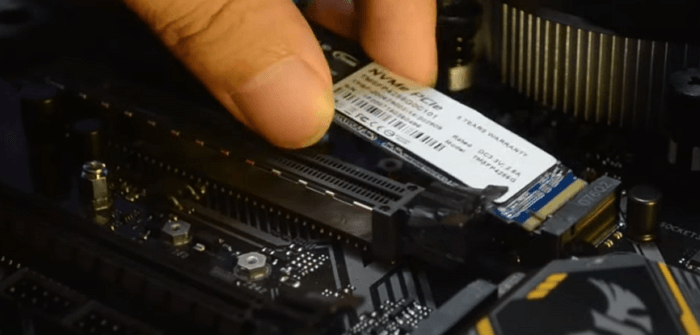
- Open the lid underside of your laptop
- Check if the hard drive is connected properly
- Close the lid and place the battery back
Now that we've checked everything, it's time to start your computer and enter the BIOS. From there, you can run a Hard Drive self-test. If your BIOS doesn't have this feature, you can also run a hard drive test using Qiling by creating a WinPE disk.
Fix 3. Repair the Windows Boot Files
To repair Windows boot files, you need to prepare a Windows repair disc and boot the Dell, Acer, ASUS, or Lenovo PC from the disc. This involves inserting the disc into the computer's CD/DVD drive and following the on-screen instructions to select the Windows installation to repair. The repair disc will then guide you through the process of fixing any issues with the Windows boot files, allowing you to restore your computer to a working state.
Step 1. Boot from the recovery USB or the original installation DVD.
Step 2. Move to the install screen, click Repair your computer.
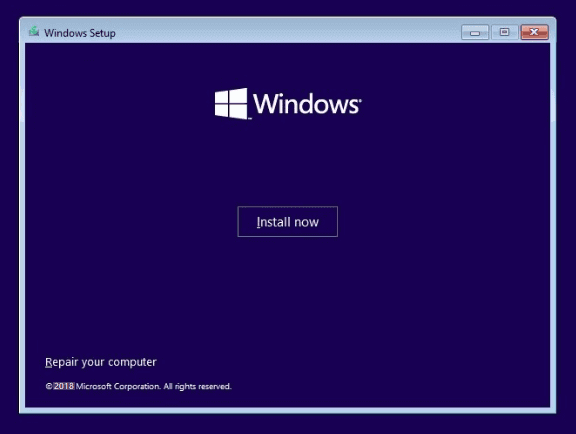
Then, run Command Prompt and type the following commands.
- For Legacy BIOS users:
- Bootrec /fixmbr
- Bootrec /fixboot
- Bootrec /rebuildBCD
For UEFI users: bcdboot C:\windows
Fix 4. Rebuild MBR (Recommended Solution)
If your computer running Windows 10/8/7 still has the "Reboot and select proper boot device" error, you can try using Qiling Partition Master's Rebuild MBR feature to fix the master boot code problem.
Step 1. Create a WinPE bootable disk
- To create a bootable media with Qiling Partition Master, launch the software and navigate to the tools page, then click "Create bootable media". Select the option to create the bootable disk on a USB drive, or alternatively, on a CD/DVD if your computer has a CD/DVD drive.
- Click "Proceed" to finish the process.
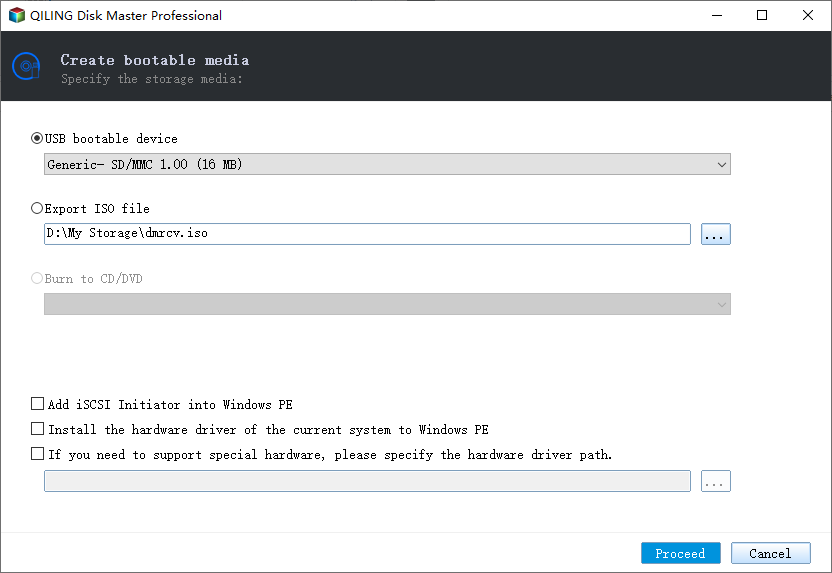
Step 2. Boot Qiling Partition Master Bootable USB
- Connect the bootable USB or CD/DVD to your PC.
- To access the BIOS screen, press F2 or Del when restarting the computer. This will allow you to set the computer to boot from a removable device or CD-ROM drive, after which Qiling Partition Master will automatically run.
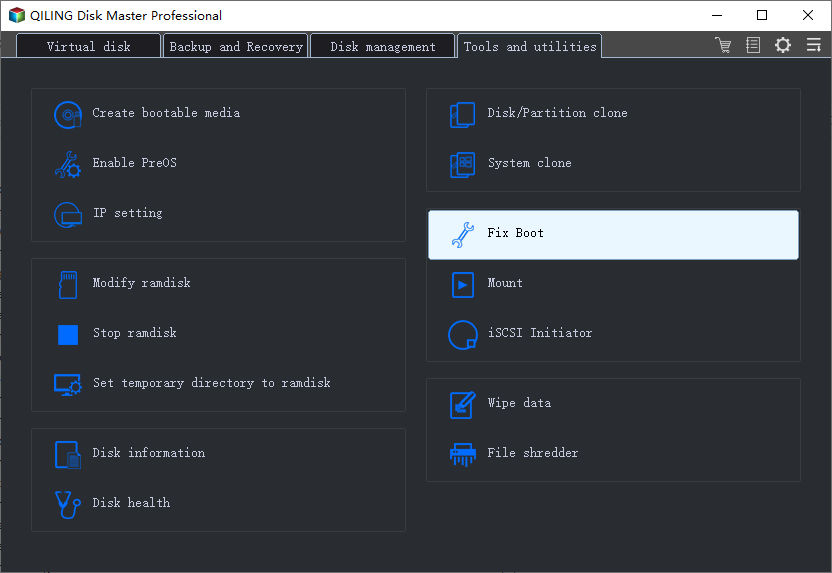
Step 3. Rebuild MBR
- Choose "Fix boot" to continue.
- Click the disk whose MBR is damaged.
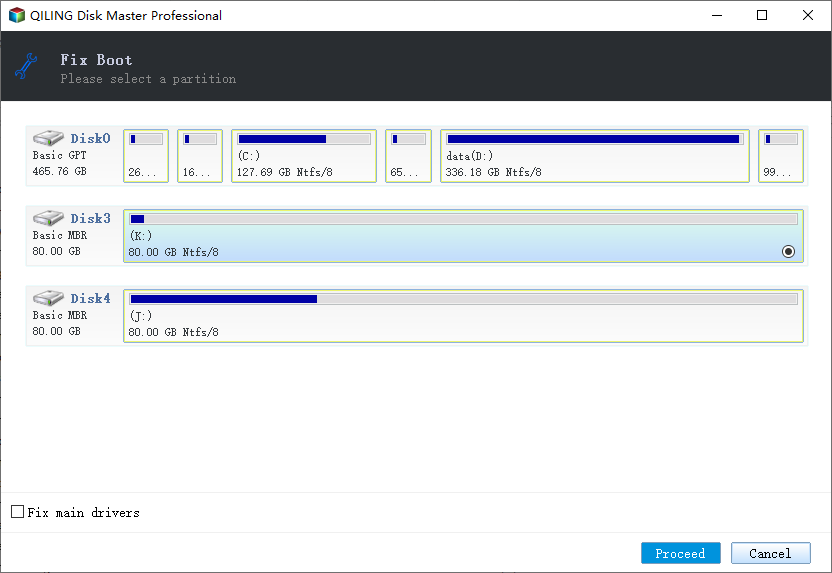
- Click the "Proceed" to build the MBR. After that, your computer can boot normally again.
If you're still getting the error, try rebooting and selecting the proper boot device. Alternatively, you can try a fresh install of Windows 10 on your HDD or SSD, but be aware that this will erase all files on the boot partition, so make sure to back up your data first.
Conclusion
If you're still experiencing the reboot and select the proper boot device error, try checking the connection to your hard drive and ensuring it's not damaged or corrupt. If you don't see your hard drive in your BIOS, verify that it's properly connected. If the issue persists, you can also attempt to repair a corrupted hard drive.
Related Articles
- 4 Tips| How to Format C Drive in Windows 11/10/8.1/8/7
- Use SD Card Repair Tool to Fix Corrupted SD Card
- How Do I Run Fdisk on Windows 10/11: A Beginner's Guide
- [Fixed] Windows Resource Protection Found Corrupt Files but Was Unable to Fix Some of Them
- How to Format Galaxy S5 SD Card [2024 Newest Solutions]
This guide will help you figure out the reasons for formatting the Galaxy SD card and offer three solutions to explain how to format Galaxy S5 SD card on Windows, Mac, and Android. - How to Format Hard Drive from BIOS Windows 10
This guide will provide three complete guides to formatting the hard drives from BIOS Windows 10, including format via Qiling Disk Master, Command Prompt, and formatting the drive during Windows installation.
Products
Articles & Tutorials
- Data Recovery
- Data Backup
- File Recovery
- File Backup
- System Backup and Restore
- Disk and Partition Clone
- Technical articles
- Mobile articles
- Disk Master Help
- Windows Data Recovery Tutorials
- Windows Secure Delete Tutorials
- Windows Partition Management Tutorials
- Windows File Backup and Restore Tutorials
- Windows System Backup and Restore Tutorials
- Windows Disk Backup and Restore Tutorials
- Windows Clone Tutorials