How to Merge or Combine Partitions in Windows 11
Merging partitions is a viable solution for reducing the number of partitions on your computer hard drive. This can be achieved by combining adjacent and non-adjacent partitions, as well as merging partitions that have unallocated spaces, effectively reducing the number of partitions on your hard drive.
Merging a partition refers to the process of combining two partitions into one or expanding a partition by combining it with unallocated space on the hard drive, effectively increasing the partition's size. This process can also be driven by other reasons, such as.
- To increase free space
- To save files more effectively and conveniently
- To find the files more easily and quickly
To merge two hard drives partition in Windows 11, there are two primary methods: using a professional tool or the Disk Management feature. This guide will explain how to combine partitions Windows 11 using these methods, allowing you to merge partitions in a hassle-free and quick way.
Let's start then!
Merge partitions Windows 11 without Data Loss with a Partition Merging Tool
Qiling Partition Master is a top-notch tool that allows you to merge partitions on Windows 11 quickly and easily. With its numerous features, it makes it simple to partition hard drives and maximize available disk space. The tool enables users to move or resize partitions, merge partitions, copy disks or partitions, clone, create, format, or delete partitions with ease, all within a few minutes. Additionally, it offers various functions to improve disk performance and management.
When merging partitions on Windows 11, Qiling Partition Master Tool offers various options to combine partitions, including a handful of merge methods that cater to different user needs.
- Merge Adjacent Partitions
Qiling Partition Master Tool is an all-in-one partition merger that allows users to easily merge two adjacent or successive partitions for effective partition management, compatible with all 32/64 bit Windows Operating systems, including Windows Vista/ XP/ 7/ 8/ 10/ 11, and helps to merge two adjacent partitions without causing any data loss, unlike other tools that require deleting a volume to create free space.
Step 1: Select the target partition
To add space to a partition, click on it and select "Merge".
Step 2: Select a neighbor partition to merge
Select a partition next to the one you previously selected, then click "Proceed" to merge the space and combine files from the two partitions.
- Combine Non-Adjacent Partitions
If you want to merge two partitions that aren't next to each other, Qiling Partition Master Tool can help. The process of merging two non-adjacent partitions with a partition merger tool depends on what's between your source partition and target partition.
If there's unallocated space between the source and target partition, you can use Qiling Partition Master to merge them. However, if there are partitions between the two volumes you want to merge, the tool's "Allocate Space" feature will move free space from one drive to another, allowing you to merge the partitions without deleting the original data.
Step 1. Click one partition that you need to merge and select "Merge".
Step 2. Select a non-adjacent partition to merge.
Step 3. Select to merge the non-adjacent partition into the target one.
Step 4. Click the "Proceed" to start merging partitions.
- Merge Partition with Unallocated Space
Unallocated space on your hard drive is a block of free space that Windows hasn't assigned a drive letter to, making it inaccessible for storing files. To utilize this space, you can merge it with an existing partition using Qiling Partition Master, which can help resolve low disk space issues even if there's no unallocated space available to extend the system partition. This tool is capable of getting you out of chaos and solving low disk space problems by effectively managing your hard drive's space.
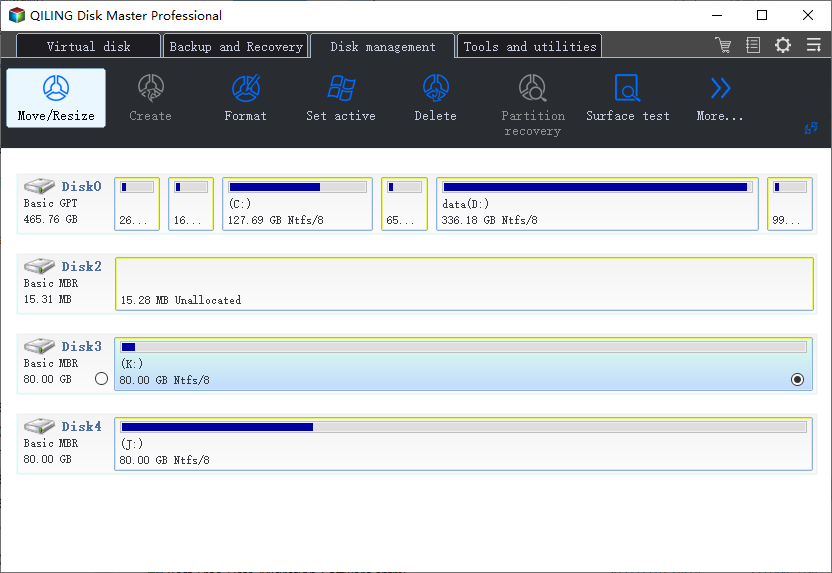
Step 1. Shrink partition to free up space to extend partition.
If the hard drive has enough unallocated space to extend the target partition, proceed to Step 2. Otherwise, free up space on the hard drive before proceeding.
- Right-To resize or move a partition, click on a partition next to the target partition and select "Resize/Move".
- Drag the partition ends to free up space, leaving enough unallocated space behind the target partition, then click "Proceed".
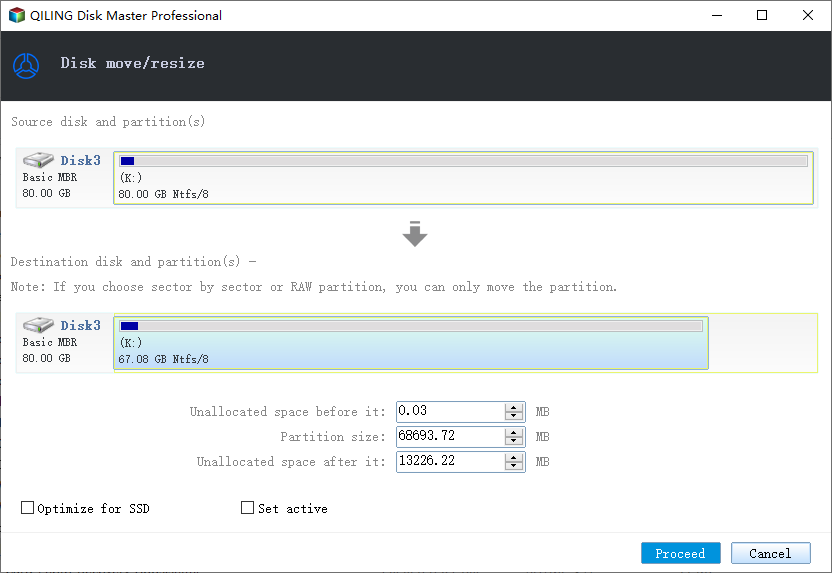
Step 2. Extend target partition.
Click on the target partition and select "Resize/Move".
To extend the target partition, you need to drag the partition handle into the unallocated space. This will increase the size of the partition and utilize the available free space.
Step 3. Keep all changes.
Click the "Proceed" to keep all changes.
The Qiling Partition Master Tool offers a range of functions and features that make it the most suggested tool for managing partitions on a Windows 11 PC, making it a must-try for users.
How to Merge Partitions Windows 11 with Disk Management
To merge partitions in Windows 11, you can use the Disk Management feature, which allows you to merge adjacent or non-adjacent partitions in a few minutes. However, it requires deleting the target partition to create unallocated space, which is then extended by the source partition to merge the partitions.
Before deleting the partition, it's essential to back up your data to prevent loss. Use free backup software or manually copy files to a safe location. Once your data is backed up, you can proceed with merging partitions in Windows 11 using Disk Management.
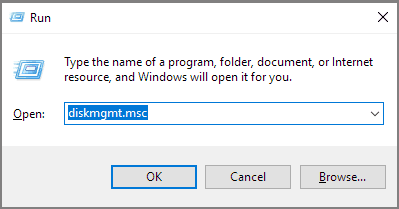
Step 1: Press the "Windows + R" keys simultaneously to open the "Run" box.
Step 2:To open the Disk Management window, type "diskmgmt.msc" in the Run box and click "OK".
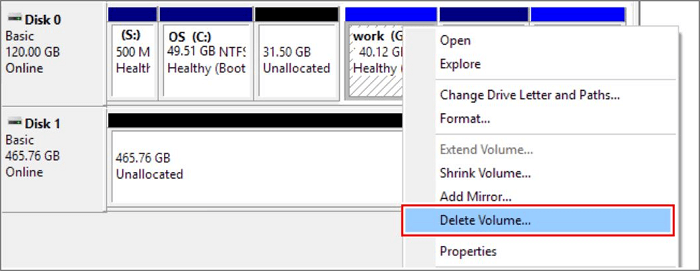
Step 3:To delete a partition, right-click on the target partition and select "Delete Volume". In the prompt, click "Yes" to confirm the deletion.
Step 4: Now, right-click the source partition and select the "Extend Volume" option.
Step 5: In the Extend Volume Wizard, tap on "Next."
Step 6: Set the amount of space and tap "Next."
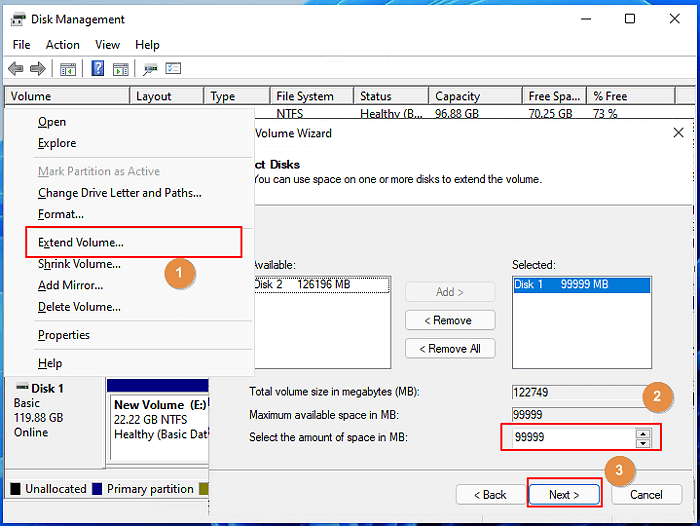
NOTE:The "Select Disks" window might feel overwhelming, but here's a helpful tip: the maximum available space refers to the total size of unallocated space in the current disk.
Step 7: Tap "Next" > "Finish" and wait for the process to complete.
"How to combine partitions Windows 11" was this easy with Disk Management! Remember to backup all your data first before trying out this method.
Merge Partitions Windows 11 without Data Loss
Merging two hard drive partitions in Windows 11 can be easily done using Qiling Partition Master Tool or Disk Management. Both methods provide flawless results, but Qiling Partition Master Tool is a more reliable option, allowing you to merge partitions in three different ways without data loss. This tool is an excellent choice for those seeking a seamless partition merging experience on Windows 11.
Related Articles
- How to Convert SD Card RAW to FAT32/NTFS in Windows 11/10/8/7
- Fix The File or Directory Is Corrupted and Unreadable in Windows 10/8/7
- How to Create New Partition in Windows Server 2022/2019/2016 - Qiling
- How to Allocate a Hard Drive to Add Space to Another Partition in Windows 11/10/8/7
- What Is the Best MBR to GPT Convert Tool? Your Checklist Here
If you need to convert MBR to GPT, follow this easy guide to find a reliable MBR to GPT convert tool that works for your storage device. We have included a table comparison of pros and cons for each of these features, making it simple to select the best tool for your needs. - MMC Format Tool: SD Card Formatter Free Download [2024 Full Guide]
If you're looking for tools to format your USB or SD cards, this post provides an introduction to MMC Format Tool, which allows you to format multimedia cards, SD cards, and USB drives.
Products
Articles & Tutorials
- Data Recovery
- Data Backup
- File Recovery
- File Backup
- System Backup and Restore
- Disk and Partition Clone
- Technical articles
- Mobile articles
- Disk Master Help
- Windows Data Recovery Tutorials
- Windows Secure Delete Tutorials
- Windows Partition Management Tutorials
- Windows File Backup and Restore Tutorials
- Windows System Backup and Restore Tutorials
- Windows Disk Backup and Restore Tutorials
- Windows Clone Tutorials