An Ultimate Guide to the Master Boot Record (MBR)
In this article, you'll learn:
- I. What Is the MBR?
- II. Understanding of Master Boot Record
- III. How to Check and Use MBR?
- IV. Troubleshooting Problems of MBR
- V. FAQs about Master Boot Record
Many people face a dilemma when choosing MBR mode while setting up their computer or new HDD/SSD, as they are told that the computer won't boot without the master boot record. However, this brief explanation is not enough to convince them, and they need more information about what MBR is, how to use it, and troubleshooting tips. This guide provides a comprehensive overview of MBR, going beyond the shallow definition and covering everything you need to know.
I. What Is the MBR?
The Master Boot Record (MBR) is a small piece of code that loads the operating system on your computer, and also contains information about the partitions on your hard drive, including how they're laid out. If you've installed an operating system, you may have seen a prompt asking if you want to install it in MBR or GPT mode, which refers to the type of partitioning used on your hard drive.
Where Is the Master Boot Record Located?
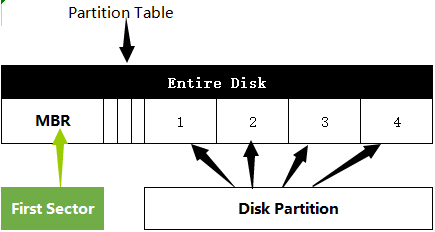
The master boot record code is stored in the first sector of a hard drive, specifically sector 0, and remains even after a partition is deleted.
How the Master Boot Record Works
When a PC is powered on, the Master Boot Record (MBR) initiates the launch of the BIOS program stored in read-only memory, allowing the operating system to be loaded from the hard drive.
Master Boot Record Working Process:
1. The system startup self-check is the first step in the boot process, where the BIOS (Basic Input/Output System) checks the system hardware and CMOS (Complementary Metal-Oxide-Semiconductor) settings to ensure everything is functioning properly before proceeding with the boot process.
2. The master boot record (MBR) is read by the BIOS, which then detects the bootable devices. This process involves the BIOS reading the MBR sector into memory, allowing it to identify and select a bootable device.
3. The BIOS checks if the end flag of the Master Boot Record (MBR) is 0000:7C00H, which equals 55AAH. If the boot device meets the requirements, the BIOS transfers control to the MBR to start the operating system.
II. Understanding of Master Boot Record
1. Feature of MBR
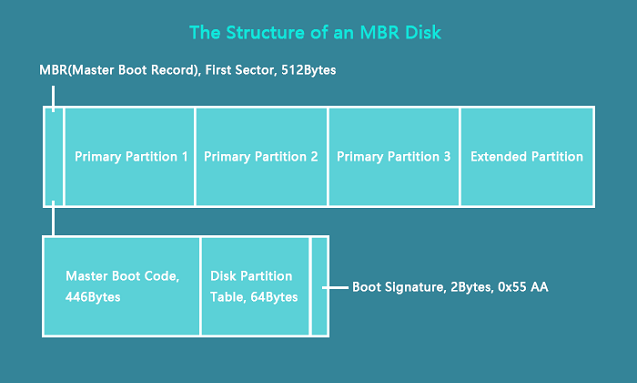
The Master Boot Record (MBR) code is typically around 512 bytes in size and consists of three main parts: the boot sector signature, the partition table, and the boot code. The boot sector signature is a specific sequence of bytes that identifies the MBR as a valid boot sector.
- The master boot code is a small piece of code that loads the operating system into memory, and is typically written in assembly language. It is specific to the hardware of a computer and plays a crucial role in the booting process.
- The partition table contains information about the partitions on your hard drive, including the starting location and size of each partition and the type of file system used, such as NTFS, FAT32, etc.
- The master boot record (MBR) signature is a small code snippet that verifies the validity of the MBR code. If it's missing or incorrect, the computer won't be able to boot.
2. Structure of MBR
Look at what a clear form of MBR looks like:
3. Limitation of MBR
Although Master Boot Record (MBR) has become the standard in disk partitioning, it does have some limitations.
- The Master Boot Record (MBR) can only support up to four primary partitions, which can be limiting if you need more than four partitions on your system.
- MBR does not work with drives larger than 2TB.
- MBR is incompatible with specific file systems, such as ReFS.
While MBR (Master Boot Record) is the most commonly used type of disk partitioning, it's essential to be aware of its limitations before using it on your system.
4. Differences between MBR and GPT
Some users may find that their partition style is displayed as GPT when checking the partition style from Disk Management. This may lead to questions about what GPT is and the difference between MBR and GPT. GPT, or GUID Partition Table, is essentially the successor to MBR and has some key differences, including:
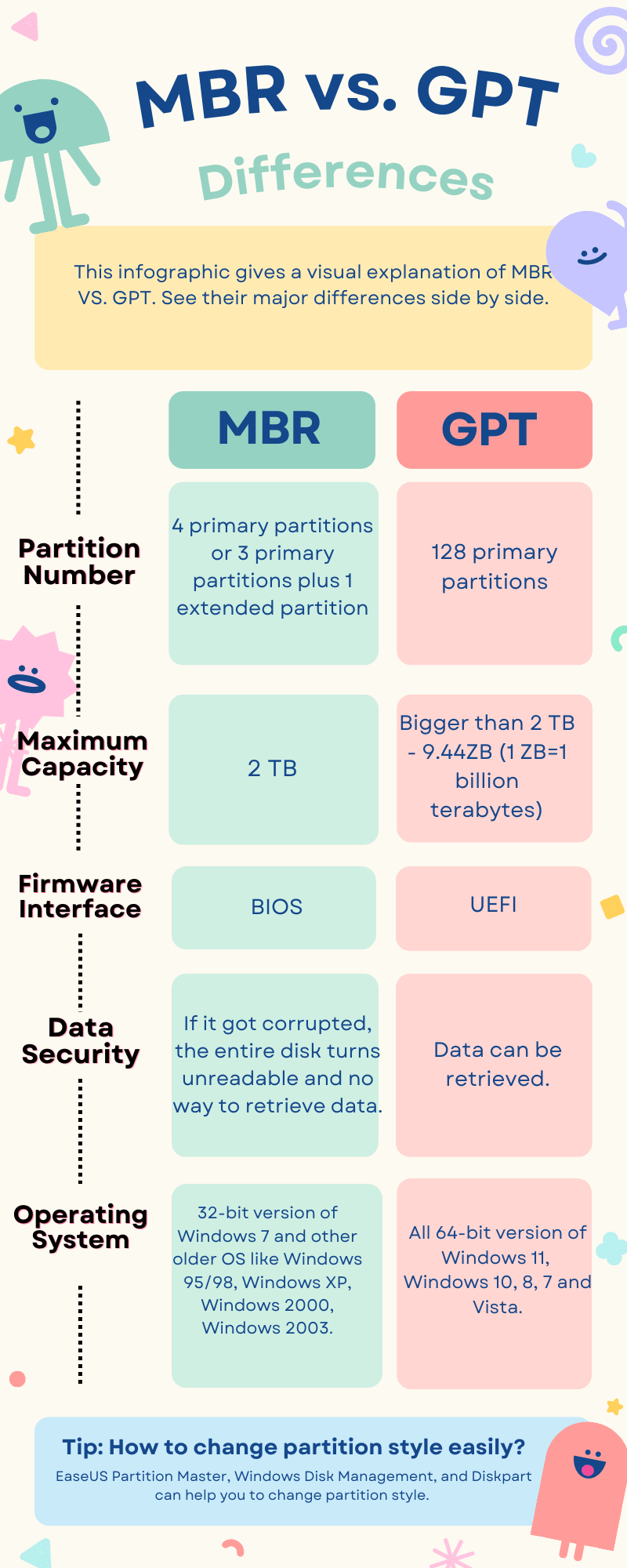
Still, have problems? Read on a depth tutorial on MBR vs. GPT.
III. How to Check and Use MBR?
Now that you're familiar with the basics of MBR, it's time to put your knowledge into practice. You can check and utilize MBR to ensure your computer boots correctly and efficiently.
How to Check If A Disk Uses MBR or GPT?
MBR or GPT for SSD? Should I Choose MBR?
How to Set Up to Boot from MBR
How to Convert MBR to GPT in Windows 10/11
How to Check If A Disk Uses MBR or GPT?
To see partition style on Windows, you can use the built-in Command Prompt or PowerShell. To check if a disk is MBR or GPT using Command Prompt, you can type the following command and press Enter: `wmic disk where index=1 get partitionstyle` (assuming your disk is the first disk, replace 1 with the disk number you want to check). In PowerShell, you can use the following command: `Get-PartitionStyle -DiskNumber 1` (again, assuming your disk is the first disk). The output will show the partition style as either "MBR" or "GPT".
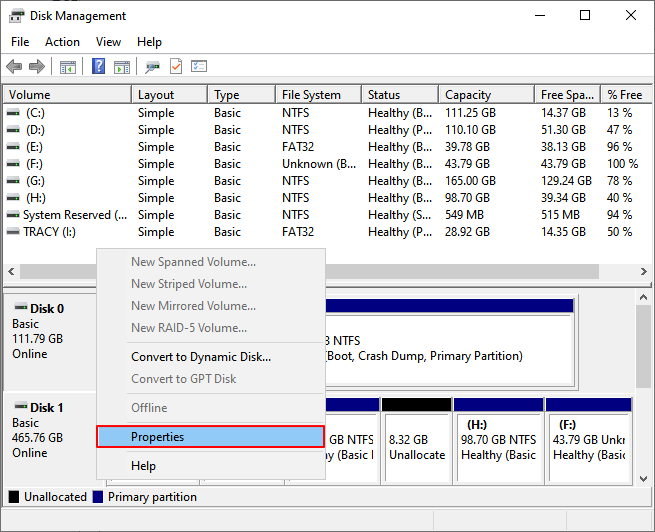
Step 1.To access Disk Management, right-click on the Windows icon and select Disk Management from the menu.
Step 2. Right-click Disk 0 and click on the Properties option.
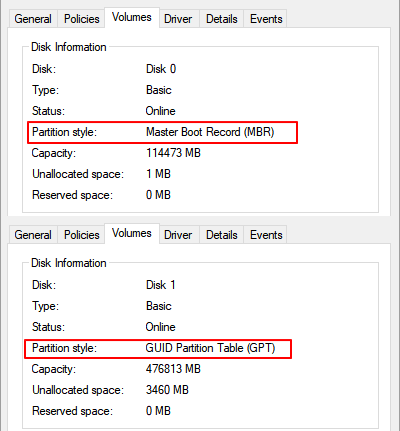
Step 3.To check the disk type, go to the Volumes tab and verify whether Master Boot Record (MBR) or GUID Partition Table (GPT) is selected in the Disk Information box.
GET MORE METHODS
To determine if your Windows is GPT or MBR, refer to the complete guide on the topic, which also provides instructions and recommendations on partition manager software and diskpart.
While GPT performs better in terms of partition, number, OS support, and data security, it also excels in firmware interface, especially when comparing UEFI vs. BIOS. However, MBR disks are still compatible with older Windows versions, so it's essential to consider this when deciding between MBR and GPT for your SSD. To make an informed choice, refer to the recommended tips for selecting the best disk format for your needs.
MBR or GPT for SSD? Should I Choose MBR?
When choosing between MBR and GPT for an SSD on Windows, consider the benefits of each. MBR offers efficient data storage and is less prone to errors, but GPT provides a larger capacity and is more resistant to corruption.
Tip 1. If the hard drive capacity exceeds 2 TB, we recommend using the GPT partition style because the MBR (Master Boot Record) has a maximum capacity limit of 2 TB.
Tip 2. SSD offers faster booting speeds than HDD, making UEFI a recommended choice for Windows compatibility. Additionally, GPT is a suitable option for UEFI boot.
Tip 3. When deciding between MBR (Master Boot Record) and GPT (GUID Partition Table), consider the existing operating system. For Windows 7 or earlier, choose MBR, while for Windows 8 or higher, either MBR or GPT is acceptable.
The best option for you depends on your specific needs and preferences.
How to Set Up to Boot from MBR
Step 1. Click the Windows icon and choose "Restart" to boot your Windows PC.
Step 2. Press the manufacturer's key to access the BIOS menu.
The common PC keyboard shortcuts are: F1, F2, F10, F11, F12, Delete, and Esc.
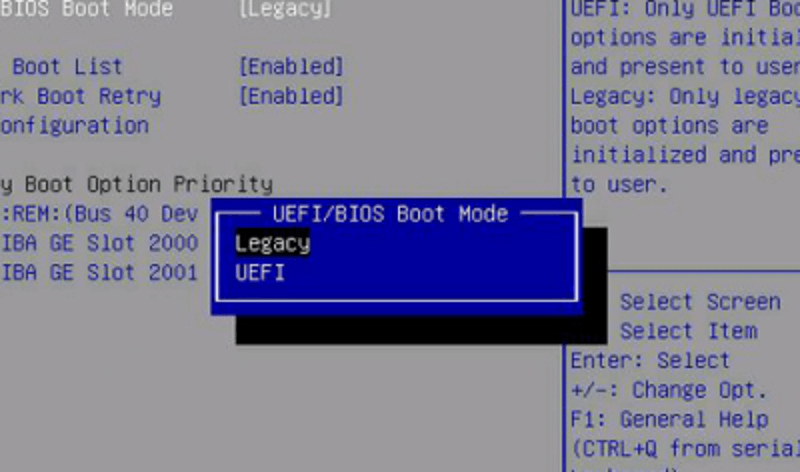
Step 3. Use the Up and Down arrow keys. Move to the Boot tab and choose UEFI/BIOS Boot Mode. Choose Legacy.
Step 4. Press F10 to save changes and exit.
DEPTH TUTORIAL
Still curious? Click here to learn about the MBR for BIOS.
How to Convert MBR to GPT in Windows 10/11
Without partition backup, converting disk can be easy with the help of Qiling Partition Master. It is a reliable disk conversion software to safely change partition style from MBR to GPT or GPT to MBR directly in a few clicks. It exceeds other manual ways in two highlights:
Without Data Loss: Qiling Partition Master preserves the data and keeps it in the original location while converting from MBR to GPT or vice versa.
Free Convert Data Disk:The free edition of the partition manager tool allows for free changing of the disk partition style without the need for an installed operating system.
Note: After modifying the system disk, you need to change the boot mode to match the disk type: MBR for BIOS and GPT for UEFI. Once the OS disk is converted to GPT, you can enable UEFI Mode. If you're modifying a data disk, you can ignore this prompt.
Download Free MBR to GPT Converter:
Other benefits of this user-friendly software include:
- The free functions allow for managing disk partitions, including resizing, moving, deleting, and formatting them. Additionally, they enable copying of system and data partitions, and changing the file system between FAT and NTFS.
- The software offers advanced features such as migrating an operating system to a solid-state drive (SSD), copying a disk and partition, and creating a WinPE bootable disk.
LEARN MORE
If you're unable to convert MBR to GPT using the initial method, try alternative approaches to achieve this conversion without data loss. You can explore free online tools that specialize in converting MBR to GPT, which can be accessed by clicking on the provided link. These tools are designed to facilitate this process efficiently and securely, ensuring that your data remains intact throughout the conversion process.
Further Help: Enable UEFI Mode After Converting System Disk to GPT
Step 1. Reboot PC and access to BIOS menu.
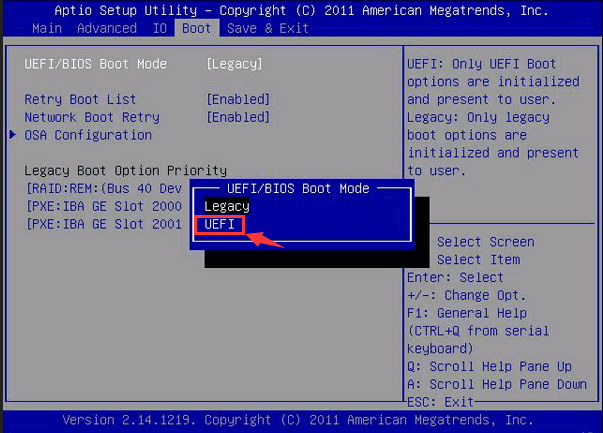
Step 2.To change the UEFI/BIOS Boot Mode, navigate to the Boot tab on the main Boot screen, select UEFI/BIOS Boot Mode using the arrow key, and then press Enter.
Step 3.On the UEFI/BIOS Boot Mode window, select UEFI using the up and down arrow keys and press Enter to proceed.
IV. Troubleshooting Problems of MBR
Problem 1. How Do I Fix the Damaged Master Boot Record?
If the Master Boot Record (MBR) is corrupted, your PC may fail to boot. To resolve this issue, you can use the Bootrec utility in Windows, which can be accessed by booting from your Windows installation disc and selecting the "Repair computer" option, then choosing "Troubleshoot" and selecting "Command Prompt".
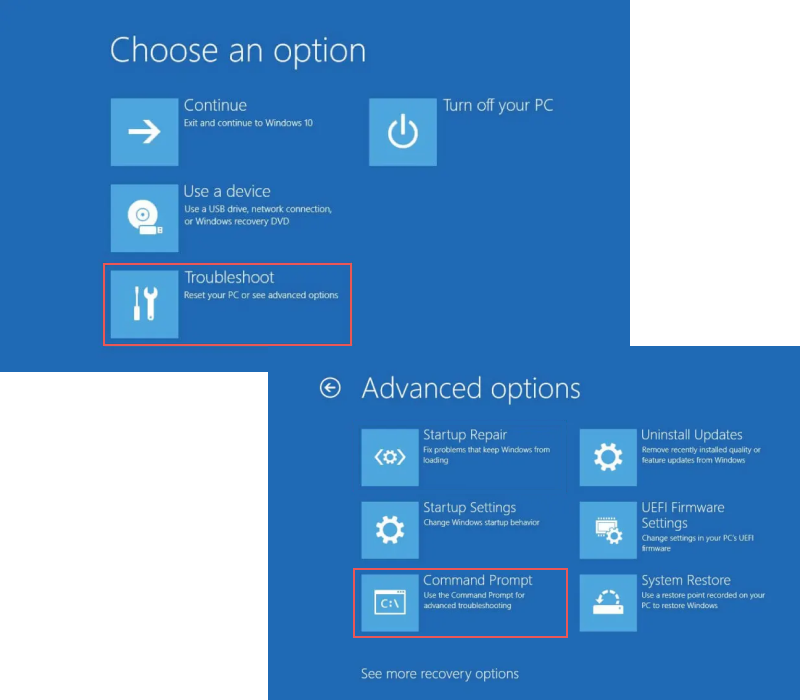
Enter the following commands and press Enter each time:
- bootrec /Fixmbr
- bootrec /FixBoot
- bootrec /ScanOs
- bootrec /RebuildBcd
Then type exit to quit Command Prompt. Eject the bootable disk and reboot your PC.
Further Help
Get a full guide to repair MBR in Windows 7/8/8.1/Vista/XP
bootrec fixboot not working? Check to fix bootrec fixboot access denied error.
Problem 2. Windows cannot be installed on the disk MBR. The selected disk has an MBR partition table
The "Windows cannot be installed to this MBR" error occurs because an EFI system on your computer is incompatible with an MBR disk, which means your PC won't boot from a device with an MBR partition style. To resolve this issue, you can use a professional disk converter, disk management, or diskpart to help you navigate through the process.
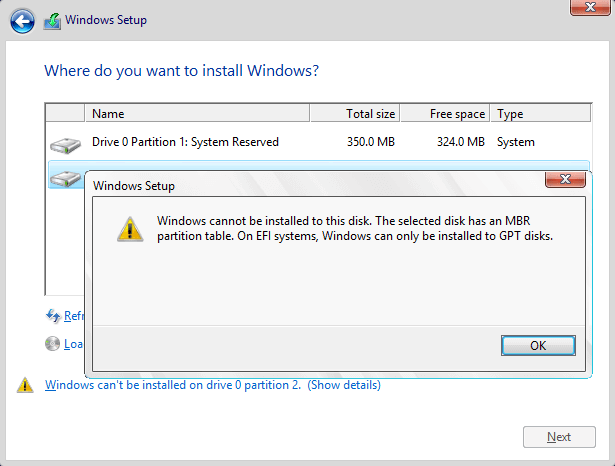
Go back to the former part to convert MBR to GPT in three ways.
V. FAQs about Master Boot Record
I. What Is A Typical Symptom That Might Indicate The MBR Record Is Damaged?
- Loud clicking noise.
- Invalid partition table error.
- Invalid boot disk error.
- RAID not found error message.
The convincing answer is "Invalid partition table error".
Damage to the MBR (Master Boot Record) can be indicated by several symptoms. Some signs that the MBR record is damaged include the inability to boot the computer, a "non-system disk" error message, a "missing operating system" error, a "boot sector damaged" error, or a "bootmgr is missing" error. Additionally, the presence of a "Press any key to continue..
Related article: What Typical Symptom Indicate MBR Record Damaged
II. Which of The Following Commands Can be Used to Create Partitions on Either A MBR or GPT Hard Disk?
Four Options you can see under this question:
- Fdisk
- Gdisk
- Parted
- Cfsck
The correct answer is "Parted".
III. What Is the Minimum Number of Partitions That the MBR Partitioning System Can Support?
The minimum number of primary partitions that can be created in a Master Boot Record (MBR) partition table is 0, or 1 in a traditional partition table.
Related Articles
- Computer Won't Boot? Causes & Fixes for PC Not Turning On [Full Guide]
- What Is Diskpart? How to Master and Use Diskpart Commands on Windows [Full Guide]
- Overall Guide to Learn What Is BIOS [Save Up to 99% of Your Time]
- What Is SSD and How Do I Set Up and Make Use of SSD [Beginners' Guide]
- How to Use Clonezilla on Windows 10/11 [2024 Guide] 💡
Discover how to use Clonezilla to clone hard drives on Windows 10/11 with step-by-step instructions and expert tips. Clonezilla is a powerful tool that allows you to create exact copies of your hard drives, making it a must-have for anyone looking to upgrade or replace their computer's storage. - How to Perform HP Omen SSD Upgrade [Efficient Ways🔥]
This guide discusses valuable information about the HP Omen SSD upgrade, including compatibility, steps for the upgrade process, and more. And you can apply this tutorial to any HP Omen computers, including HP Omen 30L, HP Omen 13/15/16/17.
Products
Articles & Tutorials
- Data Recovery
- Data Backup
- File Recovery
- File Backup
- System Backup and Restore
- Disk and Partition Clone
- Technical articles
- Mobile articles
- Disk Master Help
- Windows Data Recovery Tutorials
- Windows Secure Delete Tutorials
- Windows Partition Management Tutorials
- Windows File Backup and Restore Tutorials
- Windows System Backup and Restore Tutorials
- Windows Disk Backup and Restore Tutorials
- Windows Clone Tutorials