How Do I Install a Second Hard Drive? Here Is the Complete Guide
| Necessary Tools | Duration |
|---|---|
|
5-10 minutes. |
| Applies to: To add a second hard drive to your Windows PC, you'll need to physically install the new drive, then configure it in Windows. First, ensure the drive is properly connected via SATA, USB, or PCIe, depending on your system's capabilities. | |
To add a new hard drive to Windows 10, first, physically install the new drive into your computer, making sure it's securely connected. Then, restart your computer and enter the BIOS settings to set the new drive as the first boot device. Once booted, Windows will automatically detect the new drive and prompt you to format it. After formatting, you can partition and assign a drive letter to the new drive.
PAGE CONTENT:
#1. Install (Add) a Second Hard Drive to PC
To set up the second hard drive, first, initialize the disk by right-clicking on it in the Disk Management window and selecting "Initialize." Then, create a new partition by right-clicking on the initialized disk and selecting "New Simple Volume." Follow the wizard to assign a drive letter and format the partition with a file system (such as NTFS).
If you have a spare hard drive, consider transferring your data and applications to it. This will free up space on your primary drive and ensure that your files and programs are safe in case your primary drive fails. You can also use this secondary drive for storing large files, such as videos, photos, and music, which can help declutter your primary drive.
#1. Install (Add) a Second Hard Drive to PC
Tools list:
- The new hard drive
- A SATA data cable
- A power cable
- A screwdriver
- Some screws
- A hard drive tray
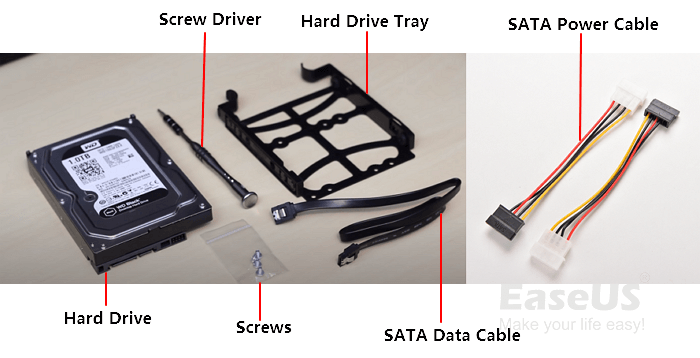
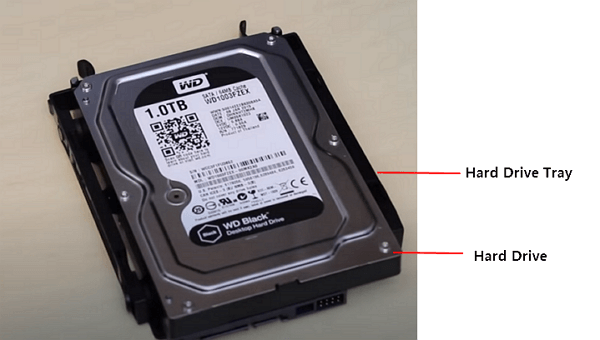
Step 1. The hard drive should be placed into the hard drive tray and secured with screws.
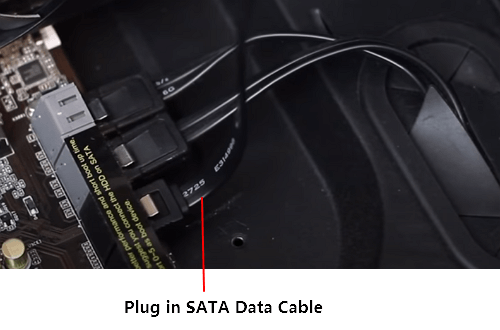
Step 2. To install a new hard drive, first, open the computer case, then locate the SATA ports on the motherboard. Next, take the SATA data cable and plug one end into the new hard drive, and the other end into a vacant SATA port on the motherboard.
Step 3. Insert the SATA cable and Power cable into the designated location where the hard drive will be placed.
Step 4. Plug two cables into your hard drive.
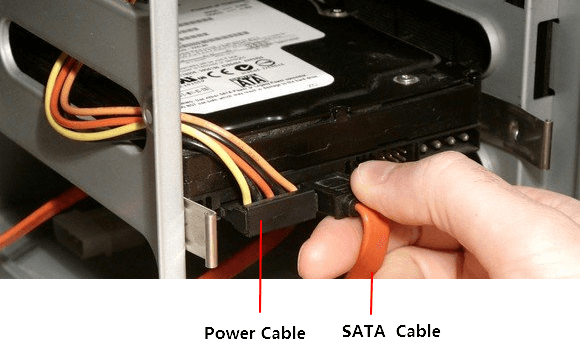
Now that you've installed the second hard drive into your computer, simply restart your computer by pressing the power button. Once it's back on, you can proceed to the next step, which is to set up the second hard drive.
#2. Set Up The Second Hard Drive (Initialize & Partition Disk)
Tools List:Partition manager software - Qiling Partition Master.
To make your hard drive visible and detected in your computer, you need to initialize the disk, set the correct partition style, and create partitions on the disk. This process helps the computer recognize and utilize the hard drive's storage capacity.
So which style to select? Recommended Partition Styles:
- MBR - Disk with 2TB or smaller capacity.
- GPT - You can consider replacing your old computer's storage with a new one, such as a 2TB or larger capacity hard disk drive (HDD) or a new solid-state drive (SSD) with a SATA interface. This can breathe new life into your computer, improving its performance and storage capacity.
With Qiling Partition Master, you can easily partition a hard drive and initialize a disk simultaneously using the New Disk Guide feature. This makes the process straightforward and uncomplicated.
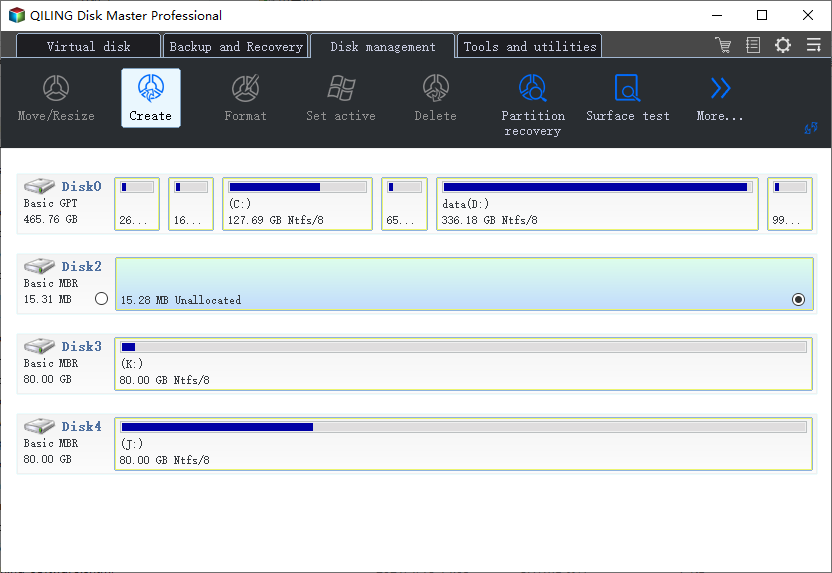
Step 1.To create a new partition on the selected disk, open Qiling Partition Master, select the new disk, and click "Create" to proceed.
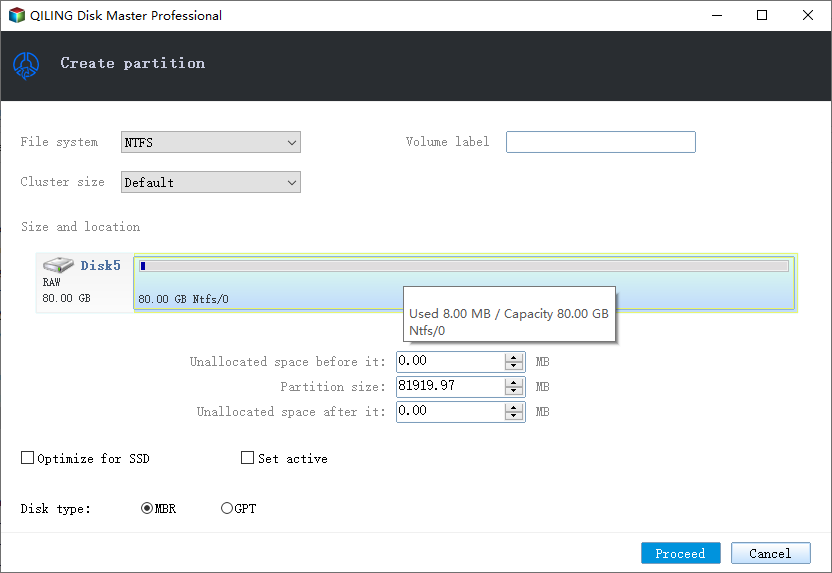
Step 2.You can customize the number of partitions you want to create and choose the partition style, either MBR (Master Boot Record) or GPT (GUID Partition Table), to suit your needs.
To customize the partitioning of your new HDD/SSD or external disk, you can follow the steps outlined or accept the default setting offered by Qiling Partition Master. Once you've made your desired changes, click "Proceed" to finalize the partitioning process.
You can create multiple volumes of equal size on a single disk by partitioning it into separate sections, allowing you to utilize the entire capacity more efficiently. For example, if you have a 500GB disk, you can divide it into two 250GB volumes, effectively using the entire disk space without wasting any capacity.
To fix a Disk Unknown or Not Initialized error, you can try the following steps: First, go to Disk Management and check if the disk is listed. If not, try running the built-in Check Disk utility (chkdsk) to scan and repair any disk errors.
After creating volumes on the new disk, you may stop here. However, if you need to utilize the hard drive, you can refer to the next guide for assistance.
#3. Make Use of The Second Hard Drive (Transfer Data & Applications)
Tools List: File and application transfer tool - Qiling Disk Masters.
Here, we collected two types of needs and offered respective tips to help you make use of the second hard disk.
#1. Transfer Large Files to The Second Hard Drive
Now, you can copy and paste large files into the second hard drive, which is being used as a data disk.
You can directly move folders on your C: drive to the second disk with the help of Qiling Disk Master.
How to Move Large Files from OneDrive to Another?
Qiling Disk Master has been updated to include a large file cleanup function, allowing users to move files larger than 20MB to another drive, including the root directory and custom directories, making it easier to transfer large files.
#2. Move Programs or Apps to a Second Hard Drive
If your OS drive is running low on space, you can consider relocating installed programs to a second hard drive, and Qiling Disk Master's Local App Migration feature can assist you in doing so.
Installing a Second Hard Drive Can Be Done On Your Own, Optimize Your Computer Now
This guide provides a step-by-step process for adding a new second disk to a Windows computer, covering everything from preparation to finalizing the setup.
- 1. Install the new disk
- 2. Initialize and partition a new disk
- 3. Make use of the second disk
To simplify the process, we used Partition Master to initialize the disk and partition it quickly.
If you're experienced in setting up computers and managing hard drives, you can apply disk management to make the new disk show up on your computer. This process is not complex and can be done with ease. By following a simple DIY guide, you can optimize your computer's performance and get the most out of your new disk.
For a laptop that already boots from an SSD, see the hardware and file-sync steps for adding a second HDD.
Related Articles
- How to Restore USB Drive/Flash Drive/Pen Drive Back to Full Capacity
- How to Fix 'Can't Extend Volume' in Windows Server [2022 Guide]
- How to Resize USB Flash Drive Partition with Magic Partition Software
- How to Remove, Delete or Format GPT Disk Partition
- Why Is Windows Server Slow and Tips to Speed Up Windows Server in 2022
As a common user, one might wonder why Windows Server is so slow, and Qiling offers a chance to learn how to speed up Windows Server with simple tricks and tips. - SSD Maintenance: Tips to Maintain Performance and Extend the Life of Your SSD
To keep your SSD running at peak performance for years to come, you can follow these steps: regularly clean up temporary files and system logs, disable unnecessary startup programs, and update your operating system and drivers.
Products
Articles & Tutorials
- Data Recovery
- Data Backup
- File Recovery
- File Backup
- System Backup and Restore
- Disk and Partition Clone
- Technical articles
- Mobile articles
- Disk Master Help
- Windows Data Recovery Tutorials
- Windows Secure Delete Tutorials
- Windows Partition Management Tutorials
- Windows File Backup and Restore Tutorials
- Windows System Backup and Restore Tutorials
- Windows Disk Backup and Restore Tutorials
- Windows Clone Tutorials