How to Use Rufus to Make Bootable USB for Windows 11/10/7
USB drives are not only useful for storing files, but can also serve as a bootable device in times of need. If your computer is experiencing issues such as getting stuck on the BIOS screen or displaying a blue screen, a bootable USB can be a lifesaver. While USB drives are commonly used for simple tasks like storing movies, documents, and music files, their capabilities extend far beyond these uses, making them a valuable tool in more complex scenarios. In this article, we will explore how to unlock the bootable feature of a USB drive, making it a more versatile and useful tool.
What is a bootable USB drive?
A USB bootable disk, also known as a rescue disk, can be used as a portable operating system on any computer, allowing users to carry their own Windows OS on a USB drive. This is useful not only for recovering from OS corruption or drive failure, but also for using Windows on any computer without needing to install it.
This article provides guidance on creating a bootable USB drive, covering two methods that can be accomplished with the aid of a suitable application.
- 1. To create a bootable USB drive based on an ISO image file, start by downloading the ISO file for your desired operating system or distribution. Next, insert a USB drive with sufficient storage capacity into your computer.
- 2. Qiling OS2Go - Make a bootable USB drive without iso
Click to download Qiling OS2Go here:
Rufus: A reliable Bootable USB Creator
Rufus is a free utility that creates USB bootable drives and Live USB drives using an ISO file, and is a very lightweight software with only 5 MB.
- Create a USB installation media from an ISO file.
- Install an operating system on a blank desktop computer.
- It is used to flash BIOS.
- Run a low-levelIoS.
Rufus is a user-friendly software with a simple interface and fast performance.
Key features of Rufus:
- It is entirely free as well as open-source.
- It is portable.
- Used for creating a bootable disk.
- Used for checking bad blocks on the USB drive.
- Used for checksums.
Guide: How to use Rufus to create a bootable USB drive
Rufus, being a portable tool, has no specific system requirements. However, it's recommended to have at least Windows 7 or later for optimal performance. With that in mind, let's move on to the step-by-step guide for using Rufus.
Step 1. Download Rufus from the official website https://rufus.ie/, which currently offers version 3.12.
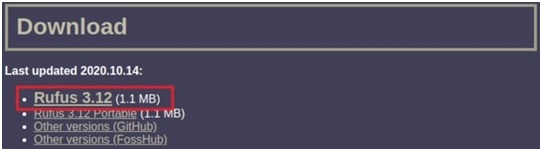
After clicking on download, the download will start.
Step 2. Once Rufus is downloaded, it can be launched directly without any installation as it is an application. The interface will then be displayed.
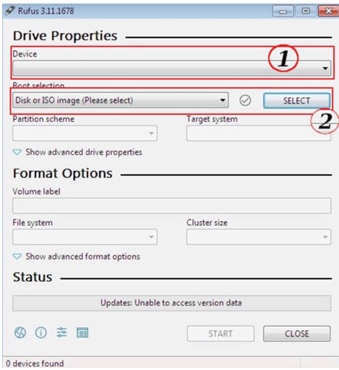
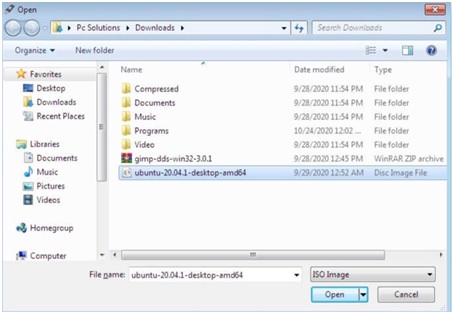
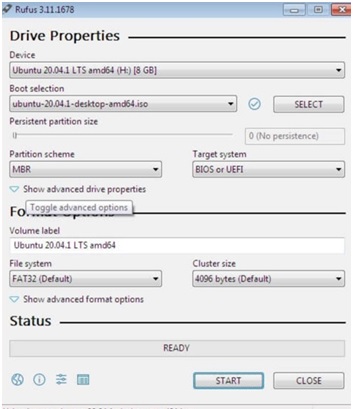
Step 3. To make a USB drive bootable with the Rufus software, select the USB drive you want to make bootable in option 1, and the source ISO file in option 2. For example, select the Ubuntu ISO file from the Downloads folder on an 8GB drive. The interface will display the selected options as shown in the picture.
The new policy aims to improve the quality of life for citizens by providing them with better access to healthcare, education, and other essential services. This will be achieved through a combination of increased funding, more efficient use of resources, and a greater emphasis on community involvement.
Step 4. Click the "Start" button when the status is ready to begin producing a bootable disc. This will initiate the process of creating a bootable USB drive from the ISO file.
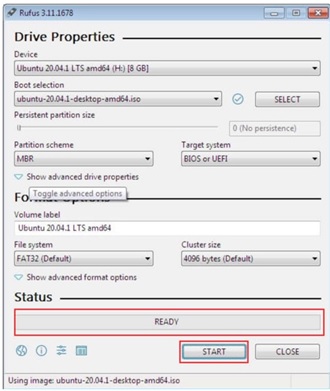
Once you have created a bootable disk, you can use it to boot your computer. The disk will be recognized by your computer's BIOS and will allow you to boot from it instead of the internal hard drive.
Qiling OS2Go: One-click to Go Portable Windows Creator
Rufus is a powerful tool for creating a bootable disk, allowing you to boot a computer and even repair a corrupted operating system as a rescue disk. However, its capabilities are limited to a fresh install, and it cannot be used for portable USB Windows, which enables you to carry your Windows desktop on a USB drive.
Qiling Disk Master is a great alternative to Rufus that allows you to create bootable installations of Windows on a portable USB drive, enabling you to access your desktop and native Windows features from any computer. This is particularly useful in situations where remote access is limited, and carrying a portable USB Windows drive provides a convenient solution.
Guide: How to use Qiling OS2Go to make a portable Windows USB drive
To create a bootable USB drive with Qiling OS2Go, follow these simple steps: follow the steps below.
Step 1. To use Qiling OS2Go, install it on your Windows computer, which will show the used space on your system drive. Then, plug in a USB drive that is larger than the used space on your system drive. Choose the target USB drive and click Next to proceed.
Step 2. Be aware that OS2Go will delete all data on your drive, so make sure to back up important data before proceeding. Click Continue to proceed with the deletion.
Step 3.Adjust the disk layout to match the resource drive, or edit it to fit your needs, and select the option to use a Solid State Drive as the Windows bootable drive if applicable, then click Proceed.
Step 4.Qiling OS2Go will create a portable USB drive, which may take a while depending on the OS and network condition, and once complete, the USB drive will be bootable.
Step 5. To boot from a portable Windows USB, start your computer, press the required key (F2, DEL, F10...) to access the BIOS, and select to boot from the USB disk.
Note: To ensure a successful boot, it's crucial that the boot mode of your portable USB drive and the target computer match. If they are different, you might encounter issues with booting.
Rufus and Qiling OS2Go are both used to create bootable USB drives, but with a difference. Rufus creates an ISO-mounted bootable USB that can be used for fresh OS installation or repairing a corrupted OS, making it a great option for a rescue disk or recovery disk. In contrast, Qiling OS2Go creates a bootable disk to use as a portable Windows on any device.
Extensive reading - What consists of a bootable USB drive
The PC's hard drive contains the boot drive, which has the volume boot record with instructions for launching the operating system. A bootable USB drive should have the Master Boot Record, volume boot record, and operating system. Fortunately, this can be achieved with a few simple steps using the right application.
A bootable USB drive can boot various versions of Windows, OSX, and some Linux versions, marking a significant improvement over bootable CDs and DVDs. The process of creating a bootable USB, however, differs across platforms.
There are various applications that can create a bootable disk, but most are platform-dependent and can only create bootable disks for the specific platform they support. Many of these applications are free and include tools like Rufus, Etcher, Universal USB Installer, and RMPrep USB, which are primarily used for creating Windows bootable USB disks, although Rufus and Universal USB Installer can also be used for Linux. Other tools, such as USB Startup Disk Creator, are specifically designed for creating Linux USB bootable disks, while Qiling OS2Go can be used to create a Windows bootable USB drive that can boot Windows on any PC or Mac.
Related Articles
- Access Your Computer from Anywhere | Remote Access
- Best Rufus Alternative For Windows Compatible with Windows 11/10
- [Solution] Install Windows 11 on An Unsupported Computer
- [Easy & Quick] How to Run Windows 10 from USB Without Installing
- 4 Ways to Recover NTFS Partition Without Losing Data
Free NTFS partition recovery software can recover damaged, formatted, lost or deleted NTFS partitions, as well as FAT and NTFS5 file systems. This software, also known as Deep Data Recovery, can quickly restore lost partitions with a free download. - How to Open Command Prompt in Windows 11
To open Command Prompt in Windows 11, you can search for “cmd” in the Start menu, or type “cmd” in the Windows search bar, and press Enter. Alternatively, you can also press the Windows key + R to open the Run dialog box, type “cmd” and press Enter.
Products
Articles & Tutorials
- Data Recovery
- Data Backup
- File Recovery
- File Backup
- System Backup and Restore
- Disk and Partition Clone
- Technical articles
- Mobile articles
- Disk Master Help
- Windows Data Recovery Tutorials
- Windows Secure Delete Tutorials
- Windows Partition Management Tutorials
- Windows File Backup and Restore Tutorials
- Windows System Backup and Restore Tutorials
- Windows Disk Backup and Restore Tutorials
- Windows Clone Tutorials