How to Format to FAT32 in Windows 11 (4 Useful Methods)
Formatting storage devices in different formats is necessary, especially when working with various operating systems. While NTFS is widely used in Windows, FAT32 remains a popular choice for its compatibility with older systems. To format FAT32 in Windows 11, you can use various tools, and this post will guide you through the process.
| Workable Solutions | Step-by-step Troubleshooting |
|---|---|
| Format FAT32 |
Using FAT32 Formatter (Windows 11)...Full steps Format to FAT32 via File Explorer (Windows 11)...Full steps Format Drive to FAT32 with Disk Management...Full steps Format Drive to FAT32 with Command Prompt...Full steps |
What is FAT32?
FAT32, short for File Allocation Table 32, is a disk format that organizes files on a drive like a shelf. It's a way for the operating system to keep track of how disk space is allocated for files, and is one of the options available when formatting a drive.
FAT32 is a file system developed by Microsoft, which uses 32 bits to store file addresses. It has several features, including the ability to support larger file sizes and more files on a single volume, improved error handling, and the ability to read and write files on both small and large volumes. It also has a more efficient use of disk space and improved performance compared to earlier file systems. Additionally, FAT32 is widely supported and can be used on a variety of operating systems, including Windows, macOS, and Linux.
- Compatible with a large number of devices.
- Work cross-platform or cross operating systems.
- Maximum file size 4 GB and partition size 8 TB
- Not as efficient as NTFS and is less secure
Microsoft introduced FAT 32 during the launch of Windows 95 to support larger hard disk storage and partition sizes, replacing the earlier FAT and FAT 16 file systems.
How to Format FAT32?
You can use the following tools to format any storage device as FAT32: the tools below. These tools can be used on various storage devices, including external or internal drives, hard drives, SSDs, SD cards, or USB drives.
Make sure to back up any important files on the drive you plan to format, as formatting will erase all data and it's not recoverable without special software.
Format to FAT32 Using FAT32 Formatter (Windows 11)
Format to FAT32 via File Explorer (Windows 11)
Format Drive to FAT32 with Disk Management (Windows 11)
Format Drive to FAT32 with Command Prompt
Format to FAT32 Using FAT32 Formatter (Windows 11)
Qiling Partition Manager is a professional software that allows users to manage disk operations, including formatting partitions and drives to FAT32, providing a convenient solution for formatting an HDD to FAT32.
Here is the list of features and functions:
- Clone/Create/Format/Delete Partitions
- Copy Disk/Partition
- Resize/Move/Merge Partitions
- Dynamic Volume Management
- Migrate OS to SSD
- Change FAT32 to NTFS
- Primary/Logical Partition Converter
- MBR/GPT Disk Converter
- Dynamic/Basic Disk Converter
- .Create WinPE Bootable Disk
- Partition Recovery and Recall Protection
- SSD 4K Alignment
- Create WinPE Bootable Disk
Formatting any storage using the software is easy. Once you plug the drive, launch the software, right-click on the drive, and choose to format it into FAT32.
Step 1. Launch Qiling Partition Master, right-click the partition you intend to format and choose "Format".
Step 2. Enter the Partition label, choose the FAT32/EXT2/EXT3/EXT4 file system, and set the cluster size according to your needs, then click "Proceed" in the new window.
Step 3. After clicking "OK" in the warning window, the partition will be formatted to FAT32/EXT2/EXT3/EXT4.
Format to FAT32 via File Explorer (Windows 11)
Windows File Explorer can display and manage files, as well as perform basic disc management, such as formatting available partitions, but it does not allow for disk-level operations.
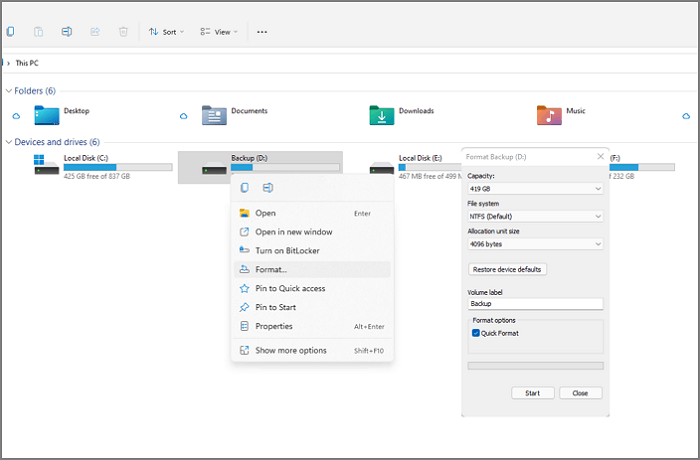
Step 1: To view all connected drives and partitions, click on the File Explorer icon on the taskbar, and then click on "This PC" in the left-hand menu. This will display all the connected drives and partitions.
Step 2: Right-click on the portion and select format, but make sure to back up all important data from the partition first to avoid losing any files.
Step 3: To format a drive, go to the format window, select FAT32 from the File system drop-down, choose quick format, and click on the Start button. This should make the drive ready to use.
Format Drive to FAT32 with Disk Management (Windows 11)
When formatting partitions, File Explorer is a good option, but for formatting an entire drive to the FAT32 file system, you need to use the Disk Management tool.
Be cautious when using the tool, as it can potentially cause data loss if not used correctly. It's essential to exercise extreme care and ensure you're using it to delete the correct partition or drive. If you're unsure, consider seeking guidance from a professional or exploring alternative methods.
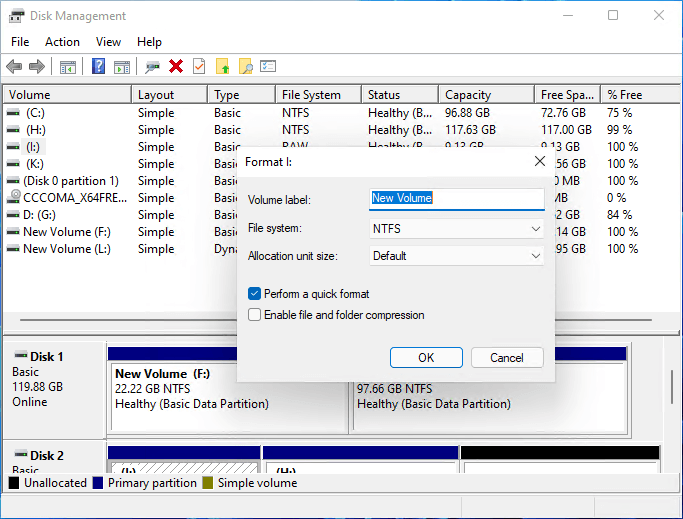
Step 1: To create a new partition, open Disk Management, select "Create and format hard disk partitions", and it will display a list of available hard drives and partitions.
Step 2: Right-click on the partition, select Format, but be cautious not to apply this operation to an EFI or Primary partition, as access will be denied even if attempted.
Step 3: You can set up Volume label, Format 32, as the format option. This allows you to use it through File Explorer.
Format Drive to FAT32 with Command Prompt
If you're a fan of using Command Prompt for various tasks, you can also format your USB drive in Windows using the Format command. This can be done in Windows using the Command Prompt, which is also accessible in the Power Menu in Windows 11, or in Windows 10. Alternatively, you can also use the Windows Terminal, which is readily available in the Power Menu in Windows 11.
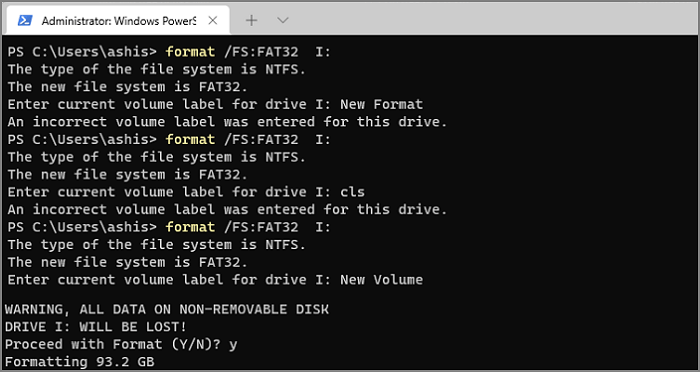
Step 1: To open the Command Prompt with administrator privileges on Windows, press the Windows key + X to open the Power User Menu, then select Command Prompt (Admin) from the menu. Note the drive letter assigned to the Command Prompt window, as you will need it for the next steps.
Step 2: Once the command prompt opens, type format /FS:FAT32 and press the Enter key.
Step 3: It should now display the operation result, and the drive should be ready to use.
FAT32 has a limitation on the maximum size it can support, making it unsuitable for large hard drives. However, it's still a good choice for devices like USB drives that need to be cross-compatible.
Conclusion
Formatting a partition or drive to FAT32 is easy on a PC, as any available or detectable drive can be formatted to any file system, regardless of its original format and type.
Using professional software like Qiling Partition Master is a better option than relying on Windows tools, as it offers more choices while still having an intuitive interface. This allows for a clearer understanding of the results of your actions, making it a more reliable and efficient way to manage your partitions.
Related Articles
- How to Corrupt A Flash Drive on Purpose
- Can You Convert Basic to Dynamic in Windows 11? Yes, Here Is The Guide
- Best Partition Recovery Software for Windows 11 ( Reliable and Easy)
- exFAT Converter: How to Convert exFAT to NTFS/FAT/FAT32
- Resolve 100% Disk Usage in Windows 11
If you're experiencing 100% disk usage on Windows 11, it doesn't necessarily mean you need a larger HDD or SSD. - Three Simple Ways to Format a Bootable SD Card (Useful Tips)
You can format a bootable SD card in Windows 11/10/8.1/8/7 using one of three methods, with formatting an SD card with third-party software being my recommended solution.
Products
Articles & Tutorials
- Data Recovery
- Data Backup
- File Recovery
- File Backup
- System Backup and Restore
- Disk and Partition Clone
- Technical articles
- Mobile articles
- Disk Master Help
- Windows Data Recovery Tutorials
- Windows Secure Delete Tutorials
- Windows Partition Management Tutorials
- Windows File Backup and Restore Tutorials
- Windows System Backup and Restore Tutorials
- Windows Disk Backup and Restore Tutorials
- Windows Clone Tutorials