How to Convert Basic Disk to Dynamic Disk in Windows Server 2012/2016/2008
Should I Convert to Dynamic Disk in Windows Server?
What does convert to dynamic disk mean? Stay here to check the difference between basic disk and dynamic disk.
| Workable Solutions | Step-by-step Troubleshooting |
|---|---|
| Method 1. Convert to Dynamic Disk with Disk Management | Back up data first > Open Disk Management...Full steps |
| Method 2. Convert Basic Disk to Dynamic Disk Using CMD | May cause data loss, back up data > Open...Full steps |
| Method 3. Using Third-Party Software to Convert to Dynamic | (No data loss) Directly click "Convert Basic to Dynamic"...Full steps |
The basic disk supports all Windows operating systems, from MS-DOS to Windows Server 2019, and is the most common storage type. It contains primary partitions and logical partitions, with support for MBR and GPT partition styles.
Dynamic disks are supported by various Windows operating systems, including Windows Server OS, Windows 10/8.1/8/7, XP, Vista, and Windows 2000. Unlike basic disks, dynamic disks utilize a hidden logical disk manager or virtual disk service to manage information, enabling data sharing between two or more disks.
After converting a basic disk to a dynamic disk, you can create various types of volumes, including simple, striped, mirrored, and RAID-5 volumes, to protect data, utilize disk space, and speed up data storage.
To convert a basic disk to a dynamic disk in a Windows Server computer, you can use one of three options: the built-in Disk Management tool, the built-in Convert-WindowsImage command, or a third-party software like Qiling Disk Master.
Three Ways to Convert Basic Disk to Dynamic Disk in Windows Server
To change to a dynamic disk, you can choose one of the solutions that comfort you the most.
- Notice:
- Wait!!! Check a list of restrictions before converting to dynamic.
- Windows OS, like Windows 10, cannot be installed on a dynamic disk.
- OEM partition may turn non- After converting a disk, most likely the partition's functionality will be affected because the OEM sections of most vendors match disk types, attributes, and partition layouts. This means that any changes made to the disk, such as copying or moving partitions, may impact the partition's functionality.
Method 1. Convert to Dynamic Disk with Disk Management
Back up data first. Watch out for data loss.
Step 1. Open Disk Management in the following two ways.
Right-click Windows Start icon and choose Disk Management.
To open the Disk Management console, you can either search for it in the Start menu, or press the Windows key + R to open the Run dialog, type "diskmgmt.msc" and click OK.
Step 2.Right-click the Basic disk you want to convert and select "Convert to Dynamic Disk..." from the list. This will allow you to see the existing hard drives.
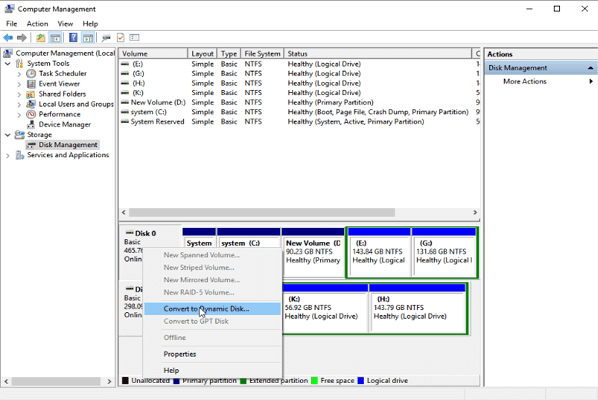
Step 3. To update the system, first, go to the control panel, then system and security, then click on windows update, and finally click on check for updates. If updates are available, click on download and install updates.
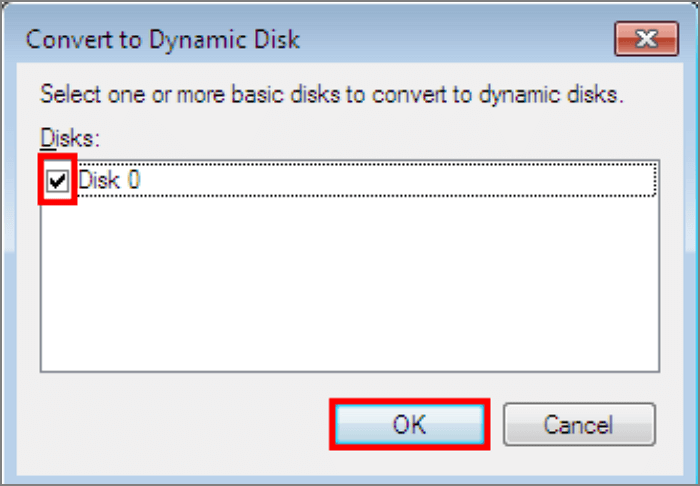
Step 4. Confirm the selected disk is correct. Press "Convert."
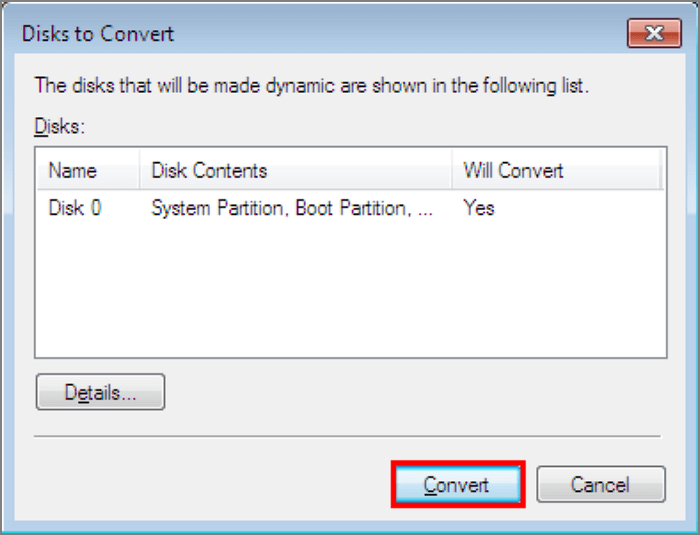
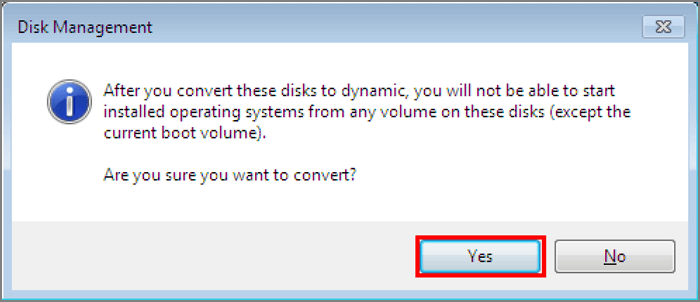
Step 5. Check the warning info and click Yes.
Note: Make sure you DO NOT NEED to install Windows OS on this disk.
Method 2. Convert Basic Disk to Dynamic Disk Using CMD
The Command may result in data loss. It's recommended to back up crucial files before proceeding.
Step 1. To open Command Prompt on Windows, type "cmd" in the search bar, then click on the "Command Prompt" result that appears. This will open a new window with a command line interface where you can enter commands and execute them.
Step 2. Input Diskpart and press Enter.
Step 3. Input commands:
lisk disk
select disk n
Convert dynamic
Step 4. Enter exit and hit Enter.
Method 3. Using Third-Party Software to Convert to Dynamic
To avoid data loss when converting a basic disk to a dynamic disk, it's recommended to use third-party software that can perform the conversion without causing any data loss. This approach ensures that your various files remain safe throughout the process.
Qiling Partition Master allows for easy conversion between dynamic and basic disks, and also enables management of disk partitions, including resizing, deleting, merging, and migrating the OS to another drive.
Download Qiling Partition Master, start converting in 4 Steps:
Qiling Partition Master Enterprise
Your trustworthy Windows Server disk manager.
- Extend System drive, combine/split partitions.
- Clone disk, migrate OS to HDD/SSD.
- Convert MBR to GPT, GPT to MBR, no data loss.
- 1-click adjust disk layout, create volumes at one time.
How to Convert to Dynamic Disk in Windows Server 2012/2016/2008:
Step 1. Install and open Qiling Partition Master on your Windows computer.
Step 2. To convert a disk, select the disk you want to convert, right-click it, and choose the conversion option.
- Basic to Dynamic: right-click a basic disk and select "Convert to Dynamic".
- Dynamic to Basic: right-click a dynamic disk and select "Convert to Basic".
Step 3. Click "Yes" on the pop-up notice window.
Bonus Tip: Convert to Dynamic Disk Greyed Out in Windows Server
If you're trying to convert a large MBR disk to a dynamic disk using Disk Management, but it's not working due to the 2TB limit, you can instead convert the MBR disk to GPT using a tool like Qiling Partition Master, which will allow you to do so without deleting all partitions on the disk. This way, you can avoid losing your data.
Windows Server - Convert to Dynamic Disk Easily!
To convert a basic disk to a dynamic disk, you can run Qiling Partition Master, which will quickly turn the disk into a dynamic disk. Alternatively, you can choose from two other methods. However, before attempting any of these methods, make sure to back up all data to avoid unexpected data loss.
Related Articles
- How to Manage Partitions with Disk Partition CMD in Windows 11/10?
- [Solved] Preparing to Delete Takes Forever Windows 11/10, Windows 11/10/8/7 is Slow to Delete Files
- 3 Most Effective Ways to Upgrade My PC | Easy PC Upgrade Guide
- Fix "We could not complete the Updates/Undoing changes" Error Windows 11
- How to Access Linux EXT4 Partition and Data on Windows 11/10/8/7 in 2022
If you're using dual-booting Windows and Linux, you may need to access files on your Linux EXT4 partition from Windows. However, Windows can't read Linux EXT4/EXT3/EXT2 partitions directly. - Best FAT32 Converter Free Download [Tried and Free]
Do you need to convert the existing partition to FAT32? Then here is an easy guide on some of the FAT32 Converters, which you can download and quickly convert. It is possible to convert a RAW format, NTFS, or any other format into FAT32.
Products
Articles & Tutorials
- Data Recovery
- Data Backup
- File Recovery
- File Backup
- System Backup and Restore
- Disk and Partition Clone
- Technical articles
- Mobile articles
- Disk Master Help
- Windows Data Recovery Tutorials
- Windows Secure Delete Tutorials
- Windows Partition Management Tutorials
- Windows File Backup and Restore Tutorials
- Windows System Backup and Restore Tutorials
- Windows Disk Backup and Restore Tutorials
- Windows Clone Tutorials