Fix DiskPart I/O Device Error in Windows 10/8/7
You can resolve the 'DiskPart has encountered an error: The request could not be performed because of an I/O device error' issue with three effective solutions. Firstly, check for any physical issues with the disk, such as a faulty hard drive or a loose connection, and replace or repair it if necessary. Secondly, run the built-in Check Disk (chkdsk) tool to scan and repair any disk errors.
"Hello, help! I was trying to use Diskpart to manage my hard drives in my PC yesterday but received an error message which told me that 'The error "DiskPart has encountered an error: The request could not be performed because of an I/O device error" typically occurs when there's a problem with the disk's hardware or a corrupted disk. This can be caused by a faulty disk controller, a failing hard drive, or a disk that's been physically damaged.'. What is the I/O device error? How can fix it?"
The I/O device error occurs when Windows is unable to perform an input/output action, such as reading or copying data, when trying to access a drive or disk. This error can be caused by physical bad sectors, such as a damaged head, or logical bad sectors, or a corrupted partition table.
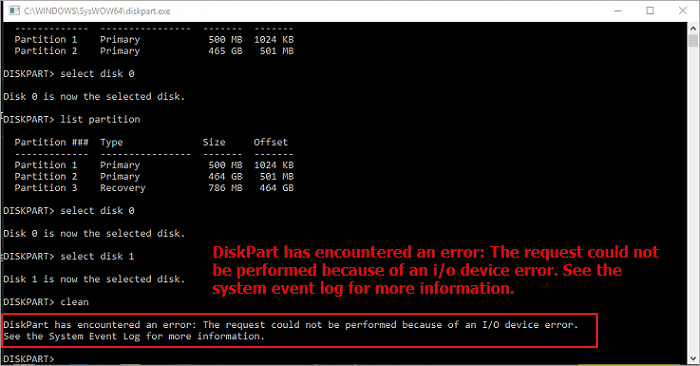
When using the DiskPart utility for disk partitioning, you may encounter an I/O device error, preventing you from accessing, formatting, or partitioning hard drives. This error message typically states that "DiskPart has encountered an error and the request cannot be performed due to I/O device error."
To solve the DiskPart has encountered an I/O device error, try the following methods. For physical damage to the disk, physical solutions such as replacing the disk or running a disk check are recommended. However, for other causes, you can try to run a disk check, check for malware, update drivers, and run a System File Checker to see if the problem can be solved. These solutions can be effective in resolving the issue, even if the cause is not physical damage.
How to Fix 'DiskPart has encountered an error: The request could not be performed because of an i/o device error.'
An I/O device error may occur due to issues with the device connection, such as faulty cables, loose connections, or damaged USB ports. To resolve this, ensure the disk is properly connected to the computer. Additionally, using an incompatible transfer mode or improper interface can also cause disk I/O problems, preventing DiskPart from functioning normally.
If the hardware connection and transport mode are fine, but you still encounter an error with DiskPart, try the following methods to resolve the issue. You can attempt to run the command again, check for any disk errors using the built-in Check Disk utility, or try running the command in a different mode, such as Safe Mode or Command Prompt.
1. Use a Free Partition Manager Tool to Fix Error
Qiling Partition Master can check the file system and repair bad sectors, just like Command Prompt. However, if you're not familiar with the command line and worry about causing more damage with misoperation, we recommend using this user-friendly tool instead. Qiling partition management software allows you to repair your hard drive automatically with just a few clicks.
Qiling partition manager is a reliable alternative to DiskPart, allowing users to complete various partitioning tasks, such as creating new partitions, deleting existing ones, cleaning, repairing, and fixing partitions, mirroring the functionality of DiskPart.
- The Pro version of the software allows for resizing and moving partitions, including the ability to directly allocate space from the D drive to the C drive.
- Clone an entire disk to another, even if the target partition is smaller than the source.
- Convert a partition on a disk.
- To speed up Windows, you can migrate your operating system to a Solid-State Drive (SSD) using the Pro version of the software.
You can download this software for free, use it to check and repair your partition with step-by-step guides.
2. Update or Reinstall the Device Driver
If the device driver for your hard disk is outdated or incompatible, it may cause input/output issues, resulting in an I/O error. To resolve this, update or reinstall the disk driver to your hard drive.
Update Disk Driver
Step 1. To access the Device Manager, right-click on "This PC" and select "Manage" from the context menu, then click on "Device Manager" on the left side.
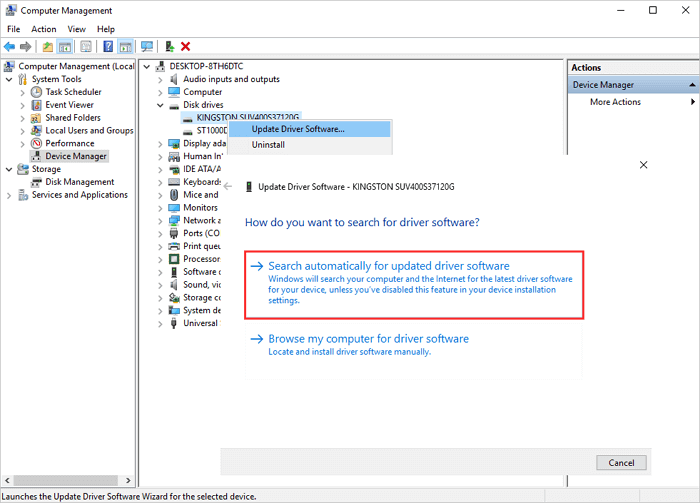
Step 2. To update the Disk driver, double-click to expand the Disk driver, then right-click on your disk driver and select "Update Driver Software".
Step 3. To automatically update the driver, open the Device Manager, find the device that needs the update, right-click on it, and select "Update driver". In the pop-up window, choose "Search automatically for updated driver software". Then, wait for the computer to search and install the latest driver software.
Re-install Disk Driver
If updating the driver doesn't resolve the issue, you can try reinstalling the driver to potentially fix the missing drive problem.
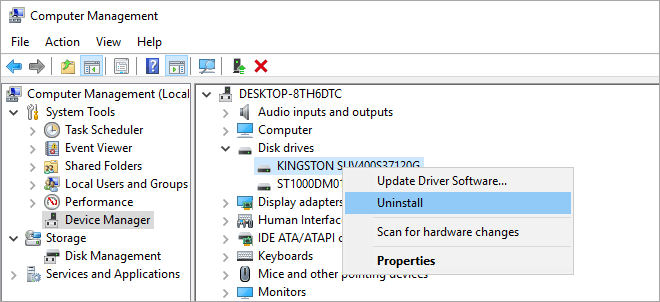
Step 1. To uninstall a disk driver, right-click the driver, select "Uninstall", and then click "OK". After that, restart your PC, and Windows will automatically reinstall the driver.
Step 2.You can either download the software from the company's website or install the latest updates on your computer.
3. Run CHKDSK to Fix Bad Sectors on the Hard Drive
The CHKDSK command in Windows can repair and fix logical bad sectors that cause DiskPart I/O errors on hard drive partitions, external hard drives, and other storage devices, offering two methods to run it in Windows 10, 8.1, 8, or 7.
Run CHKDSK in Command Prompt
Step 1. Press the Windows key and type cmd.
Step 2. Right-click "Command Prompt" and choose "Run as administrator".
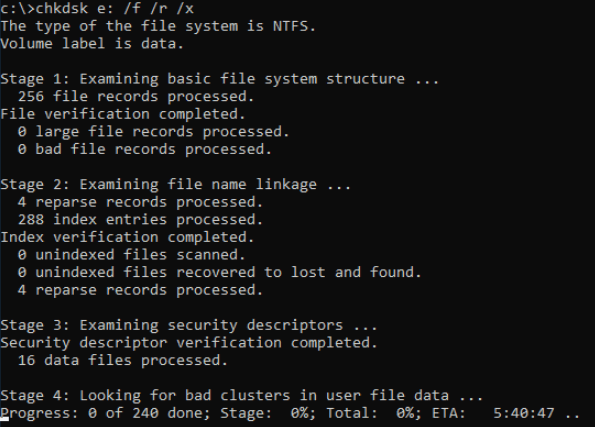
Step 3. Enter the following command: chkdsk E: /f /r /x
The command to run is "chkdsk E:", replacing "E" with the drive letter of the partition you want to repair. This command will check the partition for errors and attempt to repair them.
4. Rebuild MBR to Fix DiskPart I/O Device Error
If the error "Diskpart has encountered an error: the request could not be performed because of an I/O device error. See the system event log for more information" occurs due to a corrupted Master Boot Record (MBR), you can resolve the issue using the Qiling disk management program to rebuild the MBR.
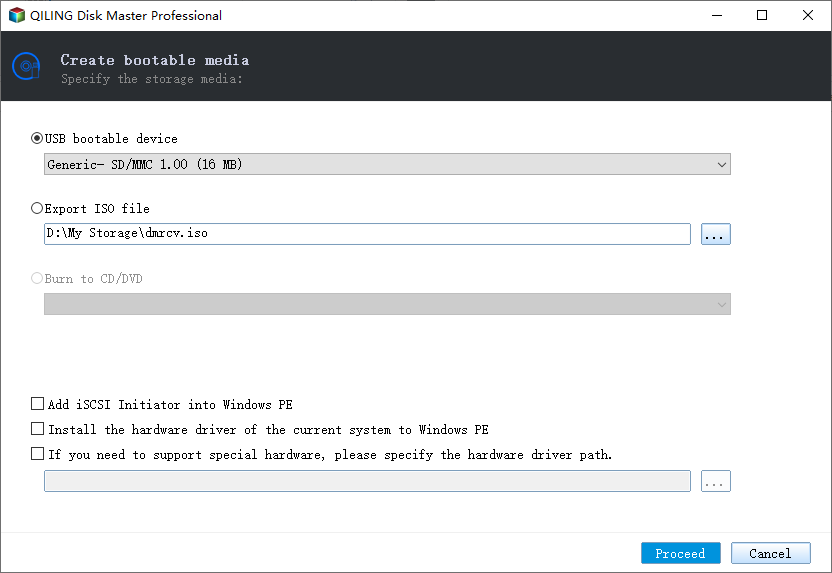
Step 1. Create a WinPE bootable disk
- Launch Qiling Partition Master, click "Create bootable media" on the toolbar, select to create the bootable disk on a USB drive or CD/DVD if available.
- Click "Proceed" to finish the process.
Step 2. Boot Qiling Partition Master Bootable USB
- Connect the bootable USB or CD/DVD to your PC.
- To enter the BIOS screen, press F2 or Del when restarting the computer. Once in, set your computer to boot from the "Removable Devices" or "CD-ROM Drive". This will allow Qiling Partition Master to run automatically.
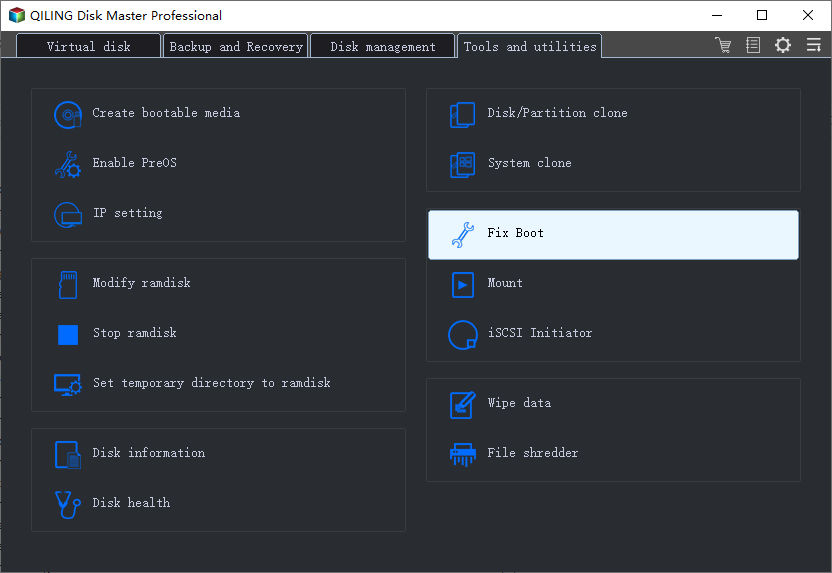
Step 3. Rebuild MBR
- The user needs to click on the disk whose Master Boot Record (MBR) is damaged, and then select the option to "Fix boot" to proceed.
- Select the type of MBR with the current operating system.
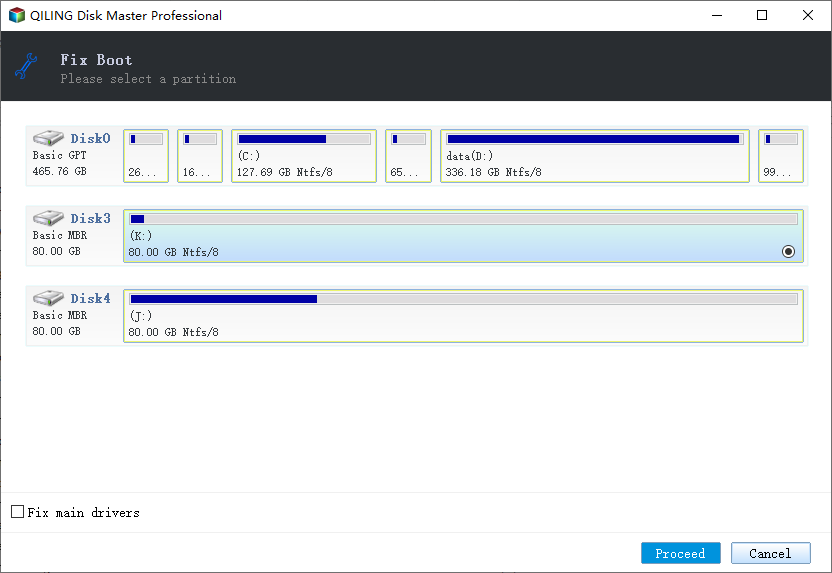
- Click the "Proceed" to build the MBR. This will allow your computer to boot normally again.
You May Also Like:
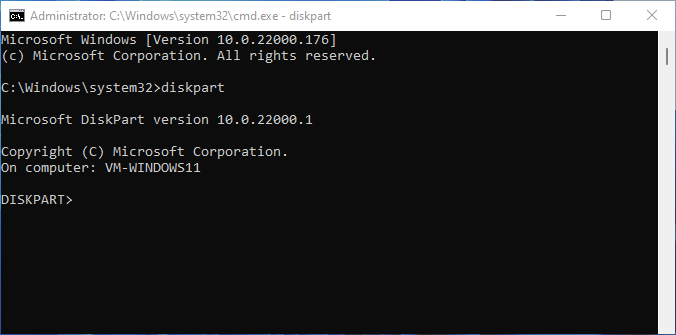
What Is Diskpart and How to Use Diskpart Commands
After fixing Diskpart errors, you can continue using Diskpart commands to manage disk partitions on your computer. If you need help, you can follow a step-by-step guide found in this tutorial article.
Conclusion
Users who get stuck with Diskpart may encounter an error message stating "Diskpart has encountered an error, the request could not be performed because of an I/O device error." This issue can be caused by various factors, including disk errors, corrupted system files, or outdated drivers. To resolve this problem, users can try methods such as checking disk errors, running a system file checker, updating drivers, or using a third-party tool to fix disk errors. These solutions can help users fix the DiskPart has encountered an error I/O device error issue and get back to using Diskpart without any problems.
Other possible errors that may occur while running DiskPart include access is denied, the parameter is incorrect, media is write-protected, device not ready, cyclic redundancy check, and others. To troubleshoot these issues, it's recommended to read the tutorials for further guidance.
FAQs About DiskPart I/O Device Error in Windows 10/8/7
The "DiskPart has encountered an error: the request could not be performed because of an I/O device error" issue can be frustrating. Fortunately, there are some common solutions to this problem. If you're experiencing this error, you might need to check the disk for errors, run a chkdsk command, or check the disk for bad sectors.
How do you fix Diskpart has encountered an error the request could not be performed because of an I O device error?
To resolve the DiskPart I/O device error, try the following tips: Run the built-in Check Disk utility (chkdsk) to identify and fix disk errors. Check the disk's connections and cables, and ensure they are securely connected to the motherboard and power supply.
- Check hardware connections
- Change the transfer mode for the device
- Update or reinstall the device driver
- Run CHKDSK to fix bad sectors on the hard drive
- Rebuild MBR
How do you fix DiskIt seems like you're experiencing an error with the Part app. The error "The system cannot find the file specified" is usually related to a file path or location issue. Can you please provide more details about what you were doing in the Part app when this error occurred?
You may encounter the "The system cannot find the file specified" notification in DiskPart under various situations. To resolve this issue, try these feasible approaches:
- Run CHKDSK command
- Fix the hard drive via disk clean
- Check the system log file
- Look for files via Regedit
- Update your hard disk driver
- Install Windows updates
How do I fix Diskpart has encountered an error data error cyclic redundancy check?
When a bad spot appears on the media of your hard disk or due to other unavoidable reasons, a Cyclic Redundancy Check (CRC) error may occur. To fix data error Cyclic Redundancy Check, you have several options.
- Fix data error (Cyclic Redundancy Check) via CHKDSK
- Repair missing/corrupted system files that cause data error (CRC)
- Recover data from inaccessible drive with data error (CRC)
- Send for manual repair
How do I fix a CRC error on my external hard drive?
To fix a CRC error on an external hard drive, try restarting the computer and re-scanning the drive in Disk Utility or the equivalent software on your operating system. If the issue persists, run a disk repair or check and repair process, and if necessary, create a new disk image or clone the drive to a new one.
- To fix the 'Data Error Cyclic Redundancy Check' problem, check your hard drive for errors by running a disk check using the built-in Windows tool, Check Disk (chkdsk), or a third-party disk utility software. This process scans the hard drive for errors and fixes them automatically.
- If your external hard drive is showing a 'Data Error Cyclic Redundancy Check' error when trying to recover files from it, it means the drive's file system has been corrupted. To recover files from a RAW external hard drive, you can try using a data recovery software like Deep Data Recovery Wizard or Disk Drill.
Related Articles
- How to Clear Cache in Windows 11/10
- How To Create Bootable USB for Windows Server
- How to Optimize Windows 11 for Gaming (6 Ways)
- Blue Screen of Death Is Changing to Black, How to Fix Windows 11 Black Screen of Death
- Top 5 Best USB FAT32 Formatter [Free Download]
If you're a USB user, this page is for you. It recommends the best USB FAT32 Formatter to help you format your USB drives to any file system format for different purposes, making it a useful guide for those who need to format their USB drives. - USB Flash Benchmark Download with Complete Review in 2024
Briefly introduce the goal of this page, and call people to follow this guide to get official and secure USB flash benchmark download access, learn its pros and cons, and how to make use of this software for benchmarking USB flash drive.
Products
Articles & Tutorials
- Data Recovery
- Data Backup
- File Recovery
- File Backup
- System Backup and Restore
- Disk and Partition Clone
- Technical articles
- Mobile articles
- Disk Master Help
- Windows Data Recovery Tutorials
- Windows Secure Delete Tutorials
- Windows Partition Management Tutorials
- Windows File Backup and Restore Tutorials
- Windows System Backup and Restore Tutorials
- Windows Disk Backup and Restore Tutorials
- Windows Clone Tutorials