Windows Can't Format USB Drive? Format USB with 6+ Fixes [Beginners' How-To Guide]
If your Windows computer is unable to format a USB drive, don't panic! Instead, let's get started on finding a solution to resolve the error message "Windows was unable to complete the format." On this page, you'll learn full solutions to get rid of this error from your USB drive and make it available for storing files again.
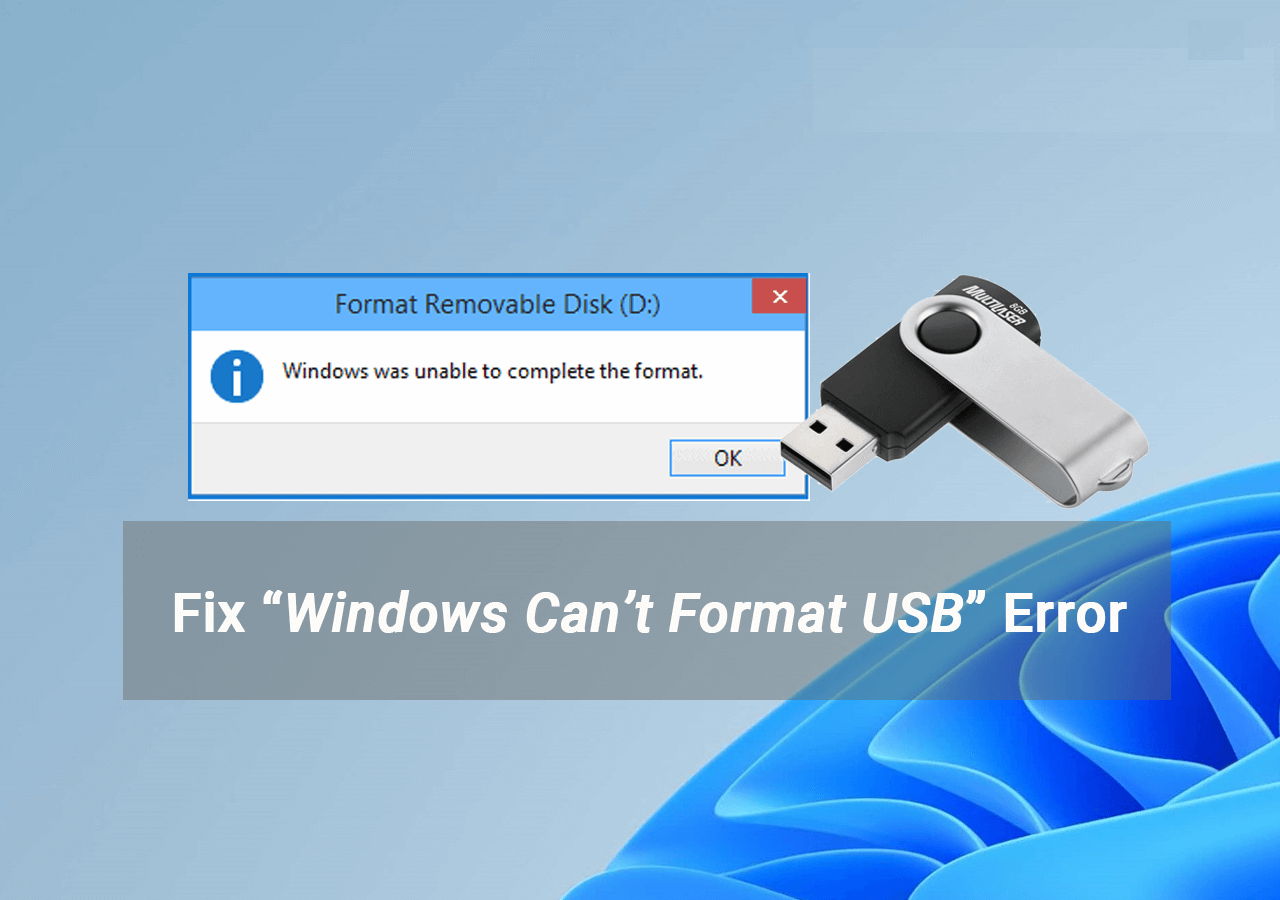
Error: Windows Can't Format USB Drive, Causes Unveiled
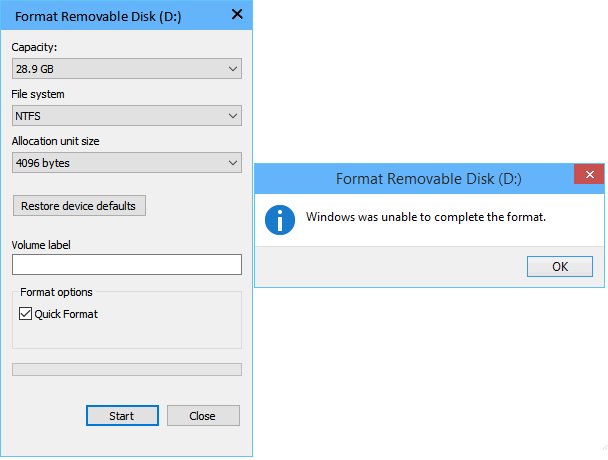
Why Is Windows Unable to Format USB Drive? Check the Causes Here
If you're having trouble formatting your USB flash drive, check if any of the following reasons apply to you: the drive is not recognized by Windows, it's write-protected, corrupted, damaged, not properly connected, using the wrong file system, drive letter, or locked by BitLocker or another program. If any of these are the case, you may need to take additional steps to
- Virus Infection
- Bad Sectors
- Physical Damage
- Incompatible or Unsupported File System
- USB Is Locked or Write-If you're having trouble with a write-protected USB, you can try formatting it. However, be aware that this will erase all data on the device. To do this, you'll need to remove any write protection that's been applied to the USB.
If you're experiencing issues with formatting your USB flash drive, hard drive partition, external hard drive, SD card, or other storage devices, You can resolve the format failure errors using free tools like Qiling Partition Master, CMD, or other software. Follow the guide below to successfully fix the issue.
- Notice:
- As formatting will remove and clean up all saved files on a storage device, it's essential to back up your important data first, especially if you have files saved on a USB, SD card, external hard drive, or Windows hard drive partition. This way, you can ensure that your files are safe and won't be lost during the formatting process. Qiling Backup can help you with this.
Quick Fixes for "Can't Format USB Flash Drive" Error
Connect your USB drive to the computer, then try the following 4 quick fixes: check for disk errors, run a virus scan, update drivers, and restart your computer. If these don't work, you can try formatting the USB drive. If that doesn't work, you can consider further solutions.
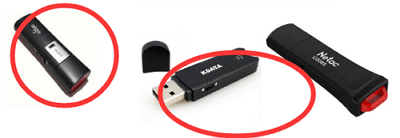
#1. Check and Unlock USB Flash Drive: If your USB flash drive has a physical switch, you can turn the lock off by switching it from the ON side to the OFF side.
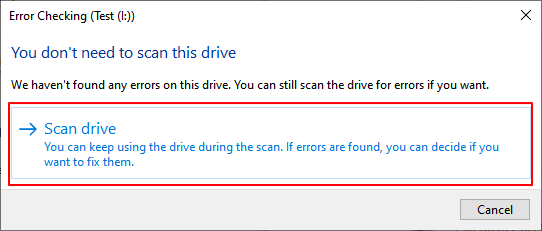
#2. Check USB and Fix Internal Errors: To troubleshoot a USB issue, right-click on the USB drive, select Properties, and then click on the Tools tab. From there, click on the "Check" button and select "Scan drive" to run a diagnostic scan.
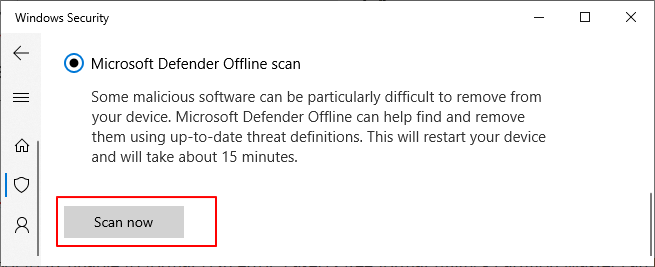
#3. Scan USB Virus: To perform an offline scan, go to Settings, then Update & Security, followed by Windows Security, Virus & threat protection, Scan options, Windows Defender Offline scan, and finally select Scan now.
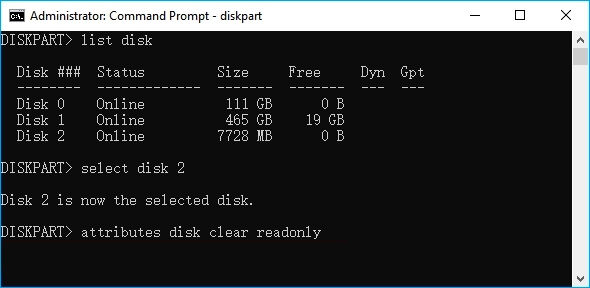
#4. Clear Read-Only State:To fix the issue, open Diskpart and follow these steps: list all disks, select the USB drive (e.g.
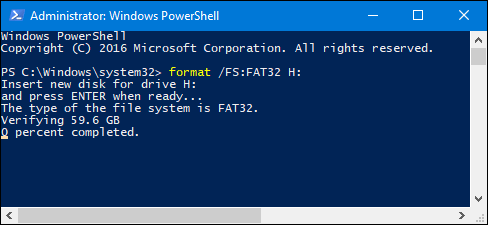
#5. Quick Format USB Guide In File Explorer:To format a USB drive, select it in the target list, click on "Format", check the box next to "Quick Format", and choose a file system such as FAT32 for smaller drives (less than 32GB) or exFAT/NTFS for larger ones.
- If the formatting process completes, congratulations. The error gets resolved.
- If Windows still warns you that it couldn't complete the format, move on and follow the next two solutions to get rid of this error, successfully format USB drive on Windows 11/10 or older OS.
It doesn't matter If the "Windows can't format USB" issue persists after trying the above solutions, you can directly try the next two methods for assistance. Alternatively, you can refer to the provided tutorials to explore additional possible solutions.
Method 1. Format USB from 'Can't Format' Error with Qiling Free USB Formatter
For a simpler and easier USB formatting tool to fix unable to format USB error, Qiling Partition Master can be your best shot. This format utility allows you to format the USB drive and restore it to full capacity free within 4 easy steps.
To format your USB drive to its full size, download and install the necessary software on your Windows 11/10/8/7 PC, and follow the instructions to learn how to do it.
Step 1. Select the USB drive to format.
To format a USB drive, connect it to your computer, download and run Qiling partition software, and right-click on the USB drive to select the "Format" option.
Step 2. Set the drive letter and file system on USB.
Assign a new partition label, file system (NTFS/FAT32/EXT2/EXT3/EXT4/exFAT), and cluster size to the selected partition, then click "Proceed".
Step 3. Check "OK" to confirm formatting USB.
Click "OK" if you see the Warning window. If you have important data on it, back up the data in advance.
The USB drive is now ready to use. You can store data and back up important documents on it.
You May Also Like:
Qiling Partition Master not only fixes the USB can't format error but also breaks the FAT32 file system limit, allowing users to format removable devices to any capacity they want.
If you're encountering a "USB won't format to FAT32" error on Windows, there are three potential solutions. Firstly, try formatting the USB drive using the built-in Disk Management tool, which can be accessed by pressing the Windows key + R, typing "diskmgmt.
If you're having trouble formatting your USB drive to FAT32, - this blog post will guide you through the process with ease. Formatting your USB drive to FAT32 using a few simple steps is a straightforward task that can be completed in no time.
Method 2. Fix "Can't Format USB Flash Drive" Error by CMD
This method is extremely efficient in fixing the USB won't format error, especially when the USB is locked, encrypted, corrupted, or write-protected. To format your USB drive as fresh as new, follow these steps: follow the steps below.
Step 1. Connect the USB drive that you need to format to your PC.
Step 2. To open the Command Prompt, press the Windows key + R to open the "Run" dialog, type "cmd" and press Enter.
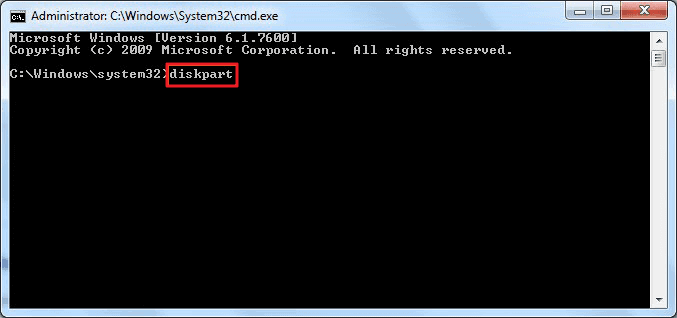
Step 3. Select "Run as Administrator", type: diskpart, and hit Enter.
Step 4. To display all disks on your computer, type 'list disk' and press Enter. This command will show you a list of all the disks connected to your system, including internal and external drives, as well as any network drives that are mapped.
Step 5. To continue the process, select the USB drive by typing "select disk 2" and pressing Enter. Note that "2" refers to the drive letter of your USB drive.
Step 6. Type: clean and hit Enter.
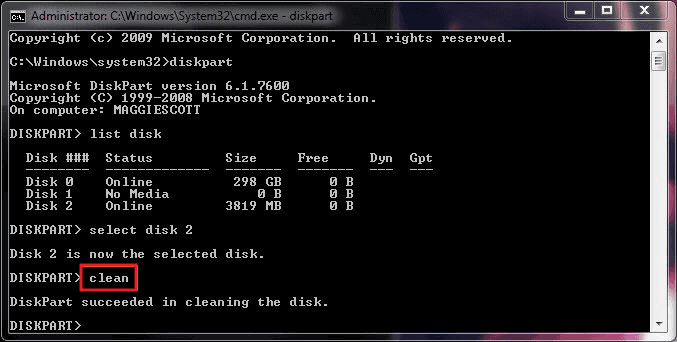
The clean command will delete all partitions on your USB drive and remove all locks, then you need to create a new volume and format the USB drive.
Step 7. Type: create partition primary and hit Enter.
Step 8. To reset a USB drive to FAT32 or NTFS, you can use the command `format fs=fat32 quick` or `format fs=ntfs quick` respectively, followed by Enter. This will quickly format the drive, erasing all data and resetting it to the desired file system.
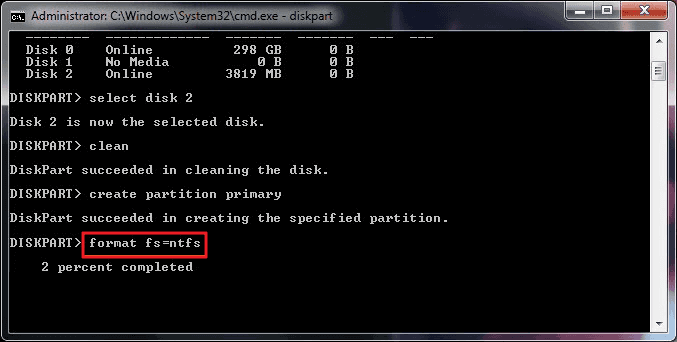
Step 10. Type: assign and give your USB drive a new drive letter.
Step 11. Then type: exit to finish the process.
Once you've completed the steps, you can use your USB drive to save and store new data again.
The "Windows Can't Format USB Drive" Error Is Fixable with Correct Methods
This page discusses the causes of the "Windows can't format USB" error and provides practical solutions to help fix it. The good news is that the error is fixable, and by trying the correct solution, you can resolve the issue and get your USB drive working again.
Qiling Editors' Suggestion:
- First, remember to follow the quick fixes to get rid of some errors from the USB drive.
- To format the drive, you can either use File Explorer or a dedicated USB format utility like Qiling Partition Master. Simply turn to either option and follow the prompts to format the drive instantly.
To resolve the error when you are unable to open a file or folder, try restarting your computer. If that doesn't work, try opening the file or folder in a different program or application. If you're still having trouble, try checking the file's permissions or the folder's settings to see if there are any restrictions that might be preventing you from accessing it.
FAQs about Can't Format USB Issue
If the above solutions fail to cover your concerns, Here we'll list 3 frequently asked questions and present you with a direct answer you can follow to see if it helps.
1. How do I fix a USB that won't format?
If your USB won't format, try these fixes: check if the USB is properly connected and recognized by your computer, then try formatting it using the built-in Disk Management tool or a third-party formatting software. If it still won't format, try using a different USB port or a different computer to rule out any issues with your current device.
- To resolve the issue, switch the USB lock to the OFF side and change a USB port. This will allow the device to read the new USB port, potentially resolving the issue.
- To change the USB drive letter on a PC, you can follow these steps: Right-click on the Start button and select Disk Management. In the Disk Management window, look for the USB drive and right-click on it.
- Clean up viruses and malware from the USB and computer.
- Run CMD attributes disk clear readonly to remove write protection.
- To format a USB drive, run Disk Management and select the USB drive, then choose a desired file system format - FAT32, NTFS, or exFAT - to format it.
2. How do I force a USB to format on Windows?
If you need to force a USB to format on a Windows computer, you have three tools at your disposal: Disk Management, Command Prompt, and a third-party tool like Qiling Disk Master. Disk Management is a built-in tool that allows you to format a USB drive by right-clicking on it and selecting "Format.
- #1. File Explorer: Right-click USB and, select "Format", set a new format.
- #2. Disk Management: Right-click USB, select "Foramt Volume..." and set a new format.
- To format a USB drive using Qiling, select the USB drive from the list, click on the "Format" button, and then choose a new file system format.
3. Why can't I format USB to FAT32?
A USB drive cannot be formatted to FAT32 due to either corruption or a size limit, as FAT32 only supports drives up to 32GB in size.
Related Articles
- How to Resize Partition Using GParted and Qiling Partition Master
- 4 Best Ways to Fix 'The Format Did Not Complete Successfully' Error
- How to Fix IRQL_NOT_LESS_OR_EQUAL Blue Screen on Windows 11
- 3 Best Disk Repair Tools for Windows Server Free Download 2022
- Toshiba External Hard Drive Repair Tool | Fix Corrupted Drives Efficiently
If you're experiencing performance issues with your Toshiba external hard drive, you're in luck. A reliable repair tool can help you get your drive up and running smoothly again. - How to Fix "Unable to Convert Dynamic Disk to Basic"[2023 Newest Guide]
This guide will tell you why you are unable to convert dynamic disk to basic. After figuring out the reasons, you will get several solutions to fix this problem.
Products
Articles & Tutorials
- Data Recovery
- Data Backup
- File Recovery
- File Backup
- System Backup and Restore
- Disk and Partition Clone
- Technical articles
- Mobile articles
- Disk Master Help
- Windows Data Recovery Tutorials
- Windows Secure Delete Tutorials
- Windows Partition Management Tutorials
- Windows File Backup and Restore Tutorials
- Windows System Backup and Restore Tutorials
- Windows Disk Backup and Restore Tutorials
- Windows Clone Tutorials