How to Extend C Drive in Windows Server 2019/2016
The default C drive on Windows Server stores system information, the operating system, applications, and downloaded files. Although it has ample storage capacity, the drive can quickly fill up if you store most of your data on it. A common issue with C drive is running out of space, which is a widespread problem in Windows Server 2019/2016. To resolve this, you can free up some space, but this is only a temporary solution.
When a drive runs out of space, it's better to extend the volume by resizing the partition rather than constantly receiving full storage notifications.
This article will explore methods to extend C drive on Windows Server 2019/2016, utilizing Disk Management, server disk manager, and a third-party program for quick and error-free volume expansion. The article aims to provide a comprehensive guide to help users determine the best way to increase the size of their C drive.
Can We Extend C Drive in Windows Server 2019/2016?
In Windows Server 2019/2016, it is possible to extend the partition size, which is often necessary when the C drive storage is almost full and more space is needed to increase its storage capacity. This can also help utilize unallocated space in other partitions, leading to better organization of data.
To avoid running out of space on the C drive, consider allocating unallocated space from other volumes or extending the C drive by taking space from other volumes. This will help maintain a healthy system performance and prevent slow speeds.
Extend C Drive on Windows Server with Disk Management
Windows servers can extend the C drive using the built-in Disk Management utility, which allows you to create, remove, reduce, and expand partitions. This feature can be used to increase the partition size on Windows Server 2016/2019, among other tasks.
Note: Before you extend the partition, make sure to have a complete backup of your data.
To extend partition form disk management, the step is listed below:
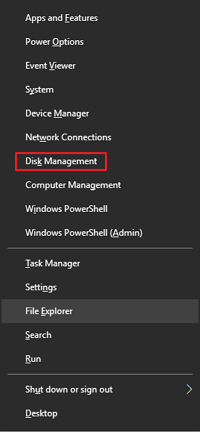
Step 1. Go to the start menu. Right-click and select disk management.
Step 2. Now, select the drive with unallocated space to allocate it to the C drive. Right-click on it and select Delete Volume. This will allow you to allocate the unallocated space to the C drive.
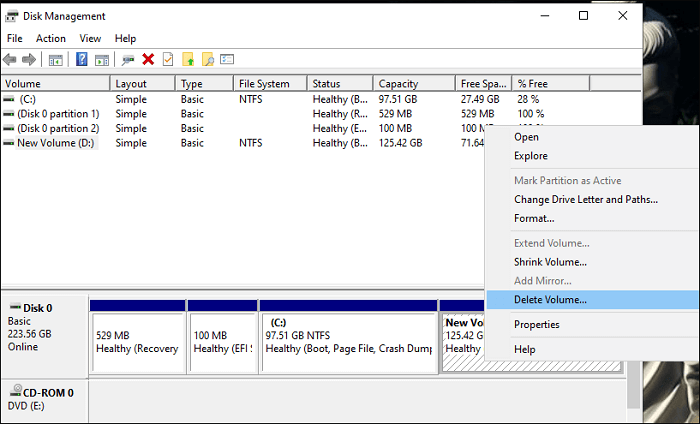
Here we have selected the D drive.
Step 3. Now, select the C drive. Right-click and choose Extend Volume.
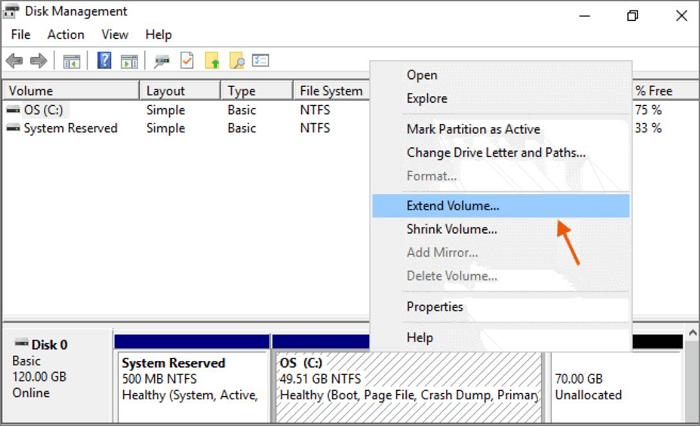
Step 4. An extended volume Wizard will appear.
Step 5. Please enter the amount of MB you want to allocate to C drive.
Step 6: Click on Finish to complete the process.
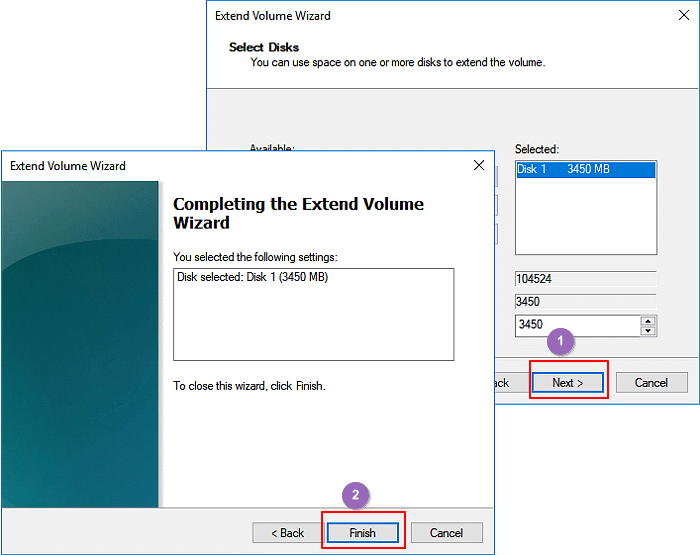
Step 7: The space is allocated to C drive.
Can't Extend C Drive on Disk Management? Use Alternative
You may encounter issues expanding the C drive in Disk Management, but there's an alternative. The reasons for this limitation include, but are not limited to, the drive being in use, the system being in a locked state, or the drive being a system drive. If you're unable to expand C Drive in Disk Management, you can utilize alternative methods to extend the drive.
- 1. No adjacent unallocated space
- 2. Disk Management does not support FAT32, exFAT, EXT partitions
- 3. No unallocated space on your drive
- 4. The partition capacity has reached the 2TB limit on the MBR disk, which means the disk is unable to support larger partitions due to the limitations of the Master Boot Record (MBR) partitioning scheme. This is a common issue that can occur when a disk is nearly full or when trying to create a large partition on an MBR-formatted disk.
If you're experiencing issues like low disk space, Qiling Partition Master Enterprise is a solution. This utility allows you to extend your C drive, and it's easily accessible via its website. With features like disk management, partition resizing, and more, Qiling Partition Master Enterprise is a viable solution for keeping your C drive extended.
- This tool can extend the system partition with just one click, making it a convenient and efficient solution for managing disk space.
- It is a comprehensive disk manager that allows users to easily resize/move, format, delete, and copy files with minimal effort.
- Provides professional Tech support
- Capable of enhancing and improving partition recovery
- Optimize disk usage by making the most of available storage capacity, allowing you to utilize your computer's resources efficiently.
- The system is designed to be easily restorable to its previous state in case any partitions are interrupted, ensuring minimal downtime and maximum efficiency in the event of a disruption.
The user interface of Qiling Partition Master Enterprise is simple and intuitive, making it easy for beginners to partition a drive in a few steps. The program is also risk-free, protecting data and allowing for file and folder restoration in case of interruptions during partitioning. A free trial is available for users to test the tool.
How To Extend C Drive by Server Disk Manager (without Data Loss)
To extend the C drive using Server Disk Manager, first backup your data. Then, select the drive with unallocated space, delete the volume, and delete the partition to avoid the unallocated space from greying out. Right-click and select "Extend Volume" to allocate the unallocated space to the C drive, which was running low on disk space.
Option 1. Extend System C drive with unallocated space
- 1. Click on the System C: drive and select "Resize/Move".
- 2. Drag the system partition end into the unallocated space so to add it to the C: drive. And click "Proceed".
- Click the warning message and "OK" to execute the operations and extend the C drive. 4. After the extension, the system will automatically reboot.
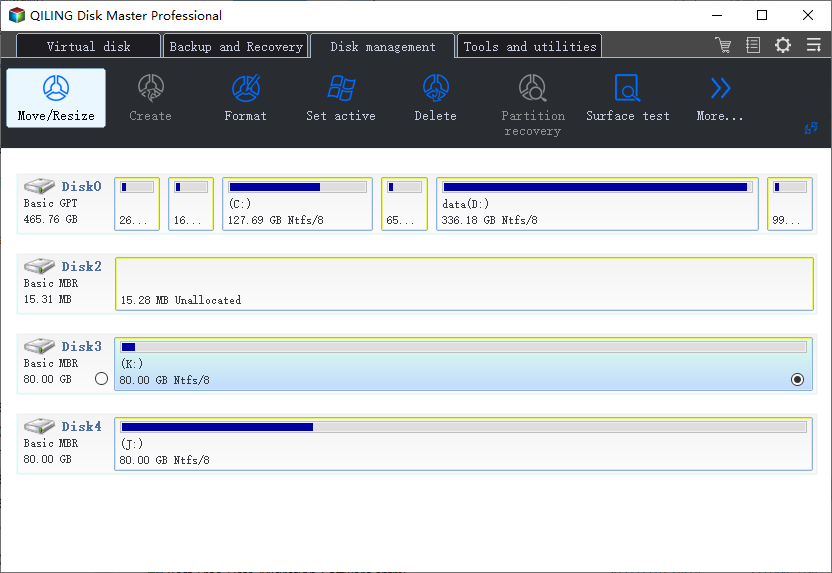
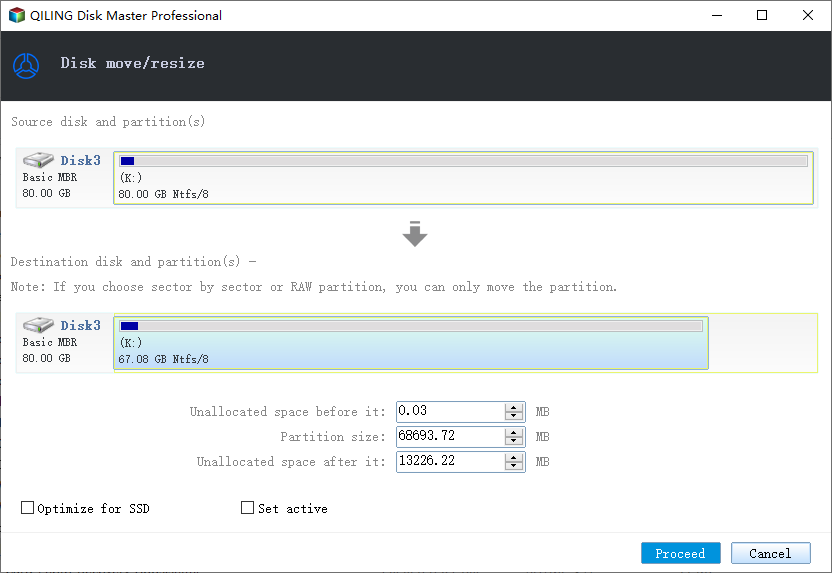
Option 2. Extend System C drive without unallocated space
- 1. To resize a partition, click on a large partition with sufficient free space on the system disk, then select the "Resize/Move" option.
- 2. To create unallocated space, drag the end of the big partition to the left to shrink it, and then click "Proceed" to confirm the changes.
- 3. To resize the system drive, select it in the "Allocate Space From" section and choose "Resize/Move" from the options.
- 4. To extend the C drive, drag the end of System C drive into the unallocated space and click "OK" to save the changes. This will extend the C drive.
Conclusion
To summarize, expanding the C Drive is achievable using the PC's default feature, but if the system cannot generate partitions, using a third-party utility like Qiling Partition Master Enterprise is a good option, allowing you to create divisions with a single click.
Related Articles
- Windows 11 Download Without TPM 2.0 [Windows 11 Installation Guide]
- Windows 11 Gets/Adds a Watermark on Unsupported Hardware, How to Remove It
- Free Download Partition Magic Full Version for Windows
- How to Fix USB Drive Incorrect Size Problem
- Free Partition Tool for SD Card [With How-to Guide]
There is a free SD card partition tool called Qiling Disk Master that allows you to create, delete, resize, extend, shrink, and merge partitions on SD cards. Install it now! - Fixed: Your Password Has Expired and Must Be Changed
To resolve the 'Your Password Has Expired and Must Be Changed' issue, follow these steps: update your password securely by navigating to the password reset page, entering your current password, and creating a new one that meets the required complexity standards.
Products
Articles & Tutorials
- Data Recovery
- Data Backup
- File Recovery
- File Backup
- System Backup and Restore
- Disk and Partition Clone
- Technical articles
- Mobile articles
- Disk Master Help
- Windows Data Recovery Tutorials
- Windows Secure Delete Tutorials
- Windows Partition Management Tutorials
- Windows File Backup and Restore Tutorials
- Windows System Backup and Restore Tutorials
- Windows Disk Backup and Restore Tutorials
- Windows Clone Tutorials