Top 5 Disk Management Tools for Windows 11 in 2026
In Windows 11, an operating system is installed on a physical storage space, such as a hard disk or SSD. As time passes and requirements change, managing disks becomes necessary to create new partitions, merge or delete existing ones, and optimize storage. While this is often handled automatically for users who set up their system from the start, those who manually configure their disks need to understand how to manage them effectively to ensure optimal performance and storage utilization.
What Is Windows 11 Disk Management?
Windows 11 also houses a built-The Disk Management utility is a built-in tool that allows you to manage hard disks and disks, enabling you to create, format, and delete partitions. While it's a simple tool, it's essential to know how to use it, as it can be a lifesaver in situations where you need to make changes to your disk setup. However, it's worth noting that it doesn't offer a rollback feature, so it's crucial to exercise caution when using it to avoid any potential issues.
The disk portion tool in Windows 11 and Windows 10 is identical, with the only difference being slight UI changes. There will be no noticeable difference in functionality.
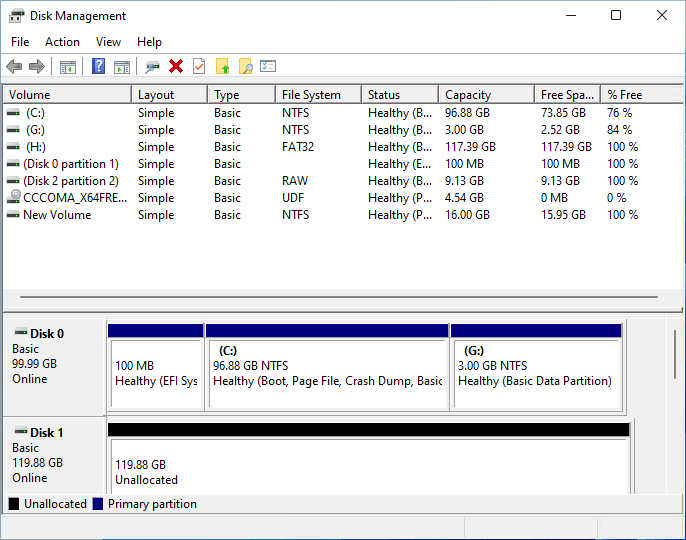
How to use Disk Management Tool?
To launch the tool, press the Start button, type Disk Management, and click to launch it.
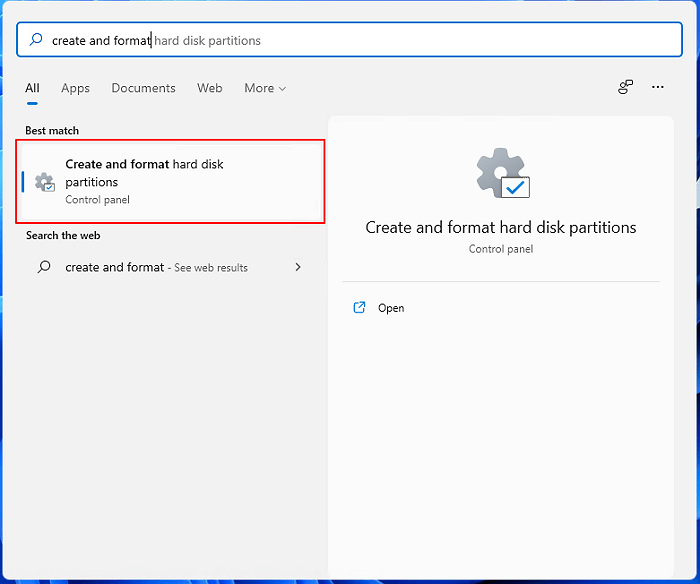
The tool lists all disks and partitions, showing disk and partition sizes, as well as the EFI partition. A top list displays all partitions, and a bottom list shows all disks and their physical partition arrangement.
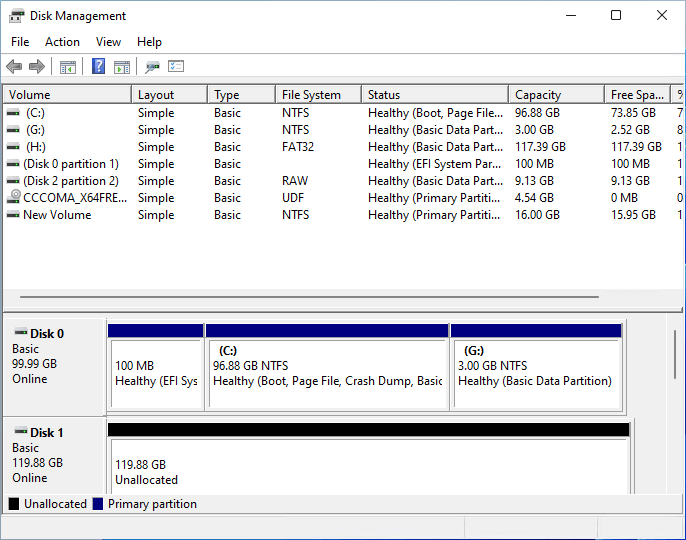
When you right-To access the Disk action menu, click on the Disk, where you will see options to create a new volume, convert to Dynamic Disk, convert to GPT disk, and other related actions.
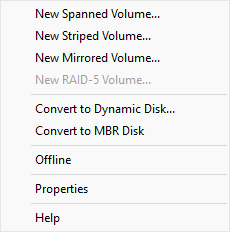
When you right-When you click on any partition, you will be presented with various options to manage it, including making it active, extending, shrinking, deleting, adding a mirror, changing the drive letter, and more.
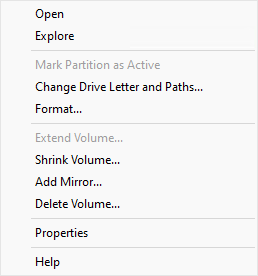
I would strongly suggest connecting an external hard drive, experimenting with it, and getting familiar with its capabilities before attempting any operations on the primary drive. This will allow you to practice and ensure you're comfortable with the process before applying it to your main drive. This approach will help prevent any potential data loss or system issues.
In Windows, there are certain partitions that can be safely deleted, including the EFI system partition and Recovery partition. The EFI system partition is required for UEFI-based computers to boot into Windows, but the Recovery partition is a set of tools that can help recover Windows in case of crashes.
Top 5 Disk Management Tools for Windows 11
The Windows Disk Management tool is complex and overwhelming, with many options and features that can be confusing to navigate. Even opening the tool can be daunting, and there is no preview or confirmation feature to help users understand the consequences of their actions.
Using a professional software for disk management and storage optimization is a better option than manual methods, as it offers more efficient and effective results. Some popular options include:
1] Qiling Partition Master
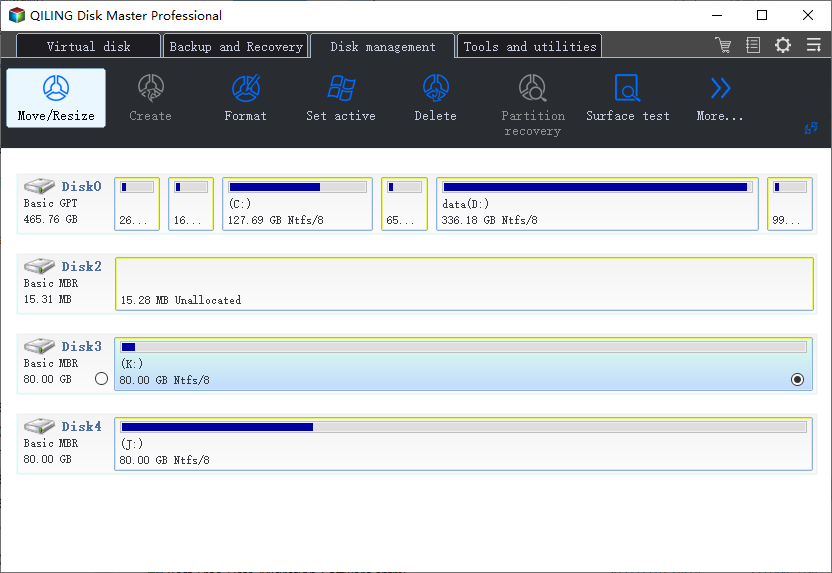
Aiseesoft Disk Manager is a professional disk management software that offers a wide range of features, including disk management, transferring the OS from one drive to another, and increasing space on the C drive without losing any data.
- Complete Disk Management including resize/clone/merge/format/delete/
- Wipe/check partitions
- Prepare Bootable USB Drive for Advanced Recovery
- Transfer OS from one drive to another
- Convert NTFS to FAT 32
- The free version of the software provides a sufficient number of features for a typical user's needs.
- SSD 4K Alignment
Pros:
- Support partitions with BitLocker
- Adjust Disk Playout
- Check Partitions for disk errors
- Wipe Data
- Create Recovery USB
Cons:
- Not available for macOS
- Cloning is available only in the pro version
Guide to Create Partition Using Qiling Partition Master
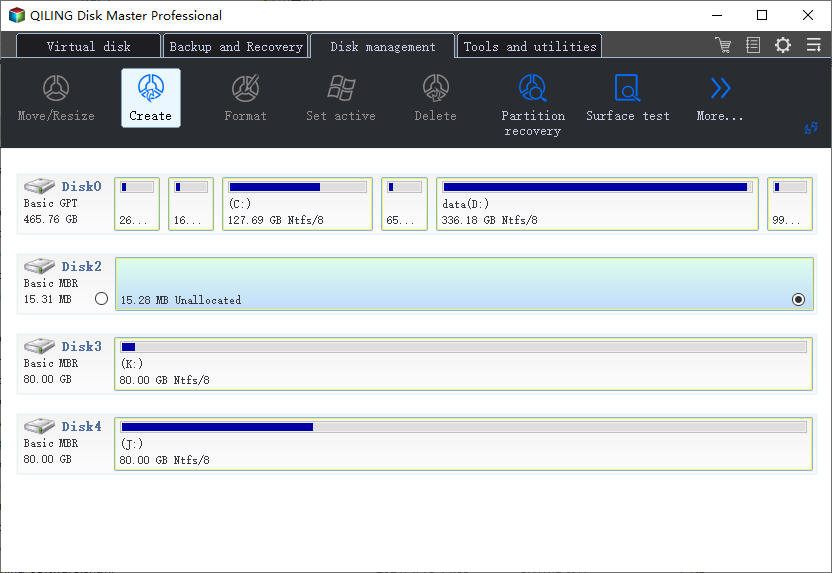
Step 1: Launch Qiling Partition Master
Click on the unallocated space on your main window, select "Create" and proceed with the partitioning process.
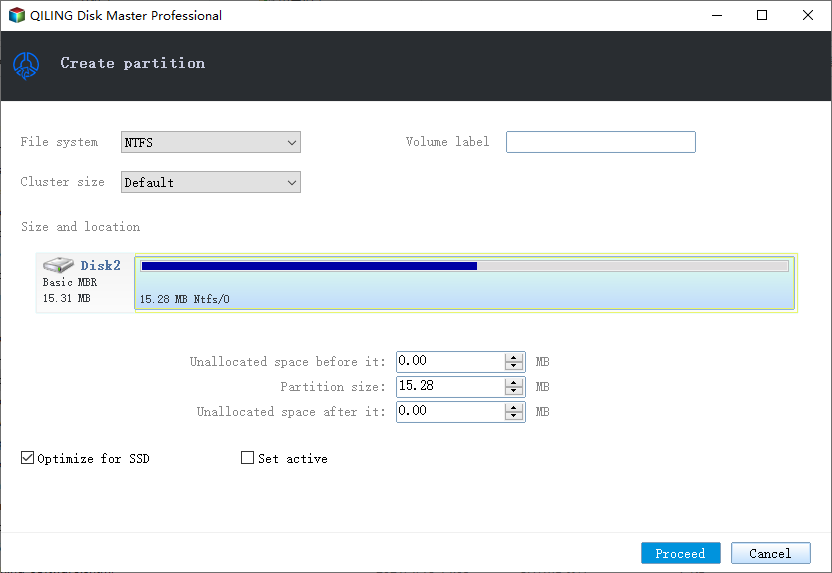
Step 2: Adjust the new partition size, file system, label, etc
Set the size, partition label, drive letter, file system, etc. for the new partition and click "Proceed" to continue the partitioning process.
2] GParted
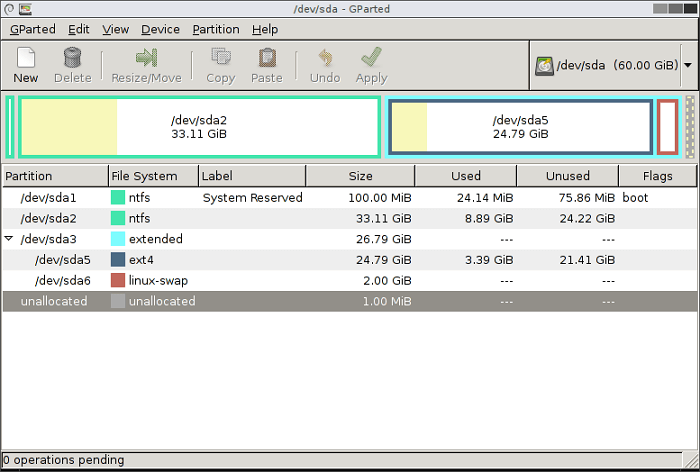
GParted is a free application that allows users to manage disk device partitions graphically, enabling them to create, delete, resize, move, check, and copy hard disk partitions, as well as attempt data rescue from lost partitions.
Pros:
- Set new UUID for an existing partition
- Copy and Paste Support
- Supports a wide variety of platforms, including exfat, fat 32, and more.
Cons:
- Old User interface.
- Development is slow.
Download from Home Page: gparted.org/
3] Free Partition Manager
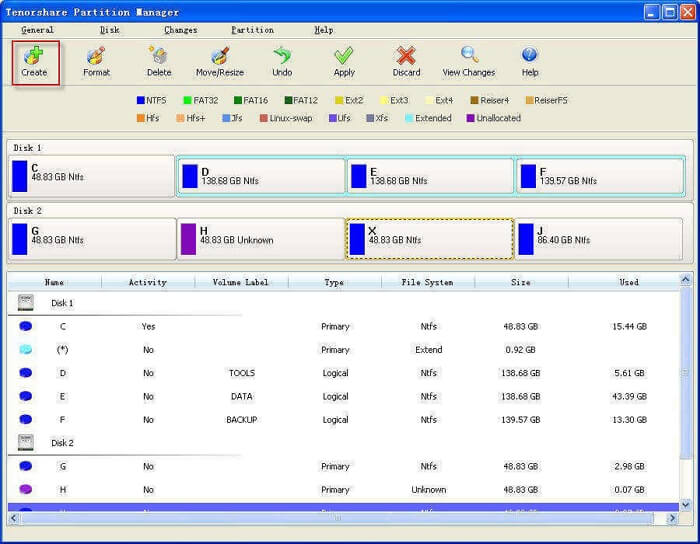
This software allows you to clone, format, resize, and set partitions as active, making it suitable for disk management. It also enables you to switch from MBR to GPT and vice versa without losing data.
Pros
- Easy to use interface with preview
- Complete disk management including conversion without data loss.
- MBR to GPT/GPT to MBR without data loss
Cons
- Limited free trial
- Before performing any operation, make sure there is enough unallocated space available.
Download from Tenorshare: www.tenorshare.com/products/partition-manager.html
4] Acronis Disk Director
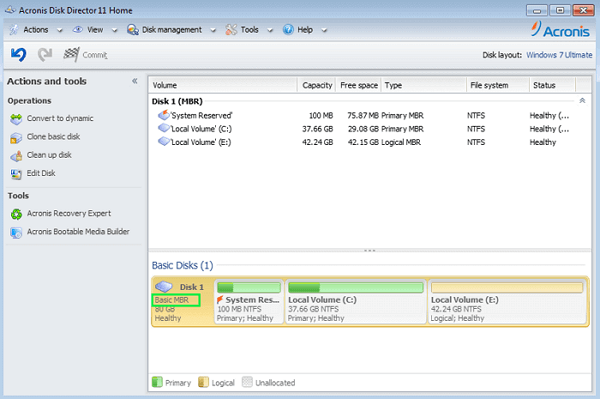
DiskGenius is a professional disk management software that optimizes disk usage, protects data, and manages file systems and the OS. It also provides tools to improve drive performance, enhancing the overall PC experience.
Pros
- Disk Cloning, Volume Recovery, and Partition management
- Manage data while splitting, resizing, and converting
- Recover volumes that were accidentally Deleted
- Create logical volume or partition using multiple physical disks
Cons
- Built for pros and can be confusing for general consumers
- Many users have experienced a reported failure to clone a disk, which may require multiple attempts to successfully complete the process.
Download from Acronis: www.acronis.com/en-us/products/disk-director-home
5] Paragon Partition Manager
The company offers a free Community Edition for personal and home use, which is a complete disk management software that allows you to perform various tasks such as partition management, testing surfaces for errors, undeleting portions, and more. Additionally, it can be used to convert HFS volumes to NTFS and MBR disks to GPT without formatting.
.png)
Pros
- Manage disks/volumes and dynamic disks
- Convert MBR disk to GPT and vice versa
- Undelete volumes
Cons:
- No option to backup disks or volumes
- Migrating OS from one to another PC is not possible
- You cannot wipe data using this software.
Download from Paragon: www.paragon-software.com/free/pm-express/
Conclusion
Disk Management can be a straightforward task, but it's crucial to be cautious to avoid data loss. Due to the lack of a 'undo' or 'preview' feature in Windows Disk Management, it's often safer to use third-party software like Qiling Partition Master, which provides these capabilities.
Related Articles
- Difference Between SFC, CHKDSK, and DISM Windows 11
- How to Convert FAT32 to NTFS Windows 10 Without Losing Data in 3 Ways
- What is Dynamic Foreign Disk, How to Import Foreign Disk Without Data Loss
- How to Reformat a Hard Drive in Windows 11/10 and Mac [2022 Guide]
- How Do I Run External SSD Speed Test on My Own? Your Guide Is Here
Have you purchased an external SSD? And do you want to learn how to test an external SSD's speed? You can learn it easily through this how-to guide. The process is easy and straightforward. Just follow this tutorial. - How to Fix Disk Management Console Is Not Up to Date Error [7 Effictive & Quick Methods]
The Disk Management console is not updating error can be frustrating, but it can be resolved with seven fixes. These solutions include running the built-in Windows Update tool, checking for updates in the Control Panel, and restarting the system.
Products
Articles & Tutorials
- Data Recovery
- Data Backup
- File Recovery
- File Backup
- System Backup and Restore
- Disk and Partition Clone
- Technical articles
- Mobile articles
- Disk Master Help
- Windows Data Recovery Tutorials
- Windows Secure Delete Tutorials
- Windows Partition Management Tutorials
- Windows File Backup and Restore Tutorials
- Windows System Backup and Restore Tutorials
- Windows Disk Backup and Restore Tutorials
- Windows Clone Tutorials