D Drive Not Showing Up in Windows 10/11 | 4 Methods to Fix
| Workable Solutions | Step-by-step Troubleshooting |
|---|---|
| Solution 1. Run Computer Management to Rescan Disks | Step 1: Go to Disk Management and open it; Step 2: Now click the "Action option" from the menu bar and choose...Full steps |
| Solution 2. Use Qiling Partition Master to Recover Partition | Step 1. Open Qiling Partition Master and click "Partition Recovery" on the top menu. A new window will appear ...Full steps |
| Solution 3. Restore System | Step 1: Go to the Start option and type "System Restore". Click the "System Properties" tab; Step 2: Now, choose...Full steps |
| Solution 4. Update Device Drivers | Step 1: In the Windows search bar, type "Device Manager" and open it; Step 2: Find the Disk Drives and right-click...Full steps |
Introduction
"After upgrading to Windows 10, your D drive isn't showing up in File Explorer. You've tried searching, but it's not appearing. To troubleshoot, check the Disk Management console (Press Win+R, type 'diskmgmt.msc' and press Enter) to see if the drive is listed there. If it's not, try running a disk check (right-click on the drive, select 'Properties', then 'Tools' and 'Check') to see if there are any issues.
Some Windows users may experience the issue of their D drive not showing up on Windows 10/11. Despite trying to find it in the Device Manager, it remains elusive.
If you're struggling to find your D drive, this post will guide you through the process. Follow the step-by-step instructions to fix the issue and have your D drive back in no time, hassle-free.
Why is D Drive Not Showing Up?
Using a secondary hard drive, typically the D drive, to store personal files can be convenient, but issues can arise when the drive disappears, often after updating the operating system to Windows 11/10. This can prevent running local programs or accessing files, making it frustrating for users.
Let's find the answers to why this happens and how to fix it quickly?
The D drive may be disappearing due to three possible reasons. Firstly, it's possible that the D drive is being used for temporary storage, and the system is automatically deleting its contents.
- 1) The D drive often goes missing after Windows updates, which are installed from a CD or DVD drive. This is because the system temporarily assigns the D drive letter to the installation drive, causing it to be missing after the updates are installed. To resolve this, rename the DVD drive in Windows Disk Management.
- Some settings and configurations may change after installing updates, potentially causing issues like a "D drive missing" message when trying to boot, possibly due to improper operations or unknown factors.
- Mistaken operations on partitions and hard drives can cause them to disappear, such as when adjusting partition sizes or reformatting hard drives. This can be avoided by using software to properly reformat Windows 10.
How to Fix D Drive Missing?
I hope you understand the reason behind the issue of why a drive is not showing up in Windows 10. To fix this problem, here are some quick and effective solutions.
Solution 1. Run Computer Management to Rescan Disks
Step 1: Go to Disk Management and open it.
Note* You can search "Disk Management" in the search box.
Step 2: Now click the "Action" option from the menu bar and choose "Rescan Disks".
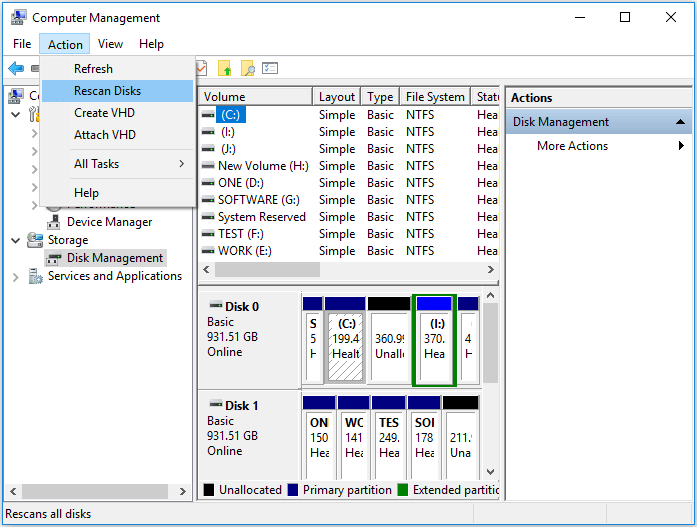
The system will re-identify all connections through the rescan process and then check if the D drive is visible in File Explorer.
Solution 2. Use Qiling Partition Master to Recover Partition
For quick data recovery and creating a new partition on missing space, I recommend using Qiling Partition Master, a powerful tool that can help in any way, and is also the best disk wipe software. It not only recovers lost drives but also automatically fixes corrupted files.
Step 1. To recover a lost partition using Open Qiling Partition Master, start by opening the software and selecting "Partition Recovery" from the top menu. This will prompt a new window where you can choose a disk to begin searching for lost partition(s).
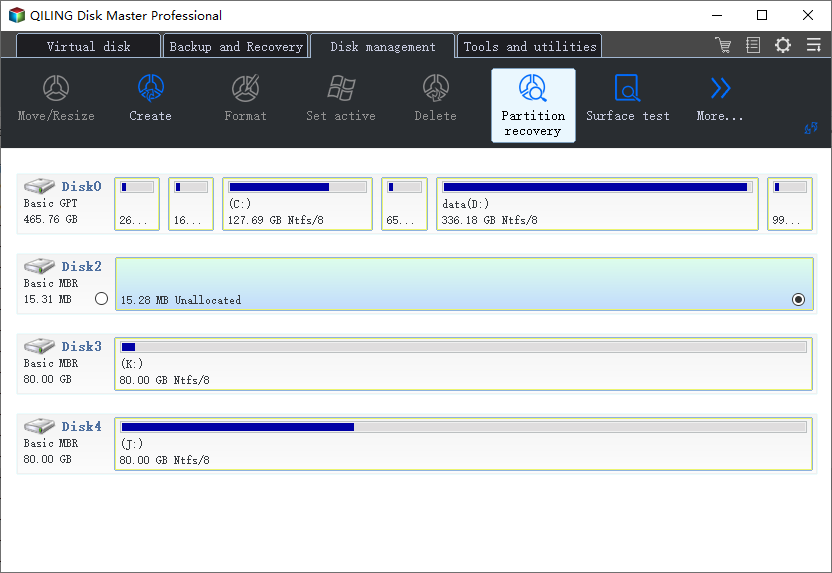
Step 2. A quick scan will start automatically, and you can pause it at any time by clicking "Proceed" once the lost partition appears, allowing you to start the data recovery process.
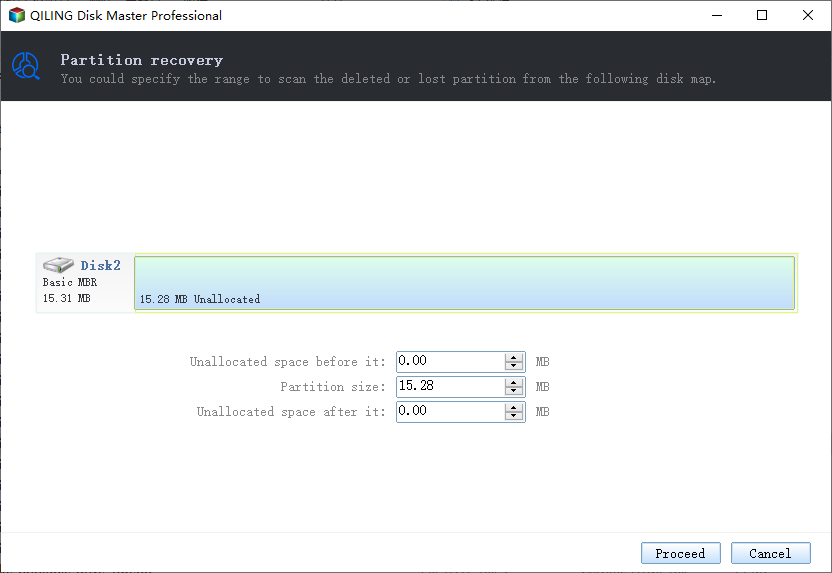
You can double-click on the partition you're looking for to preview its content.
Step 3. Once the lost partition and data has been found, click "Recover Now" or continue scanning for more lost data recovery.
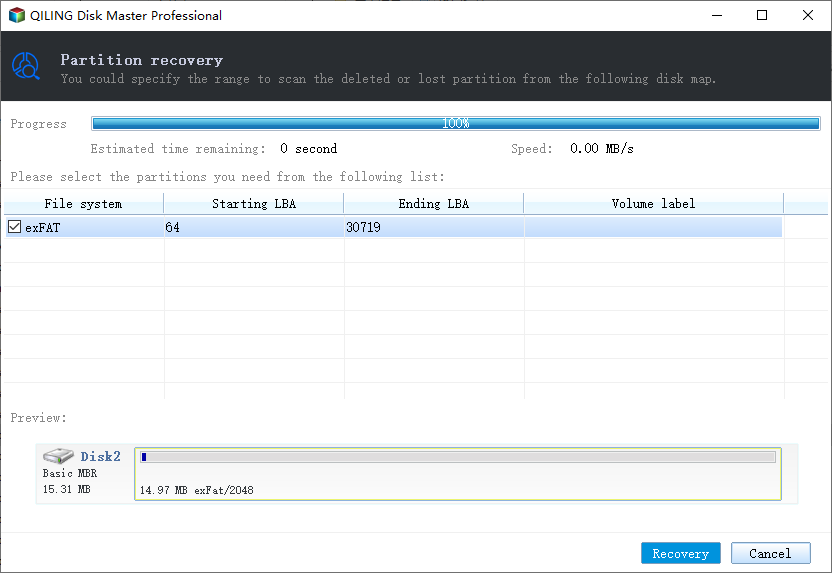
Step 4. After the recovery process, click "Finish". Your lost partition should reappear in your drive.
Solution 3. Restore System
Creating regular restore points on the system is a useful practice that allows you to easily restore your computer to its normal state, which can be helpful in reinstalling the PC and recovering a missing D drive.
Follow these steps to create restore system points:
Step 1: Go to the Start option and type "System Restore" and click the "System Properties" tab.
Step 2: To restore your system to a previous state, go to the "Control Panel" and click on the "System and Security" icon. Then, click on the "System Protection" icon and select the "System Restore" option.
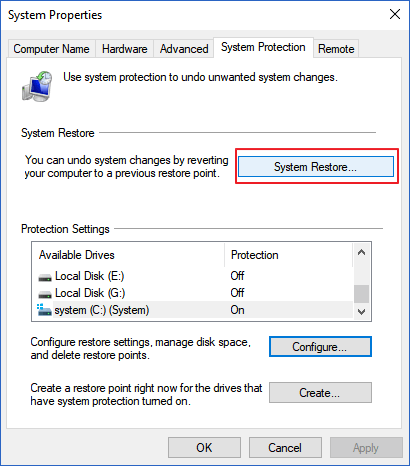
Step 3: Once you've chosen the correct restore point, click "Next" and then "Finish" to start the system restore process.
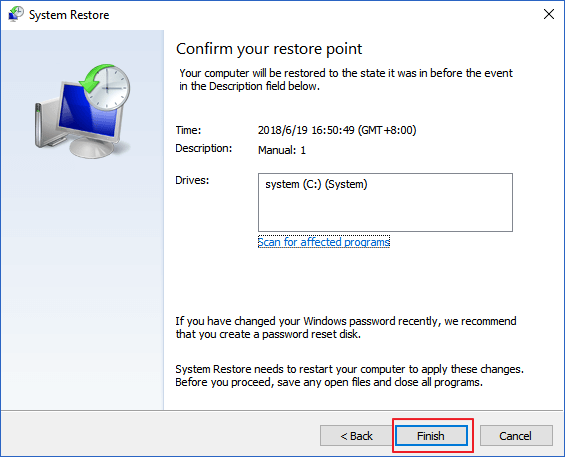
Note* Once the process starts, it cannot be interrupted and may take 10-30 minutes to complete. The device will restart afterwards, so be sure to close all programs properly before it does.
If the missing D drive is still not found, you may need to use a third-party partition recovery tool, such as Qiling Partition Master, to recover it.
Solution 4. Update Device Drivers
Updating drivers is an effective method to solve the issue of the D drive not showing up on Windows 10/11. Let's start the process of updating device drivers:
Step 1: In the Windows search bar, type "Device Manager" and open it.
Step 2: To update the disk drivers, first, find the Disk Drives and right-click to expand the list. Then, choose the "update driver" option from the menu.
Step 3: After selecting the "Search automatically for the updated driver software" option, your computer will automatically start searching for the driver to update it. This process is done by the system itself, without requiring any manual intervention. The system will check for the latest version of the driver and install it, making sure that your device is functioning properly and efficiently.
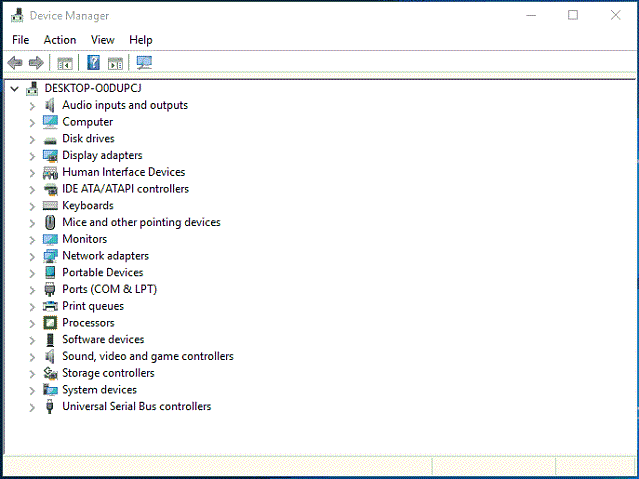
If the system fails to find the driver software automatically, you can manually download the drivers from the original website of the drivers' manufacturers.
Step 1: You can uninstall a driver by right-clicking on its name in the device manager window, then selecting the "Uninstall" option.
Step 2: To reinstall the drivers, restart your device.
Conclusion
If your D drive is not showing up on Windows 10/11, ! You can fix the issue quickly and effectively using the provided solutions.
If you're experiencing issues with your missing D drive, - this guide can help. Four reliable methods are outlined in this article to help you recover your missing D drive with ease, providing a hassle-free solution to this problem.
If you're unable to recover your D drive, you can use Qiling Partition Master to recover the lost partition and its data. This tool is reliable for restoring lost partitions and their contents.
Related Articles
- [2026] How to Convert Primary Partition to Logical Partition
- Troubleshooting: M.2 SSD Not Showing Up in Windows 11
- Here's What to Do With Unallocated Space on SSD After Cloning
- How Can I Merge Disk 0 and Disk 1 in Windows 11/10
- How to Fix Boot Manager Failed to Find OS Loader [100% Working]
Fix the 'Boot Manager Failed to Find OS Loader' error with expert-backed steps. Check Safe Mode, malware, BIOS boot order, boot manager repair, and system updates. - How to Boot Raspberry Pi From USB [Step-by-Step]
To modify the Raspberry Pi bootloader to boot from a USB storage medium, follow these steps. First, ensure that the USB drive is formatted with a compatible file system such as FAT32. Next, create a bootable USB drive using a tool like Etcher or dd.
Products
Articles & Tutorials
- Data Recovery
- Data Backup
- File Recovery
- File Backup
- System Backup and Restore
- Disk and Partition Clone
- Technical articles
- Mobile articles
- Disk Master Help
- Windows Data Recovery Tutorials
- Windows Secure Delete Tutorials
- Windows Partition Management Tutorials
- Windows File Backup and Restore Tutorials
- Windows System Backup and Restore Tutorials
- Windows Disk Backup and Restore Tutorials
- Windows Clone Tutorials