How to Convert NTFS to FAT32 in Windows 11
| Workable Solutions | Step-by-step Troubleshooting |
|---|---|
| Convert NTFS to FAT32 without Formatting | Step 1. Right-click target device partition and select "Advanced" > "Convert to FAT"; Step 2. When the check process...Full steps |
| Convert NTFS to FAT32 Using CMD | Step 1: Run CMD Prompt as an Administrator to get access to all commands and features; Step 2: To convert NTFS...Full steps |
How Do I Convert NTFS to FAT32 in Windows 11 [2022 New Guide]
To convert NTFS to FAT32 on Windows 11, you can use the built-in Disk Management tool. First, open the Disk Management tool by searching for it in the Start menu, then right-click on the drive you want to convert and select "Convert to FAT32". Follow the prompts to complete the conversion.
Does Windows 11 Support FAT32?
FAT32 is a widely supported file system that works with all Windows Operating Systems, making it a popular choice for formatting flash drives and pen drives. In fact, most USB drives come with FAT32 as the default file system, and you can verify this by checking the properties of your USB flash drive or USB, where you'll find the file system listed.
There are several file systems, including FAT32, NTFS, and exFAT, each with their own differences. In Windows 11, you can convert NTFS to FAT32, but the reverse is not possible, making it a one-way conversion. For instance, if a drive is converted to NTFS, it cannot be converted back to FAT32. This limitation is worth noting when deciding which file system to use.
FAT32 Vs. NTFS: Which One Should You Use?
Each File Type has its own specific use, so it's essential to understand when to use which type to make informed decisions.
FAT32
If you have a USB and want to share files with devices other than Windows, and the files are under 4 GB, use the FAT32 File System.
NTFS
If you share most of your files with Windows and have files larger than 4 GB, NTFS is a better choice.
When choosing between NTFS and exFAT file systems for your hard drive, solid-state drive, M.2, or NVMe, the decision ultimately comes down to your specific needs and preferences. NTFS offers advanced features such as file compression, encryption, and access control, making it a popular choice for Windows users. However, it can be slower than exFAT, which is a more lightweight and flexible file system that works well with both Windows and macOS.
How Do I Change My USB to FAT32 on Windows 11?
To convert a USB drive to FAT32, start by backing up all essential files to another drive to avoid data loss during formatting. Next, safely eject the USB drive from your computer. Then, connect the USB drive to your computer and open File Explorer. Right-click on the USB drive and select "Format." In the Format window, select the FAT32 file system and choose the desired allocation unit size.
If you don't want to create a backup, you can use third-party NTFS to FAT32 converter software, which offers a user-friendly interface and additional conversion options, making it a useful tool for Windows 11 users.
How Do I Convert NTFS to FAT32 in Windows 11 without Formatting?
To convert NTFS to FAT32 on Windows 11, you'll need to format the drive, which involves erasing all data. First, insert your USB drive, go to "This PC," right-click on the drive, and select "Format." Then, choose the file system you want to convert to, which will be FAT32. However, keep in mind that FAT32 has limitations, such as only supporting drives up to 32 GB, so this conversion might not be suitable for larger drives. The option to format to FAT32 may not be available if your drive is larger than 32 GB.
In Windows 11, you cannot directly convert NTFS to FAT32 without using third-party software. This process can be done using free software without losing data.
Download NTFS to FAT32 Converter Software: Qiling Partition Master Free
Qiling Partition Master Free is a famous and easy-to-use software that makes the process hassle-free with its user-friendly interface. You can rely on this free software to successfully convert NTFS to FAT32.
It is known for doing all this without losing any data, allowing users to avoid worrying about losing their data or making extra time for temporary backups.
Convert NTFS to FAT32 in Windows without Formatting
The tool Qiling Partition Master Free can convert an NTFS drive to FAT32 in Windows 11 without formatting it, making it a recommended option for those who want to keep their data intact.
To convert your drive, simply download Qiling Partition Master Free and follow these simple steps:
Step 1. To convert the target device partition to FAT, click on it and select "More" from the context menu. Then, choose the option to "Convert to FAT".
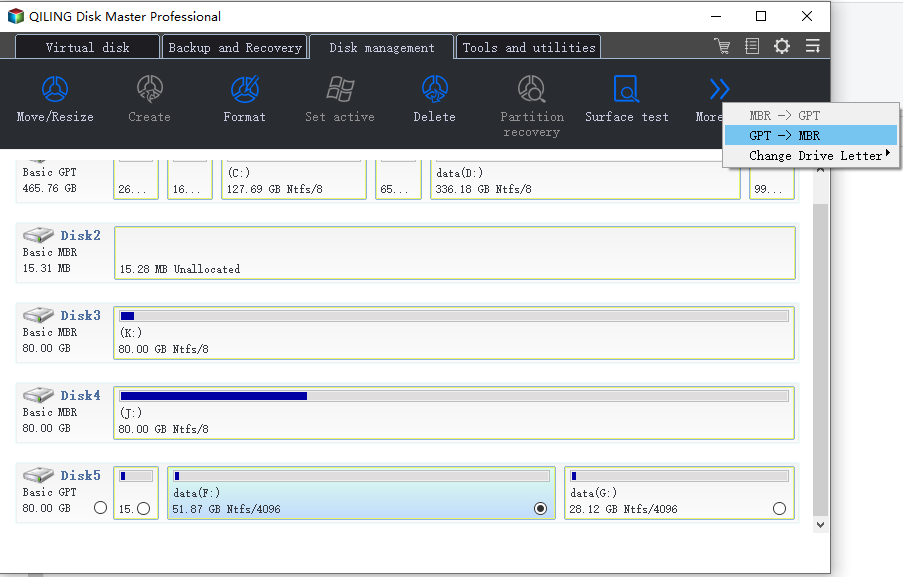
Step 2. When the check process is complete, click "OK" to initiate the conversion from NTFS to FAT32.
Question: Can I Convert NTFS to FAT32 Using CMD?
To convert NTFS to FAT32, you can use the Command Prompt and format the entire drive, which will erase all data. Alternatively, you can use a third-party software to convert NTFS to FAT32 without formatting the drive. However, formatting the entire drive is a straightforward method to ensure a successful conversion.
Before converting NTFS to FAT32 using CMD, make a backup of all essential data on the drive to ensure it remains safe.
To convert NTFS to FAT32 in Windows 11, start by ensuring you have backed up all important files and data. Then, open the Command Prompt as an administrator and type the command "convert c: /fs:fat32" (replace "c:" with the actual drive letter you want to convert).
Step 1: To access all commands and features, you need to run the Command Prompt as an Administrator. This allows you to execute commands with elevated privileges, giving you full control over your system.
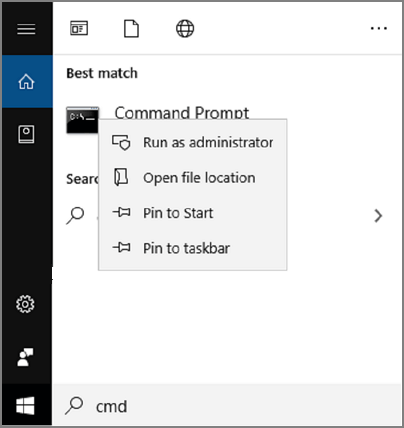
Step 2:To convert NTFS to FAT32 in Windows 11, you need to run a series of commands in the Command Prompt in the same sequence. First, you need to open Command Prompt as Administrator by searching for "cmd" in the Start menu, right-clicking on the result, and selecting "Run as administrator".
- Diskpart and List Volume
To start, enter "Diskpart" and then enter "list volume" to see all partitions and their respective System File types.
- Select Volume X
Here, variable 'X' refers to the volume number of the drive you want to convert to FAT32. For example, if you want to convert Drive D, you would enter "select volume 4" and hit enter.
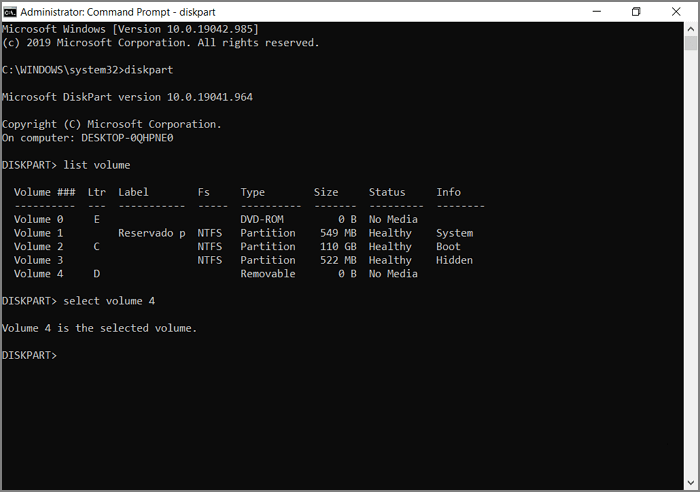
- format fs=fat32 quick
This command will format the entire drive and convert it to the FAT32 File Type.

When using these commands, ensure that you apply them in the same sequence and do not make any spelling mistakes to avoid any inconvenience.
Conclusion
Converting NTFS to FAT32 in Windows 11 is a quick and simple process, but it's essential to make a backup of your important data first. Alternatively, you can use free Qiling NTFS to FAT32 converter software to convert your drive's file types without formatting them, saving you time and effort. Additionally, installing Qiling Partition Master Free can be helpful in performing various conversions, including Logical to Primary, GPT to MBR, Basic to Dynamic, and even merging two SSD drives.
Related Articles
- SFC and CHKDSK: How to Run SFC and Chkdsk | Difference Unveiled
- How to Remove Partition on External Hard Drive in Windows 11/10
- Windows 11/10 Boot Repair: Fix UEFI Boot Issue on Windows 11/10/8/7
- Tips for Windows 11 Android Apps & How to Run Android Apps on Windows 11
- How to Format External Hard Drive for PS3 [2024 Full Guide]
If you're looking to format an external hard drive for use with your PS3, you're likely wondering about the best file system to choose and the proper steps to take. - Formatting Stuck in Disk Management? Try Qiling Partition Format!
Formatting stuck in Disk Management? Do you encounter such an error and hesitate to cancel the formatting? Follow Qiling to figure out the 'format take so long' issue.
Products
Articles & Tutorials
- Data Recovery
- Data Backup
- File Recovery
- File Backup
- System Backup and Restore
- Disk and Partition Clone
- Technical articles
- Mobile articles
- Disk Master Help
- Windows Data Recovery Tutorials
- Windows Secure Delete Tutorials
- Windows Partition Management Tutorials
- Windows File Backup and Restore Tutorials
- Windows System Backup and Restore Tutorials
- Windows Disk Backup and Restore Tutorials
- Windows Clone Tutorials