How to Check/View Disk Storage/Usage on Windows 10/11
Learn the easy options of checking disk usage or disk space on your Windows PC. You can check disk usage in detail through this article. For Mac and Linux OS users, you can find the information in the latter part of this guide.
| Workable Solutions | Step-by-step Troubleshooting |
|---|---|
| How to View Disk Space Use in Windows 10/11 |
For Windows 10...Full steps For Windows 11...Full steps |
| Linux Check Disk Space | Check Linux commands...Full steps |
| How to View Disk Space on Mac | Go to Get Info or About This Mac...Full steps |
| How to Free Up Space with Qiling Partition Master | Run the "Allocate Space" function...Full steps |
What is Taking Up Space on My Hard Drive?
Your hard drive can take up space with a variety of files, including downloads from the internet and attachments to emails, such as photos, videos, music files, and documents. Additionally, installed applications like Photoshop, Microsoft Office, and games can also occupy space. Furthermore, temporary files created when using certain programs or visiting specific websites can also contribute to the overall space taken up by your hard drive. These temporary files are often unnecessary and can be safely deleted.
How to View Disk Space Use in Windows 10/11
Go through to check used and free space of disk.
Check Hard Drive Usage On Windows 10:
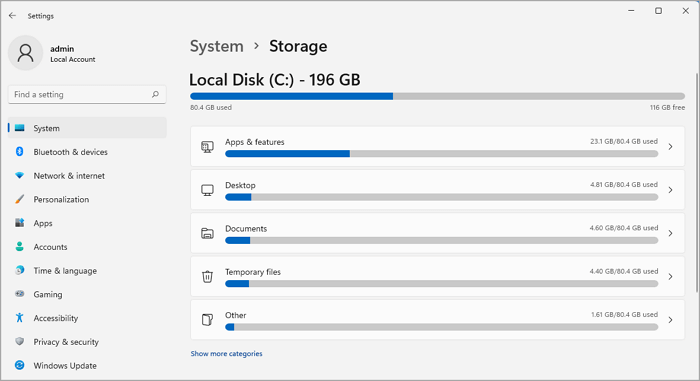
Step 1. Right-click the Windows icon and choose Settings from the list.
Step 2. Click on the System and choose the Storage tab.
Step 3. Then you can see the default C drive's space.
Step 4. You can also click the "Show more categories" button to view additional categories.
How to Check Total Hard Disk Size in Windows with Command Line:
Step 1. Type Command Prompt in the search box.
Step 2. Click on the "Run as administrator."
Step 3. Type wmic diskdrive get size, and press Enter.
The total disk size is displayed in number mode instead of GB.
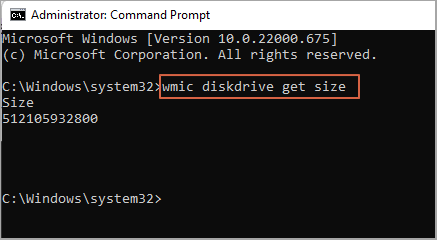
Note: To calculate disk number in GB: 1GB=1000MB, 120,000MB. You can check it and alter it to GB.
More Info: Linux Check Disk Space
Viewing disk space on Linux is a helpful skill for various reasons. It allows you to see how much space is available on your system, ensuring you have enough room for your files. Additionally, it helps you identify and delete unwanted files that are taking up space, freeing up room. If you notice your system's disk space is regularly low, it may indicate the need to upgrade your storage capacity. Overall, knowing how to check disk space on Linux is a valuable skill for any user.
Use Linux Command to Check Disk Space
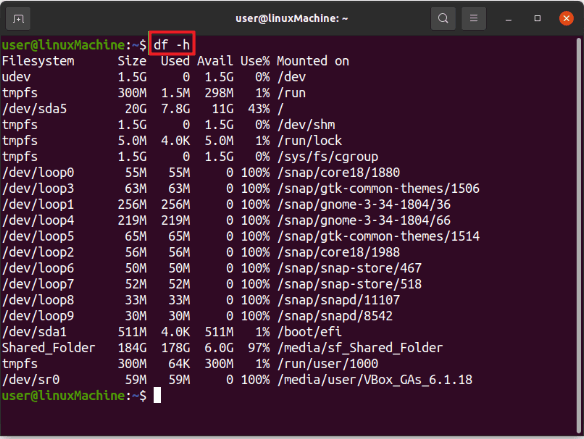
You can check total disk size with the `df` command or `fdisk` command.
1. df Command
df -h
- df -h: it directly shows disk space. (Recommend)
- df -The total disk usage is displayed, and when the available space is 0, it shows the same value.
- df -The disk usage is displayed with the existing file system type.
- df -i: it offers free and used incodes.
We recommend using df -h.
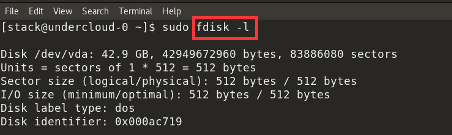
2. Fdisk -I Command
Type fdisk -To view disk size and partition information, you can use the command `df -h` and `fdisk -l` respectively. The `df -h` command displays the disk space usage in a human-readable format, showing the total, used, and available disk space for each partition.
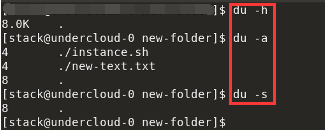
3. Linux du command
- du -a: it lists disk usage of all files.
- du -h: it displays disk usage of all directories.
- du -It allows you to check the disk usage of a specific file or directory.
Other Commands:
- Stat : it shows the size of file/directory
- Is -al command: It displays a particular directory's contents and size.
Bonus Tip: How to View Disk Space on Mac
Viewing disk space on a Mac is essential to check how much available space you have left, ensuring you have enough room to install new software or save new files. It also helps identify old or unused files taking up valuable space, which can be deleted to free up room. Regularly checking your disk space can also help ensure your hard drive is running smoothly and not at risk of becoming overloaded, which can slow down your computer.
Option 1. Check Used Space via About This Mac
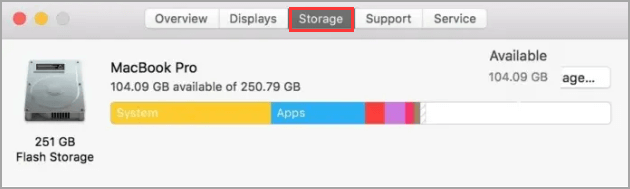
Step 1.To find out which version of macOS your Mac is running, click on the Apple menu (the Apple Icon), and then select "About This Mac." This will display a window with information about your Mac, including the operating system version.
Step 2.To view the disk space, click on the "Storage" tab in the top toolbar. This will display the available disk space.
Option 2. Check How Much Disk Space with Get Info
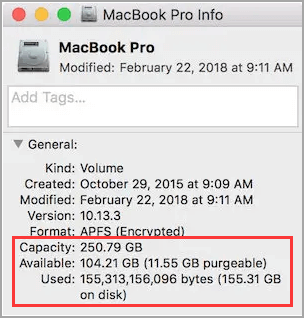
Get Info is a comfortable way to check the total disk info.
Step 1. Access Finder - Press Option+Command+Space
Step 2. Locate the targeted hard drive in Finder and select the drive icon.
If your hard drive appears on the sidebar, click it directly.
If your drive is not showing, follow Go > Computer to find the hard drive.
Step 3. Then click the File menu and choose Get Info.
The total capacity, available space, and used space can be viewed.
How to Free Up Space with Qiling Partition Master
When your C drive is full, you can add more space to the partition to free up disk space. Windows disk manager or software like Qiling Partition Master can help you achieve this.
Step 1. Click on the D: partition with enough free space and select "Move/resize".
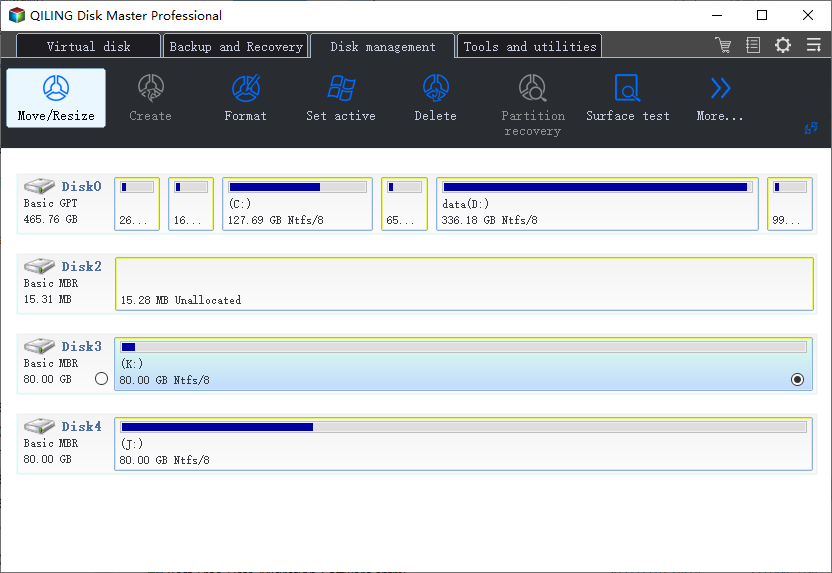
Step 2. To move free space from the D: drive to the C: drive, drag the partition panel leftward to shrink the D: drive and free up space. Once you've done that, click "Proceed" to confirm the changes.
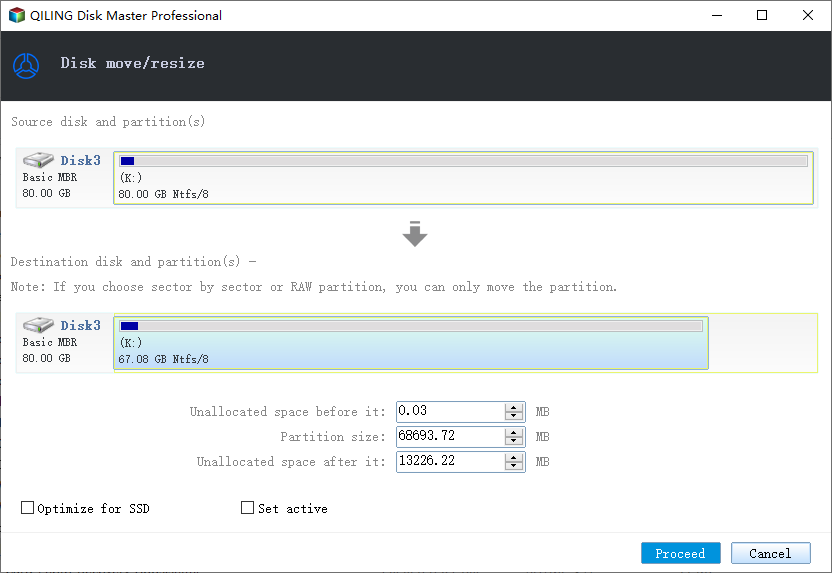
Step 3. Select the target partition - C: drive and select "Move/resize".
Step 4. To add free space from the D: drive to the C: drive, drag the partition panel to the right. This will allocate the available space from D: to C:.
Step 5. To proceed, click the "Proceed" button to start the process of moving free space from the D: drive to the C: drive.
Conclusion
To check disk usage and view disk space, you can use various methods. On a Windows computer, open the Settings to view disk usage. On a Mac, select About This Mac from the Finder menu. Additionally, there are several programs available that provide detailed information about disk usage and help you free up space. Regardless of the method you choose, keeping an eye on your disk usage is crucial to ensure your computer runs smoothly.
Related Articles
- [Guide] How to Permanently Delete Files from Recycle Bin in Windows 11/10/8/7
- How to Fix External Hard Disk Slow to Respond in Windows 11/10/8/7
- Effective Fixes for Hard Drive Not Detected in Windows 10 Installation
- How To Create Bootable USB for Windows Server
- I Need Solid Ways That Can Create a New Partition on the Hard Drive, Help
If you are looking for practical ways to create a new partition on the hard drive, read this article, in which you can find the partition methods with detailed tutorials. - I Need to Format a Hard Drive to Work With Windows, Help
What should I do to use my Mac-formatted hard drive on Windows? The answer is to format a hard drive to work with Windows. This page will provide a safe way to help you format the hard drive.
Products
Articles & Tutorials
- Data Recovery
- Data Backup
- File Recovery
- File Backup
- System Backup and Restore
- Disk and Partition Clone
- Technical articles
- Mobile articles
- Disk Master Help
- Windows Data Recovery Tutorials
- Windows Secure Delete Tutorials
- Windows Partition Management Tutorials
- Windows File Backup and Restore Tutorials
- Windows System Backup and Restore Tutorials
- Windows Disk Backup and Restore Tutorials
- Windows Clone Tutorials