How to Solve Windows 10/7 C Drive Red Bar (Low Disk Space) Problem
- Why is my hard drive capacity meter red?
- Why is my C drive showing red?
- To resolve the red C drive issue in File Explorer, try running the built-in Disk Cleanup tool, which can help remove temporary files and free up space. You can also use the System File Checker (SFC) tool to scan and replace any corrupted system files.
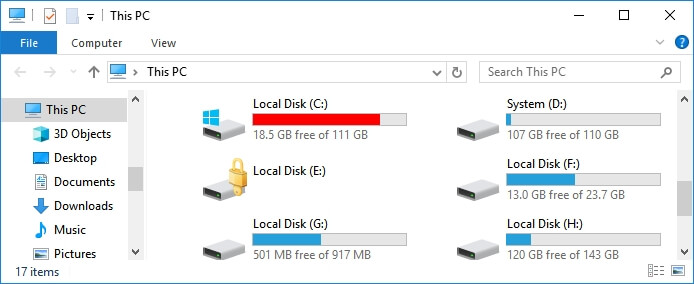
C Drive Red Bar on Windows 10/Windows 7
When your system's C drive is nearly full, the capacity meter turns red, and you may receive a low disk space error message. This occurs when the C drive or D drive runs out of space.
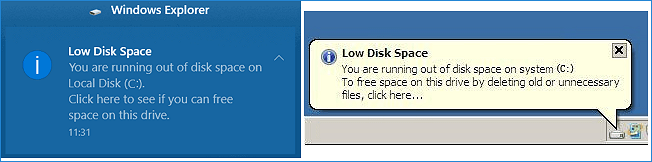
When your C drive is full, it can cause issues such as not having enough space to save new files, install Windows updates or applications, leading to problems like Windows 10 being slow, stuck, or even crashing.
To solve the C drive red bar problem and improve computer performance, you can disable the low disk space red bar on Windows 10/8/7. Several simple and effective fixes can help increase C drive space, including disabling the red bar, checking for disk errors, deleting temporary files, uninstalling unused programs, and freeing up disk space by deleting unnecessary files and programs. By implementing these solutions, you can resolve the C drive red bar issue and enhance your computer's performance.
How to Resolve C Drive Red Bar on Windows 10 or Windows 7
The C drive red bar and low disk space problem can be solved using practical methods. One approach is to free up space by deleting unnecessary files, uninstalling unused programs, and emptying the Recycle Bin. Another method is to move frequently used files to an external drive or a cloud storage service to alleviate the pressure on the C drive. Additionally, running the built-in Disk Cleanup tool can help remove temporary files and system logs, further increasing available space.
Fix 1. Increase C Drive to Solve C Drive Red Bar Issue
When you see the red bar on C drive in Windows 10, it's a sign that your C drive is running low on free space. To resolve this issue, the first step is to extend the C drive to free up more space.
Qiling Partition Master offers a feature called "Smart Space Adjustment" that allows users to increase the size of their C drive with a single click, without any data loss or partition deletion.
Qiling partition manager can extend the C drive by utilizing unallocated space on the disk. If there is available unallocated space, the software will automatically allocate it to the C drive. If no unallocated space exists, the software will instead allocate free space from another partition to the C partition.
Your Reliable Partition Manager Software - Qiling Partition Master
- Resize/move partitions, create, format, delete, and merge partitions.
- To convert a FAT to NTFS partition, an MBR disk to GPT, or a GPT disk to MBR, and other similar conversions, you can use the built-in Windows tool called Disk Management. First, open the Disk Management console by typing "diskmgmt.
- Upgrading your Windows 10 to an SSD (Solid-State Drive) can significantly speed up your computer. This involves replacing your traditional hard disk drive (HDD) with an SSD, which stores data in flash memory instead of mechanical disks.
To add space to the C drive, download Qiling Partition Master and follow the simple steps below. With this tool, you can easily resize the C drive and add more space to it with just a few clicks.
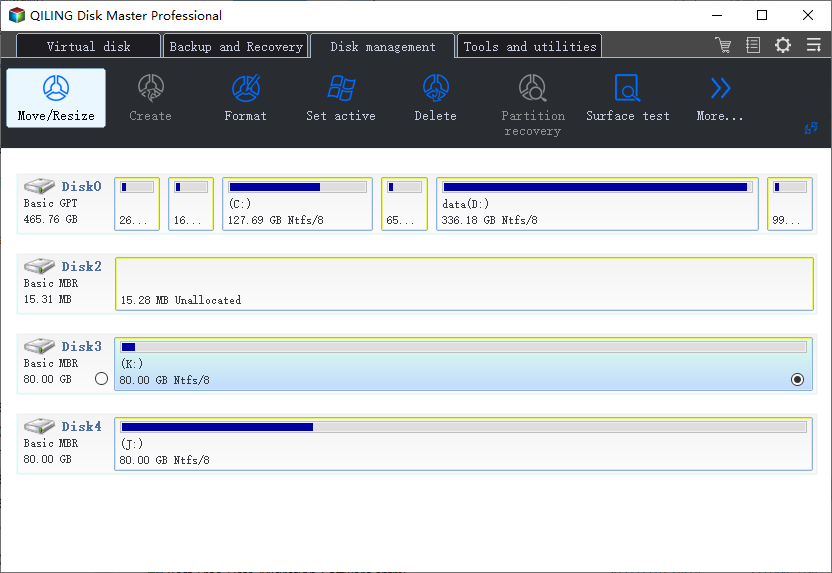
Step 1. To resize the C drive, select it from the list and click the "Resize/Move" button to extend its size.
When your C drive is out of space, you will see a Low Disk Space alert on Qiling Partition Master. To resolve this, click the Adjust button to extend the drive.
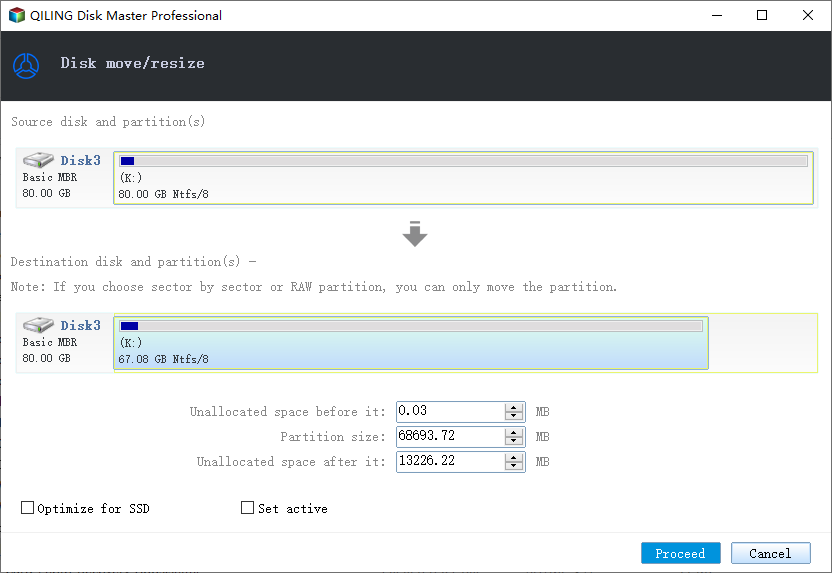
Step 2. Click "Proceed" to extend C drive.
To add more space to the C drive, select it, drag the dots to the right to increase its size, and then click "Proceed" to confirm the change.
Fix 2. Run System Cleanup to Free Up C Drive Space
Junk files from Windows systems or applications can consume a lot of space on the C drive, but running a free system cleanup tool can help delete these unnecessary files and free up disk space. By doing so, you'll have more available space on the C drive, eliminating the red bar indicator.
Step 1. Download and install Qiling Partition Master Suite.
Step 2. To clean up your PC, install Qiling CleanGinus by clicking PC Cleaner and then follow the prompts to complete the installation. Once installed, click on "Cleanup" and then select "Scan" to initiate the cleaning process, which will make your PC run like new.
Step 3. The software scans the entire computer to identify large, unnecessary files and system junk, allowing users to select and delete them with a single click.
Step 4.When the scan is complete, click the "Done" button to finish cleaning system junk files.
Fix 3. Empty Recycle Bin to Deleted Files
Emptying the Recycle Bin can help free up C drive space and resolve issues like the Windows 10 C drive red bar problem by removing deleted files that are stored in the Recycle Bin for up to 30 days.
To free up space on your system C drive, empty the Recycle Bin regularly to remove deleted files that are taking up space. This will help keep your C drive from getting full.
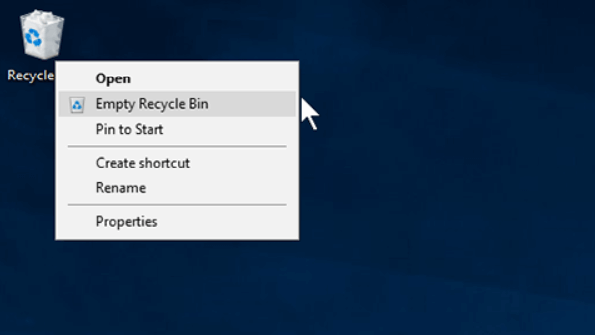
Step 1. Right-click the Recycle Bin on the desktop.
Step 2. Choose "Empty Recycle Bin" to remove unwanted files.
Fix 4. Transfer Programs from C Drive to Another Drive
Many software programs require installation on the C drive by default, leading to rapid space depletion and a red bar on your C drive. However, you can safely relocate these programs to the D drive using a PC transfer tool, such as Qiling Disk Master, to free up space and alleviate the issue.
Manually migrating software installation files to another partition can render the program unusable due to the absence of necessary boot files.
Fix 5. Upgrade to a Larger HDD or SSD
If your system disk is too small and cleaning out your C drive isn't helping, consider upgrading to a larger HDD or SSD to alleviate the space issue and warning signs.
Qiling Partition Master allows you to upgrade your system disk to a new hard drive without reinstalling Windows and applications, using its "Migrate OS" function, which clones your C drive and boot drive to the new hard drive, ensuring a smooth and bootable migration.
Steps to migrate OS to HDD/SSD:
- Run Qiling Partition Master, select Migrate OS from the top menu.
- Select the SSD or HDD as the destination disk and click Next.
- The data and partitions on the target disk will be completely deleted. It's crucial to back up any important data before proceeding, as the process cannot be undone. If you haven't already, please do so now to avoid any potential loss of files.
- Then click Continue.
- Preview the layout of your target disk. Then click Proceed to start migrating your OS to a new disk.
Note: When migrating your operating system to a new SSD or HDD, be aware that if there's not enough unallocated space on the target disk, the operation will delete and remove existing partitions and data. So, back up any important data on the target disk to an external hard drive beforehand to avoid losing it.
To Sum Up
This tutorial provides five efficient solutions to address the Windows 10 C drive red bar problem. The solutions can be categorized into three aspects: optimizing system resources, managing disk space, and troubleshooting disk issues. By implementing these solutions, you can effectively resolve the C drive red bar issue and ensure smooth system performance.
- Extend C drive in 1-click with the Smart Space Adjustment of Qiling Partition Master
- To free up space on your C drive, start by deleting any unnecessary files and emptying the Recycle Bin. Next, identify any programs installed on the C drive and consider transferring them to another drive, such as a D or E drive, to free up space and improve system performance.
- To upgrade the system disk to a larger HDD or SSD, you can use the Migrate OS feature of Qiling partition manager. This feature allows you to transfer the operating system and all installed applications to a new, larger disk, effectively upgrading the system disk to the new storage device.
If you're having trouble solving the C drive red bar problem, you can reach out to our technical support team for assistance via live chat or email at support@idiskhome.com.
C Drive Red Bar on Windows 10/8/7 FAQs
The top topics related to Windows 10 C drive red bar issue include various problems that can be solved with brief answers. These issues may be related to the Windows 10 C drive red bar, and checking the brief answers for these problems can provide a solution.
Why is my C drive bar red?
If the C: drive is showing as red in the File Explorer, it means there's little free space left, preventing new Windows updates, programs, or files from being installed. To resolve this, you can try freeing up space on the C drive or extending its size.
How to solve the C drive red problem?
You can solve the C drive red problem by:
- Increasing C drive and add more space to C drive
- Clear out temporary files and junk to free up space on your device
- Upgrade your disk to a larger HDD or SSD
How do I access my C drive on Windows 10?
To access your C drive, you can either double-click on the "This PC" icon on your desktop, type "This PC" or "File Explorer" into the search box, or simply type "c:" into the search box to directly access the C drive.
My D drive is in red and full. What are the steps to take?
When your D drive is almost full and shows a red bar, you can free up space by deleting temporary, junk, and large files, similar to resolving the C drive red problem.
If cleaning the D drive doesn't solve the problem, you can try expanding your D drive with Qiling Partition Master. This software allows you to adjust the disk layout by dragging the partition head or tail, effectively adding more space to the D drive.
Related Articles
- Learn to Merge Adjacent and Non-Adjacent Partitions in Windows Server 2016/2012 (NTFS and FAT32 Partition Available)
- Windows 10 File Transfer Stuck at 99%? Fixes Are Here!
- Tips for Windows 11 Android Apps & How to Run Android Apps on Windows 11
- How to Perform an SSD Health Check on Windows 11: Tips and Tricks for Maximizing
- How to Solve C Drive is Full in Windows 10/8/7?
The issue C drive full Windows 10 is a headache and can bring you quite a lot of trouble. If you want to find out where those extra files come from and the solution to this issue, this should be the right article for you. - Effectively Fix "We Couldn't Update the System Reserved Partition" Error
"We couldn't update the system reserved partition" appears when you upgrade to Windows 10 from Windows 7/8? Here you can fix it within 5 simple steps.
Products
Articles & Tutorials
- Data Recovery
- Data Backup
- File Recovery
- File Backup
- System Backup and Restore
- Disk and Partition Clone
- Technical articles
- Mobile articles
- Disk Master Help
- Windows Data Recovery Tutorials
- Windows Secure Delete Tutorials
- Windows Partition Management Tutorials
- Windows File Backup and Restore Tutorials
- Windows System Backup and Restore Tutorials
- Windows Disk Backup and Restore Tutorials
- Windows Clone Tutorials