How to Wipe a Hard Drive on a Dead Computer [Windows & Mac]
When you sell a used computer, you should wipe the folders and partitions that contain confidential information. Many users erase data with built-in system tools or a third-party utility. However, if the computer is completely dead because of a hardware or power issue, it may not start at all. In that situation, you may wonder, "How do I wipe a dead hard drive?" Or "How do I wipe a hard drive when my computer won't turn on?"
| Workable Solutions | Step-by-step Troubleshooting |
|---|---|
| Part 1. Wipe A Hard Drive on a Non-Booting Windows Computer | Method 1. Use Qiling Disk Master on Windows...Full steps Method 2. Reset PC from Boot Menu...Full steps |
| Part 2. Wipe Hard Drive on Mac | Step 1. Unplug all the power sources. Flip your MacBook...Full steps |
It is risky to sell a dead machine without wiping it first. Someone may recover your important information, which could lead to privacy or financial loss. To remove data from a dead computer, you need a second computer or a hard disk eraser that can erase the drive and prevent recovery. For stronger protection, wipe the disk with a secure erase method.
Is There A Way to Wipe A Hard Drive on a Dead Computer
Erasing data from a dead computer may seem difficult, but it is possible. Both Windows and Mac users can wipe a hard drive from a dead computer by removing the drive and connecting it to another working device. In this article, we will answer your question: "How do I wipe a hard drive on a dead computer?" We will also explain which methods you can use on Windows and Mac.
Part 1. Wipe A Hard Drive on a Non-Booting Windows Computer
On a dead computer, you have several options for data wiping. We'll start with one of the simplest and safest methods: erasing the data with a third-party Windows program. Then we'll take a look at Mac's default technique. Let's take a closer look at each strategy one by one.
Method 1. Use Qiling Disk Master on Windows
To wipe data from your dead computer, Qiling Disk Master is a helpful utility that securely erases data and helps prevent recovery. Qiling Disk Master can wipe disks or partitions in a few steps. For related backup and disk management guidance, see Data Backup and Drive Clone Tutorials.
To wipe data from a dead computer, you need to eject the hard drive and use it on a different computer.
Step 1. Run Qiling Disk Master. Click the "Wipe Disk" tab.
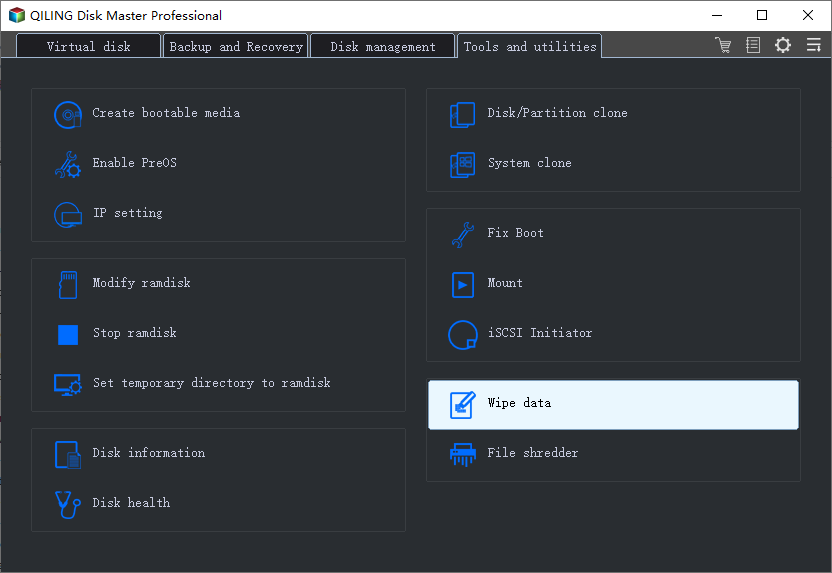
Step 2. Select the targeted HDD or SSD to wipe.
Notice: Please make sure you have chosen the correct HDD or SSD. Once the wiping starts, your data is irrecoverable.
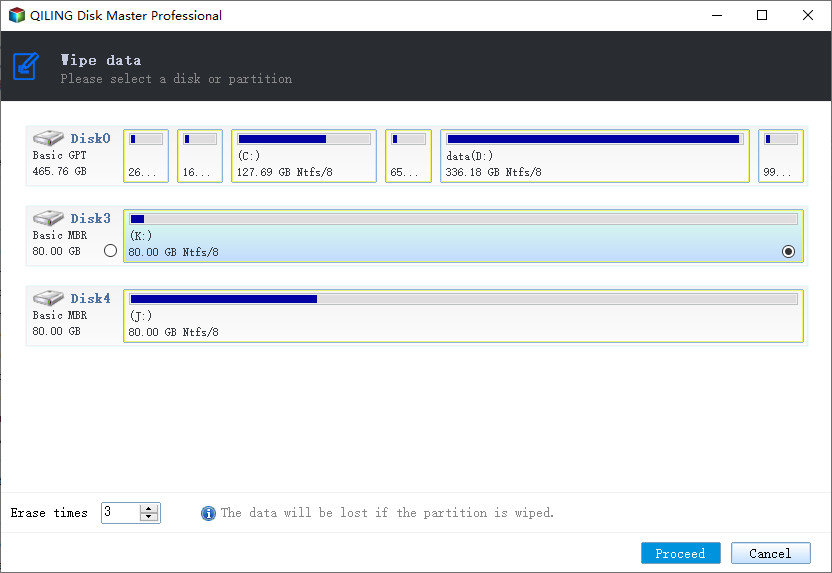
Step 3. Choose Wiping Method.
Choose a suitable wiping method. Recommend Qiling Secure Erase!
Step 4. Check the warning message and click "Proceed" to confirm.
Step 5. Wait for wiping finish.
Some of the useful features that make Qiling Disk Master preferable software among users are listed below:
- Permanently removes data from system and non-system disk (HDD and SSD)
- Secure data removal
- Helps prevent data recovery
- Supports Windows 11/10/8.1/8/7 and Server 2012-2022.
- Capable of erasing multiple partitions or disks at once
- High speed and straightforward operation
Method 2. Reset PC
When your PC is completely dead, it is undoubtedly one of the most frustrating situations. You cannot even turn it on to check the problem. Some laptops can be reset manually by disconnecting the power and removing the battery. A few systems have easily detachable batteries, while others keep the battery inside the case, making the process more difficult.
To reset your PC on Windows, below are the steps you can follow:
Step 1. Begin with disconnecting all the devices from your laptop. It can be USB, external display, cables, etc.
Step 2. Disconnect the AC adapter from your system too.
Step 3. Now, safely remove the battery from your system.
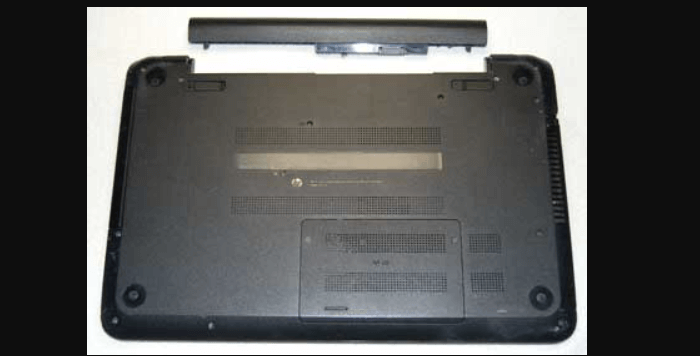
Step 4. Hold the power button to remove all the remaining residual power in the system.
Step 5. Place the battery back into the system.
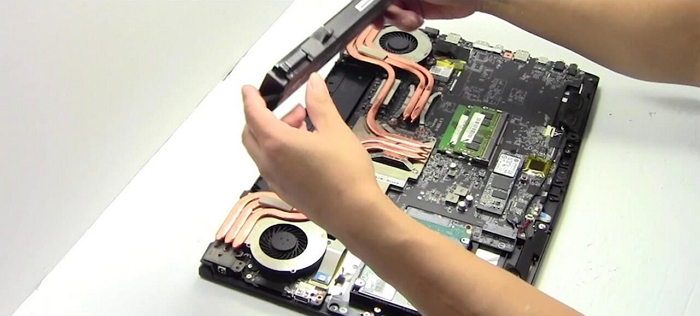
At times there is an issue with battery residual electrical charge, which often helps turn on the system.
Step 6. Reconnect the AC adapter and plug it into power. If the issue was caused by residual electrical charge, the system may start normally.
Step 7. Reconnect and reinstall the battery into your system.
Step 8. Press the power button to reboot your system.
Step 9. To access the Boot menu, press the F12 key. Sometimes, you need to press it several times before the Boot menu appears.
Step 10. Choose which drive you want to boot from.
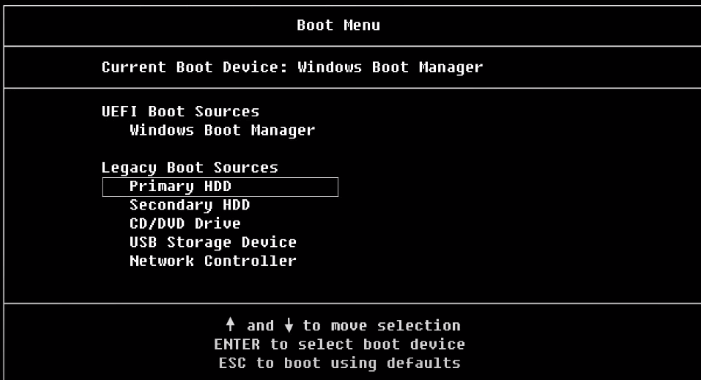
Step 11. Click the Troubleshoot option.

Step 12. Click on Reset This PC to completely wipe the computer.

You may need to reinstall Windows to make the computer work properly again.
Part 2. Wipe Hard Drive on Mac
We will look at the steps you can take to wipe the hard drive on a dead Mac. They are listed below:
Step 1. Unplug all the power sources. Flip your MacBook. With the help of a screwdriver, open the back cover.
Step 2. Mac hard drives are usually in the bottom left corner. Locate the hard drive in your Mac.
Step 3. You can see a black bar holding the hard drive. Unscrew the two black screws to remove the hard drive completely.
Step 4. Pull the plastic tab to lift the hard drive.
Step 5. Carefully pull the black bar and detach it from the hard drive. The black bar will remain attached to the system, whereas you will have the hard drive removed from the system.
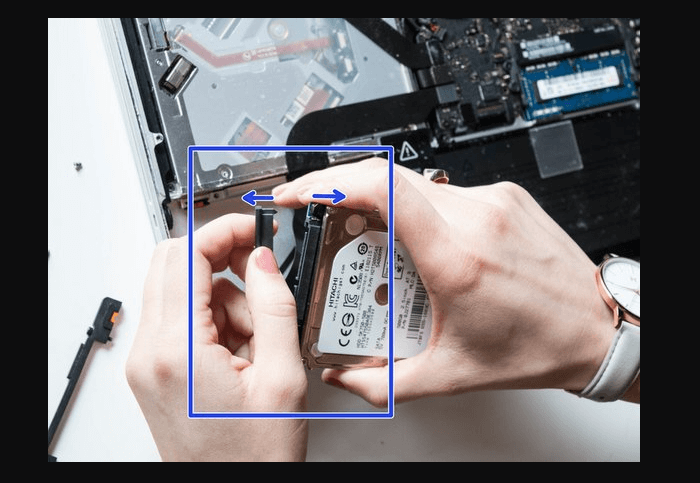
Step 6. Now, connect your hard drive with another Mac and start it.
Step 7. Go to Disk Utility.
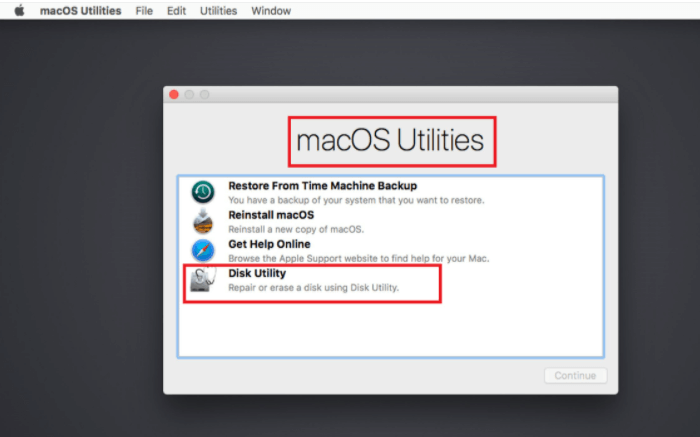
Step 8. Click View and select Show All Devices.
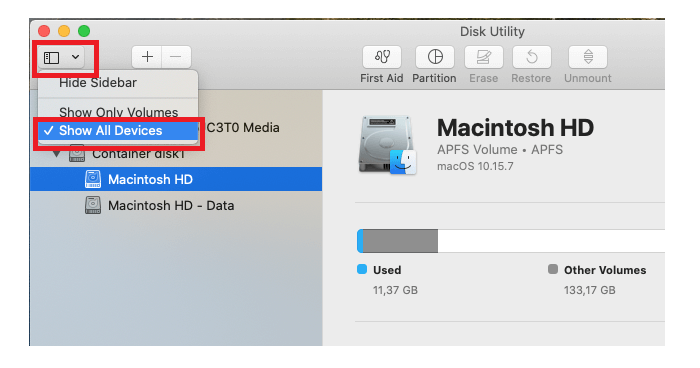
Step 9. Select your Mac drive.
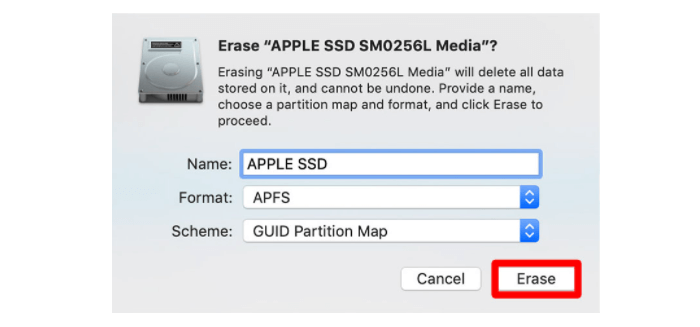
Step 10. Click on Erase.
To Sum Up
To summarize, erasing data from a non-booting Windows computer or Mac is difficult but not impossible. If you don't know how to wipe a hard drive on a dead computer, you can remove the drive, connect it to another device, and erase it securely.
We've discussed several methods for both Windows and Mac that you can use depending on your requirements, but we recommend Qiling Disk Master. You can choose this option for secure data wiping because it is safe and reliable. In a few steps, you can delete data permanently. Download it now from the official Qiling website.
Related Articles
- Can You Wipe Free Space on an SSD [2022 Full Guide]
- Is It Safe to Sell Used Hard Drives? Your Must-Do Tips Are Here
- How to Perform Unrecoverable Delete in Windows 10/11
- Top 5 Best Rapid Shred Freeware in 2022 Recommendation
- Use Reset PC or Other Easier Solution? Check How to Wipe A Hard Drive
How do I wipe a hard drive? This article provides basic ways to wipe a hard drive. One is a third-party software, the other is the built-in feature - Reset This PC. - Data or Drive Erase Tutorials
Read this guide to learn Data or Drive Erase Tutorials with clear steps, practical tips, and safer troubleshooting methods.
Products
Articles & Tutorials
- Data Recovery
- Data Backup
- File Recovery
- File Backup
- System Backup and Restore
- Disk and Partition Clone
- Technical articles
- Mobile articles
- Disk Master Help
- Windows Data Recovery Tutorials
- Windows Secure Delete Tutorials
- Windows Partition Management Tutorials
- Windows File Backup and Restore Tutorials
- Windows System Backup and Restore Tutorials
- Windows Disk Backup and Restore Tutorials
- Windows Clone Tutorials