Windows To Go vs. Standard Installation: Which Option Is Better For You
Today, many businesses are embracing the Bring Your Own Device (BYOD) system, where they provide Windows To Go USB drives to create a secure workspace environment on any device, rather than issuing a company computer to employees.
Windows To Go allows users to boot Windows from a USB drive, providing access to all Windows features, including troubleshooting, diagnostic, and security tools.
If you're deciding between Windows To Go and a standard Windows installation on a computer, this post aims to provide clarity on the topic.
What's Windows To Go?
Windows To Go is a Microsoft feature that enables you to boot and run Windows OS from a certified USB flash drive or external hard disk, providing a fully manageable corporate Windows environment on the go.
In 2019, Microsoft discontinued Windows To Go, making it unavailable in Windows updates after May 2020.
Windows 7, Windows 8, Windows 8.1, Windows 10, Windows Server 2008 R2, Windows Server 2012, Windows Server 2012 R2, Windows Server 2016, Windows Server 2019, Windows Server 2022.
- Windows 8 Enterprise
- Windows 8.1 Enterprise
- Windows 10 Education
- Windows 10 Enterprise
* You may be interested in how to create Windows To Go without Enterprise.
To run Windows To Go, you'll need a USB drive with a certificate built for high random read/write speed, as well as a Windows OS compatible computer. Additionally, your host computer should meet the following technical specifications:
- 1 GHz or faster processor
- 2 GB or higher RAM
- A DirectX 9 graphics device with a WDDM 1.2 or greater graphics driver is required.
- USB 2.0 port or higher
To create a Windows To Go workspace, you'll need a compatible host computer and a USB drive. Simply insert the USB drive into your host computer, and follow the on-screen instructions to create the workspace.
Step 1. To create a Windows To Go workspace, open the Start menu on your compatible Windows computer, type "Windows To Go", and press Enter.
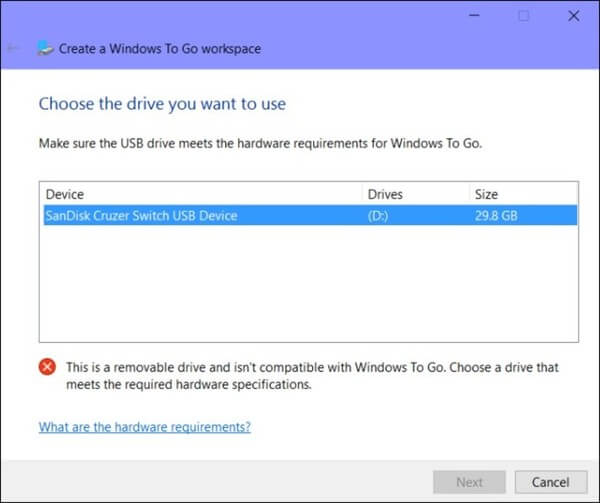
Step 2. To use the Windows operating system, you can either insert a physical DVD or use an ISO disk image. You can then click on the "Add Search Location" button to navigate the image.
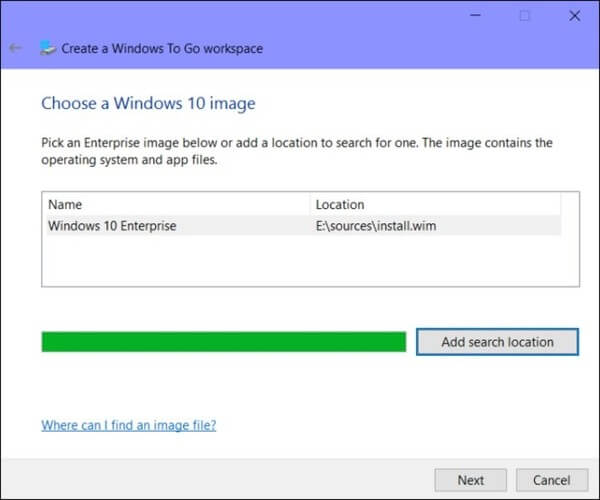
Step 3. You can optionally enable BitLocker Drive Encryption on your USB drive and set a password to protect it, which is helpful in case you lose your Windows To Go USB drive.
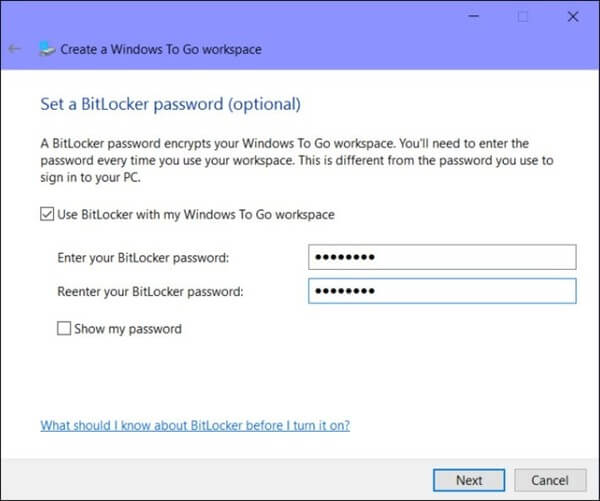
Step 4. Windows will then transfer the Windows operating system image to the USB drive, which will format your USB drive in the process, so be sure to back up any important data beforehand.
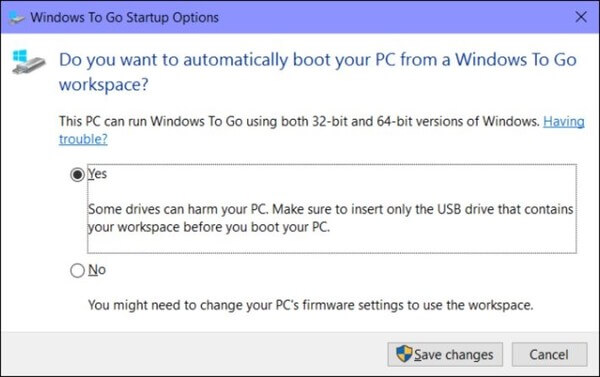
Step 5. To create a Windows To Go environment on a certified computer, go to the Start menu, type Windows To Go, enter, choose Yes, save changes and restart the system, and Windows To Go will initialize based on the host computer's USB bus, memory, and CPU hardware.
What's Windows Standard Installation?
Windows standard installation refers to the straightforward process of installing the Windows operating system on a computer, which can be done by either downloading it from the Microsoft Store or installing it from a DVD or USB disk.
Windows standard installation is compatible with all Windows versions, but it's best to check specific installation requirements on the Microsoft website for each OS.
Here are the steps for a Windows 10 standard installation using a bootable USB on Windows:
Step 1. To start using your USB device, simply insert it into your computer and turn it on.
Step 2. To start, select your preferred language, timezone, keyboard settings, and currency, and once you're happy with these custom settings, click Next.
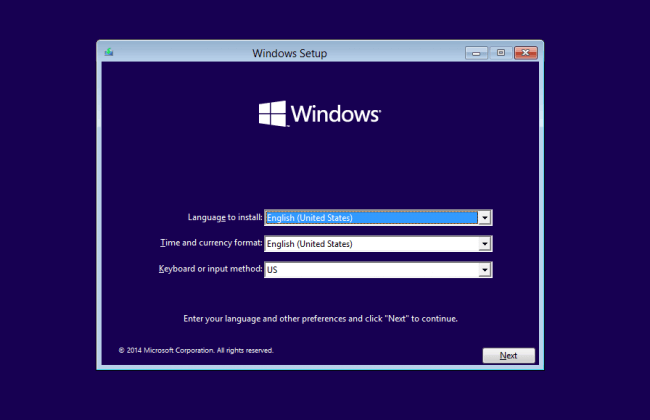
Step 3. To install Windows 10, click on the "Install Now" button and select the Windows 10 edition you've purchased. Then, click "Next" to begin the installation process.
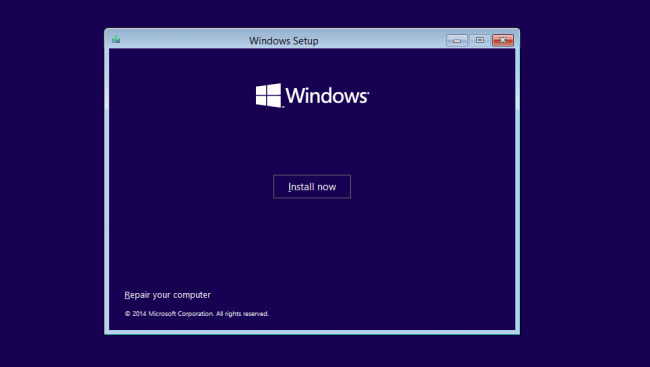
Step 4. During the installation process, you have the option to choose between two installation types: Upgrade and Custom. The Upgrade option allows you to keep your current settings, programs, and files on the computer, whereas the Custom option enables a fresh Windows installation.
Step 5. To continue with the installation, you need to create partitions on your hard drive to store files. You can choose to format an existing partition, delete everything from your hard drive and start fresh, or create new partitions on your disk.
Step 6. After creating the desired disk partitions, click "Next" to begin the Windows 10 installation process. Note that your computer may reboot a few times during the installation, so be patient and don't worry.
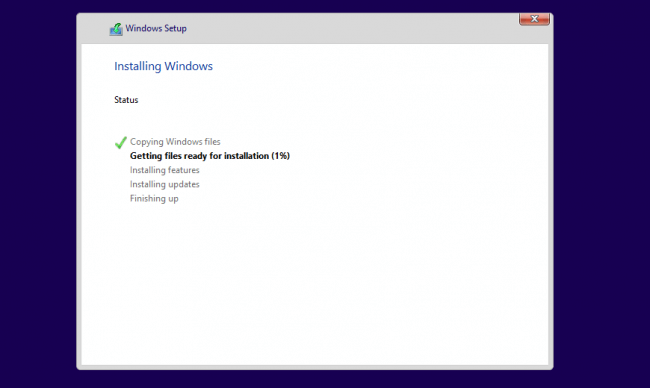
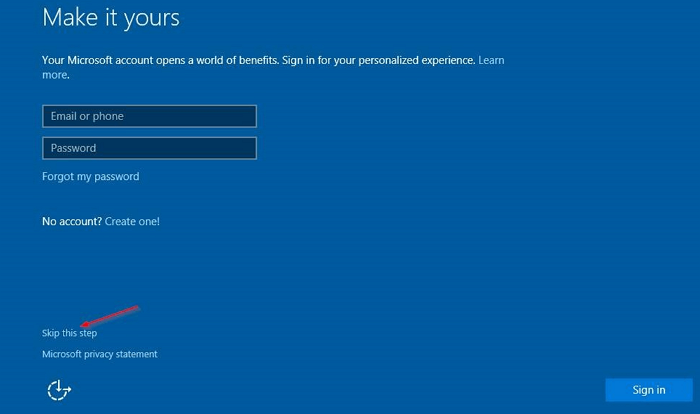
Step 7. After installation, your computer will automatically restart once, and upon startup, you'll have the opportunity to personalize your Microsoft settings.
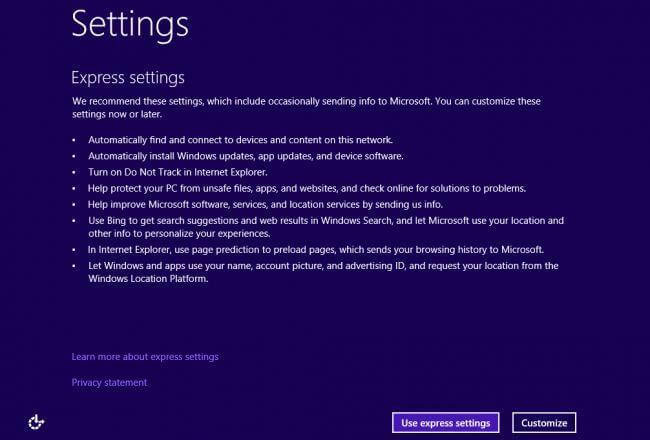
Step 8. To take full advantage of Windows 10 features, you need to set up your Microsoft account, which will allow you to access all the operating system's capabilities.
Windows To Go vs. Standard Installation: Which Suits You Better
The choice between Windows To Go and a standard installation ultimately depends on your specific needs and preferences. Understanding the key differences between the two environments is essential to making an informed decision. Windows To Go is a portable version of Windows that can be run from a USB drive, allowing you to take your operating system with you wherever you go, while a standard installation is a traditional setup that is installed directly on a computer's hard drive.
1. Internal Disks
In a standard Windows installation, internal hard disks are online by default, whereas in Windows To Go, they are offline by default to prevent accidental data disclosure.
2. Trusted Platform Module (TPM)
In a Windows To Go environment, BitLocker Drive Encryption is used for password security purposes only, as the Trusted Platform Module (TPM) chip is tied to a specific computer and can't be used in a mobile environment where the drive is moved between computers.
3. Hibernation
Hibernate is disabled in Windows To Go environments to ensure seamless movement between computers, but it can be enabled through Group Policy settings for those who need it.
4. Windows Recovery Environment
Unlike a standard Windows installation, Windows Recovery Environment is not available on Windows To Go. Instead, if you need to recover data, you'll have to reimage the system with a fresh copy of Windows.
5. Refreshing or Resetting
You can reset or refresh the manufacturer's standard to the computer while running on the Windows To Go workspace.
6. Windows Upgrade
Unfortunately, you can't upgrade your Windows 8 Windows To Go to Windows 10 Windows To Go. Once you've selected a Windows version for Windows To Go, you're stuck with it.
Windows To Go offers flexibility and ease, but also takes away many default Windows functions, making it difficult to decide between it and a standard Windows installation.
To get started, define your Windows requirements and select the installation type accordingly. This will ensure you choose the right setup process for your needs.
100% Better Alternative for Windows To Go
If you prefer the Windows To Go workspace but have a Windows 11 host computer, you can still create a portable Windows 11/10 on USB using Qiling OS2Go, making it easy to work with the Windows To Go workspace.
This tool allows you to create a Windows To Go environment on the latest Windows, enabling you to run all Windows 11 features and programs on your host computer.
Qiling OS2Go allows you to run Windows on a Mac and carry your workspace on a portable device, and it simplifies the process of creating a Windows To Go environment.
Step 1. To use Qiling OS2Go, install it on your Windows computer, which will show you how much space is being used on your system drive. Then, plug in a USB drive that is larger than the used space on your system drive. Next, choose the target USB drive and click Next to proceed.
Step 2. The notification warns that deleting all data on the drive will result in the loss of all files and data. It advises backing up important data before proceeding with the deletion. To continue, click the "Continue" button.
Step 3. Adjust the disk layout to match the resource drive, or customize it as needed, and select the option to use a Solid State Drive as the Windows bootable drive if applicable, then click Proceed.
Step 4. Qiling OS2Go will create a portable USB drive, which may take a while depending on the OS and network condition. Once the progress reaches 100%, the USB drive will be bootable.
Step 5. To install Windows on a new computer, start by inserting a portable Windows USB drive into your computer and turning it on. Next, press the key required to access the BIOS (usually F2, DEL, or F10) and select the option to boot from the USB drive. This will allow you to install Windows from the USB drive.
Note: To ensure a successful boot, make sure that the boot mode of the portable USB and your target computer are the same, either UEFI or Legacy, to avoid boot issues.
Final Words
Windows To Go and standard installation are two great options to run the Windows framework, with Windows To Go allowing you to carry your entire system in your pocket and run Windows on any gadget, although it's not available for the latest Windows 10 or 11 updates.
Fortunately, Qiling OS2Go now allows Windows 11 users to boot Windows 11 via a portable USB, making it possible to run Windows on a Mac device as well. This software can be tried for free, making it a convenient option for those who want to run Windows To Go on Windows 11.
Related Articles
- Download and Install Windows 11 with Media Creation Tool
- The Best Windows To Go Alternative Free Download
- How to Create Windows 11 to Go
- (Two Usefuls Ways) How to Create Windows 10 Installation USB Drive
- How to Transfer Google Earth Pro to Another Computer?
Transferring Google Earth Pro and its files to another computer can be done using several methods. This post will guide you through the process, providing you with valid solutions to successfully transfer Google Earth Pro to another PC. So, go ahead and try out the methods to get started. - (100% Transfer) How to Transfer H&R Block to New Computer
Here we will show you how to transfer h&r block from one computer to another. No reinstall you need. Follow Qiling Disk Master to get the smooth program transfer.
Products
Articles & Tutorials
- Data Recovery
- Data Backup
- File Recovery
- File Backup
- System Backup and Restore
- Disk and Partition Clone
- Technical articles
- Mobile articles
- Disk Master Help
- Windows Data Recovery Tutorials
- Windows Secure Delete Tutorials
- Windows Partition Management Tutorials
- Windows File Backup and Restore Tutorials
- Windows System Backup and Restore Tutorials
- Windows Disk Backup and Restore Tutorials
- Windows Clone Tutorials