Uninstall Programs in Windows Server
| Workable Solutions | Step-by-step Troubleshooting |
|---|---|
| To uninstall a program on a server computer, go to the Control Panel and select the "Uninstall a program" option. This will allow you to remove any unwanted software from the server. | Step 1: Navigate to Start, type Control Panel...Full steps |
| Method 2. Use Uninstaller to Remove Programs | Step 1. Choose App Management, Click "Start"...Full steps |
| Method 3. Use Registry to Uninstall Programs | Step 1: Launch the Windows Registry by going to Start > Run...Full steps |
Windows Server is an excellent OS for hosting applications and managing computers, and its viability is enhanced by the various programs that can be installed on it. However, it's equally important to know how to uninstall a program when it's no longer needed, as it can take up valuable space. To do this efficiently and safely, we'll explore the methods for uninstalling programs from a Windows server in this article.
Method 1. Go to Control Panel and Uninstall Program in Server Computer
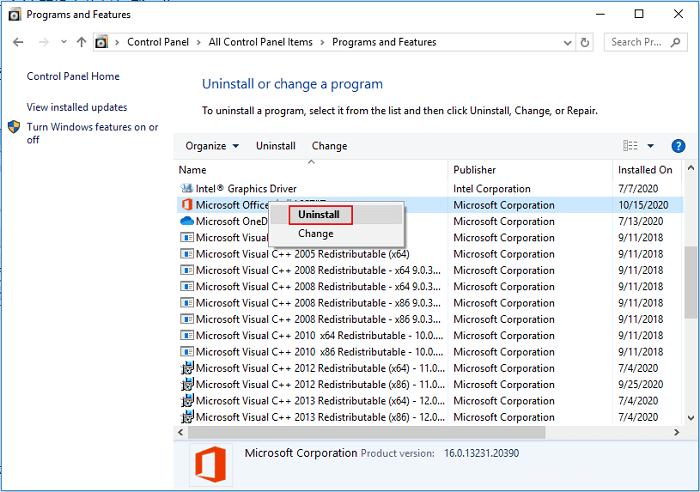
To uninstall a program on a Windows server using the Control panel, navigate to the Control panel, click on the "Programs and Features" option, select the program you want to uninstall, click on the "Uninstall" button, and confirm your choice by clicking "Uninstall" again. This will remove the program from your Windows server.
To uninstall any program installed on your Windows Server, follow these steps:
Step 1: To access the Programs and Features window, start by navigating to the Start menu, then type "Control Panel" and press the Enter key. Once the Control Panel opens, locate the "Programs and Features" option and click on it. This will open the window where you can view, add, or remove installed programs.
Step 2: To uninstall a program from a Windows server, look for the program you want to remove and right-click on it. Select "Uninstall" from the context menu, then click "Yes" in the confirmation box that appears. This will initiate the uninstall process.
Step 3: The wizard will remove all the files and registry entries as per the uninstall scripts, and for some applications, a server restart will be required.
To uninstall a program on a Windows server, you can use the Control Panel, which is the most viable method for most users. This involves opening the Control Panel, navigating to the "Programs and Features" section, and selecting the program you want to uninstall. From there, you can click the "Uninstall" button to remove the program and all its components. This process is quick and straightforward, making it a great option for most users.
Method 2. Use Uninstaller to Remove Programs
The Qiling Disk Master app allows for easy uninstallation of programs from a Windows Server, providing a hassle-free and quick process.
To uninstall an app, go to App Management, click Start, select the app to uninstall, and click Uninstall. That's a straightforward process.
The Qiling Disk Master application is a multifaceted tool that goes beyond just creating backups. It can also be used for other purposes, such as.
- PC to PC - Transfer files, applications, settings from one PC to another PC.
- Backup & Restore - To back up data, you'll need to save it to an external device, such as an external hard drive, USB drive, or cloud storage. This can be done by connecting the device to your computer and using the built-in backup software, or by manually copying and pasting files to the device.
- App Migration - Migrate the installed applications between drives.
- Data Rescue - If the device is not functioning properly, export the data from your local PC by following these steps: Connect to the device via a USB cable. Open the device's software on your PC.
- Product Key - Export and save the serial numbers to prevent system or application crashes and the need for reinstallation.
The Qiling Disk Master application is a standout in its ability to handle various tasks, offering a single, comprehensive package that provides multiple functionalities. It is a valuable tool that every Windows Server should have.
Step 1. Choose App Management, Click "Start" to securely uninstall your apps and repair your damaged apps.
Step 2. To remove an app, select it from the list of all installed apps on your PC, then choose the option to uninstall or repair it. If the uninstall process doesn't work, you can click the small triangle icon and select "Delete" instead.
Step 3. Click "Uninstall" to remove the app, or click the icon right behind "Uninstall" and choose "Repair" to fix any issues with the app.
Method 3. Use Registry to Uninstall Programs
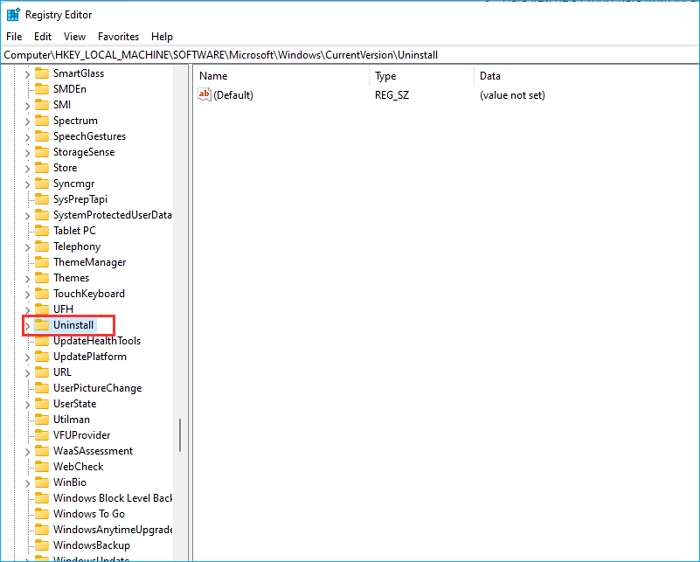
The Windows Registry is a database that stores information on system software and hardware, providing easy access and modification of its vast data.
Using Windows Registry to execute tasks may seem tedious and complex at first, but it's actually one of the most efficient ways to make changes to your Windows server, offering a multitude of other functions beyond just task execution.
To uninstall a program on a Windows server using the Windows Registry, you can follow these steps: navigate to the HKEY_LOCAL_MACHINE\SOFTWARE\Microsoft\Windows\CurrentVersion\Uninstall key, then look for the subkey corresponding to the program you want to uninstall, delete the subkey, and restart the server. This will remove the program from the server.
Step 1: To access the Windows Registry, go to Start, click on Run, type "regedit" in the text box, and then click the OK button.
Step 2: In Windows Registry, navigate to HKEY_LOCAL_MACHINE\Software\Microsoft\Windows\CurrentVersion\Uninstall.
Step 3: To uninstall unwanted programs on your Windows server, look on the left side and expand the uninstall key. Then, right-click on the desired program and select Delete, confirming with Yes. Repeat this process for other unneeded programs.
Using the registry can seem time-consuming, but it's actually efficient and safe if done properly. It's always a good idea to take a backup before making any changes.
To uninstall a program from a Windows server, you can use the Control Panel's "Add or Remove Programs" feature, which is usually located in the "Control Panel" under "Programs and Features". Alternatively, you can also use the Registry Editor to delete the program's entry, but this method is not recommended unless you're familiar with the Registry and its potential risks. However, using a third-party uninstaller or a script can provide more advanced features, such as cleaning up leftover files and registry entries, and can be a more efficient way to completely remove a program from your system.
Conclusion
The Qiling Disk Master is a highly efficient tool for uninstalling programs from Windows servers, offering a fast and streamlined process. It also provides a range of additional features that save time, making it a reliable and safe choice.
Related Articles
- Can I Transfer Kindle Books to Another Device? Sure!
- How Do I Move Epic Games to Another Drive or PC? [Beginners' Choice]
- How to Transfer Music Files from Old PC to New PC
- Zinstall Review and Zinstall Free Alternative You Must Know in 2022
- Is Dell Migrate Worth It in Data Migration Between PCs? How to Use It [2022 New]
When searching for reliable data migration software to transfer files from one PC to another, you may come across Dell Migrate, which is often recommended by others. But what is Dell Migrate, is it worth trying, and what are its pros and cons. - Is Windows 10 Backup Any Good? Check the Answer
Windows 10 has built-in backup tools, but they may not be sufficient for all users. The built-in tools, such as File History and System Image Backup, can be useful for backing up individual files and the entire system, respectively.
Products
Articles & Tutorials
- Data Recovery
- Data Backup
- File Recovery
- File Backup
- System Backup and Restore
- Disk and Partition Clone
- Technical articles
- Mobile articles
- Disk Master Help
- Windows Data Recovery Tutorials
- Windows Secure Delete Tutorials
- Windows Partition Management Tutorials
- Windows File Backup and Restore Tutorials
- Windows System Backup and Restore Tutorials
- Windows Disk Backup and Restore Tutorials
- Windows Clone Tutorials