Rufus vs. Windows Media Creation Tool: Everything You Need to Know
If you're experiencing booting issues with your Windows OS, creating a bootable USB drive can be a lifesaver. You can use tools like the Windows Media Creation Tool or Rufus to create a bootable USB drive, which can help you troubleshoot and potentially fix the issue. These tools are user-friendly and have a simple process, making them a great option for those who are not tech-savvy. If you're unsure about which tool to use, this article provides a detailed guide on both utilities, so you can make an informed decision and get your computer up and running again.
What is Windows Media Creation Tool?
The Windows Media Creation Tool allows users to download a Windows OS version onto a USB drive, which can be used to reinstall Windows in case of bootup failures. It's a good idea for Windows users to have a hard copy of their operating system for emergencies, and to use the tool, you'll need a USB drive and a reliable internet connection.
- Blank USB Flash Drive: To create a Windows bootable USB drive, you need to have a formatted USB drive, which means it should have no files or folders on it. This will ensure that the USB drive is clean and ready to be used as a bootable drive for Windows installation.
- Computer With Internet Access: Creating a bootable USB drive requires a working computer system and an internet connection, making it difficult to operate without the internet.
- Windows Product Key: To create a copy of Windows on a USB flash drive, you need to have the product key that was provided to you during the Windows purchase. This key will be required to activate the copied Windows OS on the USB drive.
To create Windows installation media on a USB drive, you'll need a Windows 10 ISO file, a blank USB drive with at least 8GB of free space, a computer with a working internet connection, and a download manager like Microsoft Edge or Google Chrome. Once you have all the essentials, you can download the Windows 10 ISO file from Microsoft's official website and create a bootable USB drive using the Media Creation Tool or Rufus software.
Step 1. Visit the Microsoft website, download the Windows Media Creation tool file, and proceed with the installation.
Step 2. After downloading the utility tool, you will see two options. Click on the second option, which is labeled "Create Installation Media (USB flash drive, DVD or ISO file) for another PC," and then click Next.
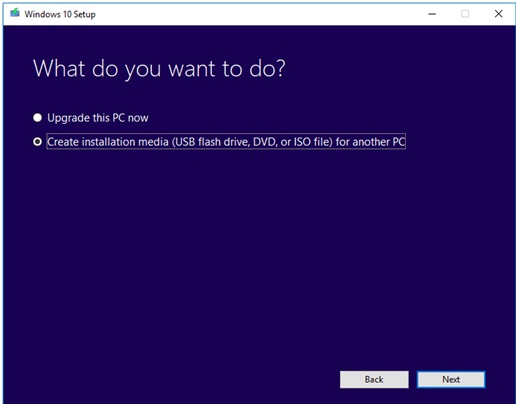
Step 3. 1 paragraph
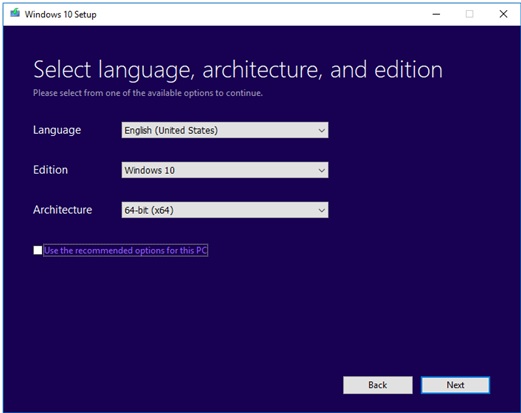
Step 4. The user needs to choose the USB flash drive storage option and press next. This will allow them to select a USB drive to store the Windows installation files on.
Step 5. The user needs to select the desired USB drive that they want to use for the installation process. This involves identifying the correct USB drive from the list of available drives.
Step 6. The Microsoft Media Creation Tool will download the latest Windows OS files onto the computer system once the USB drive is selected.
Step 7. As the download completes, the Windows OS media creation tool will begin.
Step 8. Once you've completed the steps, click on the Finish button, and you'll be able to use the USB drive to boot up your computer and install Windows OS.
What is Rufus?
Rufus is an open-Rufus is a popular application used to create USB installation media from bootable files of Windows and other operating systems, including Linux and UEFI. To create a Windows USB drive using Rufus, you'll need a USB flash drive with at least 8GB of space and a downloaded ISO file of Windows. Please note that any data on the USB drive will be erased during the process. To proceed, simply follow the steps outlined in the instructions.
Step 1. Download the Rufus utility on your computer system.
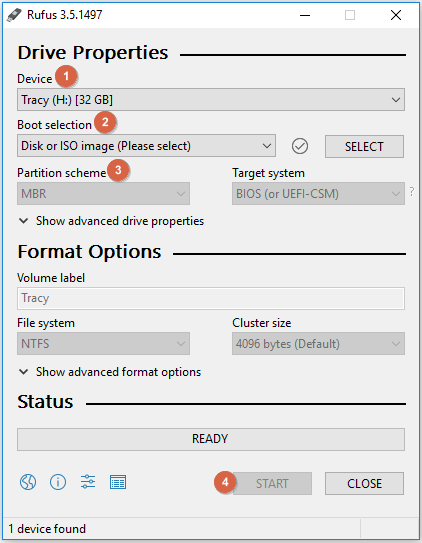
Step 2. Once the software is downloaded, select your USB flash drive under the Device option and click the Select button to choose the Windows 11/10/8.1/8/7 installation media.
Step 3. To format a drive, select the volume label and leave the file system set to its default option.
Step 4. Click on the start and wait for the process to get finished.
Rufus Vs Windows Media Creation Tool: What's The Difference
While Rufus and Windows Media Creation Tool share a similar process, there are some minor differences between the two utilities. Despite their similarities, there are some key differences that users should be aware of. Specifically, the main differences between Rufus and Windows Media Creation Tool lie in their minor variations.
| Basic | Rufus | Windows Media Creation Tool |
| Partition Format | Rufus allows you to choose between two partition formats: Master Boot Record (MBR) and GUID Partition Table (GPT). | The Windows Media Creation Tool does not allow users to choose the partition format during the installation process. This means that the tool will automatically format the selected partition using the NTFS file system, without giving users the option to choose a different format, such as FAT32. |
| Disk Space | Rufus takes 100% Disk Utilization | Windows Media Creation Tool leave acceptable space in disk utilization |
| Operating System | Rufus can be used for any operating system | Windows Media Creation Tool is used for Windows |
What Else You Can Use to Make a Bootable USB Drive?
The Qiling OS2Go allows users to create a bootable Windows 11/10/8.1/8/7 USB drive, cloning the OS to an external USB for portable use. This software is easy to download and use, requiring only a USB drive and a computer system to follow the simple steps and create a portable Windows USB drive. The Qiling OS2Go's flexible interface makes the process straightforward and easy to follow.
Step 1. To use Qiling OS2Go, install it on your Windows computer, which will show the used space on your system drive. Then, plug in a USB drive that is larger than the used space on your system drive. Next, select the target USB drive and click "Next" to continue.
Step 2. You will be notified that the operation would delete all data on your drive, so make sure to back up important data before clicking the Continue button to proceed.
Step 3. Adjust the disk layout to match the resource drive, or customize it to your needs, and select the option to use a Solid State Drive as the Windows bootable drive if applicable, then click Proceed.
Step 4. Qiling OS2Go will create a portable USB drive, which may take a while depending on your OS and network condition. Once the progress reaches 100%, the USB drive will be bootable.
Step 5. To boot from a portable Windows USB, start your computer, press the required key (usually F2, DEL, F10, etc.) to access the BIOS, and select the USB disk as the boot device.
Note: To ensure a smooth boot process, it's essential to match the boot mode of your portable USB drive with that of your target computer. This means both should be set to either UEFI or Legacy mode, as mismatched modes might prevent the computer from booting.
Conclusion
Creating a Windows USB drive is a straightforward process that can be achieved using Rufus, Windows Media Creation Tool, or Qiling OS2Go software. To do so, you'll need an empty flash drive, a computer system, and an internet connection. The standard procedure is almost identical across these tools, allowing you to choose the one that best suits your needs in terms of flexibility. Once you've selected the software, you can follow the prompts to create a portable version of your Windows operating system on the flash drive.
Related Articles
- How to Create Portable Drive when Rufus Windows To Go Option Missing
- Put Your Windows 10 on Another Computer
- Windows Installation | How to Install Windows on Chromebook
- (Two Usefuls Ways) How to Create Windows 10 Installation USB Drive
- How to Fix SD Card Unexpectedly Removed Error on Your phone
This page addresses the issue of an SD card being unexpectedly removed, with users experiencing the error message and wondering why their SD card keeps unmounting. To resolve the problem, users can refer to this page for solutions on how to fix the SD card unexpectedly removed issue. - Seagate Backup Software Download | Back Up Seagate External Hard Drive
Users often turn to reliable Seagate backup software to overcome issues with their hard drives, allowing them to successfully perform backups.
Products
Articles & Tutorials
- Data Recovery
- Data Backup
- File Recovery
- File Backup
- System Backup and Restore
- Disk and Partition Clone
- Technical articles
- Mobile articles
- Disk Master Help
- Windows Data Recovery Tutorials
- Windows Secure Delete Tutorials
- Windows Partition Management Tutorials
- Windows File Backup and Restore Tutorials
- Windows System Backup and Restore Tutorials
- Windows Disk Backup and Restore Tutorials
- Windows Clone Tutorials