Windows 11 Pro Download: Official ISO and Installation Guide
To install Windows 11 Pro, start with Microsoft's official Windows 11 download page. Its x64 ISO is a multi-edition image; the product key or existing license determines which edition you can install and activate. Back up important data before changing or replacing an existing installation.
- Windows 11 Home
- Windows 11 Pro
- Windows 11 Pro Education
- Windows 11 Pro for Workstations
- Windows 11 Enterprise
- Windows 11 Education
If you are choosing between Windows 11 Home and Windows 11 Pro, confirm your license before installation. You can download Windows 11 from Microsoft and use the Windows 11 Media Creation Tool to create a bootable USB drive. For an in-place transition, see the guide to a free upgrade from Windows 10 to Windows 11.
Avoid ISO files shared through forums or third-party file hosts when an official Microsoft download is available. The official page provides the current x64 multi-edition ISO and a separate route for Arm64 devices; Windows 11 does not have a 32-bit edition.
Page Navigation:
- 1. What's Windows 11 Pro ISO Image?
- 2. What's Windows 11 Pro Download Full Version Direct Link?
- 3. Third-Party ISO Sites and Why to Prefer Microsoft
- 4. Back up your PC before installing Windows 11 Pro.
- 5. Prepare installation media and finish the setup
What's Windows 11 Pro ISO Image?
- Full Name: Windows 11 Disc Image
- An ISO image contains the files needed to create installation media or mount a virtual disc.
- The Windows ISO image is used to create a bootable installation media or a virtual machine to install Windows 11, allowing users to install the operating system on a computer or virtual environment.
Microsoft's Windows 11 ISO is not a separate Pro-only download. You can use it to make bootable USB or DVD installation media, create a virtual machine, or mount it in a running Windows installation to start an upgrade. A valid Pro license is needed to activate Pro.
Windows 11 ARM Download with ISO
For an Arm-based PC or virtual machine, use the separate Arm64 download rather than the x64 ISO described here. Check the device and virtualization platform's requirements first.
What's Windows 11 Pro Download Full Version Direct Link?
Use Microsoft's software download page below for the current Windows 11 ISO. The page offers a multi-edition x64 image; your product key or digital license determines whether Pro is available for your device.
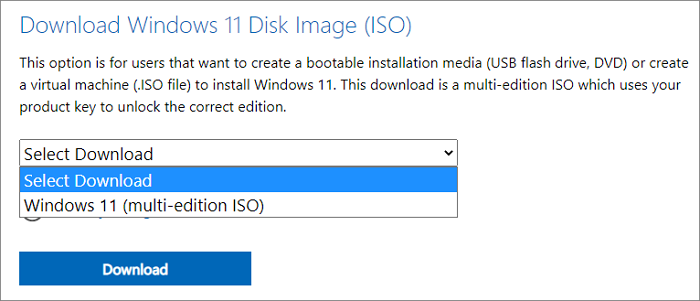
Download Windows 11 Disk Image (ISO)
On Microsoft's page, find Download Windows 11 Disk Image (ISO) for x64 devices, select the available multi-edition ISO, confirm the language, and download the file. The installer may select an edition from an existing key or firmware license; if it offers a choice, select Pro only if you have a Pro license. Verify the ISO with the option Microsoft provides after the download.
Skip unofficial file-sharing mirrors: an ISO from an unknown source may be outdated or modified. Downloading from Microsoft also makes it easier to check the current system requirements and supported installation options.
Third-Party ISO Sites and Why to Prefer Microsoft
The sites below are third-party references, not Microsoft download sources. Their files and links can change, so do not treat them as verified Windows 11 Pro ISOs. For installation media, prefer the official Microsoft link above.
Back up PC and Start Installing Windows 11 Pro with ISO
Before a clean installation, back up your files and, if you may need to restore the previous system, create a disk or system image on a separate drive. A clean install can erase the selected Windows partition. Check the target disk carefully during setup.
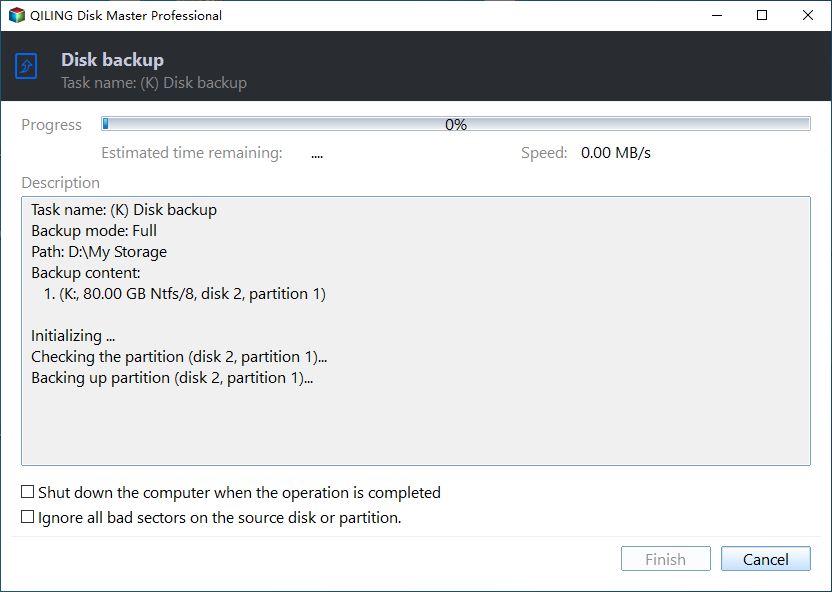
Qiling Disk Master can create a disk backup before installation. Keep the external backup drive disconnected during the Windows setup so it cannot be selected or erased by mistake. To restore the old system later, you need a usable backup image and the appropriate recovery environment; a backup alone does not guarantee an automatic rollback.
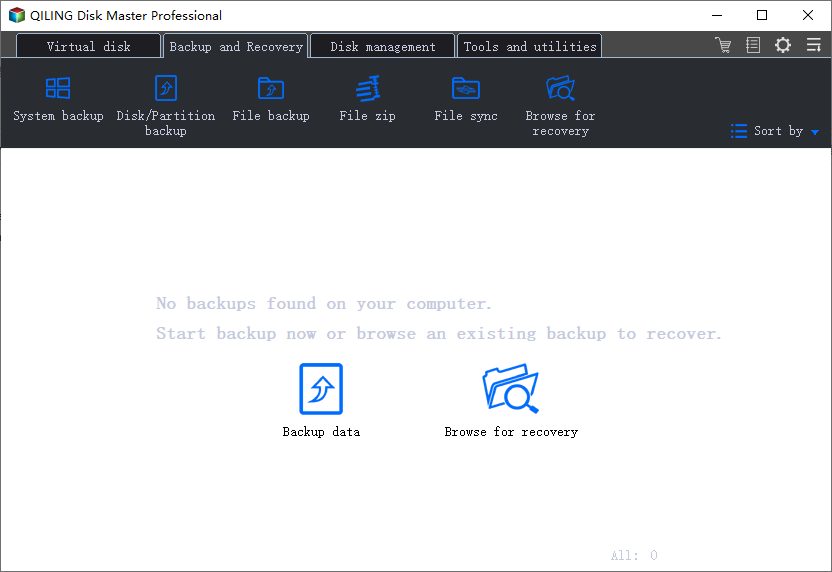
Step 1. Connect a separate backup drive, open Qiling Disk Master, and choose Disk/Partition backup on the Backup and recovery page.
Step 2. Select the disk that contains your current Windows installation. Check its disk number and capacity; selecting only a partition will not make a full-disk backup.
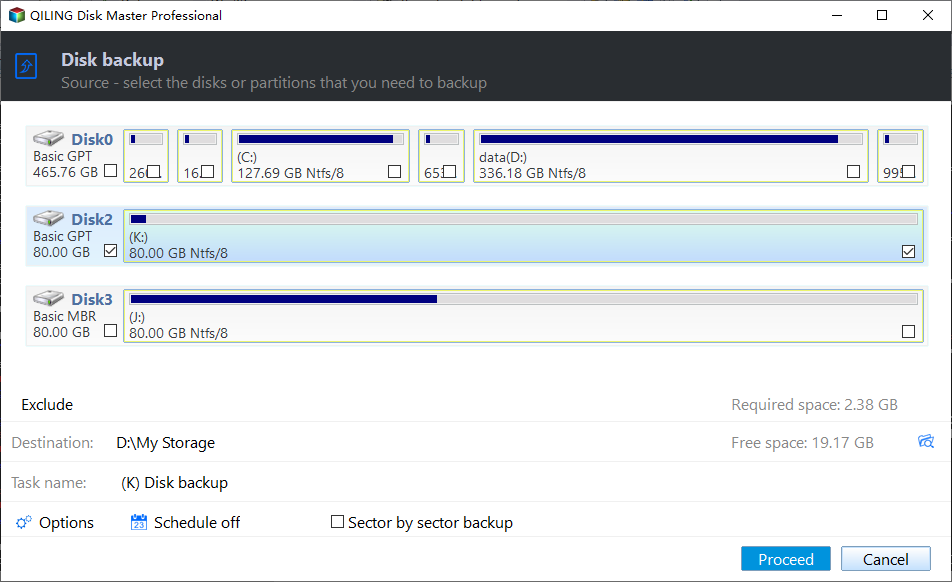
Step 3. Browse to a folder on the separate backup drive. Confirm its drive letter and that it has enough free space for the image.
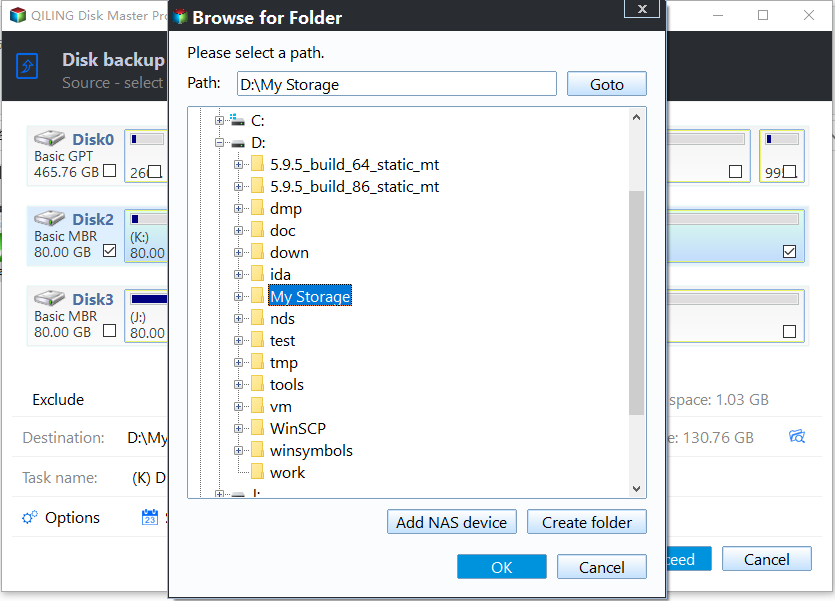
Step 4. Review the source and destination, then click Proceed. Wait for the backup to finish, confirm the image was saved, and disconnect the backup drive before installing Windows.
Prepare Installation Media and Install Windows 11 Pro
Use the official Microsoft ISO or Media Creation Tool to prepare installation media. The Qiling OS2Go resource covers a separate USB-based Windows workflow; it is not required to download the Microsoft ISO. The Qiling download button below is for the backup software, not Windows 11.
Step 1. On Microsoft's Windows 11 download page, choose the Media Creation Tool if you want it to prepare a bootable USB drive, or download the x64 ISO if you will create media separately. Use a blank USB drive of at least 8 GB; creating installation media erases its contents.
Step 2. Follow the Media Creation Tool prompts to select the language and 64-bit architecture, then choose the correct USB drive. If you downloaded an ISO instead, use a suitable tool to write it as bootable media; copying the ISO file onto a USB drive is not the same as making it bootable.
Step 3. Connect the installation USB to the target PC and restart it. Open the PC's boot menu if it does not start from USB automatically, then choose the installation drive.
Step 4. In Windows Setup, choose the language and keyboard layout, then select Install Windows. Enter a valid Pro product key if prompted, or choose the edition that matches your existing license when Setup offers a choice.
Step 5. For a clean installation, inspect the disk and partition list carefully before selecting a destination. Deleting or formatting partitions removes data. Complete Setup, reconnect your backup drive only after Windows starts, and restore the files you need.
Related Articles
- [Full Guide] Windows Defender Download Windows 11
- All You Need to Know About Windows 11 Backup and Restore (Windows 7)
- 2022 Five Best Solutions to Backup Files in Windows 11
- Top 10 Reasons to Choose Qiling Backup and Recovery Software for Windows 11/10
- Free Download USB Image Tool on Windows 10/11
Discover the best free USB image tool for Windows 10/11 to create disk images, backup and restore USB drives easily. Compare top 5 USB imaging tools with step-by-step tutorials. - What Do I Need to Backup Before Upgrading to Windows 10?
What do I need to backup before upgrading to Windows 10? Do you want to know the answer? This article will describe what you need to back up before upgrading to Windows 10.
Products
Articles & Tutorials
- Data Recovery
- Data Backup
- File Recovery
- File Backup
- System Backup and Restore
- Disk and Partition Clone
- Technical articles
- Mobile articles
- Disk Master Help
- Windows Data Recovery Tutorials
- Windows Secure Delete Tutorials
- Windows Partition Management Tutorials
- Windows File Backup and Restore Tutorials
- Windows System Backup and Restore Tutorials
- Windows Disk Backup and Restore Tutorials
- Windows Clone Tutorials