Fix Windows 10 Doesn't Recognize or Detect Second Hard Drive Error
Quick Fix for Second Hard Drive Not Detected In Windows 10:
- 1. Go to Search, type device manager, and press Enter.
- 2. To update the driver software for the second disk drive, expand the Disk drives section, locate the second disk drive, right-click on it, and select the Update driver software option.
- 3. Follow further updates instructions and your hard disk drive will be updated.
- 4. You can also go to Settings > Update and check if overall updates offer something for your hard drive.
To resolve the issue where Windows 10 fails to recognize or detect the second hard drive, you can try the following steps. First, ensure the second hard drive is properly connected and powered on.
| Workable Solutions | Step-by-step Troubleshooting |
|---|---|
| Phrase 1. Check the hard drive in BIOS | Restart PC and press F2 to enter BIOS. Enter Boot Menu to check if the second hard drive is detected...Full steps |
| Phrase 2. Check the hard drive's state | Enter the Device Manager, expand "Disk drivers". Locate and check the second hard drive. Right-click...Full steps |
| Phrase 3. Scan and restore saved data | If you've saved important data in the second hard drive, you need to extract saved data in advance...Full steps |
| Phrase 4. Check the hard drive in DM | Check the second hard drive in Disk Management on your computer and make it detectable. Different state...Full steps |
Those fixes also work to resolve the issue of a hard drive not being recognized in Windows 8.1/8/7 and even older Windows OS.
My Second Hard Drive Doesn't Show up in Windows 10
To show a second hard drive in Windows, you can try the following: 1) Open Disk Management (Press the Windows key + R, type "diskmgmt.msc" and press Enter). 2) In the Disk Management window, look for the unallocated space on the second hard drive. 3) Right-click on the unallocated space and select "New Simple Volume". 4) Follow the prompts to assign a drive letter and format the drive.
The second hard drive may not be recognized by your computer due to a driver issue or a faulty connection. To troubleshoot, try restarting your computer in Safe Mode and see if the drive appears. If it does, the issue is likely with a third-party program interfering with the drive. If not, check the drive's power cable and ensure it's properly connected to the motherboard. You can also try using a USB drive to transfer files to the second hard drive, or use a separate computer to access the drive. If none of these steps work, it's possible the drive is faulty and may need to be replaced."
To resolve the issue of a second hard drive being undetectable, you'll need to diagnose the exact reason causing the problem. Fortunately, this page provides reliable methods and tools to help you fix the issue on your own, making it possible to effectively troubleshoot and resolve the problem with your second hard drive not showing up in Windows.
Diagnose and Fix Unrecognized Second Hard Drive in Windows 10
To troubleshoot a hidden second hard drive, start by checking your computer's BIOS settings to ensure the drive is recognized. If it's not listed, try booting in safe mode and see if the drive appears.
Quick Fix: Reconnect and Re-install the 2nd Hard Drive
If your hard drive has vanished from File Explorer or Disk Management, the first step is to check the hard drive's power cable and SATA cable to ensure they are properly connected.
Step 1: Take out the hard drive from your computer with a screwdriver.
Step 2: Check if the hard drive connection is loosened.
If yes, unplug and re-To resolve the issue, unplug the hard drive from the computer case and inspect the cables. If they are damaged, replace the SATA/ATA cable and power wire, then reconnect the drive to the PC.
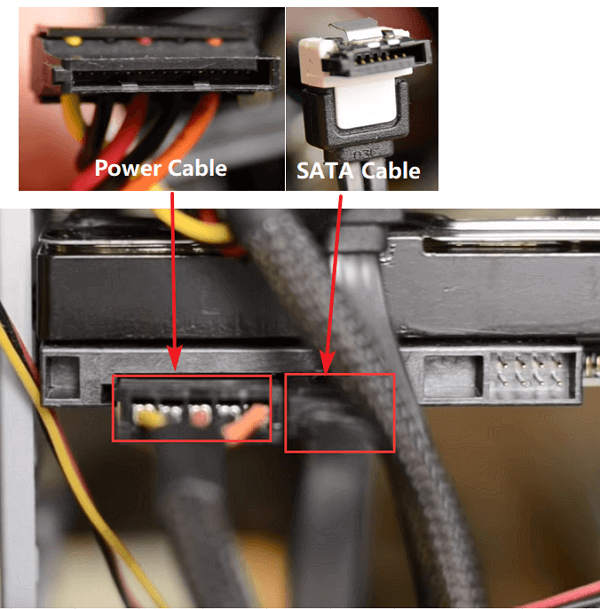
Step 3: If your PC won't detect the hard drive, you can try putting the computer case back on and restarting the PC to see if the drive shows up. This is a simple troubleshooting step that can help resolve the issue.
If Windows detects the second drive, you can stop here. You may also be interested in learning how to partition a hard drive.
If the disk still doesn't show up in Windows File Explorer nor Disk Management, it's likely due to a driver issue. Try updating the disk driver or reinstalling it.
Phase 1. Check and Make Second Hard Drive Detectable in BIOS
To fix the issue of Windows not recognizing a hard drive in the BIOS, you can try booting from a bootable USB or CD, accessing the BIOS settings, and checking if the hard drive is recognized there. If it's not, you can try resetting the BIOS to its default settings or updating the BIOS to the latest version.
Step 1: Restart PC and press F2 to enter BIOS.
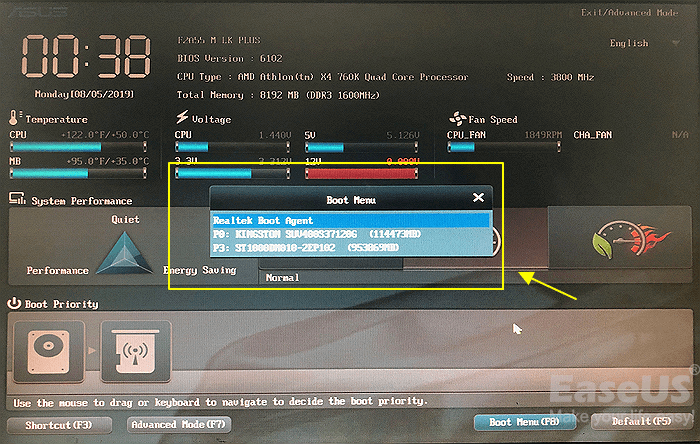
Step 2: To check if the second hard drive is detected, enter the Boot Menu. This is typically done by pressing a specific key during the boot process, such as F2, F12, or Del, depending on the system.
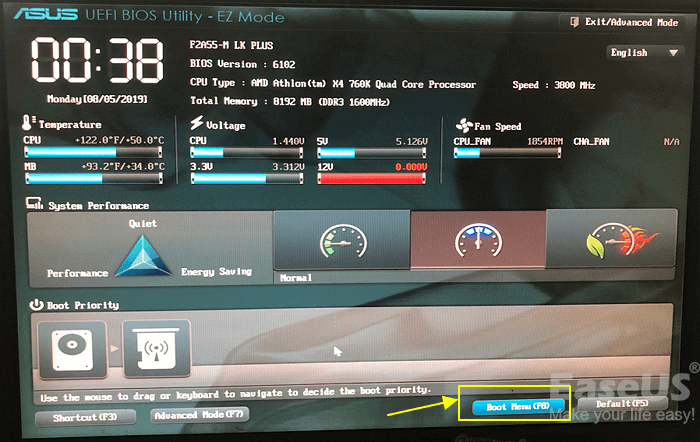
Step 3: Try the below tips if the second hard drive doesn't show up:
First, enter the Setup section, under System Setup, check the state of the second hard drive.
If the System Setup option is currently Off, turn it ON and save the changes.
If the second disk still doesn't show up in BIOS, it's likely due to a physical issue. To troubleshoot, restart the PC each time to check if the second disk appears in BIOS. If it still doesn't show up, it's recommended to take the hard drive to a local after-sales service center or a device repair center for assistance with repair.
If the second hard drive shows up in BIOS but as the image, move on to the next guide to check the state of the problematic hard drive in Disk Management.
Phase 2. Check the State of Second Hard Drive and Update Driver in Device Manager
Windows 10 may not recognize a second hard drive due to an outdated drive driver, which can be fixed by updating the driver.
Step 1: Go to Search, type device manager, and press Enter.
Step 2: Click Device Manager and expand "Disk drives".
Step 3: Locate and check the state of the second hard drive.
If your disk driver is covered by a yellow exclamation mark, you will need to update the disk driver. This is typically done through the Device Manager.
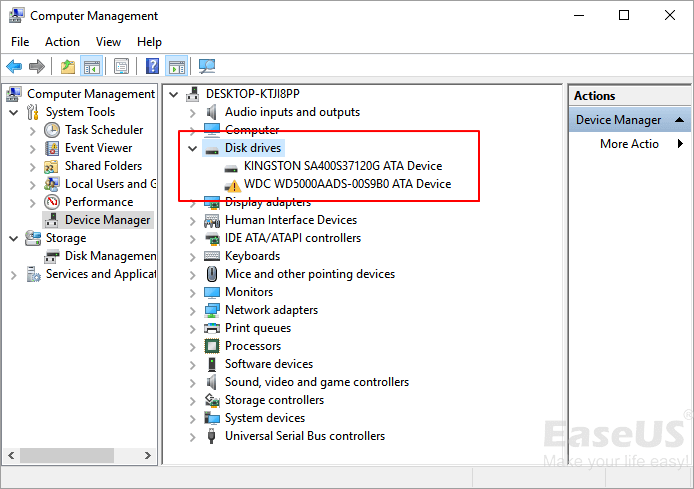
Step 3: Right-click the second hard drive that is not detectable and select "Update driver".
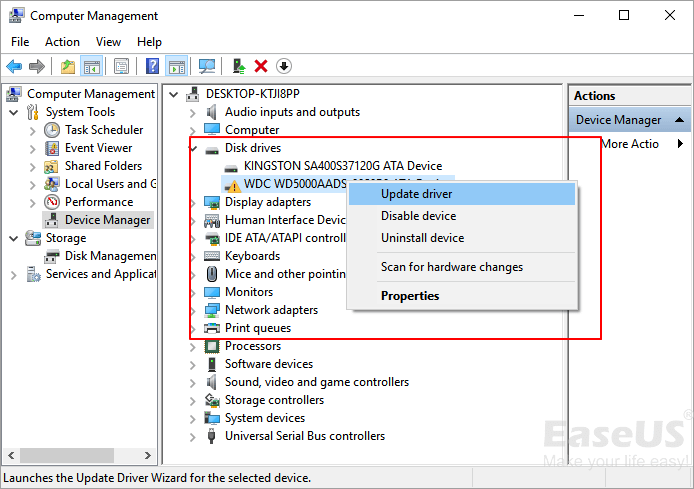
Step 4: Click "Automatically search for driver software online" and wait for the process to complete.
When the process finishes, restart your PC and check the disk again in the Device Manager. It will display as a normal disk by then and you can proceed to Phase 3 to continue fixing this issue.
If Windows can't find a new driver for your hard drive, you can try downloading one from the device manufacturer's website and follow their instructions to complete the driver update process.
Phase 3. Scan and Restore Saved Data from the Second Hard Drive
To protect data on a problematic hard drive not recognized by Windows, use an external drive or a bootable USB drive to access the hard drive, then copy the data to a safe location. If the hard drive is not recognized, try booting from a Linux live CD or USB drive, which may be able to access the hard drive and retrieve the data. If the hard drive is still not accessible, consider using a data recovery software, such as Qiling or Recuva, to scan the drive and recover any recoverable data.
If your second hard drive is a new device, you can skip this phase and move to Phase 4 to make it detectable again.
However, if you saved important data on the second hard drive, it's highly recommended to extract the saved data beforehand. You can use professional hard drive recovery software like Deep Data Recovery to scan the second hard drive and find all saved data.
The guidelines to restore all saved data from a hard drive include identifying the type of hard drive, gathering necessary cables and adapters, booting from a recovery drive or USB, selecting the correct restore point, and following the on-screen instructions to complete the restore process. Additionally, it may be necessary to reinstall any software or drivers that were affected by the restore process.
Step 1. Launch Deep Data Recovery in Windows 11/10/8/7, choose the file type, and click "Fast Scan" to proceed.

Note: You can choose different search modes based on where and why the data was lost.
Step 2. Choose the place where you lost data. Then, click "Scan".

Step 3. After scanning, use the file format filter to locate the files you need, and then click the "Preview" button or double-click a file to view its content.

Step 4. To recover a lost file, select the file by clicking the checkbox next to it, then click the "Recover" button to restore the file to a secure location.
To resolve the issue of a hard drive not being detected, save the data to another secure device, preferably an external hard drive. Then, you can remove the problematic hard drive and replace it with a new one, making the hard drive detectable and working again.
Phase 4. Check the State of Second Hard Drive in Disk Management and Make It Detectable
To fix Windows 10 not detecting a second hard drive due to logical errors, you can try running the built-in Check Disk (chkdsk) utility on the problematic drive. This can help identify and repair any errors that may be preventing the drive from being recognized.
If your disk shows up properly in BIOS and Device Manager, but Windows can't detect or recognize it properly, it's likely due to one of four common errors.
- RAW error
- Device not initialized or shows unallocated
- The second hard drive shows No Media
To resolve the issue of the second hard drive not showing up, open Windows Disk Management and check its display state. If it's not visible, follow the necessary fixes to make it appear.
# 1. Hard Drive Shows RAW - Format RAW Drive to NTFS
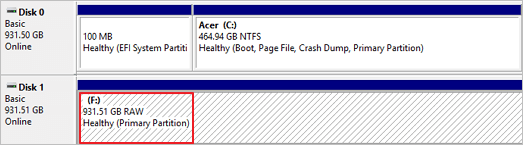
If the hard drive shows as Online, but the partition displays as RAW, you can format the partition to NTFS.
Step 1: Right-click on This PC/My Computer, select "Manage".
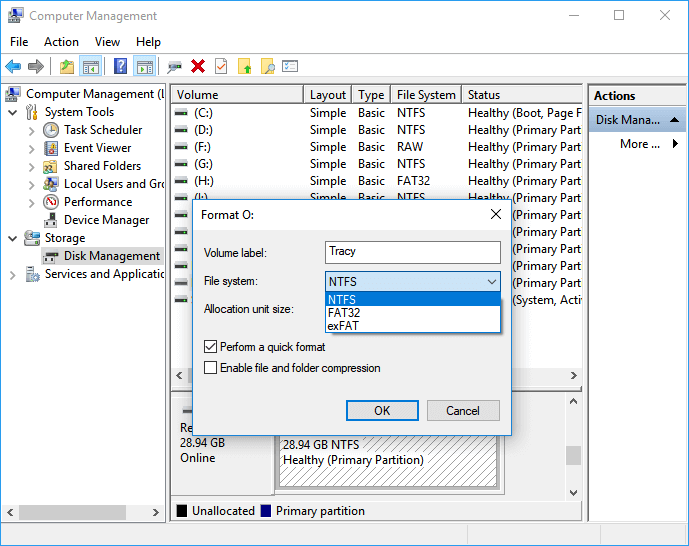
Step 2:To fix a not recognizing hard drive in Disk Management, locate the RAW partition of the drive, right-click it, and choose the "Format" option. This will allow you to format the partition and potentially resolve the issue.
Step 3: Select NTFS as the file system for the partition and confirm with "OK".
# 2. Hard Drive Shows Not Initialized + Unallocated
If the hard drive shows as a not initialized or unknown drive, don't worry, it's likely just a minor issue that can be resolved with a few simple steps.
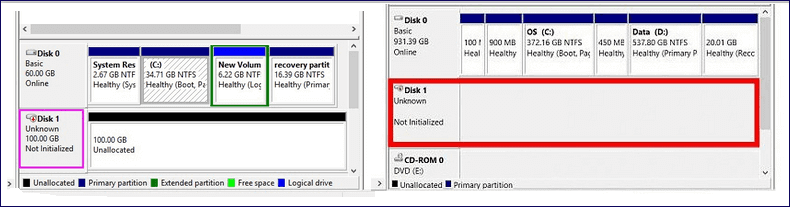
You can directly apply Windows partition manager software - Qiling Partition Master with its Initialize to MBR or Initialize to GPT feature to make the hard drive show up now.
Step 1: Launch Qiling Partition Master on your PC.
Step 2:Right-click the target hard drive and select the appropriate initialization option, either "Initialize to MBR" for Master Boot Record or "Initialize to GPT" for GUID Partition Table, depending on the desired partition scheme.
Step 1. Open Qiling Partition Master and connect the hard drive or SSD to your PC.
Right-To initialize your target HDD or SSD, select it and choose the appropriate option based on its type: for MBR, select "Initialize to MBR", and for GPT, select "Initialize to GPT".
Step 2.A new feature to initialize a disk to either MBR or GPT will be added, allowing users to execute the operation and apply the changes.
0:00-0:22 Initialize to MBR; 0:23-0:49 Initialize to GPT;
The process of creating multiple partitions on a second hard drive involves repeating steps 4 to 6, where you create a new partition, format it, and assign a drive letter, until you have created the desired number of partitions.
After following the process, you can now utilize the second hard drive in Windows 10 to save data again.
# 3. Hard Drive Displays as NO Media - Update Driver, Take It to Device Repair Center
If the second hard drive shows as "No Media" in Disk Management, you'll have two choices:
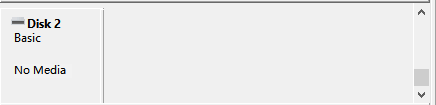
- 1st. Go back to Phrase 2 and update the device driver.
- 2nd. Take the hard drive out of your computer, and send it to a local device repair center for repair.
Wrapping UP
On this page, we presented the complete process of how to check and fix a not detecting hard drive on Windows 10, which can also be applied to fix Windows not detecting or not recognizing a hard drive or second hard drive on all Windows OS.
A hard drive not detected in Windows 10 is often due to a driver issue, connection problem, or incorrect BIOS settings. Connection issues might stem from a faulty USB port, cable, or outdated drivers, while incorrect BIOS settings could mean the new hard drive is disabled in the system settings.
Here are some tips to make the hard drive or the second hard drive detectable:
- 1. To ensure the hard drive is correctly connected to your PC, verify that both the power cable and SATA cable are securely attached to their respective ports on the hard drive and the PC. The power cable should be plugged into the hard drive's power port, and the SATA cable should be connected to the PC's SATA port.
- 2. To resolve the issue, ensure that the second hard drive is enabled or turned on in the BIOS settings. This is often done by accessing the BIOS menu during boot-up, navigating to the storage or device section, and checking that the secondary drive is listed and set to enabled.
- 3. It's a good idea to regularly update the hard drive driver, especially when installing a new hard drive on a Windows PC.
- 4. To proceed, partition or create partitions on the hard drive using a recognizable or supported file system, such as NTFS.
Related Articles
- Fix Windows (11/10/8/7) Won't Boot From USB Error
- Fix Dropbox Not Syncing Error in Windows 10 [2022]
- [Fix] A required device isn't connected or can't be accessed with error
- Copy Speed 0 Bytes: How to Fix File Transfer Speed Drops to Zero Windows 10
- Is It Possible to Create an ISO Image from an Installed OS?
Is it possible to create an ISO image from an installed OS? Do you want to get the answer? This post will answer whether you can create an ISO image of your installed operating system and offer Qiling Disk Master to help you. - Is Updating BIOS Safe Without Losing Data?
Updating BIOS can help fix some bugs on your computer. But is updating safe without losing data? This article will describe whether it is safe to update your BIOS without data loss.
Products
Articles & Tutorials
- Data Recovery
- Data Backup
- File Recovery
- File Backup
- System Backup and Restore
- Disk and Partition Clone
- Technical articles
- Mobile articles
- Disk Master Help
- Windows Data Recovery Tutorials
- Windows Secure Delete Tutorials
- Windows Partition Management Tutorials
- Windows File Backup and Restore Tutorials
- Windows System Backup and Restore Tutorials
- Windows Disk Backup and Restore Tutorials
- Windows Clone Tutorials