How Do I Fix Windows 10 BSOD: Blue Screen of Death Error? Here Is The Guide
To fix Windows 10 blue screen of death error during OS update or using applications, try the following: run the Windows Update Troubleshooter, check for corrupted system files using the System File Checker (SFC) tool, and run the Deployment Image Servicing and Management (DISM) tool to scan and repair the system image. Additionally, disable any recently installed drivers or software, and consider running a System Restore to a previous point when the issue didn't occur.
To fix a blue screen on Windows 10, try restarting your computer in safe mode, checking for driver updates, running a System File Checker scan, and checking for malware. If the issue persists, you can try using the System Restore feature to revert to a previous point when the computer was working properly. If none of these steps resolve the issue, you may need to seek further assistance from a professional or consider reinstalling Windows 10.
To completely get rid of the issue and make the computer work normally again, you can follow this complete guide. Let's start by taking the necessary steps to resolve the problem.
PAGE CONTENT:
- Windows 10 BSOD | What Is Blue Screen of Death Error
- How to Fix BSOD in Windows 10? Solutions Are All Here
- #1. Fix Windows 10 BSOD During or After Windows 10 Update
- #2. Get Rid of Blue Screen of Death in Windows 10 While Running An App or the Device
Error: Windows 10 BSOD | What Is Blue Screen of Death Error
Windows 10 BSOD is a blue screen error that prevents access to the OS, typically displaying multiple stop error codes such as CRITICAL_PROCESS_DIED or VIDEO_TDR_TIMEOUT_DETECTED.
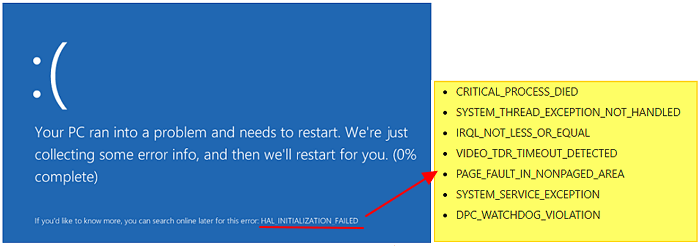
Symptoms: Normally, if your computer has one of the below-listed issues, you are with a BSOD error on the computer.
A computer display shows a constant blank blue screen of death, preventing booting into the operating system and access to any files on the Windows drive.
#2. The blue screen comes with a stop error code.
List of Common Blue Screen of Death Error Codes:
- CRITICAL_PROCESS_DIED
- SYSTEM_THREAD_EXCEPTION_NOT_HANDLED
- IRQL_NOT_LESS_OR_EQUAL
- VIDEO_TDR_TIMEOUT_DETECTED
- PAGE_FAULT_IN_NONPAGED_AREA
- SYSTEM_SERVICE_EXCEPTION
- DPC_WATCHDOG_VIOLATION
To fix the BSOD error on your own, start by checking the causes, which may include a driver issue, overheating, or a hardware problem. Then, follow the respective solutions, such as updating your drivers, running a disk cleanup and disk check, or replacing a faulty hardware component. You can also try running a System File Checker (SFC) scan, disabling any recently installed software or hardware, or using a system restore point to revert to a previous working state.
How to Fix BSOD in Windows 10? Solutions Are All Here
BSOD errors can occur due to a variety of reasons, including hardware issues, outdated drivers, software conflicts, overheating, power supply problems, and issues with the operating system itself.
- Faulty device drivers
- BIOS misconfiguration
- Bugs of Windows 10 update
- Outdated Windows operating system
- Hard disk corruption or insufficient space in system disk
- Incorrect entries in the system's registry
- Application confliction or App incompatible error
To fix the blue screen error, check when it occurs on your computer and follow the corresponding fixes. This will help you get rid of the error immediately.
| When Does BSOD Occurs | Solutions to Fix BSOD |
|---|---|
| #1. During or After Windows 10 Update |
1. Boot into Safe Mode 2. Uninstall Recent Update 3. Uninstall Device Drivers 4. Extend System Drive & Clean Install Windows 10 Update 5. Perform System Restore |
| #2. Using An App or the Device |
1. Uninstall Incompatible Apps 2. Update or Uninstall Device Drivers 3. Unplug Incompatible Peripherals |
If your Windows 10 computer is experiencing a Blue Screen of Death (BSOD), try a quick fix by rebooting the computer. Wait for it to boot up and see if the BSOD error disappears.
- If yes, congratulations and you can stop here.
- If your computer is experiencing a Blue Screen of Death (BSOD), it's likely due to a critical system failure. To resolve this issue, you can try restarting your computer in safe mode, checking for driver updates, running a System File Checker (SFC) scan, and checking for malware.
#1. Fix Windows 10 BSOD During or After Windows 10 Update
If the BSOD error occurs while installing or after a Windows 10 update, boot the computer into safe mode and then follow the respective fixes to resolve the issue.
First, Reboot Windows 10 Into Safe Mode
Step 1. Repeatedly start and turn off your device to enter Windows Recovery Environment.
- To turn off Windows 10, press and hold the power button for 10 seconds. This will shut down the operating system completely.
- Hold the power button for 10 seconds to turn off the computer and press it again to turn it on.
- Press the power button again to turn on the computer.
- Once Windows starts, hold the Power button for 10 seconds to turn it off.
- To power on your computer until Windows fully restarts and enters WinRE, simply press the power button on your computer to turn it on. Continue pressing the power button until Windows fully restarts and displays the Windows Recovery Environment (WinRE) menu.
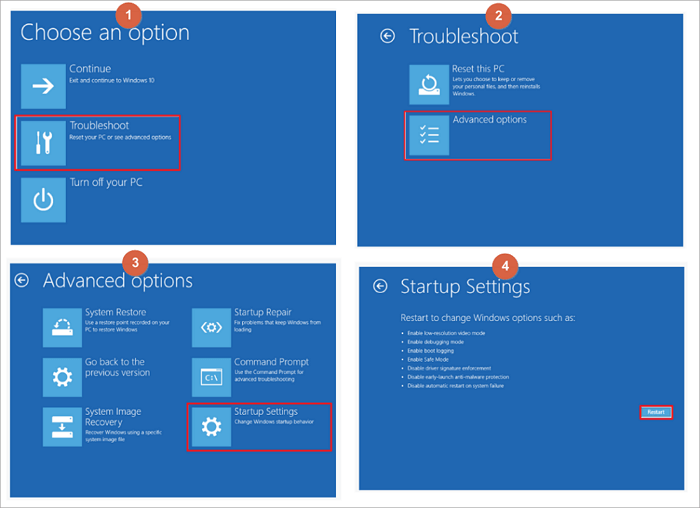
Step 2. On the Choose an option screen, follow the guide to restart the computer:
Click "Troubleshoot" > "Advanced options" > "Startup Settings" > "Restart".
Next, Fix Windows 10 BSOD in Safe Mode - 4 Methods
Once your computer boots up and enters safe mode, you can proceed with the following fixes to resolve the Windows 10 BSOD error on your own.
Fix 1. Uninstall A Recent or The Latest Windows 10 Update
Step 1.Open Control Panel.
Press the Windows key + R, type "control panel" in the search box, and select "Control Panel" from the results.
Step 2. Click "Programs" > "Defaul Programs" > "Programs and Features".
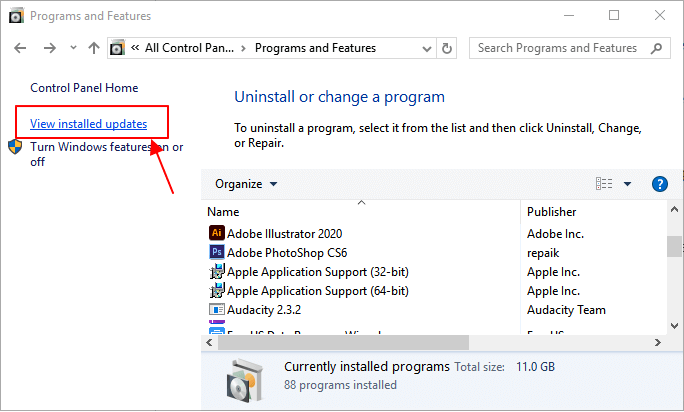
Step 3. Click "View installed updates" on the left pane.
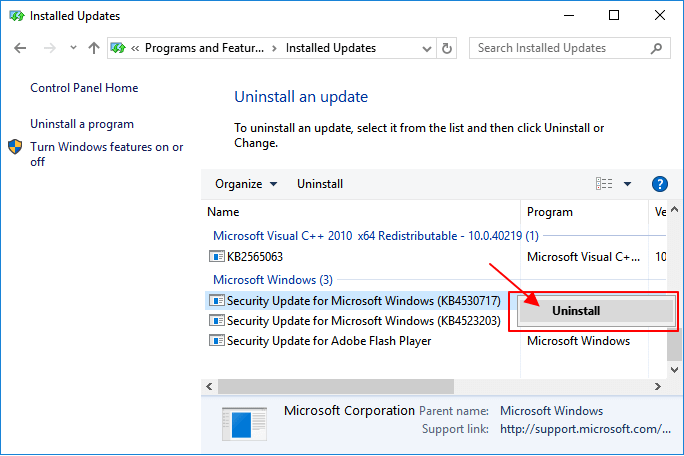
Step 4.Select and right-click the latest Windows update under the "Microsoft Windows" section, select "Uninstall".
Step 5. Click "Yes" to confirm.
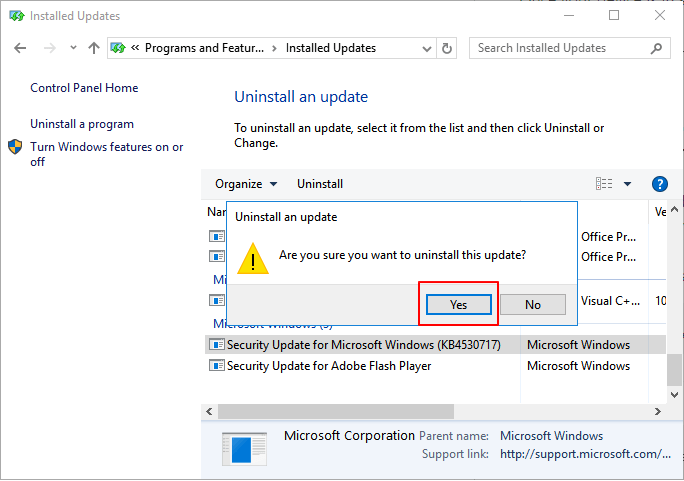
Step 6.Click "Restart Now" to complete uninstall the Windows update.
Fix 2. Uninstall Device Drivers to Remove BSOD in Windows 10
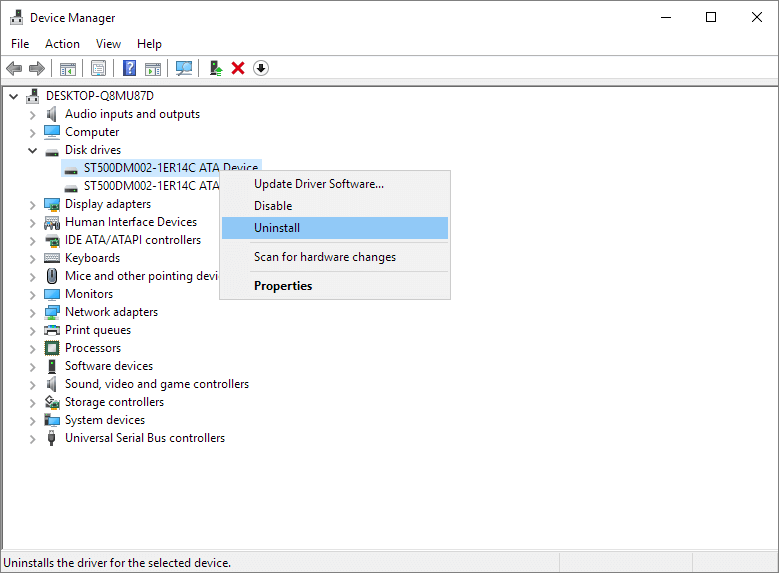
Step 1.Press Windows + S, type device manager, and select "Device Manager".
Step 2. To resolve a BSOD error caused by a problematic device, expand the device (usually the OS disk, etc.) that's causing the issue, right-click on it, and select "Uninstall" or "Uninstall device". This will remove the problematic device and potentially resolve the BSOD error.
To fix the issue, you need to reset the computer to exit safe mode, save the changes, and let the effects take place. This can be done using either fix 1 or fix 2.
Here are the steps to exit Safe Mode:
Step 1. Press Windows + R keys, type msconfig, and hit Enter.
Step 2. Select "Boot tab" > "Boot options" > Uncheck "Safe boot" box.
Step 3. Click "OK" > "Apply" to save the changes.
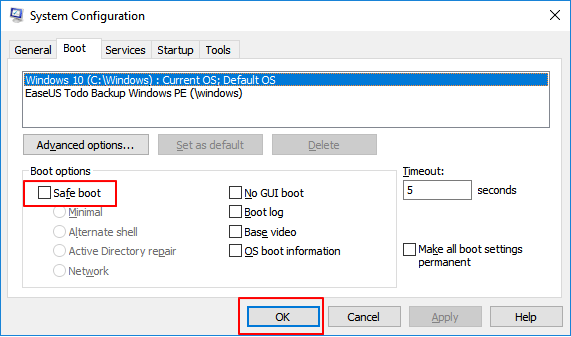
After this, restart the Windows 10 computer.
Fix 3. Extend System Drive & Clean Install Windows 10 Update
To resolve the Blue Screen of Death error caused by insufficient device storage, extend the system drive using a professional partition manager software like Qiling Partition Master, and then perform a clean install of Windows 10 updates.
First, Extend System Drive
Option 1. Extend System C drive with unallocated space
1. Right-click on the System C: drive and select "Resize/Move".
2. To increase the size of the C: drive, drag the system partition end into the unallocated space, effectively combining the two and expanding the C: drive's capacity.
3. To extend the C drive, click "Proceed" to execute the operations and extend the C drive.
Option 2. Extend System C drive without unallocated space
1. Right-click a big partition with enough free space on the system disk, select "Allocate Space" to allocate the space to the system disk.
2. Select the system drive and drag the end of it into the unallocated space.
3. To save the changes and extend the C drive, click "Proceed".
Next, Clean Install or Reinstall Windows 10
Clean installing Windows will erase data on the system C drive and desktop, so it's essential to back up any valuable data before proceeding.
If you're unable to boot into Windows, you can still back up your data using a USB drive or a Windows installation media. If you don't need to save your files, you can proceed with the steps below to install Windows 10. Alternatively, you can refer to the article "Back Up Data without Booting into Windows" for assistance with backing up your data.
Step 1. Download and install Windows 10 installation media to an 8GB or bigger USB drive.
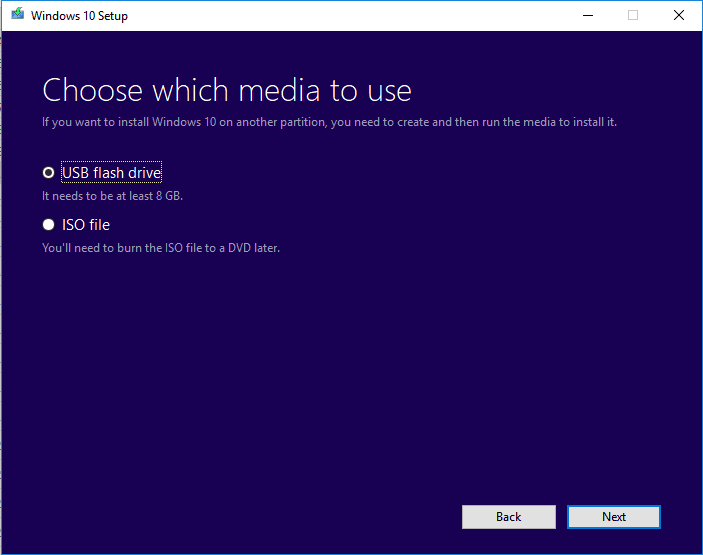
Step 2. Connect the Windows installation media USB to PC and restart PC from USB.
To access the BIOS settings, press the F2, F8, or Del key, depending on your system. Once in the BIOS, navigate to the Boot Section, and set the USB drive as the primary boot device.
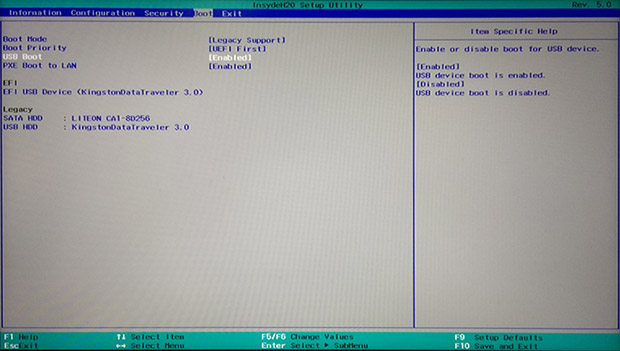
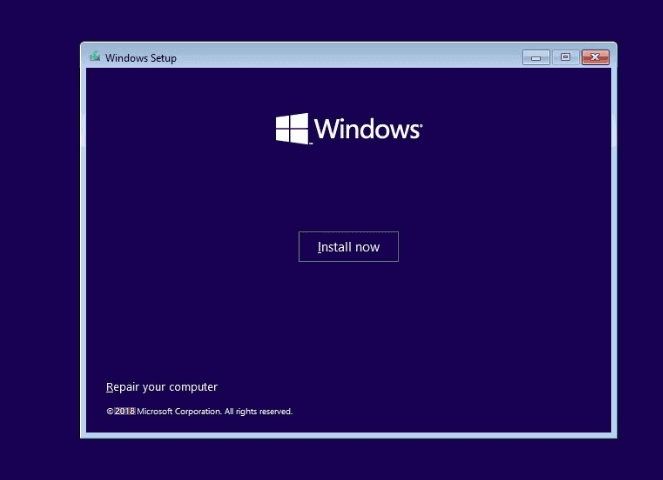
Step 3.Once the computer starts from USB, select "Install now".
Step 4.Select Language settings, and other preferences.
Step 5. Skip entering the product key and select "Install Windows only". Select the target device to install Windows 10.
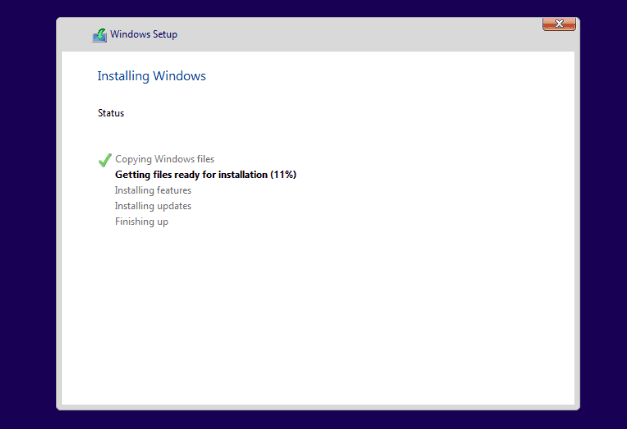
Step 6.Follow the onscreen process to finish Windows 10 installation.
Step 7.Re-enter the BIOS Boot menu and set the Windows 10 OS drive as the boot drive, restart the computer.
You've successfully installed a clean version of Windows OS on your computer, which now runs and boots up normally. The Windows 10 BSOD error that was previously occurring is no longer present.
Fix 4. Perform System Restore to Clean BSOD in Windows 10
If you created a Windows 10 restore point before the update, you can fix the BSOD error by reverting Windows 10 to its previous state via System Restore.
Here are the steps:
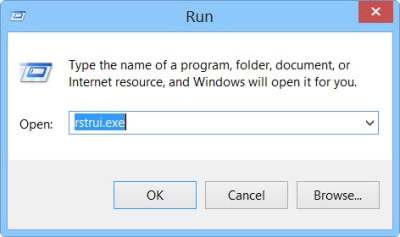
Step 1. Press "Windows + R" keys and type rstrui.exe in the Run box. Hit Enter to open System Restore.
Step 2. Select "Choose a different restore point" and click "Next".
Step 3. Select the latest Windows backup before you install the new Windows 10 update, and click "scan for affected programs".
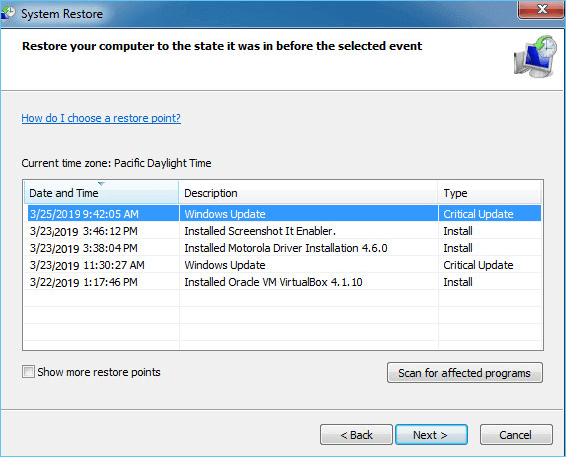
Step 4. Click "Finish" on the Confirm your restore point window.
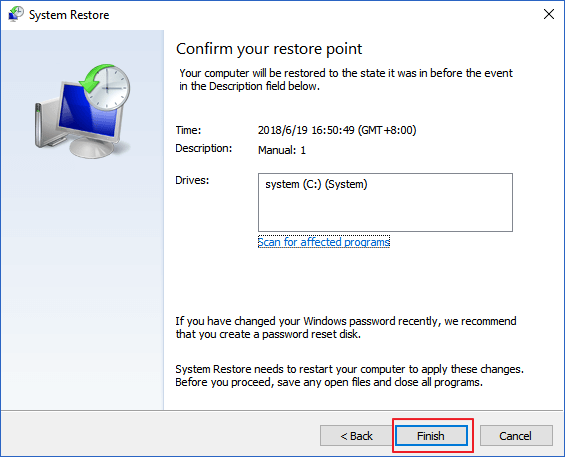
Step 5. Last, click "Yes" and wait for the process to complete.
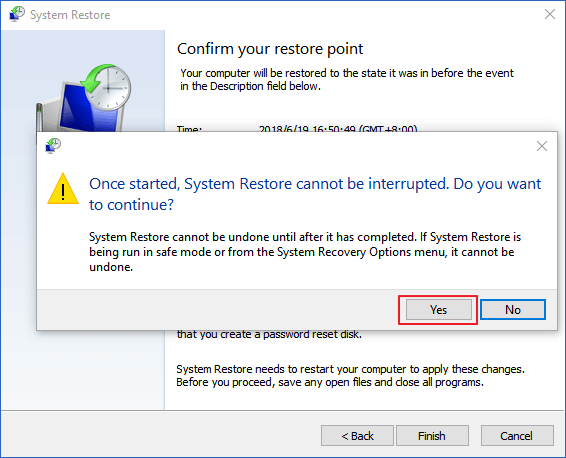
Once the process completes, you'll see the previous Windows 10 back, and the blue screen will be gone. Just wait for the process to finish, and you'll be back to normal.
#2. Get Rid of Blue Screen of Death in Windows 10 While Running An App or the Device
When encountering the BSOD error while opening or using an application on the computer, there are three fixes to try.
Fix 1. Uninstall Incompatible Apps
Step 1. Press Windows + S keys, type control panel, and select to open it.
Step 2. Click "Programs and Features", locate and right-click the incompatible app, select "Uninstall".
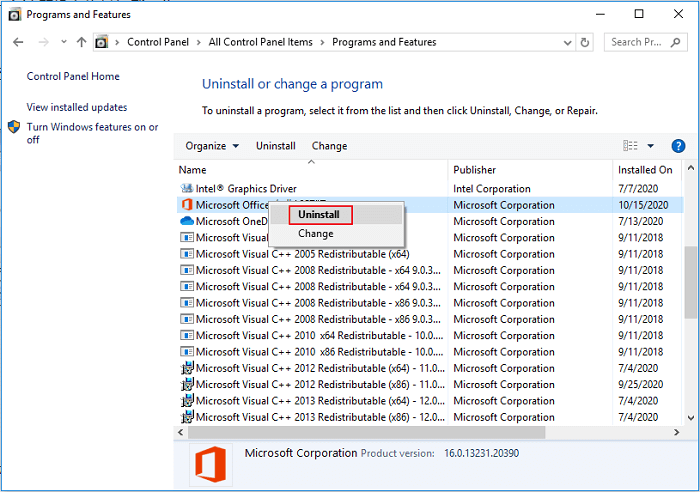
Step 3. Click "Yes" or "Uninstall" on the popup window to confirm the uninstallation.
After this, restart the PC.
Fix 2. Update or Uninstall Device Drivers
To Update Device Drivers:
Step 1.Press Windows + S keys, type device manager, then click "Device Manager".
Step 2. Expand Disk driver, right-click your OS disk driver and choose "Update Driver Software".
Step 3. Choose "Search automatically for updated driver software" in the popup window.
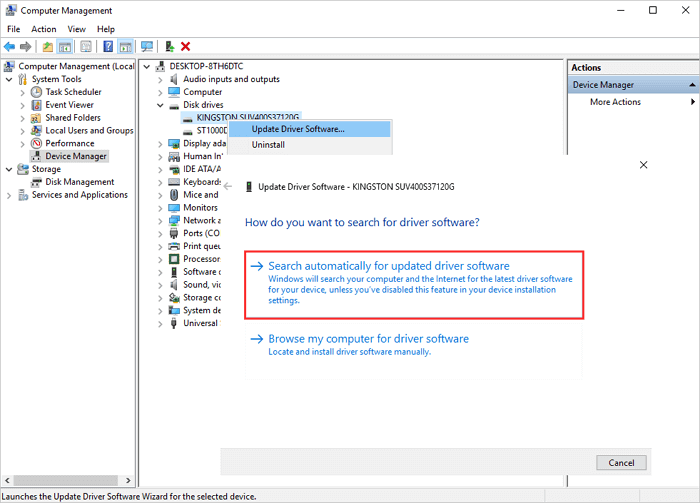
After downloading the driver software, wait for the computer to search and install the latest driver software.
To Uninstall Device Driver:
Step 1. Open Device Manager, expand disk drivers, right-click on the problematic disk and select "Uninstall".
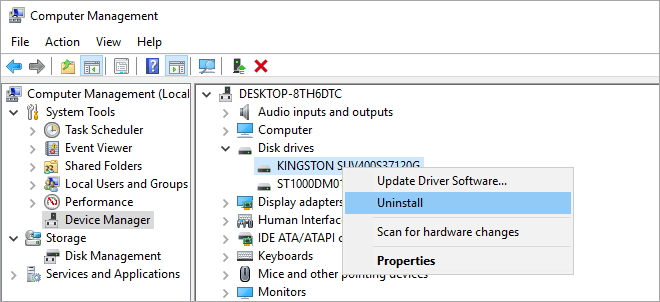
Step 2. Wait for the process to complete and restart the computer.
The system will automatically reinstall an updated device driver for your disk.
Fix 3. Unplug Incompatible Peripherals
If you encounter a Blue Screen of Death (BSOD) error after connecting an external hard drive to your computer, try unplugging the device to resolve the issue. This may resolve the error caused by an incompatible device.
Step 1. Plug the connected external hard drive or USB.
Step 2.Restart Windows 10 computer.
The restarting process may take longer, so you just need to wait patiently.
Though Windows 10 BSOD Is Complex, Follow The Guide Here & You Can Fix It!
This page explains what a Windows 10 blue screen of death error is and provides a simple guide on how to handle the BSOD error in different situations.
To resolve the error, follow the guidelines one by one. The process may be complex, but by following each step, you should be able to successfully eliminate the error and get your computer working normally again.
For help choosing between Windows diagnostics, boot repair, and disk checks, see BSOD Repair Tool for Windows 11/10 - Qiling.
Related Articles
- Qiling Partition Master Full Version Free Download with Serial Code/Key
- (10 Quick Access) How to Open Command Prompt in Windows 10
- How to Fix PS3 Can't Read NTFS USB Drive
- How to Clone SSD to Larger SSD in Windows 10/8/7
- [Free] How to Make a Full Backup of Windows 10/8/7
- 4 Ways to Clone and Copy SD Card to External Hard Drive in Windows 11/10/8/7
- How to Upgrade to M.2 SSD without Reinstalling Windows
Learn how to upgrade to an M.2 SSD without reinstalling Windows. Clone your old drive, install the M.2 SSD, and boot from it safely. - Fix UNEXPECTED_KERNEL_MODE_TRAP 0x0000007F in Windows 11
Products
Articles & Tutorials
- Data Recovery
- Data Backup
- File Recovery
- File Backup
- System Backup and Restore
- Disk and Partition Clone
- Technical articles
- Mobile articles
- Disk Master Help
- Windows Data Recovery Tutorials
- Windows Secure Delete Tutorials
- Windows Partition Management Tutorials
- Windows File Backup and Restore Tutorials
- Windows System Backup and Restore Tutorials
- Windows Disk Backup and Restore Tutorials
- Windows Clone Tutorials