[Backup Guide] To Solve Windows 10 Backup Starts then Stops
If you're experiencing issues with Windows 10 Backup starting and then stopping, this guide is for you. We'll explore the reasons behind this problem and provide solutions to help you resolve it. Let's dive in and find the answers to your queries.
Error: Windows 10 Backup Starts then Stops
Backups are a crucial aspect that helps safeguard data despite various conditions, providing users with convenient access. However, not all services or processes within this segment are perfect, and small loopholes can sometimes lead to issues, hindering access to preferred options.
If the Backup initiated but stopped shortly after starting with File History on Windows 10, try restarting the backup process, checking for disk space, and ensuring the external drive is properly connected and recognized by the system. Also, verify that the backup location is not full or corrupted, and check for any system updates or driver issues that might be causing the problem. If none of these solutions work, you may need to reinstall File History or seek further assistance from a technical support expert.
We understand how crucial backups are for you, so we've created a simple and instant step-by-step solution to ensure your data is safe and secure.
Why Does My Windows 10 Backup Keep Failing?
Here are the top reasons for Windows 10 backup issues: Windows 10 backup issues can be caused by various reasons such as corrupted system files, faulty drivers, and disk errors. These issues can also be triggered by software conflicts, outdated system files, and incompatible backup software. Furthermore, issues with the Windows Update service, problems with the Windows Backup and Restore tool, and incorrect system settings can also lead to backup failures. Additionally, hardware-related problems such as a failing hard drive or a malfunctioning USB drive can also cause backup issues.
- If there are specific issues linked with the file history Windows 10 not working, the chances are higher that you may face backup issues.
- Any virus or malware attack can lead to backup issues in Windows 10.
- A poor network connection is also one of the most prominent reasons for the delay in online transactions.
- Corrupted files fail to Backup your Windows 10.
- If your file history drive has been disconnected, it can prevent you from accessing backup facilities in Windows 10, which may lead to data loss. To resolve this issue, reconnect the drive to the computer and ensure it is properly configured in the File History settings.
- Any inappropriate connections or drive connections could also act as possible reasons for the computer freezing issue.
- Corrupted file formats are also causing backup processes to fail.
Backup Windows Essentials Before Fixing "Windows 10 Backup Starts then Stops" Error.
I recommend taking a backup of your existing data using a professional tool before proceeding. This will ensure that in case something goes wrong, you can still recover all your data.
Qiling Backup Home has emerged as a leading name in backup services, offering seamless backup solutions at affordable prices, making it an attractive option for those seeking a reliable and easy backup solution for their Windows 10, allowing for instant recovery with high efficiency.
Qiling Backup is a feature-rich tool that offers users about 250GB of free cloud storage. It provides a complete solution for various functions, including disk imaging and saving backups in a safe condition, making it a reliable and trusted backup solution used by over 20,000,000 users worldwide.
Features:
- One-click backup solution
- Instant recovery process
- Higher efficiency
- Disk imaging
- Backup saving
- 250GB free cloud storage
Benefits:
- Great accessibility
- Absolute ease of use
- Great value for money
- High-end speed
- Absolute reliability
Here are the guiding steps to use it:
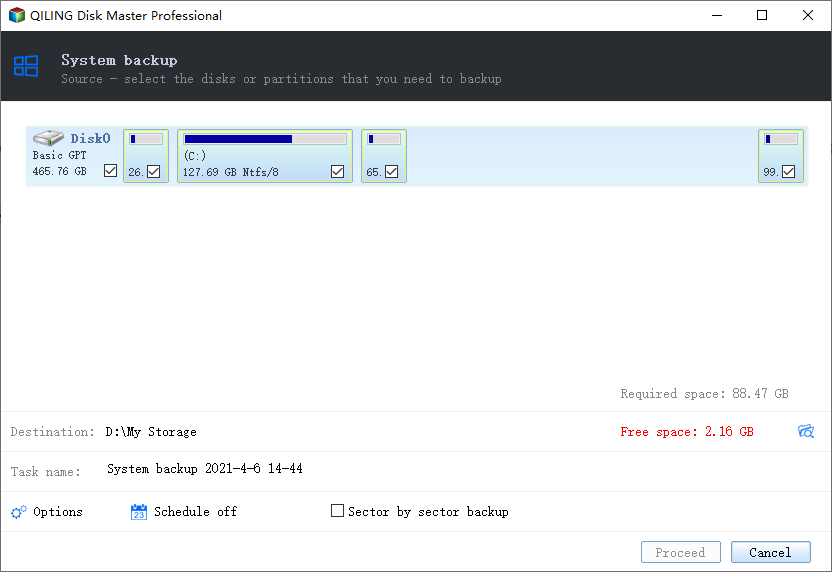
Step 1. Launch Qiling Backup on your computer, click System Backup on the home screen, and start the backup task.

Step 2.On this step, you'll automatically select all Windows operating system information and system related files and partitions, so you don't need to manually select anything. Then, you'll need to choose a location to save the system image backup by clicking on the illustrated area.
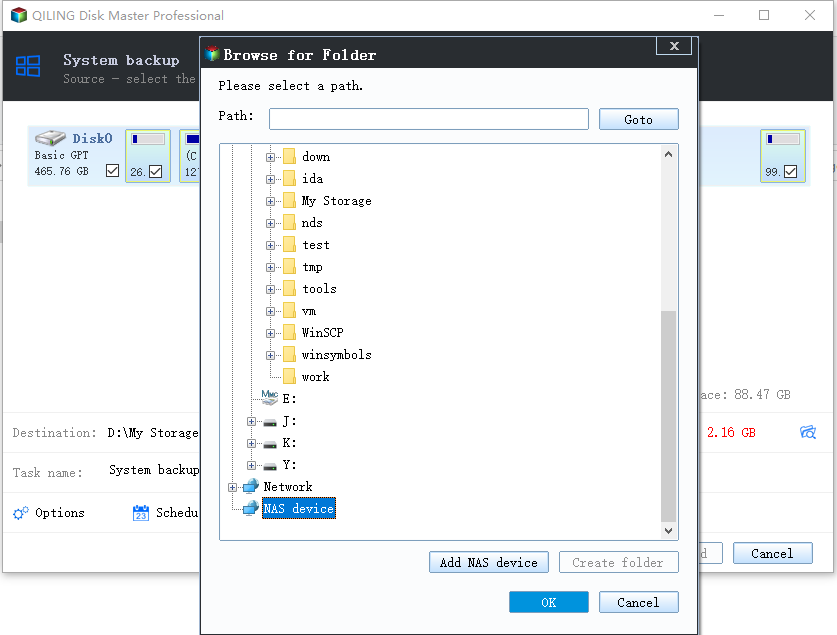
Step 3. The backup location can be another local drive on your computer, an external hard drive, network, cloud, or NAS. We recommend using an external physical drive or cloud to preserve system backup files.
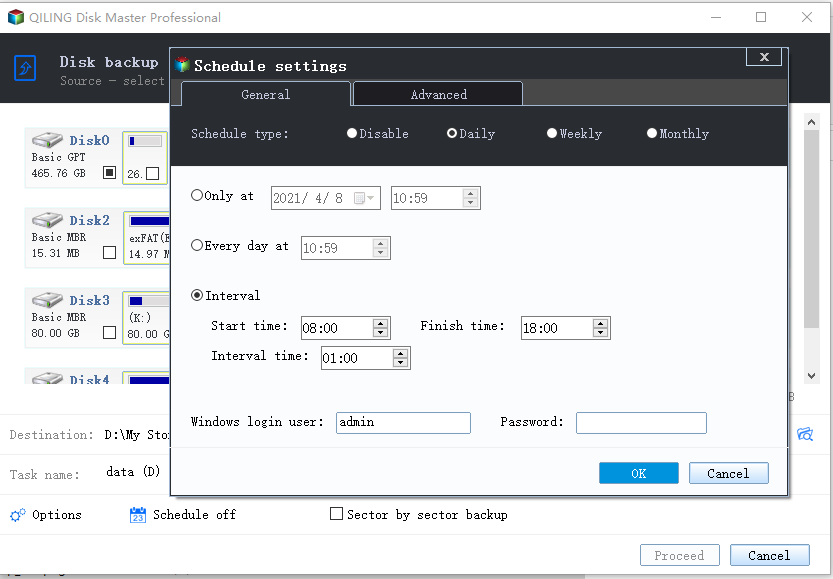
Step 4. The customization settings for automatic backup schedules, including daily, weekly, monthly, or upon an event, are available in the Options button. This allows users to set a differential and incremental backup. After selecting the desired settings, clicking Proceed initiates the Windows system backup process, and the completed task is displayed on the left side in a card style.
Best Ways to Solve Windows 10 Backup Starts then Stops.
We are here to provide you with four different solutions for resolving issues Windows 10 Backup Starts, then Stops. The solutions below are quite effective and give you instant assistance.
- Method 1: Manually Remove Old Backups
- Method 2: Run Antivirus
- Method 3:Check Disk Errors
- Method 4:Connect Your External Drive or USB Drive to a Computer
Method 1: Manually Remove Old Backups
Old backups can sometimes cause interruptions and prevent access to backup tools, even though the backup system should handle this. The old backups may still be present and when the backup system doesn't find enough space, it will fail.
It's recommended to remove unnecessary backup files from devices to free up space. You can either delete them, transfer to another drive, or format and re-set up the drive if that's not possible.
Step 1: Open Windows Backup & Restore from the Control Panel.
Step 2: Click on the Manage Space link under Backup Size.
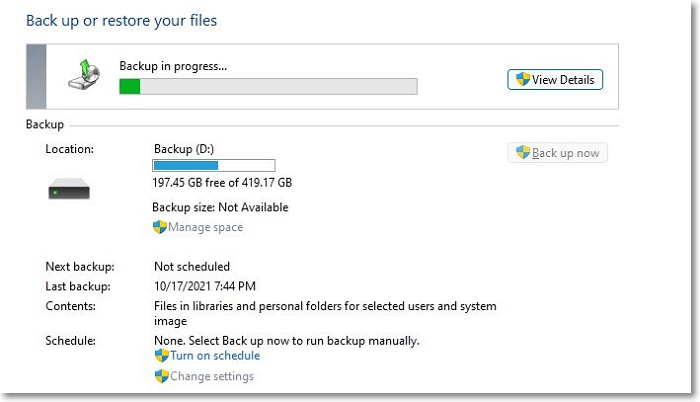
Step 3: Select an old backup and delete it.
Method 2: Run Antivirus
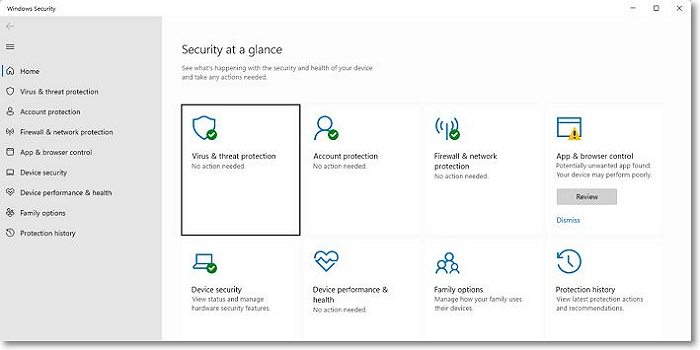
Running antivirus software can help resolve Windows 10 backup issues by removing malware or viruses that may be interfering with the process.
To remove viruses from your Windows 10 PC, consider running a full scan with a reliable antivirus software or using Microsoft Security, which is preinstalled in Windows. Additionally, delete any untrusted files and perform a backup of your device to prevent further issues.
Step 1: Launch Windows Security, and go to Virus & threat protection.
Step 2:The Scan Options link, when clicked, reveals a variety of scan types for the user to choose from.
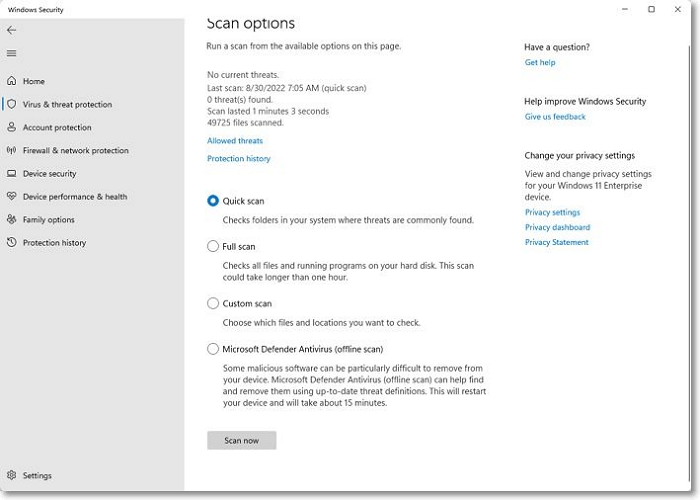
Step 3:Run a full scan with the tool to check for any potential viruses or malware on your system.
Method 3:Check Disk Errors
If you're having trouble backing up Windows due to different disk errors, try checking for disk errors on the same disk. If you've already tried other solutions, you can check for disk errors by running the built-in Check Disk utility (chkdsk) or using a third-party disk check tool. This can help identify and potentially fix any issues preventing the backup process.
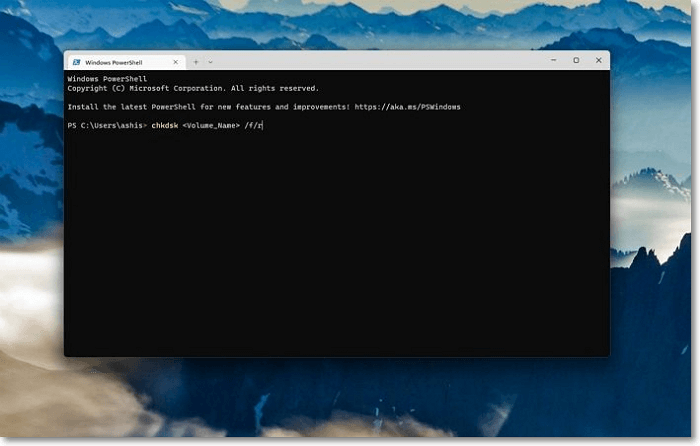
Step 1: To open the Command Prompt, tap on the Windows Start button. Type cmd in the search box and then hit the enter button.
Step 2: Right-click the "cmd" option and run it as administrator to launch the command prompt on your Windows.
Step 3: To start the scanning process, you can add the command "chkdsk /f/r" once the drive is found.
Step 4: Once executed, it will locate the bad sectors on the selected partition for you, recover readable information, and then fix disk errors.
Method 4:Connect Your External Drive or USB Drive to a Computer
If you've tried all the solutions above and still haven't found the perfect solution, it's likely that some connections between your external drive or USB drive and the computer are missing or loose.
To avoid a situation where your backup target disk is not recognized, ensure your backup target disk is well connected to your computer. This can be easily done by launching the Disk Management system on your device and confirming that the backup drive's status is online.
Step 1: Insert the driver into the USB port of the PC.
Step 2: Open Disk Management on your Windows PC by searching for it in the Start menu and launching it.
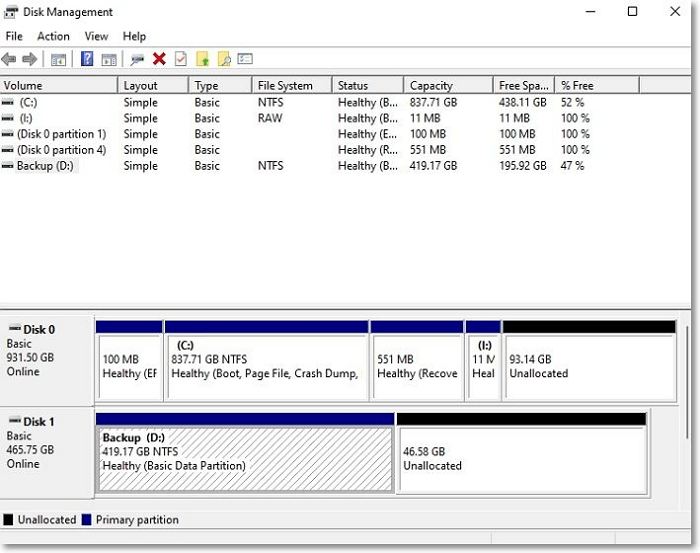
Step 3: To check if the backup drive is visible in the Disk Management system, open the Disk Management tool by searching for it in the Start menu, or by typing "diskmgmt.msc" in the Run dialog box (Windows key + R).
If the above steps don't resolve the issue, you'll need to switch to a new backup drive and reconfigure the backup process.
FAQs of Windows 10 Backup Starts then Stops.
The term "backup" evokes reliability, credibility, and trustworthiness, but if not done correctly, it can also put your data at risk. Understanding the importance of your data and the frustration that comes with trying to access your backup, only to encounter issues, is crucial. In this case, Windows 10 backup may start and then stop, leaving you wondering what went wrong.
This guide provides detailed solutions and main reasons for dealing with a specific issue. We've also addressed frequently asked questions related to this issue to help resolve any remaining queries.
1. Why is my File History not backing up?
If you fail to back up your device's file history, the chances are higher that your associated files are being encrypted. Remove the encrypted files from your device to avoid the situation.
2. How to resolve the Windows 10 backup starts then stops?
The Windows 10 backup starts then stops issue can be resolved quickly through various methods, including checking for corrupted system files, running the built-in System File Checker (SFC) tool, and verifying the integrity of the system's registry, as well as ensuring that the backup drive is properly connected and has sufficient storage space. Additionally, users can try restarting the Windows Backup service, checking for any system updates, and running a System Restore point to a previous working state.
- Removing old backups
- Running antivirus
- Checking disk errors
- To make proper connections between the computer system and the external drive or USB drive, ensure that the drive is securely inserted into the correct port on the computer, usually a USB-A port. Verify that the drive is recognized by the computer by checking the device manager or the file explorer for the drive's icon.
3. What is the best alternative to replace Windows 10 backup when it's not working?
If your Windows 10 backup isn't working properly, consider using Qiling Backup for a reliable and hassle-free backup solution. It provides 250GB of free cloud storage for you to securely back up your important data. Millions of users worldwide trust this tested and reliable solution.
Conclusion
Windows 10 backups can be a lifesaver, especially when dealing with extreme conditions. A complete backup solution like Qiling Backup can help secure your data and provide easy access to it. By having a reliable backup system in place, you can rest assured that your important files and information are safe and can be easily retrieved when needed.
Knowing the reasons behind an issue is crucial before finding solutions. We've presented different bases to help you understand the scenarios that are causing problems, so you can address them effectively.
Qiling Backup is a convenient tool that allows users to back up their data without hassle. It is easy to access and affordable, making it a perfect solution for users who want to protect their data. The device is free to use and can be easily accessed by anyone, making it a great option for those who need to back up their data quickly and easily.
Related Articles
- Windows 7 Guide: Create Schedule Backup on Windows 7
- Hard Disk Backup in Windows 10/8/7 [Beginners' Guide]
- Fix "Recovery Drive Please Wait" [Step-by-Step Guide]
- How to Backup Only New or Changed Files in Windows 10 [2 Ways]
- Install Raspberry Pi Operating System on SD Card
Learn how to install Raspberry Pi OS on an SD card. Prepare the card, flash the image, and boot your Raspberry Pi safely. - How to Install Windows 10 on a New Hard Drive Without Disk or USB
You can install Windows 10 on a new hard drive in three ways. One option is to use a system transfer tool to install Windows 10 on the new hard drive without needing a disk or USB. Alternatively, you can install Windows 10 on the new hard drive using a USB drive.
Products
Articles & Tutorials
- Data Recovery
- Data Backup
- File Recovery
- File Backup
- System Backup and Restore
- Disk and Partition Clone
- Technical articles
- Mobile articles
- Disk Master Help
- Windows Data Recovery Tutorials
- Windows Secure Delete Tutorials
- Windows Partition Management Tutorials
- Windows File Backup and Restore Tutorials
- Windows System Backup and Restore Tutorials
- Windows Disk Backup and Restore Tutorials
- Windows Clone Tutorials