Learn How to Make Full Backups with 3 Windows 10 Backup Options
PAGE CONTENT:
- Make Full Backups With Windows Built-in Tool
- Create System Image Backups in Windows 10
- Make Full Backup with Qiling Backup
Backing up files and data is essential to prevent data loss in case of a sudden power outage or system crash. It's also crucial for protecting against virus attacks or OS crashes that could erase important documents, photos, and computer settings. Regular backups ensure that your valuable data remains safe and can be easily restored if needed.
For Windows PC users, creating a full backup is a straightforward process that can be set up to automatically schedule backups of chosen files and folders. There are several options available, and this article highlights three Windows 10 backup options that cater to different needs, allowing users to select the one that best suits their requirements.
Make Full Backups With Windows Built-in Tool
Making a full backup involves creating a copy of all data on your computer and storing it in a safe location, such as another drive or network drive. This way, if you experience data loss, the backup can be used to restore your files.
Windows 10 has a built-The backup feature allows users to back up files to another drive and restore them if the original files are lost, damaged, or deleted. To back up files on a Windows PC, follow these steps:
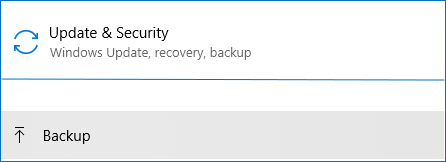
Step 1. Right-click the Windows icon, choose Settings > Update & Security > Backup.
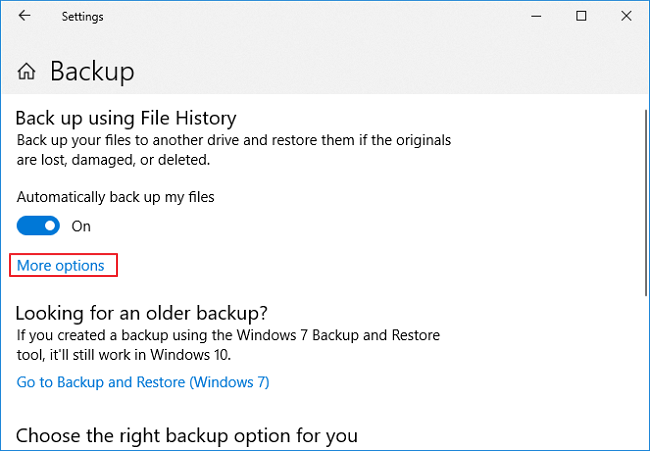
Step 2. Here you can back up using Windows File History. Click More Options to open Windows 10 Backup Options.
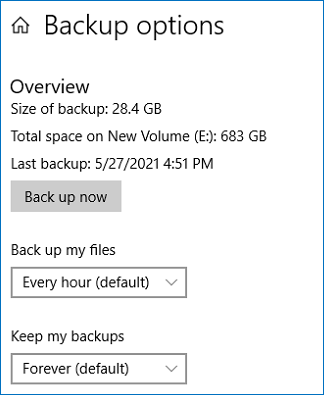
Step 3. Under Backup Options, you can customize the backup time interval, how long to keep backups, select folders to back up, and choose a different drive for backup storage.
Step 4. Once you have set up, File History will back up the folders you choose according to your setting.
Create System Image Backups in Windows 10
To create a system image, you can use Windows 10, but it's recommended to create an image tool for an external hard drive or network share folder. Note that the System Image Backup feature is no longer maintained, but it's still available in Windows 10. To proceed, follow these steps to create system image backups.
Step 1. Right-click the Windows icon, choose Settings > Update & Security > Backup.
Step 2. There is an option called "Looking for an older backup?", click "Go to Backup and Restore (Windows 7)".

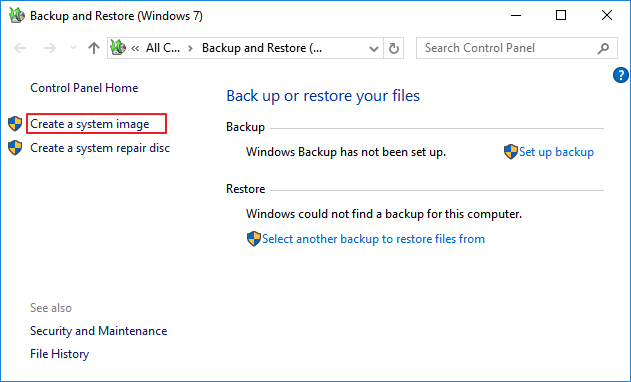
Step 3. Click the Create a system image option on the left.
Step 4. Choose the proper disk to store the backup image and click Next.
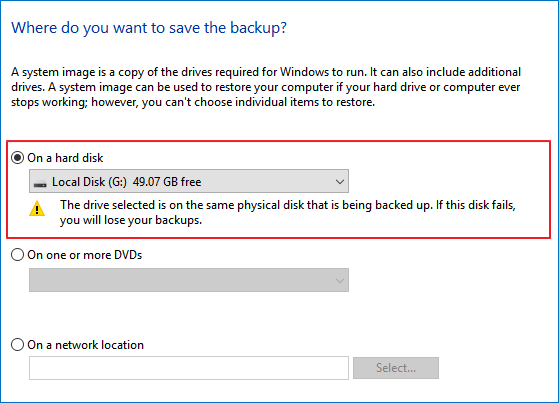
Step 5. Select any additional hard drives to include them in the backup. Then click Next.
Step 6. Click the Start backup button to start.
Make Full Backup with Third-Party Software
Another option for Windows 10 backup is to use a third-party backup tool, which is often more powerful than the built-in tools. Third-party software typically offers more advanced features and optimized backup functions, making it a viable alternative for users looking for more comprehensive backup options.
One such tool is Qiling Backup, which excels in data backup and offers additional features like migrating the OS to an SSD, creating differential and incremental backups, and backing up files to cloud drives like Google Drive or OneDrive.
"You can download Qiling Backup and follow the guide to back up files on Windows 10."
Step 1. Open Qiling Backup and select "File backup" in "Backup and recovery" page.
As time passes, you'll likely accumulate a significant amount of valuable data, including documents, photos, music, and videos. To ensure this data remains safe, it's a good idea to create regular backups. One effective way to do this is through File Backup, which can help you recover from unexpected data loss.

Step 2. Select the files that you want to back up.

Step 3. Select a destination to save your backup of the selected files.
You should create the backup file in a separate storage media or drive to avoid the risk of it getting corrupted or destroyed.

Advanced backup settings allow users to customize their backup process, enabling them to create a tailored plan that meets their specific needs and preferences. This can include setting up automatic backups, choosing specific files or folders to backup, and even scheduling backups to occur at specific times or intervals. By leveraging advanced backup settings, users can ensure their important data is protected and easily recoverable, providing peace of mind and minimizing the risk of data loss.
The schedule is to create an automatic backup plan.

The Image-The image retention rule is to reserve a limited number of images, and the strategy is to reserve those images accordingly.
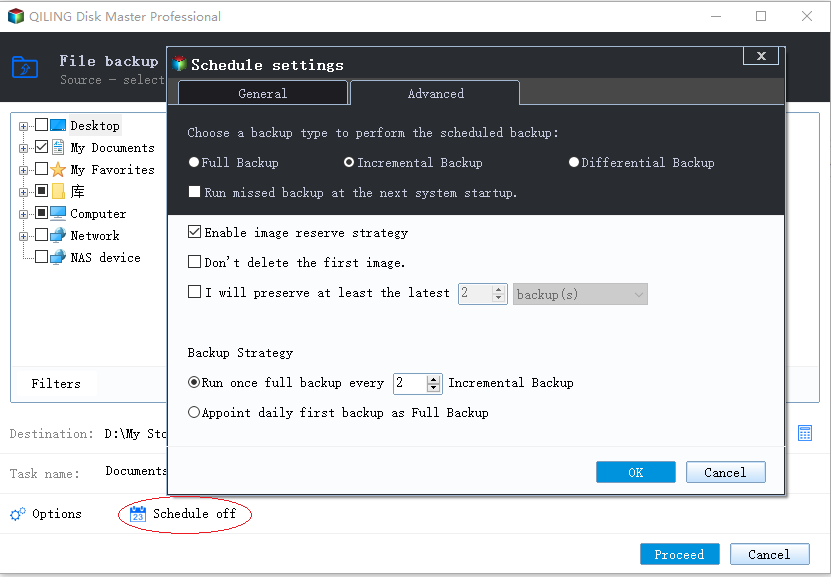
Backup options are to edit the advanced parameters.

Step 4. Click "Proceed" to execute your operation.
Choose the One You Like, Start Back Up Now
The three Windows 10 backup options are Windows System Image Backup, Windows Files History, and Qiling Backup. The most recommended options are Windows Files History and Qiling Backup. Regardless of the chosen option, making backups is the best way to protect your data.
Related Articles
- [Solved] This Application Was Unable to Start Correctly (Error Code: 0xc000007b)
- [7 Solutions] How Do I Backup Computer to Cloud? Here Is the Complete Guide
- COVID-19 Safely and Effectively Work from Home Backup and Recovery Plan
- How to Clone SSD to Larger SSD in Windows 10/8/7
- How to Automatically Backup Files to An External Hard Drive in 3 Ways
- How to Create A File History Backup? Full Guide About File History
This article provides instructions on creating a File History backup for various Windows systems, including Windows 8, 10, and 11. Additionally, a recommendation for another file backup software is made to cater to further backup needs.
Products
Articles & Tutorials
- Data Recovery
- Data Backup
- File Recovery
- File Backup
- System Backup and Restore
- Disk and Partition Clone
- Technical articles
- Mobile articles
- Disk Master Help
- Windows Data Recovery Tutorials
- Windows Secure Delete Tutorials
- Windows Partition Management Tutorials
- Windows File Backup and Restore Tutorials
- Windows System Backup and Restore Tutorials
- Windows Disk Backup and Restore Tutorials
- Windows Clone Tutorials