What Is A System Image? Everything You Need to Know About Creating System Image Backups
A system image is a complete backup of a computer's hard drive, including the Windows OS, system settings, programs, and all files, allowing for easy restoration in case of a hard drive crash or computer failure.
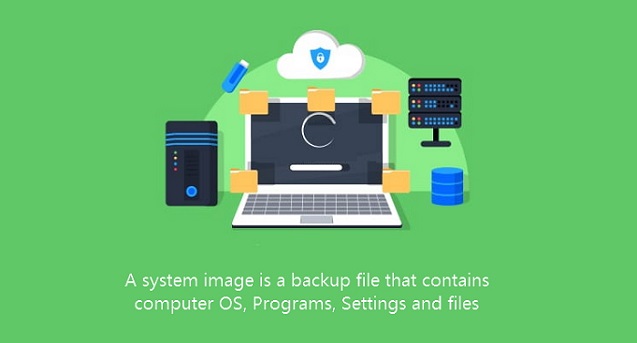
A System Image Essentials
Creating a system image on your hard drive involves backing up your operating system, programs, and settings, allowing you to restore your computer to its current state in case of a problem. To create a system image, you'll need a blank USB drive or CD/DVD with enough space to hold the image, as well as a reliable internet connection.
#1. A system image is a file with the same file size of the backups
A system image is essentially a file containing the content of a PC's hard drive or a single partition, and its file size is equivalent to the used disk space. For instance, if you have 200GB of space used on a 500GB hard drive, the system image will be approximately 200GB. However, if you compress the system image, its size can be significantly reduced.
Windows inbuilt backup programs cannot compress system images, a feature typically found in professional third-party backup and recovery utilities like Qiling Backup.
#2. Different backup programs use different types of system images
To ensure a valid system image for restoration, it's recommended to use multiple backup tools, each creating its own image with a unique file extension. For example, Windows creates system images with .xml and .vhd extensions, while third-party programs use their own. This way, image A created by tool A remains independent of image B created by tool B, making each one valid for restoration purposes.
How Does Windows Backup Work?
Windows backup works through three main tools: File History, Windows 8/10, and other backup software. This article provides a detailed explanation of how these tools work, including the specifics of File History, which is a built-in feature that automatically backs up files to an external drive or network location, allowing users to easily recover files in case of a system failure or data loss.
How to Create A Reliable System Image for Windows 10/8/7
Windows has its native system image backup solution included in the Backup and Restore feature, but a third-party alternative, Qiling Backup, offers a more streamlined experience. This free Windows backup tool allows for easy system backup with just one click, and provides features that go beyond the default program.
- Compress a system image to save disk space
- Encrypt a system image to protect privacy
- Execute a system backup when you turn on/off the computer
- Automatically backup to external hard drive when plugged in
- Save the system image to cloud drive
- Set task for full/differential/incremental backup
Qiling disk imaging software stands out as the top choice due to its comprehensive free features, including backing up the entire operating system. For users requiring advanced features like restoring a system image to a different computer, upgrading to the home version provides access to these capabilities.
Step 1. Download and launch Qiling Backup.
Step 2. On the "Backup and recovery page, click "System backup" to back up Windows 10.

Step 3. Select the backup destination, the software will choose the most suitable location by default.

Step 4. To schedule a backup in Windows 10, click on the "Schedule" option to open the Backup Scheme window, where you can create a plan to automatically backup your system at a specified time interval, such as daily, weekly, or monthly, or upon a specific event. This will ensure your Windows 10 system is backed up regularly.

Step 5. Save all of the changes. Click "Proceed" to start Windows 10 system backup.
How to Restore Computer from A System Image
To restore a system image created with Qiling Backup, ensure you use the same tool to create and restore the image for 100% compatibility. If your computer crashes or is damaged, you can restore the system from the backup image. Simply follow the guide provided by Qiling Backup to complete the restoration process.
Step 1. Open Qiling Backup, click the "Recovery" button on System Backup column.
To recover your system, click "Browse to Recover" and choose the system backup you previously created. This will restore your system to its previous state.

Step 2. Choose one History version of the backup image, after confirming the contents, click the "Next" button.
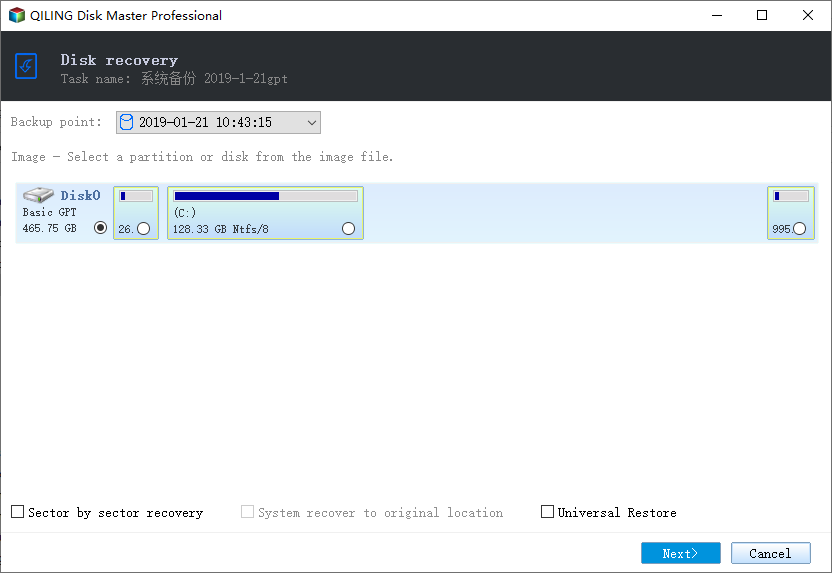
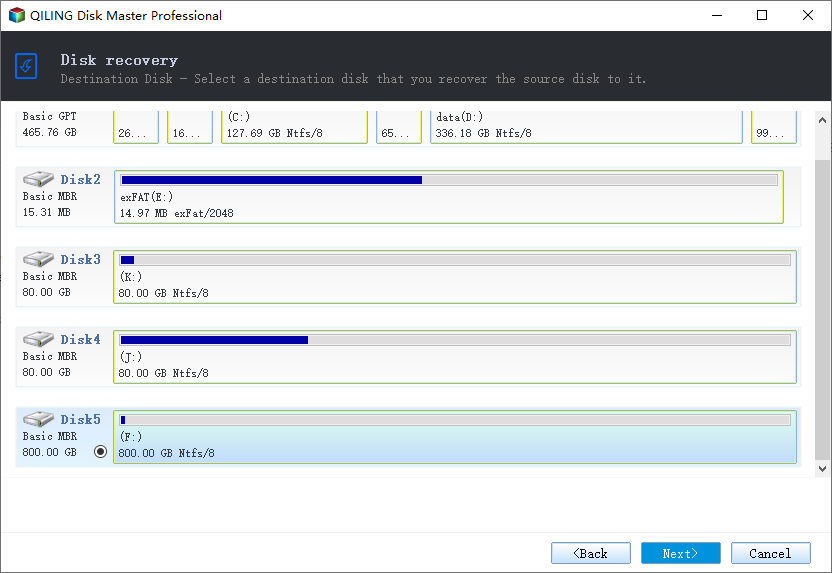
And select the target location to restore your Windows.
Step 3. Then click "Proceed" to start backup recovery.
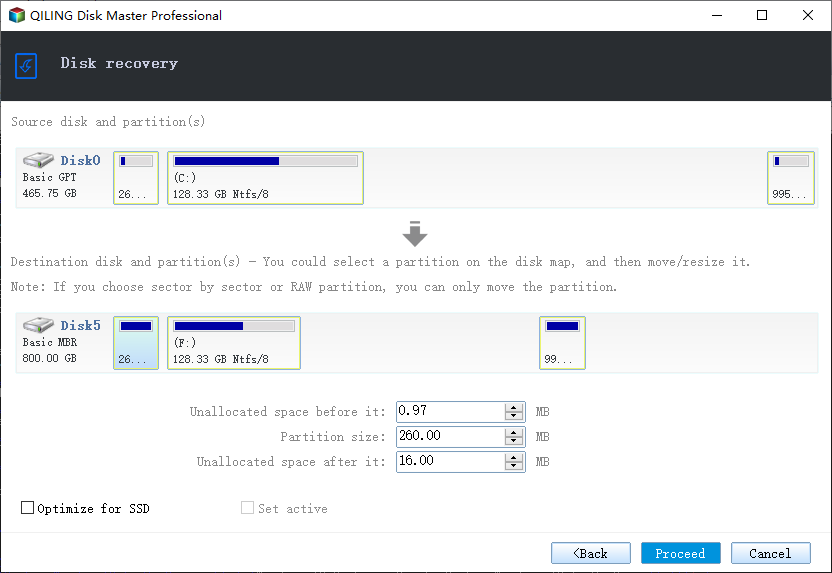
Wait for the process to complete, restart your computer, and then you should be able to run Windows OS on your computer again.
Related Articles
- Run Disk Clone Windows 10 with Qiling Backup
- Create System Image on USB Drive in Windows 10/8/7
- How to Clone C Drive to SSD in Windows 10
- Bootable USB Drive Not Showing Up or Recognized in Windows 10/8/7
- Deploy Windows 10 with Best Windows 10 Deployment Tool
- How Do I Clone Only C Drive to SSD?
To clone only the C drive to an SSD, you can use disk cloning software such as Qiling Disk Master. This tool allow you to select specific partitions or drives to clone, ensuring that only the C drive is copied to the SSD, while leaving other partitions intact.
Products
Articles & Tutorials
- Data Recovery
- Data Backup
- File Recovery
- File Backup
- System Backup and Restore
- Disk and Partition Clone
- Technical articles
- Mobile articles
- Disk Master Help
- Windows Data Recovery Tutorials
- Windows Secure Delete Tutorials
- Windows Partition Management Tutorials
- Windows File Backup and Restore Tutorials
- Windows System Backup and Restore Tutorials
- Windows Disk Backup and Restore Tutorials
- Windows Clone Tutorials