How to Transfer Windows 10 OS to SSD Without Reinstalling Windows
Here's a simplified step-by-step guide to move Windows 10 to your new 120GB SSD without cloning the entire disk:
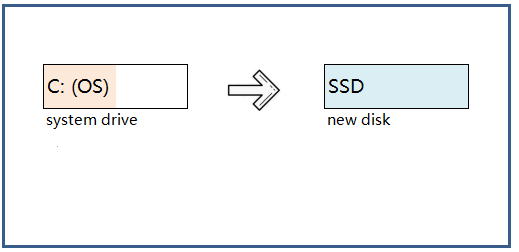
If you're looking for a hassle-free way to switch your Windows 10 system to a new SSD, you can do so without reinstalling the operating system. Follow the tutorial on this page to learn how to migrate your Windows 10 to your new SSD efficiently.
#2. Transfer or Migrate Windows 10 to SSD
#3. Set up Windows 10 to Boot from SSD
#4. Further Readings & FAQs on Moving OS to SSD
Why Migrate Windows 10 to SSD
Here are the reasons why more and more users are installing or moving Windows OS on SSD: Users are installing or moving Windows OS on SSD due to its faster boot times, improved responsiveness, and increased overall system performance. The solid-state drive's ability to access data quickly and efficiently makes it an ideal choice for those who need a fast and reliable computing experience.
#1. More Advantages of Using SSD as System Disk
- Solid-State Drives (SSDs) significantly reduce boot time compared to traditional Hard Disk Drives (HDDs). They can boot a system in approximately 9-20 seconds, making them a popular choice for those who value quick startup times.
- Using an SSD (Solid-State Drive) can significantly speed up program launch times, particularly for large software applications like games and PS, by reducing the time it takes to access and load data. This is because SSDs use flash memory to store data, allowing for faster read and write speeds compared to traditional hard disk drives. As a result, users can enjoy faster program launch speeds and improved overall system performance.
- Using an SSD as the system disk, separate from a data disk, provides better data protection by isolating the operating system and critical data from the data disk, ensuring that in the event of a system crash, no data will be lost.
- SSDs (Solid-State Drives) are known for their quiet operation and resistance to physical stress, such as vibration and impact, unlike traditional hard disk drives (HDDs).
#2. OS Migration Is Faster and Safer than Reinstalling
Upgrading a computer by installing an SSD as the system disk can be a hassle, requiring a fresh Windows and program installation, which can be time-consuming and result in lost data on the C drive. A better approach is to migrate the OS to the SSD, which is a more efficient and convenient way to upgrade.
How to Migrate Windows 10 OS to SSD Without Reinstalling
To migrate only Windows 10 to an SSD, follow this tutorial guide, which allows you to swap your Windows 10 system drive to an SSD without reinstalling.
Preparation:
1. Prepare an SSD as the destination disk.
- The size of the SSD should be at least as large as the used disk space of the source disk.
- Back up important data to an external hard drive before migrating the OS to an SSD, as the process will delete all existing partitions and data on the target disk.
2. Download reliable OS migration tool
You can easily migrate Windows 10 to an SSD without reinstalling using a professional partition manager like Qiling Partition Master Professional, which makes the process relatively simple.
Tutorial: Transfer or Migrate Windows 10 to SSD (without Reinstallation, No Data Loss)
The operation of migrating your operating system to a solid-state drive (SSD) or hard disk drive (HDD) will delete and remove existing partitions and data on your target disk if there is not enough unallocated space available. It's essential to back up any important data stored on the target disk to an external hard drive beforehand to avoid losing valuable information.
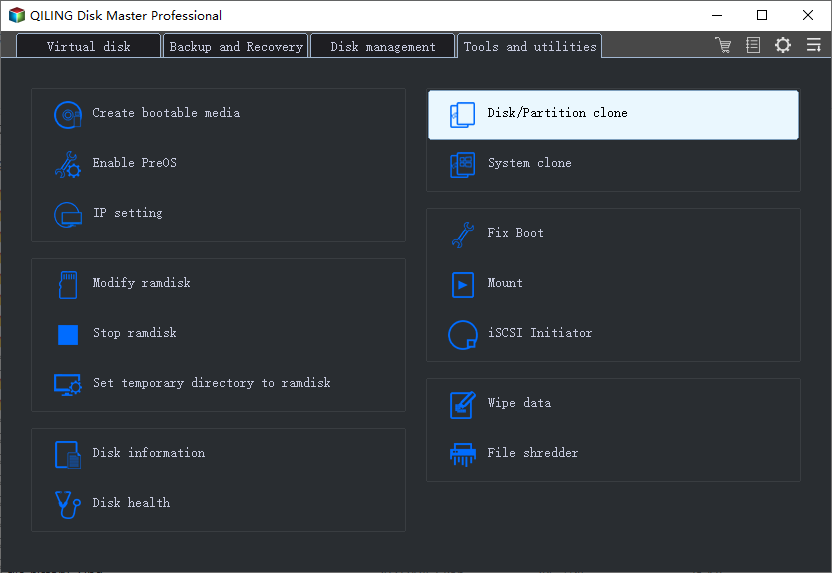
Step 1. Click "System Clone" from the tools page.
Step 2. The current system (Windows 10) partition and boot partition will be automatically selected, and click Next.
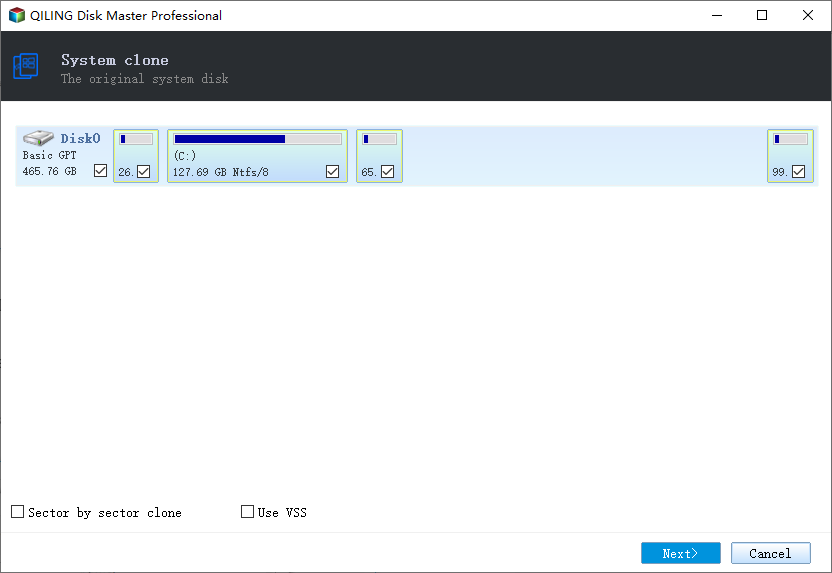
Tips: System Clone cannot be used if the system partition and boot partition are on the same drive.
Step 3. Select the SSD or HDD as the destination disk and click "Next".
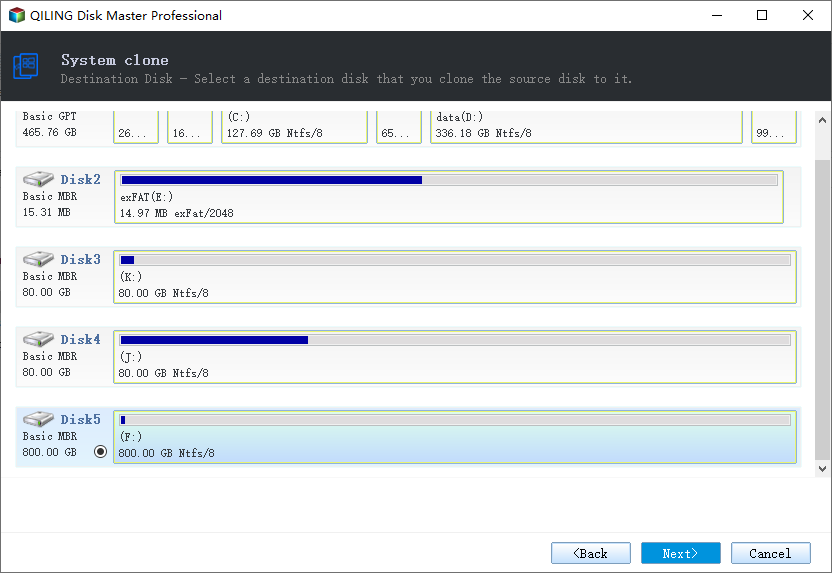
Step 4. Preview the layout of your target disk, and customize it as desired. Then, click "Proceed" to initiate the OS migration to the new disk, and confirm the start of the Windows 10 cloning process.
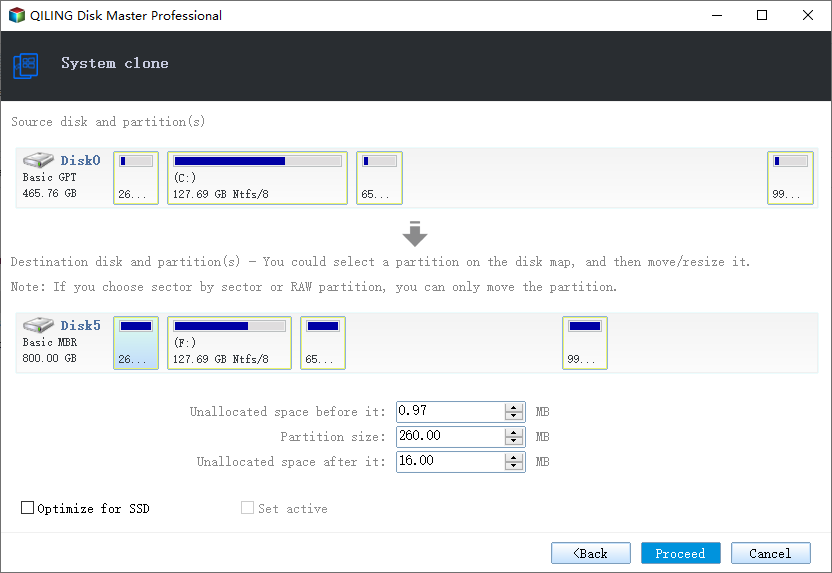
After transferring Windows 10 OS from HDD to SSD, you can also use Qiling Partition Master to manage your partitions, which offers all the features mentioned, allowing you to make the most of your new storage setup.
Qiling Disk Master offers a range of features including disk partition management, disk cloning, and operating system migration, all of which can be performed with ease.
Set Windows 10 to Boot from SSD
After the system migration, you will need to set up your new SSD as the boot drive. You can do this by setting Windows 10 to boot from the SSD using one of two methods.
1. To change the boot order in BIOS, you'll need to reboot your PC, then press F1, F2, or Del (depending on your device) to enter the BIOS settings. From there, navigate to the Boot Option or Boot Order section and select your Solid-State Drive (SSD) as the primary boot device.
2. To upgrade to a new hard drive, simply open your computer case, unplug the old drive, and either replace it with a new one or connect it as an external storage device. Reboot your PC, and it will automatically load Windows 10 from your newly installed SSD.
After replacing the old system drive with a new one, you can remove the old system drive and use it as a normal data partition, allowing you to store files and data on it as you would on any other partition. This way, you can still utilize the capacity of the old drive while keeping your system running smoothly on the new drive.
Conclusion
Migrating Windows 10 to a new SSD without reinstallation or data loss involves a series of steps. First, prepare the new SSD by formatting it and installing the necessary drivers.
To migrate Windows 10 to a new SSD, start by preparing the SSD and backing up all important data. Next, use a reliable OS migration tool like Qiling Partition Master to facilitate the process. Once prepared, you can begin the migration, and finally, set up your computer to boot from the new SSD.
The process will be fast and safe for your Windows OS and personal data.
Further Reading & FAQs on Migrating Windows OS to SSD
1. How to migrate OS to a smaller SSD?
If your smaller SSD has equal or more space than your OS drive (C:) and system drive, you can directly use Qiling Partition Master to migrate your OS to the smaller SSD.
The cloning process allows for the exact replica of an operating system, applications, and data from a larger hard disk drive (HDD) to be transferred to a smaller solid-state drive (SSD) without the need for a complete reinstallation of the operating system. This is particularly useful for upgrading to a faster SSD without losing any data or settings.
Step 1. Connect new SSD to PC via SATA cable.
Step 2. Run Qiling Partition Master and select "Migrate OS to HDD/SSD" at the top nemu.
Step 3. Select smaller SSD as target disk and click "Migrate" > "Next".
Step 4. Adjust the target drive partition size, leaving more space for the C drive on the new SSD, and click "OK".
Step 5. Execute operation to start the OS migration.
Step 6. When the process completes, restart PC and enter BIOS to set OS boot from new SSD.
2. How do I move my C drive to a new SSD?
There are two ways to move the C drive to a new SSD and ensure a successful Windows system boot.
To migrate to a new SSD, you can either use Qiling Partition Master to apply the OS migration guide on this page for assistance, or use Qiling Backup software with its system clone feature to clone the system C drive on the original SSD and then transfer it to the new SSD.
3. How do I clone a small SSD to a larger SSD?
To improve a computer's efficiency or speed up its operating system, it's essential to transfer the old SSD's data, including the system, to a larger SSD.
To clone a smaller SSD to a larger one in Windows 10/8/7 without losing data or reinstalling the OS, Qiling software offers a simple and powerful disk clone solution. Its tool allows users to clone their disk without any data loss, making the process hassle-free.
To clone a smaller SSD to a larger one, you'll need to use a cloning software that can handle the increased capacity of the target drive. This process involves creating a sector-by-sector copy of the source drive's contents to the target drive, ensuring that the larger drive is fully utilized.
4. How do I clone larger HDD to SSD?
If you're looking to upgrade from an old HDD to a new smaller SSD by migrating your OS, follow these tips to ensure a smooth transition. By doing so, you'll be able to successfully migrate everything to your new SSD.
To prepare for the migration, ensure the SSD is empty and has enough space to match or exceed the used space on the HDD.
To clone a larger HDD to a smaller SSD, first, use Qiling Partition Master to create a bootable USB drive. Next, apply the clone feature to transfer the data from the larger HDD to the smaller SSD. For a detailed guide, see the link provided.
Related Articles
- Extend C drive or system partition in Windows 10
- Windows 11 Upgrade | Convert MBR to GPT Without Deleting Partitions
- Resize Partition Windows 11/10: Use 3 Tools to Shrink/Extend Volume in Windows 11/10
- Resize Dynamic Disk to Extend or Shrink Dynamic Disk
- How to Clone Hard Drive in Windows 7 32 Bit or 64 Bit to Another Hard Drive
- USB Bootable Software & Bootable USB Creation Tool
- Dell OS Recovery Tool Windows 11/10: Windows Backup and Recovery Option
The article guides users on how to utilize the Dell OS recovery tool to create a USB drive for reinstalling the operating system on a Dell computer. If the tool fails, an alternative is to use Qiling Backup, a free system backup software, as a backup solution.
Products
Articles & Tutorials
- Data Recovery
- Data Backup
- File Recovery
- File Backup
- System Backup and Restore
- Disk and Partition Clone
- Technical articles
- Mobile articles
- Disk Master Help
- Windows Data Recovery Tutorials
- Windows Secure Delete Tutorials
- Windows Partition Management Tutorials
- Windows File Backup and Restore Tutorials
- Windows System Backup and Restore Tutorials
- Windows Disk Backup and Restore Tutorials
- Windows Clone Tutorials