Setup SSD/HDD and Change System/OS Disk for Windows 11/10/8/7
How Do I Change My Boot Drive?
You can change your system disk to an SSD and use the old HDD as a storage disk. It's possible to do it yourself, but it requires some technical knowledge and caution. You'll need to back up your data, shut down your computer, disconnect the power cord, and ground yourself to prevent static electricity damage. Then, you can remove the old HDD, install the SSD, and reconnect everything. However, if you're not comfortable with this process, it's recommended to seek professional help to avoid any potential data loss or system damage. You can also consider cloning your old HDD to the new SSD for a seamless transition.
To change your system disk to the new SSD, you can follow these steps:
Here are two practical methods to set a new SSD/HDD as the system drive disk for your computer:
Method 1. Change System Disk By Migrating OS to HDD/SSD
To perform a clean install of the OS to a new SSD or HDD and change the OS drive, follow these steps: Create a backup of all important files and data. Then, disconnect the old SSD or HDD with the OS. Next, connect the new SSD or HDD to the system.
Follow the tutorial guide here to start switching your system drive, making Windows bootable on another disk now.
Preparations - Backup System, Data and Set Up SSD/HDD
Here are some tips to prepare your new SSD or HDD before changing the system boot drive on your computer:
Step 1: Back up Windows system and data first
To avoid unexpected system failure or data loss, back up your Windows system and important data before changing the system disk from SSD to HDD.
Tip 2: Set up new disk - SSD/HDD
For a new disk - To install a new SSD or HDD, connect the drive to your computer via the SATA and power cables, following the steps outlined in the article "How to Install a new hard drive/SSD" for detailed instructions.
Before using a used or data disk, back up any important data to another device, preferably an external hard drive, to ensure your data is safe and secure.
Method 1. Change System Disk By Migrating OS to HDD/SSD
To change the system disk, move the OS to a new SSD/HDD, and swap the Windows system to a new disk, you'll need to follow these steps: Boot from a Windows installation media (USB or CD), select the language and other preferences, and then click Next. Choose the "Repair your computer" option, and then select Troubleshoot > Command Prompt.
You can directly change your OS disk to a new one without reinstalling Windows 11/10/8/7 using a professional partition manager software. This tool allows you to freely migrate your system to a new HDD or SSD, making the process straightforward and hassle-free.
Qiling Partition Master allows users to easily transfer their system from a hard disk drive (HDD) to a solid-state drive (SSD) by changing the system disk and storage disk with minimal effort, requiring only a few a few clicks.
Tutorial - Download this software for free and follow the steps to do it now:
Note: When migrating your operating system to a new SSD or HDD, be aware that the process will erase all existing partitions and data on the target disk if there's not enough unallocated space available. To avoid losing important data, back up any crucial files to an external drive before proceeding.
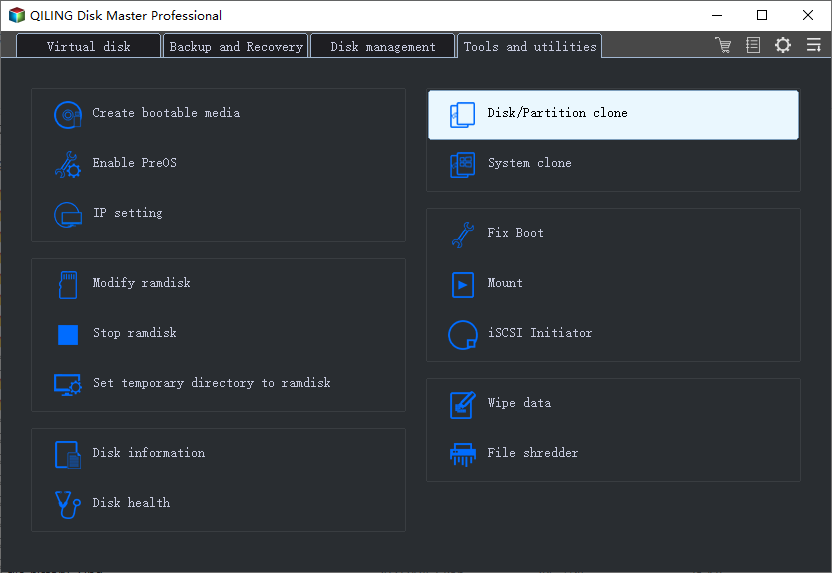
Step 1. Launch Qiling Backup and click "System Clone" in the tool page.
Step 2. The current system (Windows 10) partition and boot partition will be automatically selected, and click Next.
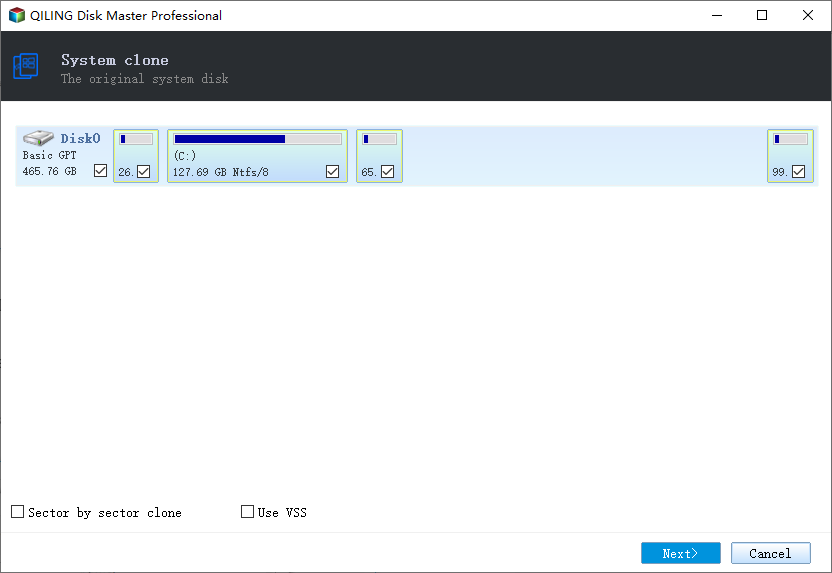
Tips: System Clone is not available for use when the system partition and boot partition are on the same drive.
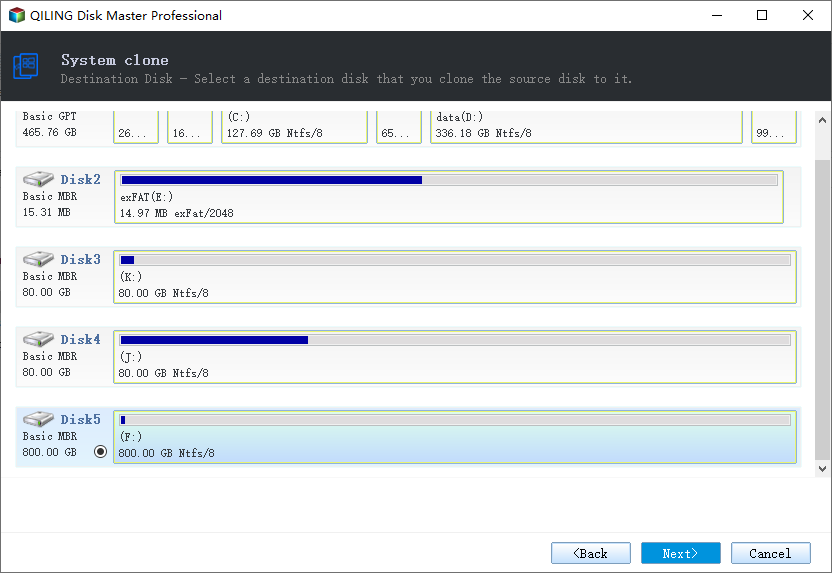
Step 3. Select the SSD or HDD as the destination disk and click "Next".
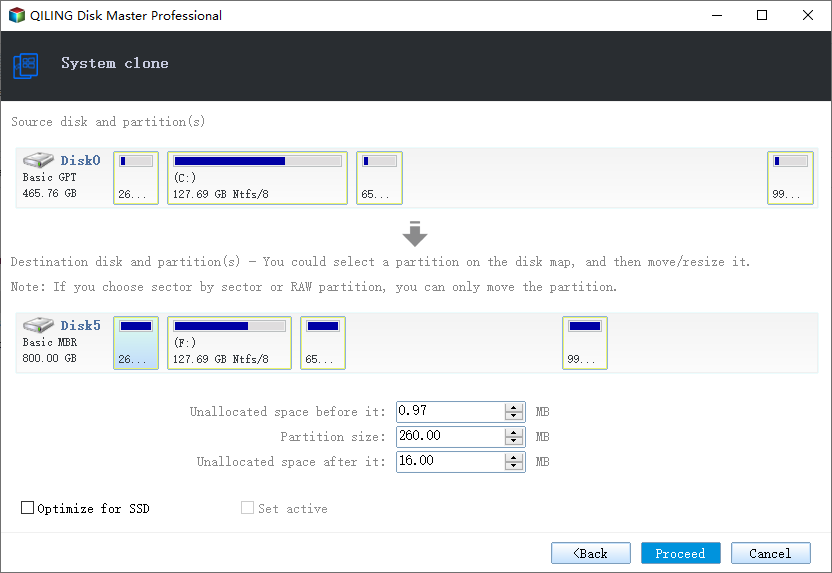
Step 4. Preview the layout of your target disk, and customize it if needed, then click "Proceed" to start migrating your OS to a new disk.
Set Up PC - Make OS Bootable on New HDD/SSD
Once you've completed the operation, all you need to do is set your computer to boot from your new hard drive or solid-state drive by adjusting the boot order in the BIOS settings.
Here are the steps to set up your new disk as boot drive, making Windows OS bootable:
Step 1. Restart PC and press F2/F8/Del keys to enter BIOS.
Step 2. To set the new HDD/SSD with migrated OS as the boot drive, go to the Boot menu, specifically the Boot Priority or Boot Order section, and set the new drive as the top priority. This should be done after migrating the OS to the new drive.
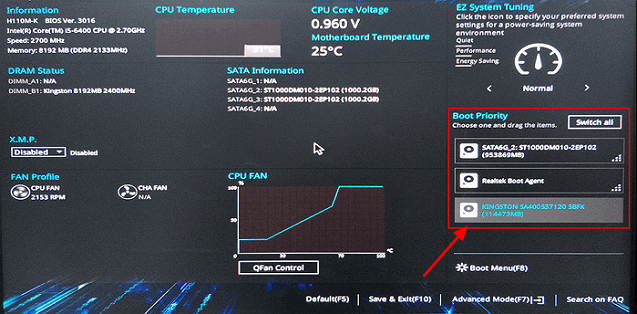
Step 3. Save the changes and exit BIOS. Then restart your PC.
After the process, Windows will automatically boot from the new disk. The system drive has been moved to the new disk without any data loss or boot errors. You can now delete the old system partition on the old drive and create a new partition for data storage.
Tip
If Microsoft Windows pops up a notification and requests reactivation, you can reactivate it with your key or contact the Microsoft support team for further help. By following the tutorial, Windows will work as normal and you won't need to reactivate it. If you encounter any issues, the support team can provide assistance.
Method 2. Clean Install OS to New SSD or HDD and Change OS Drive
To change the boot drive, you can either perform a fresh install of Windows on a new solid-state drive (SSD) or hard disk drive (HDD), or install Windows on a second drive, effectively creating a dual-boot system. This process involves reinstalling Windows on the new drive, which can be done using a Windows installation media or a USB drive.
Those who don't like their current operating system can try this method to fresh install a new Windows OS on a new SSD or HDD, which can also be used to set up a new OS disk in Windows systems, albeit with a slightly more complex process.
To clean install the OS on a new SSD and set it as your boot drive, connect the new SSD to your computer, boot from the installation media, and follow the installation process. Once installed, set the new SSD as the primary boot drive in the BIOS settings, and save the changes.
- Preparations - To set up Windows, you'll need an empty USB drive with at least 8GB of space, the Windows Media Creation Tool downloaded, and a Windows product key to activate the operating system after installation.
- Tutorial - To set up Windows 10 as a boot drive on an SSD/HDD, start by formatting the SSD/HDD and installing Windows 10 from a USB drive or CD/DVD. Follow the installation prompts to complete the setup process, which may take around 30-40 minutes.
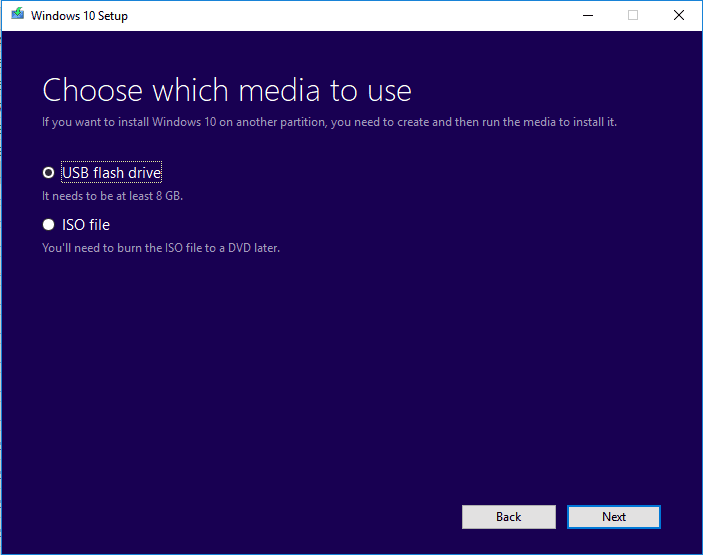
Step 1. Create Windows Installation Media on USB.
Double-To create Windows installation media, run the Windows Media Creation Tool, select USB as the target, and follow the prompts to create a bootable USB drive with the Windows installation files.
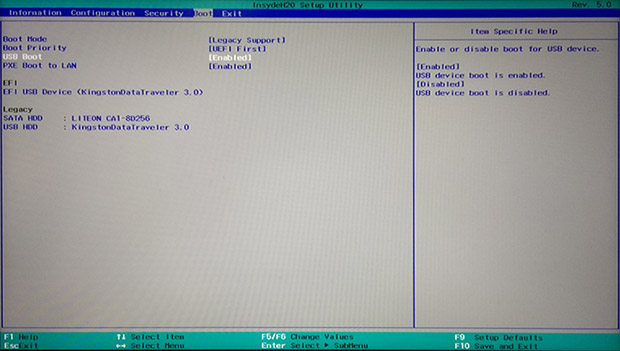
Step 2. Boot PC from USB Installation Media.
Remove the old system disk, insert the new SSD and bootable USB, reboot the PC, enter the BIOS, and set the PC to boot from the Installation Media.
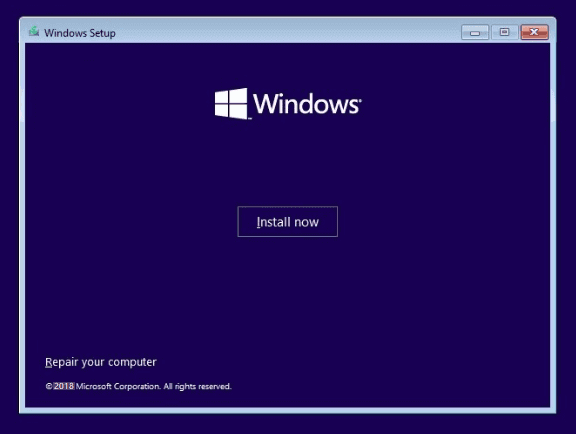
Step 3. Sut up perferences before installing Windows on the new drive.
Set language, other preference before clicking "Install now".
Step 4. Install Windows on new SSD.
Skep entring a product key, select "Install Windows only", and select to install Windows on the new SSD.
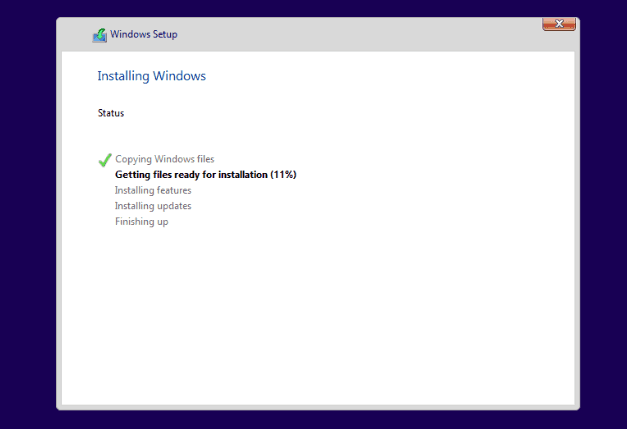
Wait for the process to complete.
Step 5. Set up SSD/HDD as boot drive.
After installing, restart your PC, enter BIOS, change the boot drive to set the SSD as the OS drive, and restart again.
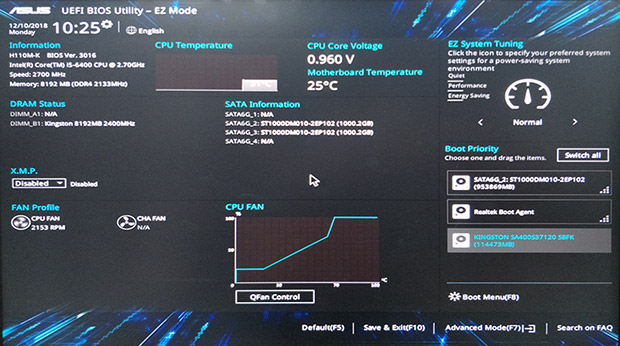
Step 6. Reinsert old OS disk and set it as data drive.
To resolve the issue, simply shut down your PC, remove the installation USB drive, reinsert your old hard drive (HDD) into the computer, and then restart the PC. This should allow you to boot up normally and access your data.
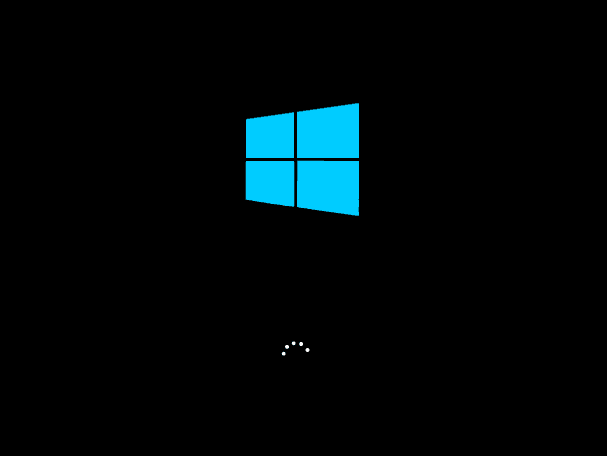
Step 7. Activate Windows with the product key.
If you want a dual boot OS computer, you can stop here and repartition the drive to create a new partition to save your backup data.
To use the whole drive as a data disk, back up important files from the old system drive, delete the old drive, and then create a new partition to copy the backed-up data back to the data disk.
Note: Be extremely cautious when attempting any system changes, as false operations can cause system boot failure or unexpected problems on your computer. For a more stable and proper approach, consider using Qiling Partition Master to protect your system and data security, as it offers a safer and more reliable method for managing your computer's partitions.
Conclusion
If you need to change your system disk, you have two practical options: migrating your OS or clean installing Windows to a new SSD or HDD. If you're unsure which method is best for you, consider the following tips. If you want to preserve your existing settings and installed programs, migrating your OS is a good choice.
1. If you only want to switch system drive, you can change the system disk to a new SSD or a bigger HDD while keeping the operating system, and use Qiling Partition Master to help with the process.
This tool helps migrate the operating system to an SSD or HDD without requiring a Windows reinstallation. The process also eliminates the need to reset the new drive as the boot drive in the BIOS settings, as it is handled automatically during the migration process.
2. If you want to create a dual-boot OS, install two versions of Windows OS on your computer, or clean install Windows on the new SSD/HDD, you can use Method 2 with the Clean Install Windows tutorial.
Be cautious during installation and ensure the new SSD or HDD is set as the boot disk to avoid Windows booting issues.
People Also Ask
This page provides information on how to change the system disk and set up a new SSD/HDD as the boot drive, addressing the question of how to do so. Related search queries on Google also suggest people are looking for answers to similar questions.
Here we will lift 3 top concerned questions and leave an answer to each question. If you are having the same doubts in your mind, check the answers here now.
1. How do I move Windows 10 to a new SSD?
To move Windows 10 to a new SSD, follow a similar process to Method 1 on this page. Simply install the SSD in your computer and use Qiling Partition Master to execute the OS migration job, allowing you to safely transfer your operating system to the new drive.
When the process is complete, simply restart your PC and everything will be done. You can also refer to the detailed guide on transferring Windows 10 to an SSD for more information.
2. How do I change my boot drive or boot disk?
To change the boot drive, you need another disk with a Windows OS installed on it. You have two options: either migrate the OS to the new disk using Qiling Partition Master's Migrate OS feature, or fresh install Windows on the new drive.
- If you use the first method to migrate OS, you just need to restart the PC and Windows will automatically boot from the new drive, requiring no further operation.
- To change your boot drive after a fresh Windows install using the second method, follow these steps:
Step 1. Shut down PC and remove the old drive.
Step 2. Restart PC, press F2, F10, or Del key to enter BIOS.
Step 3. Go to the Boot order section, set the new disk as the boot drive, and save the changes.
Step 4. Restart PC.
If everything goes right, shut down the computer and insert the old drive back into your computer. Restart it again.
3. How do I transfer my operating system to a new hard drive?
You can transfer your operating system to a new hard drive in two ways.
1). Directly migrate OS to new Hard drive;
Clone the system to the new hard drive and set the new drive as a boot drive. This will transfer the entire operating system, including the installed programs and files, to the new drive, effectively replacing the old one. This process can be done using various cloning software or tools, and it's a straightforward way to upgrade to a new hard drive without reinstalling the operating system.
If you prefer the first way, you can directly revert to Method 1 on this page for a detailed guide. If you choose to clone the system to the new drive, refer to Transfer OS to New Hard Drive without Reinstalling Windows as a guide.
Related Articles
- How to Bypass Secure Boot And TPM on Windows 11
- Best Free Hard Drive Erase Software
- How to Ghost a Hard Drive in 3 Steps
- Backup Computer to USB Flash Drive in Windows 10/8/7
- How to Transfer OS to SSD Without Reinstalling Windows (Windows 11 Support)
- How to Partition Hard Drive Disk without Formatting
- Perform Windows Server 2019 Incremental Backup Easily (2 Ways)
If you have a problem creating Windows Server 2019 incremental backup, please continue to see below and follow the stepwise guide carefully.
Products
Articles & Tutorials
- Data Recovery
- Data Backup
- File Recovery
- File Backup
- System Backup and Restore
- Disk and Partition Clone
- Technical articles
- Mobile articles
- Disk Master Help
- Windows Data Recovery Tutorials
- Windows Secure Delete Tutorials
- Windows Partition Management Tutorials
- Windows File Backup and Restore Tutorials
- Windows System Backup and Restore Tutorials
- Windows Disk Backup and Restore Tutorials
- Windows Clone Tutorials