Restore System from Bootable CD/Pre-OS Under Windows
To avoid system crashes, infections, or hacking attacks, it's essential to have a backup plan in place. We recommend using Qiling Backup to create a system backup, which will come in handy during the restoration process. If your system crashes, you can restore it from a bootable CD/USB, Pre-OS, or even under Windows. Just make sure you have a backup before proceeding with the restoration process.
Restore system from bootable CD/DVD
When Windows crashes or system files are in use, you can't restore the system under Windows. To resolve this, you can use a bootable CD/DVD or USB to boot Windows and restore the system to its original state, provided you have a backup and a bootable media created beforehand.
Or, just navigate to Start - To restore your system from a bootable CD/DVD, follow these steps: right-click on the Command Prompt in the Start menu and select "Run as Administrator".
Step 1. To boot from a CD, insert the bootable CD into the CD-ROM drive and restart your computer. When the computer is restarting, press the "Del" key to access the BIOS settings. In the BIOS settings, navigate to the boot order and move the CD-ROM drive to be the first boot device, placing it above the hard drive. Once you've made this change, press "F10" to save and exit the BIOS settings. Your computer will now boot from the CD.
Step 2. Boot from WinPE based bootable CD/DVD.
Step 3. Select the image file you want to recover and then select the source you want to restore.

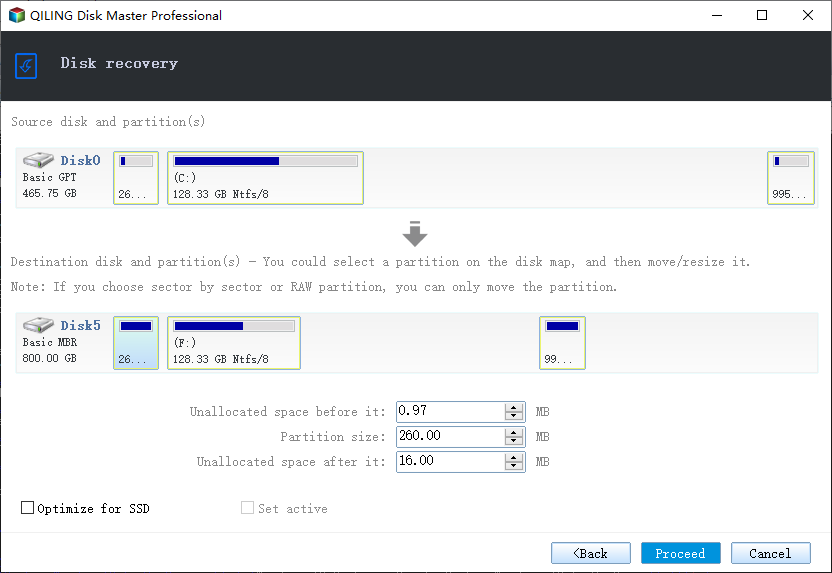
Step 4. Select the destination location which you will recover to. And confirm the recovery information, then click "Proceed" to restore.
Restore system from Pre-OS
Pre-Our OS can be considered as a simple OS environment, allowing you to use our product without system login or booting from a ready disk. This is particularly useful when the operating system fails to boot, as it enables you to recover from a previous image and resolve the issue easily.
There are two kinds of Pre-The OS environment for Free and all Trial editions is Linux Pre-OS, while for all paid editions it is Windows Pre-OS, which is also known as WinPE. Linux Pre-OS is a limited version of Windows Pre-OS.
Step 1. Enable Pre-OS. If Pre-OS is currently disabled, click the button to enable Pre-OS.
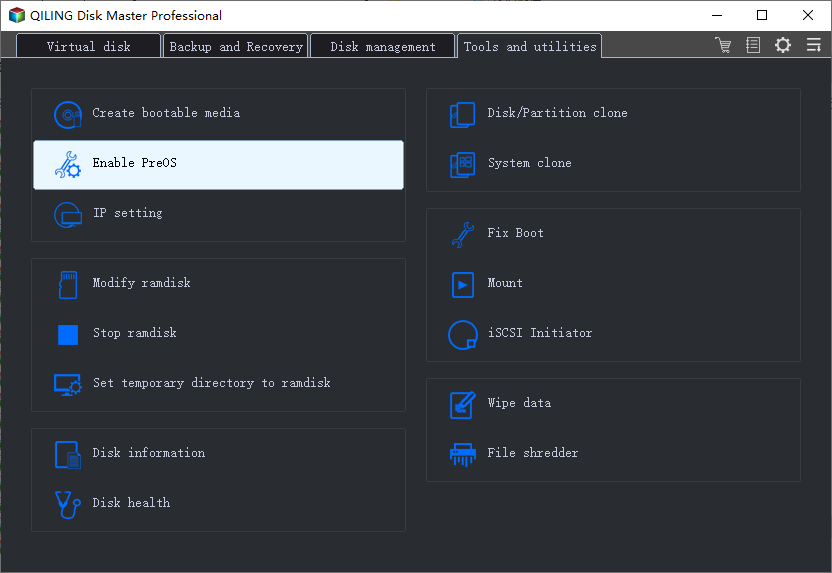
Step 2. Restart the computer and we will get a Windows boot menu. Select Qiling Backup and we will get into Qiling Backup.
Step 3. To recover a deleted image, click "Browse to Recover", select the image file you want to recover, and then choose the source from which to restore it.
Step 4. Select the destination location which you will recover to. And confirm the recovery information, then click "Proceed" to restore.
Restore system in Windows
You can restore your computer system to a previous state using Qiling Backup, as long as you have a backup of your system from a time when everything was working correctly. This way, you can effectively revert your system to a point in time when everything was working properly, without having to reinstall the operating system.
Step 1. To recover your system, run the Qiling Backup and navigate to the Manage window to view the system backup history. From there, click "Recover" and select a restore point based on its created time and source.
Step 2. Customize the destination location and confirm the recovery information, then click "Proceed" to recover.
Related Articles
- How to Clone Windows 10/8/7 to Another Computer
- Schedule backup: how to automatically and regularly perform a backup
- How to restore the system image to a computer with different or dissimilar hardware
- How to Clone Hard Drive for Disk Upgrade, Data Transfer, SSD Migration
- How to Clone SSD to Larger SSD in Windows 10/8/7
- Repair Windows 11 with Command Prompt (SFC, DISM, etc)
Find your Windows 11 works improperly and want to fix it using Command Prompt? Read this article carefully to get a complete guide.
Products
Articles & Tutorials
- Data Recovery
- Data Backup
- File Recovery
- File Backup
- System Backup and Restore
- Disk and Partition Clone
- Technical articles
- Mobile articles
- Disk Master Help
- Windows Data Recovery Tutorials
- Windows Secure Delete Tutorials
- Windows Partition Management Tutorials
- Windows File Backup and Restore Tutorials
- Windows System Backup and Restore Tutorials
- Windows Disk Backup and Restore Tutorials
- Windows Clone Tutorials