Restore your hard drive and operating system
Your computer is always at high risk of data loss:
- Inability to read the unknown file format.
- Intentional or accidental deletion of a file or program.
- Software bugs or poor usability, such as not confirming a file delete command, can lead to user frustration and mistrust in the system.
- Misplacement of CDs or Memory sticks.
- Data corruption: such as file system corruption or database corruption.
- Power failure or software crash or freeze can cause data loss because the system may not have saved the data to permanent memory, resulting in the loss of unsaved work.
- Hardware failure refers to the malfunction of a computer component, such as a hard disk head crash, which can result in data loss or corruption.
- Malicious acts, including theft, hacking, sabotage, and other crimes, can be committed through various means, such as spreading a worm or virus, hacking into a system, or stealing physical media.
- Disaster: natural disaster, earthquake, flood, tornado, fire, etc.
To recover from data loss, it's essential to back up your computer and store the backup image file in a physically separate location. This way, in the event of data loss, you can simply click to restore the image and recover your desired data.
How to restore image files with Qiling Backup?
If you have previously done a disk image with Qiling Backup, there are five cases when you want to restore the backup image:
Case 1: Restore system state.
Case 2: Recover to dissimilar hardware.
Case 3: Restore disk partitions.
Restore disk partitions
Step 1. Open Qiling Backup, click the "Recovery" button on System Backup column.
To restore your system, you can either click "Recover Now" to use the existing system backup, or click "Browse for recovery" to select a system backup you created in advance.

Step 2. Choose one History version of the backup image, after confirming the contents, click the "Next" button.
Specify the disk to restore system image and tick the "Universal Restore" option.
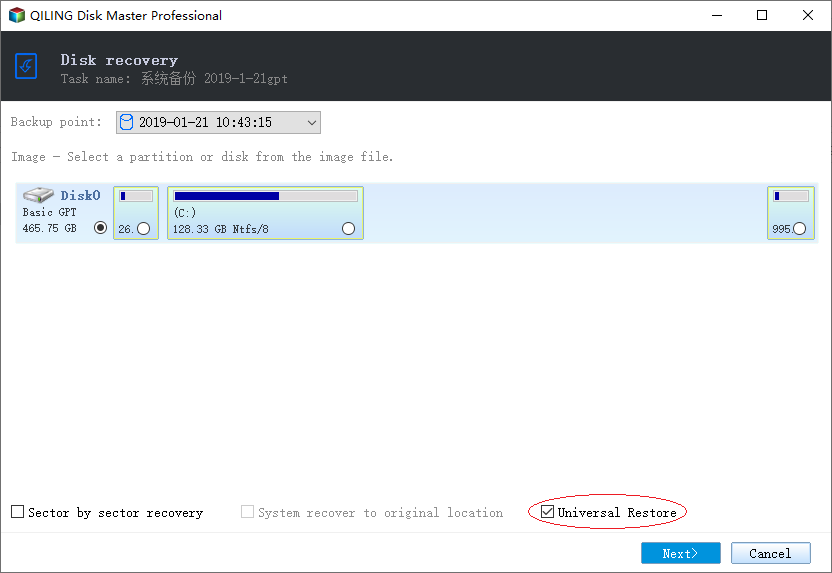
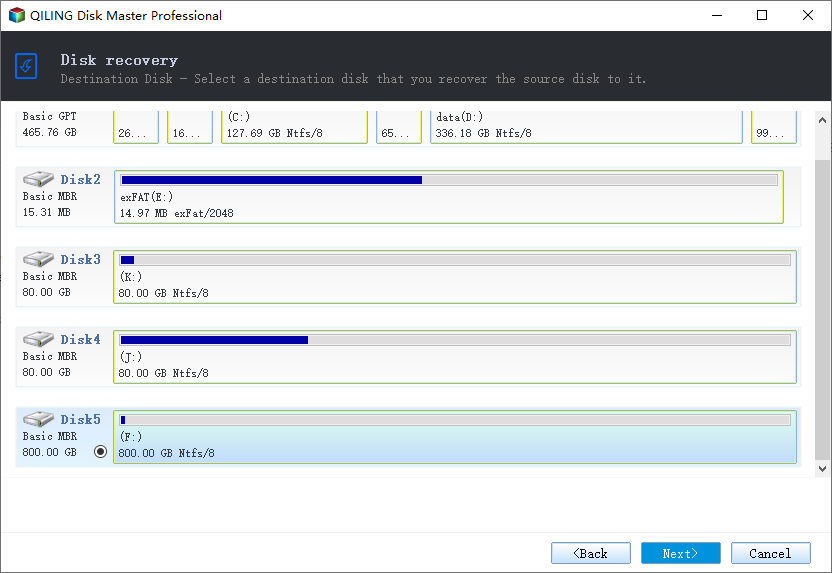
Step 3. And select the target location to restore your Windows, and click "Next" to continue.
Step 4. Then click "Proceed" to start backup recovery.
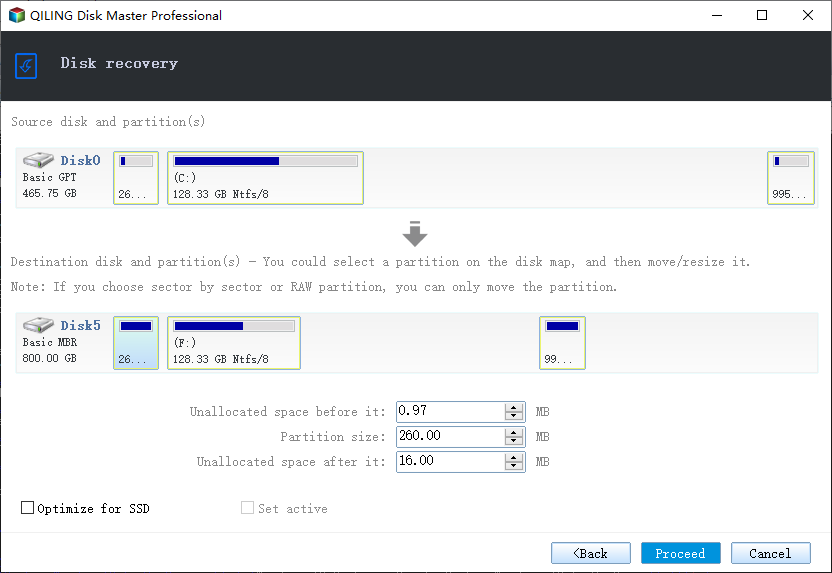
Wait for the process to complete, restart your computer, and then you should be able to run Windows OS on your computer again.
Restore Specific files from disk/partition images
1. Launch Qiling Backup.
2. Select a backup task, then click "Advanced > Mount" to mount the image.
3. Select the specific folder /file to copy.
Related Articles
- Windows 10 Sync Folders to External Drive Solutions
- What's the Difference between Differential and Incremental Backups
- Auto Backup VMware with Best VMware Backup Software
- Backup Data to Tape with Tape Backup Software
- Clone GPT Disk in Windows 10 - This Method Would Work!
- Windows 10 Backup 0 Bytes? Get Clear Ideas Here!
Are you confused with Windows 10 backup 0 bytes problem? Get clear ideas from this article.
Products
Articles & Tutorials
- Data Recovery
- Data Backup
- File Recovery
- File Backup
- System Backup and Restore
- Disk and Partition Clone
- Technical articles
- Mobile articles
- Disk Master Help
- Windows Data Recovery Tutorials
- Windows Secure Delete Tutorials
- Windows Partition Management Tutorials
- Windows File Backup and Restore Tutorials
- Windows System Backup and Restore Tutorials
- Windows Disk Backup and Restore Tutorials
- Windows Clone Tutorials