Why Is OneDrive Not Syncing on Windows PC? Answers and Fixes Are Here!
OneDrive, a professional cloud storage service provider, has a large user base consisting of both personal and business users globally.
Many users who enjoy the convenient storage services provided by OneDrive often encounter issues, with one of the most frustrating being OneDrive not syncing. If you're experiencing this problem on your Windows computer, don't worry - following the respective guide can help you fix the OneDrive not syncing error and get back to using the service smoothly.
PAGE CONTENT:
- Causes - Why Is OneDrive Not Syncing
- How Do I Fix OneDrive Not Syncing on Windows 10/8/7
- Extended: OneDrive Sync vs OneDrive Backup, Which Is Better?
- Bonus Tip: How Do I Backup Files to OneDrive Instead of Syncing?
Causes - Why Is OneDrive Not Syncing
Many reasons may cause OneDrive to stop syncing files between your device and the cloud. Common causes include issues with your internet connection, problems with the OneDrive app or software, conflicts with other cloud storage services, incorrect file permissions or sharing settings, and outdated or corrupted OneDrive files. Additionally, issues with your device's storage space, operating system, or hardware can also prevent OneDrive from syncing your files.
- OneDrive Sync Error
- OneDrive displaying with Red "X" sync error
- OneDrive processing changes
- OneDrive paused
- OneDrive account nearly full
- OneDrive account full, blocked, or frozen
- OneDrive not signed in
If your OneDrive syncing error is not listed, check the specific OneDrive sync error and get official help from Microsoft.
To fix OneDrive syncing error, first, check the internet connection and ensure it's stable. Next, restart the OneDrive app and your computer.
How Do I Fix OneDrive Not Syncing on Windows 10/8/7 [8 Fixes Available]
In this part, you'll learn some tips that will make sure that OneDrive is running correctly so that you can access and sync files, and also remember to try the quick fixes first.
| Quick Fixes for OneDrive Not Syncing | Detailed Steps |
|---|---|
| 1. Check if You Can Access OneDrive Online |
|
| 2. Update OneDrive to the Latest Version |
|
| 3. Upgrade OneDrive Account Storage |
|
| 4. Unlink OneDrive & Run OneDrive Setup Again |
|
If the fixes above don't work, don't worry! If OneDrive starts syncing files again after trying them, you're good to go. Otherwise, move on to the tutorial guide, which will provide further assistance.
Fix 1. Move Files Out of the Sync Folder
Step 1. Click OneDrive icon and select "Help & Settings" > "Settings".
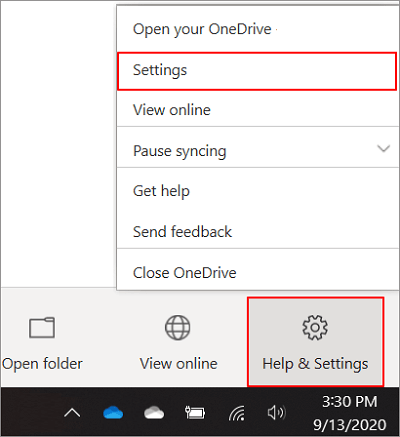
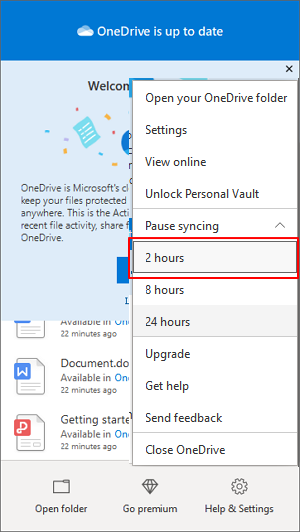
Step 2. Click "Pause syncing..." and select "2 hours".
Step 3. Select a file from the sync folder and move it to another folder, such as C:\users\.
Step 4. Select "Help & Settings" > "Resume syncing...".
When the syncing process finishes, move the file back to its original location.
Fix 2. Check & Make Sure Filenames and file types are supported
The target file will not sync with OneDrive if it exceeds the allowed file size or contains specific file name features, such as being too large or having names that are not allowed.
- File is larger than 20GB.
- The file name and its entire path should be less than 400 characters.
- File contains illegal or characters, like <, >, :, ", |, ?, *, /, \.
So how to fix this error? Here are the steps:
Step 1. Reduce the size of the file that you need to sync by zipping or compressing it.
Step 2. Shorten the file name or save the file in a subfolder that is closer to the top-level folder.
Step 3. Rename the file and remove illegal characters, set the file in a normal file extension.
Fix 3. Turn Off Necessary Components - Office Upload, Proxy Settings, Antivirus, and Firewall
#1. Turn Off Office Upload
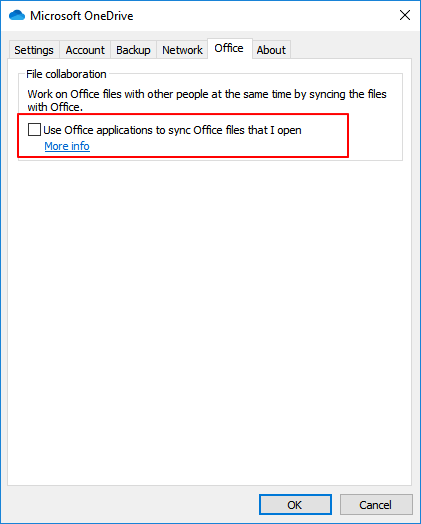
Step 1. Click OneDrive icon, select "Help & Settings" > "Settings".
Step 2. To disable Office from syncing files, go to the Office tab, uncheck the option to use Office applications to sync Office files that you open.
Step 3. Click "OK" to confirm.
#2. Turn Off Proxy Settings - Temporarily
In Microsoft Edge:
- Click the Windows icon and select the Settings icon.
- Click "Network & Internet" > "Proxy".
- At the Automatic proxy setup section, change the settings from "Automatically detect settings" and "Use setup script" to their opposite, turning them from "On" to "Off" or vice versa.
- To set up a manual proxy, toggle the "Use a proxy server" setting to the opposite side: switch it from On to Off, or from Off to On.
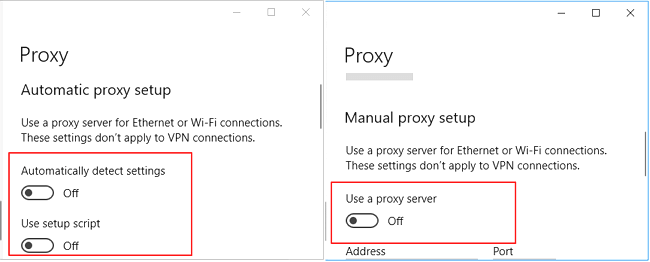
In Internet Explorer 11/10/9/8/7:
In Internet Explorer, go to Tools, then Internet Options, then Connections, then LAN settings, and uncheck or clear the box that says "Use a proxy server for your LAN". Click Apply and then OK.
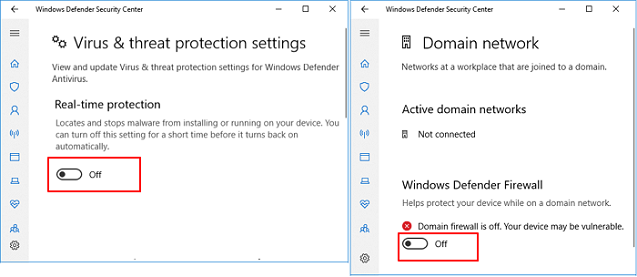
#3. Turn Off Antivirus or Firewall - Temporarily
Step 1. Click the Windows Start icon > "Settings" > "Update & Security".
Step 2. Select Update Security > Open Windows Defender Security Center.
Step 3. Select to disable or turn off "Virus & threat protection" and "Firewall & network protection".
Fix 4. Reset OneDrive
- Press Windows + R %windir%\system32\cmd.exe /k "c:\windows\syswow64\cmd.
%localappdata%\Microsoft\OneDrive\onedrive.exe /reset - To resolve the "Windows cannot find..." error, type the path `C:\Program Files (x86)\Microsoft OneDrive\onedrive.exe /reset` in the Run dialog.
- If the above steps don't resolve the issue, you can try reinstalling or updating Office to resolve the OneDrive not syncing error.
Extended: OneDrive Sync vs OneDrive Backup, Which Is Better?
OneDrive is a cloud storage service that enables users to access, share, and edit files from anywhere, making it a convenient option for remote work and collaboration. Additionally, it serves as a backup solution for local computer files, providing an extra layer of protection against data loss.
OneDrive Sync and OneDrive Backup serve different purposes. OneDrive Sync is used for syncing files across devices, providing real-time access to files, while OneDrive Backup is used for backing up files, ensuring they are safely stored in case of data loss. OneDrive Sync is better for frequent file access and collaboration, whereas OneDrive Backup is better for data protection and disaster recovery. Use OneDrive Sync for files you actively use and collaborate on, and OneDrive Backup for files you want to protect against data loss.
| Which Is Better | OneDrive Sync | OneDrive Backup |
|---|---|---|
| Pros |
|
|
| Cons |
|
|
When deciding between OneDrive sync and OneDrive backup, consider the following: OneDrive sync is ideal for frequently accessed files, providing seamless access and collaboration, while OneDrive backup is better suited for infrequently accessed files, offering a reliable and secure way to store and protect your data. Ultimately, the choice between the two depends on your specific needs and usage patterns, and Editor's suggestion is to use OneDrive sync for frequently accessed files and OneDrive backup for infrequently accessed files. This approach can help you strike a balance between convenience and security.
- OneDrive Sync is better for quickly sharing files with colleagues, friends, or family members.
- To free up space on your local computer disk, back up all valuable files to OneDrive for cloud storage.
To securely back up files to OneDrive, first, ensure you have a Microsoft account and download the OneDrive app on your device. Next, create a new folder or use an existing one to store your files. Then, right-click on the folder and select "Always keep on this device" to ensure your files are stored locally before syncing them to OneDrive.
Bonus Tip: How Do I Backup Files to OneDrive Instead of Syncing? Your Reliable Tool Is Here
When it comes to backing up files to OneDrive, you have two options.
1. Manually upload files to OneDrive one by one.
2. Back up all files to OneDrive at one time.
If you prefer the manual way, follow Microsoft to upload and save files to OneDrive. Alternatively, for an all-in-one backup tool, Qiling file backup software - Qiling Backup is here to help.
With Qiling Backup, you can easily back up anything on your computer drive to OneDrive, including your current operating system. This means you can have a safe and secure backup of your system in case something goes wrong. The workstation version of Qiling Backup can also help you backup your current OS to OneDrive.
Here's how to fully backup all data on your computer to OneDrive one time: You can use the OneDrive Backup tool to backup all data on your computer to OneDrive. To do this, go to the OneDrive website, sign in with your Microsoft account, and click on the "Get started" button.
Step 1. Launch Qiling cloud backup software and choose the "File backup" option in the "Backup and recovery" page.

Step 2. Choose the target files you want to backup by either "User Defined" mode or "File Filter" mode.

User Defined allows you to choose files based on their directory, whereas File Filter is simpler and only backs up files with specific formats like pictures, documents, and videos.
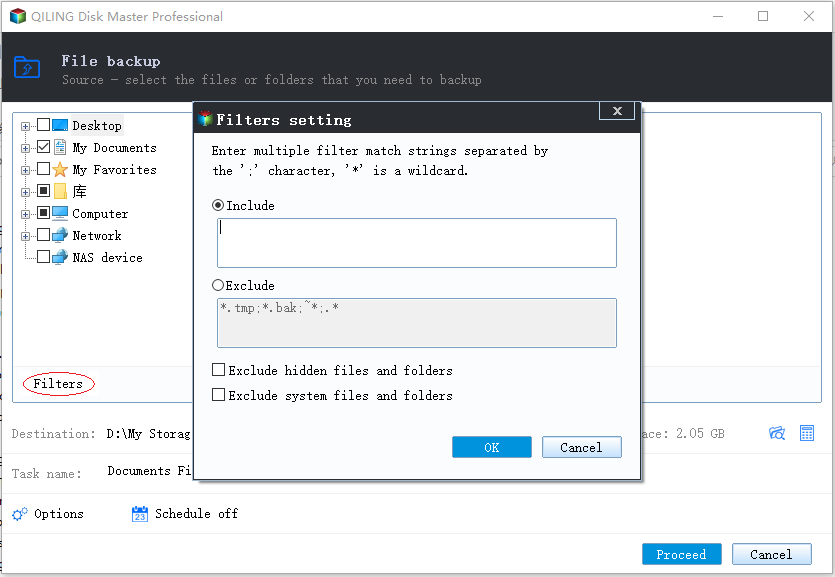
Step 3. To backup files to Cloud storage, click the "Browse" button in the "Destination" area and select "Cloud Device" in the mini window that pops out.

Step 4. Click "Proceed" to start backing up files to your Cloud drive at once.
Don't Worry When OneDrive Is Not Syncing Files, Follow to Fix It Now
This page addresses the issue of OneDrive not syncing files on a computer, providing a list of possible reasons that may be causing the problem. Additionally, it offers 8 potential fixes to help resolve the issue and get OneDrive syncing files again.
OneDrive sync has limitations for backing up and protecting local computer data, making it unreliable for backup purposes. If you need a OneDrive file backup solution, consider using reliable backup software like Qiling Backup, which offers a file backup feature to OneDrive.
If a OneDrive sync conflict left multiple versions of a file, recovering files after a OneDrive sync conflict shows how to preserve and compare them before choosing one.
Related Articles
- Data Dackup: Do It Right, Do It Now!
- How to Downgrade Windows 10 to Windows 8
- Best Free Norton Ghost Alternative for Windows 10
- Deploy Windows 10 with Best Windows 10 Deployment Tool
- Work from Home Equipment Checklist: What Do You Really Need To Work From Home
- How to Create Acer eRecovery Management USB or Similar Disk
This article shows you how to create Acer eRecovery Management USB or similar disk in simple steps.
Products
Articles & Tutorials
- Data Recovery
- Data Backup
- File Recovery
- File Backup
- System Backup and Restore
- Disk and Partition Clone
- Technical articles
- Mobile articles
- Disk Master Help
- Windows Data Recovery Tutorials
- Windows Secure Delete Tutorials
- Windows Partition Management Tutorials
- Windows File Backup and Restore Tutorials
- Windows System Backup and Restore Tutorials
- Windows Disk Backup and Restore Tutorials
- Windows Clone Tutorials