Guideline: Backup Specific Folders to OneDrive on Windows 10/11
Microsoft has released Windows 11, the latest version of the Windows operating system, which is widely used. It's recommended to update to the latest version and back up your data to prevent data loss.
Cloud Backup Windows 11 is still the top data security option for consumers, providing peace of mind against data theft, loss, or destruction. OneDrive, integrated directly into Windows 11, allows users to store data online and back up files, photos, and other files across multiple devices and computers. This article will guide you through the process of backing up files to OneDrive using various approaches, including the Qiling Backup Software as an alternative to OneDrive.
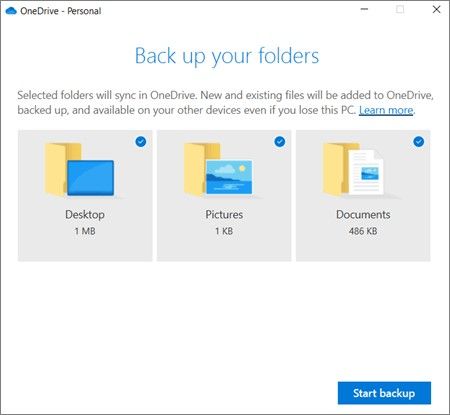
What Do You Know About OneDrive
Microsoft's OneDrive is a cloud storage service that enables users to access their files on-the-go, making it a popular choice for backing up important data. Compatible with Windows, iOS, and Android devices, OneDrive provides a convenient way to store and access files from anywhere.
You can access your OneDrive cloud storage space from any operating system, including Windows, Mac, and Linux, by visiting the designated page for that purpose.
You can back up your OneDrive files by using a specific directory on your computer, allowing you to seamlessly back up your data from various channels and devices.
Why Should You Back Up Files Regularly
Backing up your data and folders in Windows 11 is crucial, as it protects your files and ensures they're always up to date. This is especially important for users who regularly access and modify folders, creating new files, deleting files, and updating existing ones. By backing up your folders, you can avoid the hassle of losing data, giving you peace of mind and a sense of security.
If unexpected events occur, such as disk failure, viruses, malware, fires, or floods, you risk losing your information permanently if you don't regularly back up your folders. These setbacks can happen at any time, making it impossible to predict when they will occur.
You may be interested in How to Sync Desktop to OneDrive Automatically.
How to Backup a Specific Folder on Your Computer to OneDrive
To back up a particular folder to OneDrive using Windows 11, you should first ensure that you have enough free storage space on your OneDrive account. Then, right-click on the folder you want to back up and select "OneDrive" from the context menu. If you haven't set up OneDrive yet, you'll be prompted to sign in or create an account. Once you've set up OneDrive, your folder will be synced to the cloud, and you can access it from any device with an internet connection. Additionally, you can also use the OneDrive app to back up your folder, or use the built-in Windows feature called "Backup" to create a system image and back up your files.
Step 1. On the Backup settings screen, click on the "Sign in to OneDrive" link.
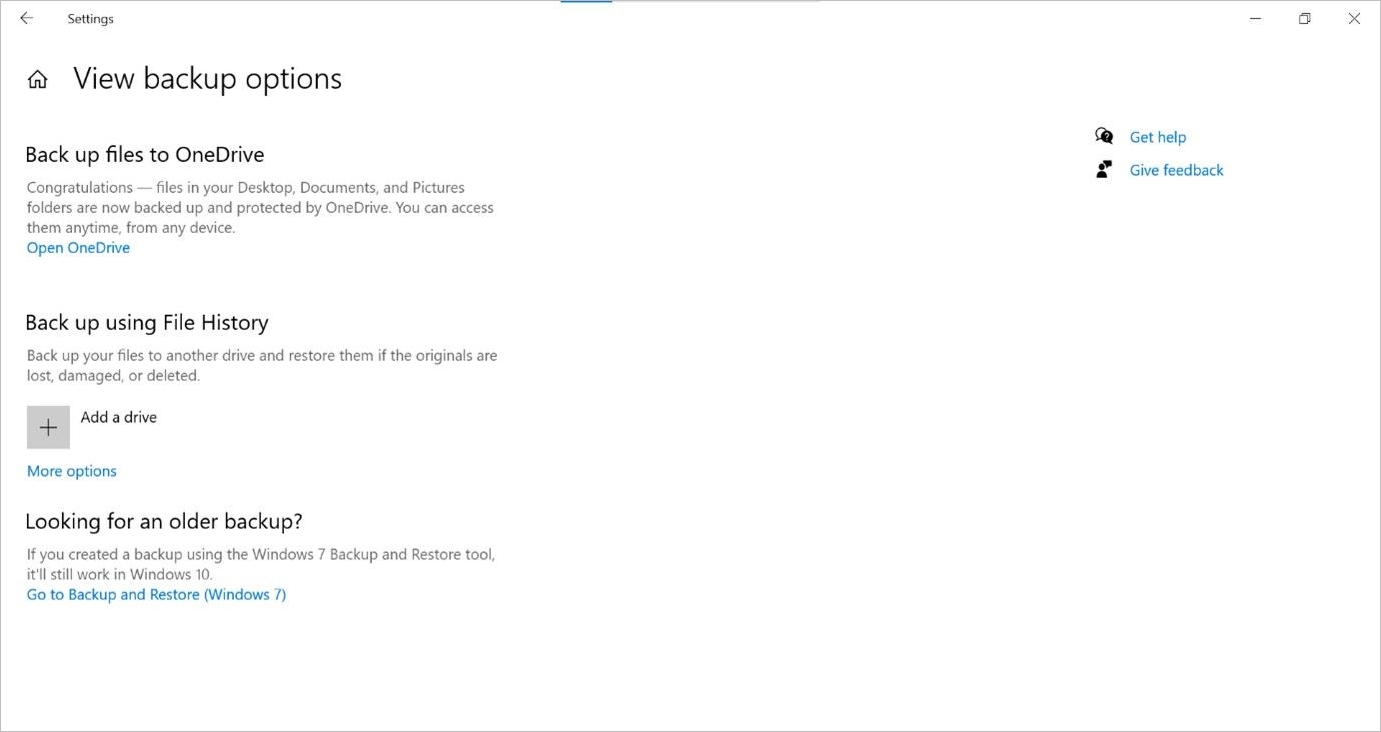
Step 2. To sign in to your OneDrive account, you'll need to enter the email address and password associated with that account.
Step 3. After completing the login process, you will be directed to the setup wizard.
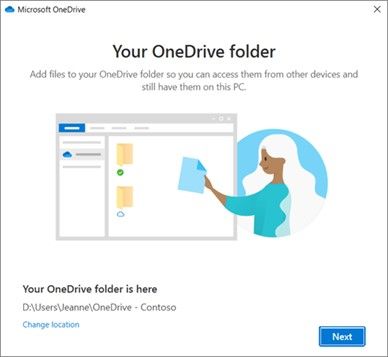
Step 4. After completing the OneDrive setup wizard, your OneDrive will be ready to use, and you can access it by choosing the "Open my OneDrive folder" option.
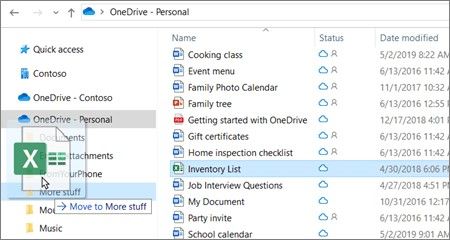
Step 5. You can backup your files and folders by dragging and dropping them into the OneDrive folder or copy and paste them there, and they will be automatically synced to the OneDrive website.
6 Ways to Fix OneDrive Error Code 0x8004de40 in Windows
Backing up data to OneDrive is now a straightforward process. If you encounter any issues, you can find possible solutions within a few clicks, making it easy to resolve any problems that may arise.
Alternative for OneDrive - Qiling Backup
If you have OneDrive mapped to a local drive on your computer, you can use Qiling Backup to easily back up your files, requiring just a few clicks to start the backup process from your local disk drive.
Qiling Backup is future-Cloud storage is a secure way to save and retrieve large data chunks from cloud storage. It's flexible, allowing data backup retrieval anytime, and cost-effective, offering up to 250GB of free storage, unlike OneDrive's 15GB.
Main Features of Qiling Backup
- Simple backup management:Qiling Backup enables you to manage backups by merging, splitting, deleting, or compressing them to optimize disk space usage, and also allows you to schedule regular backup plans at daily, weekly, or monthly intervals.
- Enhanced backup efficiency:During differential and incremental backups, you'll only need to back up changed data, which makes the backup process more efficient and saves storage space.
- Bootable backup feature:A bootable backup creates a system backup on a device that can boot your system and restore data, allowing you to recover lost information in the event of a disaster like a malware attack, system crash, or hardware corruption.
- Scheduled backup functions: Qiling backup offers a straightforward and effective solution for individual users to back up their data. It allows users to easily create a backup schedule and automatically back up their laptops and PCs, safeguarding their important data with minimal effort.
Here, we provides you the full steps to back up your important data. You can follow them.
Step 1. To start the backup process, click the "File backup" button on the "Backup and recovery" page to back up your files.

Step 2. A list of local and network files is displayed on the left side of the screen, allowing you to expand the directory and select the files to back up.
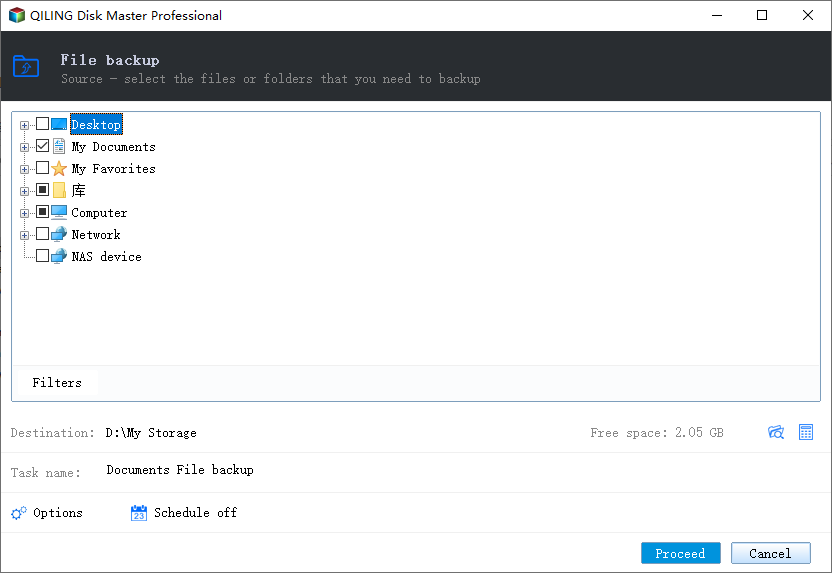
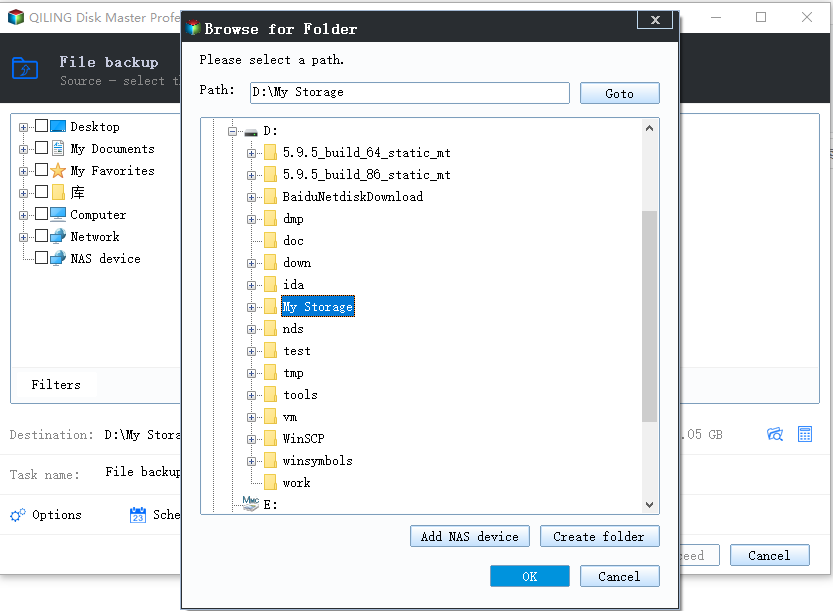
Step 4. Select the location where you want to store the backup, following the on-screen instructions.
Step 4. To set up a backup, make sure it is encrypted and set a schedule by clicking on Options in Backup Options.
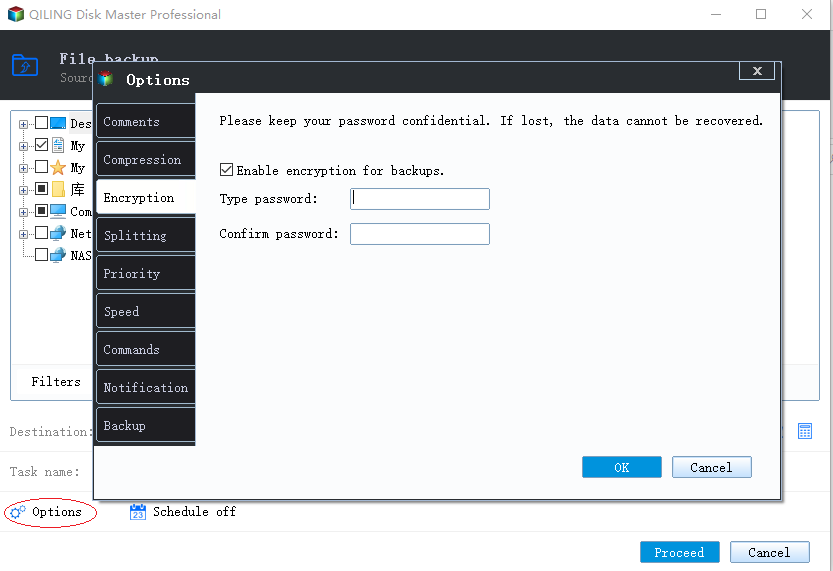
To start the backup at a certain time, click on "Backup Scheme" and then click on "Options".
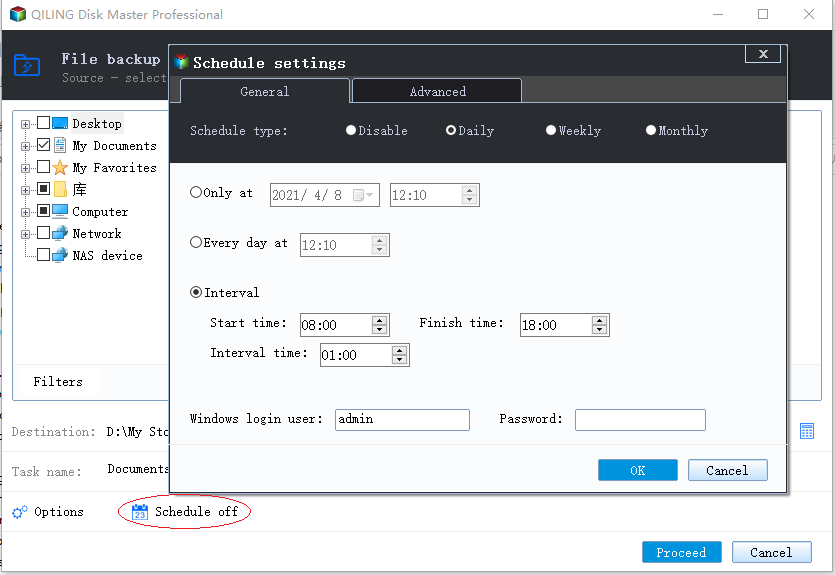
Step 5. You can store the backup file either on your computer, in Qiling's cloud service, or on a network-attached storage device (NAS).
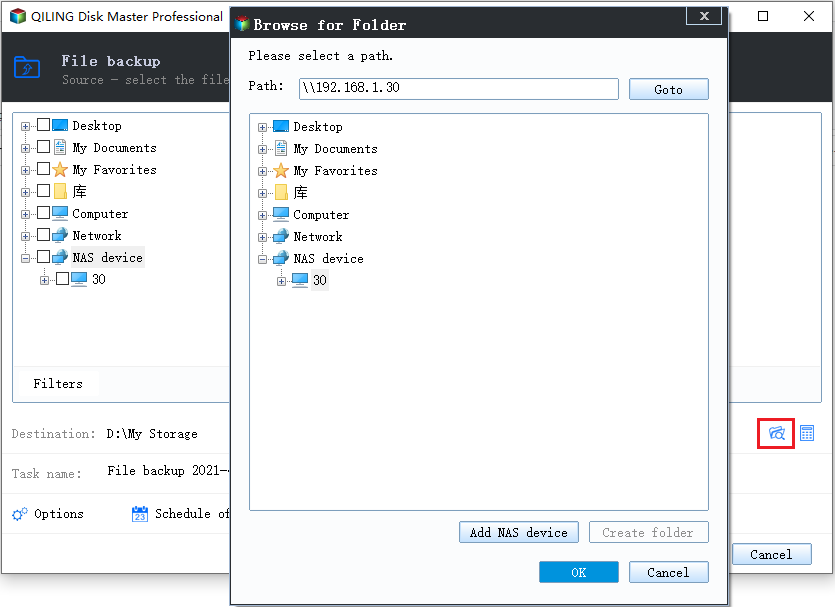
Step 6. Qiling Backup allows customers to store backup copies of their files on either a third-party cloud drive or the company's own cloud storage.
To back up your data on a third-party cloud drive, select Local Drive and scroll down to add Cloud Device, then fill in your account information.
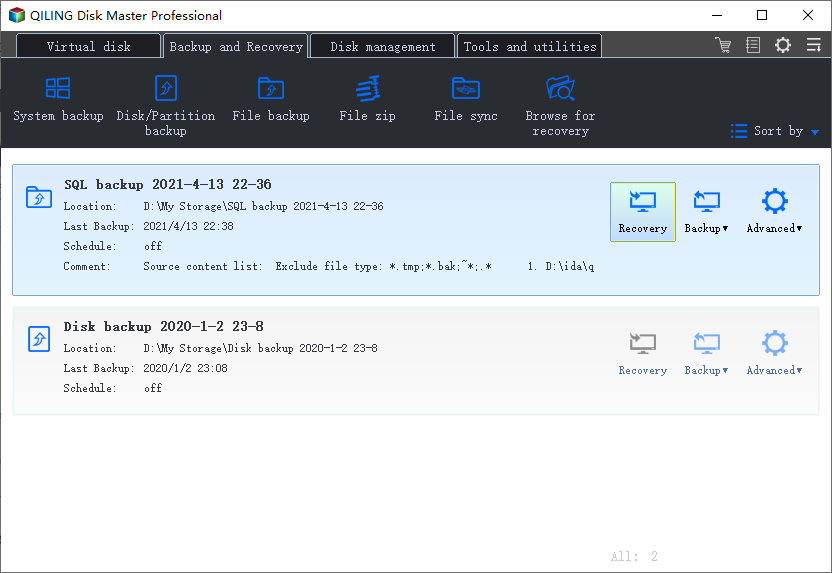
Step 7. To start a backup, click on Proceed, and once the process is complete, the backup will be displayed as a card on the left-hand side of the screen. You can right-click on the card to access more information and options for handling the backup job.
How Do Restore Files from OneDrive If They Are Lost or Damaged
OneDrive has a recycle bin where deleted files and folders are stored for a certain period of time, allowing you to recover them if needed. To access the OneDrive recycle bin, follow these steps:
Step 1. Sign in to OneDrive using your Microsoft or work/school account.
Step 2. Select Recycle bin in navigation.
Step 3. Click Restore to restore the files or folders you selected.
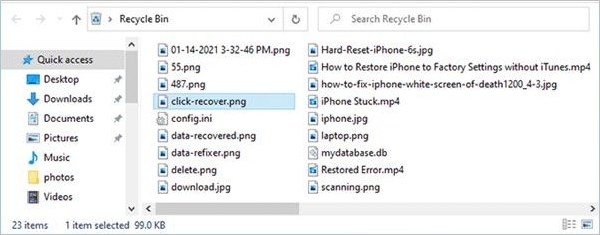
If you've deleted files or folders from OneDrive, check the Recycle Bin (on Windows) or Trash (on Mac) to see if they are still on your computer.
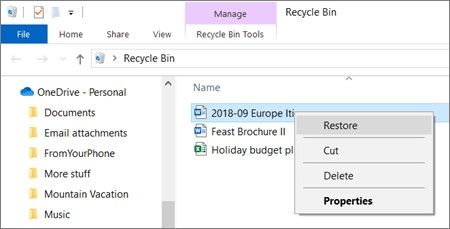
Step 1. To restore files or folders from the Recycle Bin in Windows, open the Recycle Bin, select the items you want to restore, right-click on them, and choose "Restore" from the context menu. This will restore the original folder and its contents, effectively undoing the deletion.
Step 2. To restore files or folders from the Trash on a Mac, open the Trash, select the items you want to recover, right-click (or Control-click) on them, and choose "Put Back" from the context menu. This will restore the original folder and its contents to their original location.
Tips for Keeping Backed-up Files Safe And Secure
Regular data backups are crucial for safety, but they also pose security risks if not handled properly, often leading to security incidents.
Here are some strategies to keep your data backups safe and secure, whether on your computer or the cloud: use strong passwords and two-factor authentication, encrypt your data, use secure cloud storage services, regularly update your backup software and operating system, and keep your backup data in multiple locations to prevent loss in case of a disaster.
- It's essential to have a backup storage option prepared in case of data loss or deletion, allowing you to recover important information and avoid potential consequences.
- To ensure data security, make copies of your files and store them in different media, such as external hard drives, cloud storage, or DVDs, so that even if one copy is damaged, you'll still have a backup.
- To ensure the security and integrity of your data, prioritize creating daily backups and storing them on a cloud storage service. This involves regularly saving your data to an external drive or cloud storage platform, such as Google Drive or Dropbox, to prevent loss in case of a system failure or other disaster.
- Having a data recovery plan in place ensures that your business can quickly recover from unexpected events, such as natural disasters, cyber attacks, or hardware failures. This plan should include regular backups of critical data, a disaster recovery process, and a business continuity plan.
Conclusion
To create a backup of specified folders in Windows 11, there are several methods available, but some are simpler and more advantageous than others. I recommend using a third-party backup program such as Qiling Backup for a hassle-free experience.
If OneDrive keeps crashing or isn't functioning properly, Qiling Backup is a good solution to back up your PC to the cloud quickly. To use the latest system, make a copy of all your important data first.
Related Articles
- Top 10 Reasons to Download Qiling Backup
- [Download] Windows 10 Recovery Tool for 32 Bit and 64 Bit
- 2022 Best 5 Free Virus Removal for Windows 11/10
- Lenovo OneKey Recovery Free Download for Windows 10 64 Bit/32 Bit
- Perform Acer Boot System Recovery in 5 Steps
Quickly guide for Acer crushed operating system recovery when boot the machine up. - All the Acer eRecovery Management Problems: How to Fix It Easily
You will learn the potential causes of Acer eRecovery Management problems and 5 solutions to fix them easily. And you can learn an overall solution to fix them once and for all.
Products
Articles & Tutorials
- Data Recovery
- Data Backup
- File Recovery
- File Backup
- System Backup and Restore
- Disk and Partition Clone
- Technical articles
- Mobile articles
- Disk Master Help
- Windows Data Recovery Tutorials
- Windows Secure Delete Tutorials
- Windows Partition Management Tutorials
- Windows File Backup and Restore Tutorials
- Windows System Backup and Restore Tutorials
- Windows Disk Backup and Restore Tutorials
- Windows Clone Tutorials