NAS Backup to Cloud: the Most Efficient Solution
Have you ever thought about what influence you can find if your NAS device is damaged or your data stored on NAS is attacked by hackers? Although NAS is a perfect device for storing and sharing data, some limitations still exist. To protect our data better, NAS backup to the cloud is essential. In the following article, I will help you realize the importance of NAS backup and recommend the best data backup software.
Why Do I Need NAS Backup to Cloud?
NAS (Network Attached Storage) is a type of storage device that allows you to share data across the internet, similar to a small computer with an enclosure, processor, operating system, and one or more hard drives. Before understanding the importance of backing up NAS data to the cloud, it's essential to know what NAS storage is and how it works. With NAS, you can access and share files remotely, making it a convenient and essential tool for many users.
Using a Network-Attached Storage (NAS) device for network storage can be very convenient, as it allows for easy data protection and sharing. However, it also has some drawbacks.
- Devices can be easily damaged by natural disasters.
- Hardware failure will make a system crash.
- Networks may affect the security data on NAS.
Backing up your NAS data is crucial to prevent damage from various issues, including hardware failures, software glitches, and human errors. You may wonder if it's possible to back up your NAS to the cloud, and the answer is yes - with professional software, you can easily transfer your data to the cloud for safekeeping. By doing so, you'll enjoy the benefits of cloud backup, including data protection, accessibility, and scalability.
- Expand more storage space.
- Dual data protection.
- Enhance data security.
- Manage data comprehensively.
- Save storage costs.
To ensure the safety and accessibility of your NAS data, it's essential to back it up to the cloud. This can be achieved through various methods, including using cloud storage services like Google Drive, Dropbox, or OneDrive, which can be integrated with your NAS for automatic backups.
How to Do NAS Backup to Cloud?
To backup NAS to the cloud, you can use various methods such as Qiling Backup, OneDrive, Google Drive, or Dropbox, but first, you need to download files from your NAS devices. Let's start by understanding how to download files from Synology NAS.
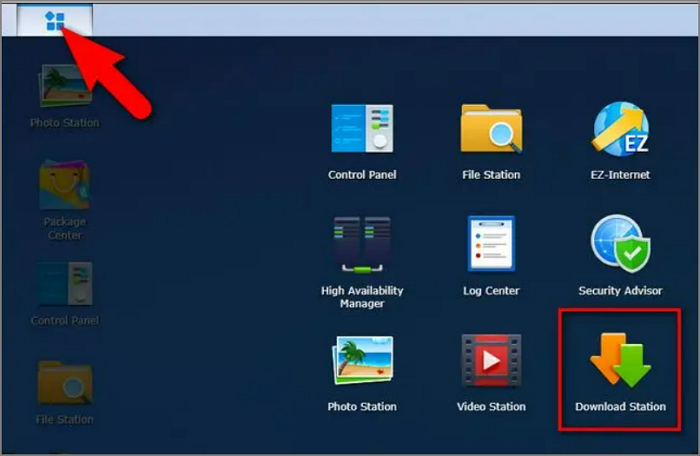
Step 1: To begin the application, click the menu icon on the network panel of your Synology NAS and select "Download Station".
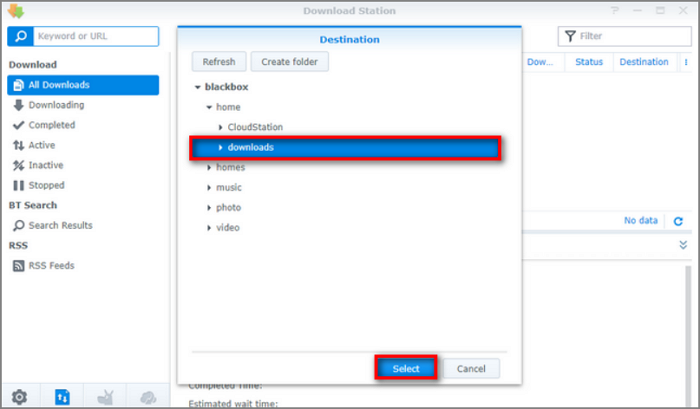
Step 2: Select the destination folder by Clicking "OK".
Step 3: Create a new folder called "downloads."
Step 4: To proceed, you can either add files to download manually or use a script to automate the process. If you choose to add files manually, you can simply copy and paste the URLs of the files you want to download into the designated field.
After downloading files from NAS, the next step is to backup NAS to the cloud. There are 4 ways to do this, each with its own advantages and disadvantages. The best method for NAS backup to the cloud is a topic of comparison, and will be discussed further in the next section.
| Comparison | ||||
|---|---|---|---|---|
| Types of data | System images, files, and programs are available. | Only files and photos. | Only files and photos. | Only files and photos. |
| Network Needs | Offline backup is available. | The network is essential. | The network is essential. | The network is essential. |
| Backup method | Automatic backup | Manual backup | Manual backup | Manual backup |
Backing up NAS to the cloud with services like OneDrive, Google Drive, or Dropbox is possible, but they have limitations, particularly for large file numbers. Manual file selection is required, making them more suitable for small-scale file backups. For larger file sets, alternative software is recommended.
Qiling Backup can backup everything on your computer. It's professional software that can do rapid data backup and recovery. With Qiling Backup you can improve your efficiency and save time. And you won't worry about data corruption. It is also easy to use. Next, I'll introduce how to use these tools for NAS backup to the cloud step by step.
How to Use Qiling Backup for NAS Backup to Cloud [The Best Way]
Qiling Backup Home is a professional backup tool that can meet various backup needs.
- Automatic backup to improve efficiency.
- Incremental or differential backup to save space.
- Secure backup to protect data better.
- Offline backup to save time
Qiling Backup supports all kinds of Windows systems and is easy to operate. Using it is straightforward and will be demonstrated in the following steps.
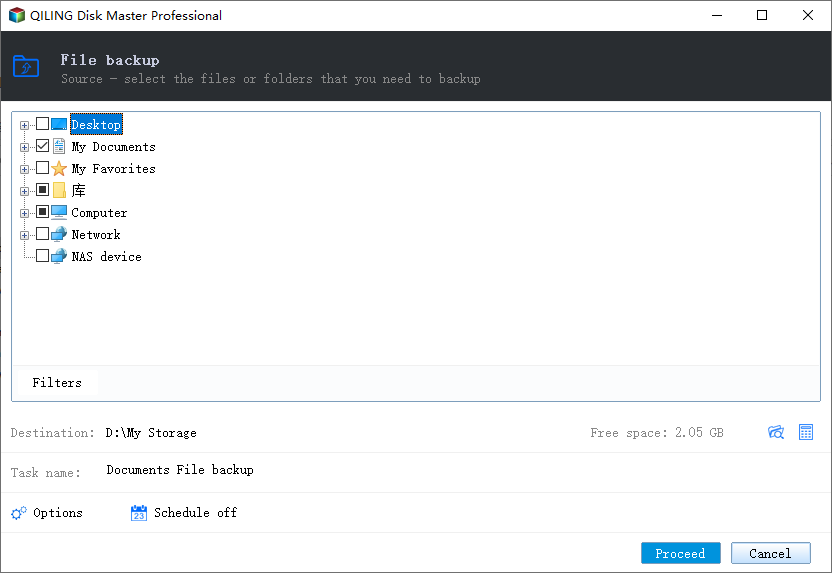
Step 1. Click the "File backup" button to start backup.

Step 2. Files from both local and network directories will be listed on the left, allowing you to browse and select the files to be backed up by expanding the directory.
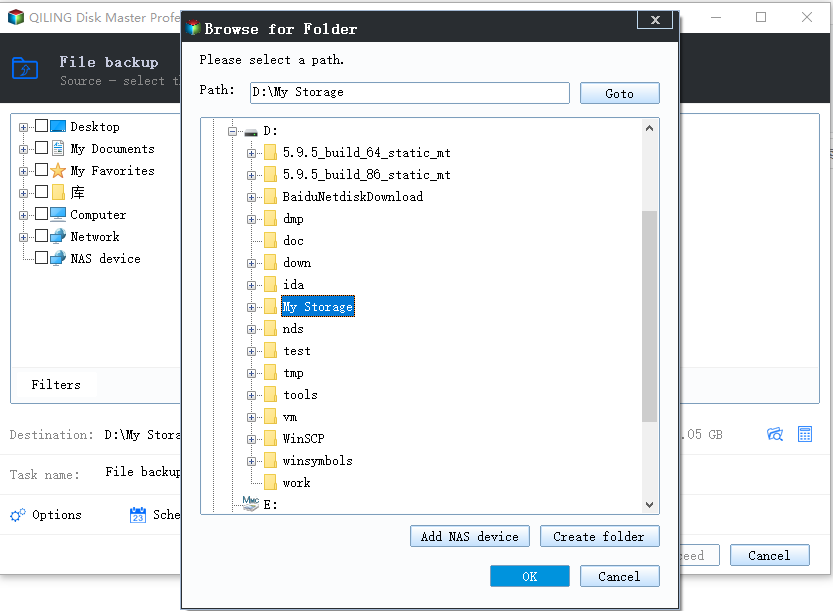
Step 3. Follow the on-screen guide to select the destination where you want to save the backup.
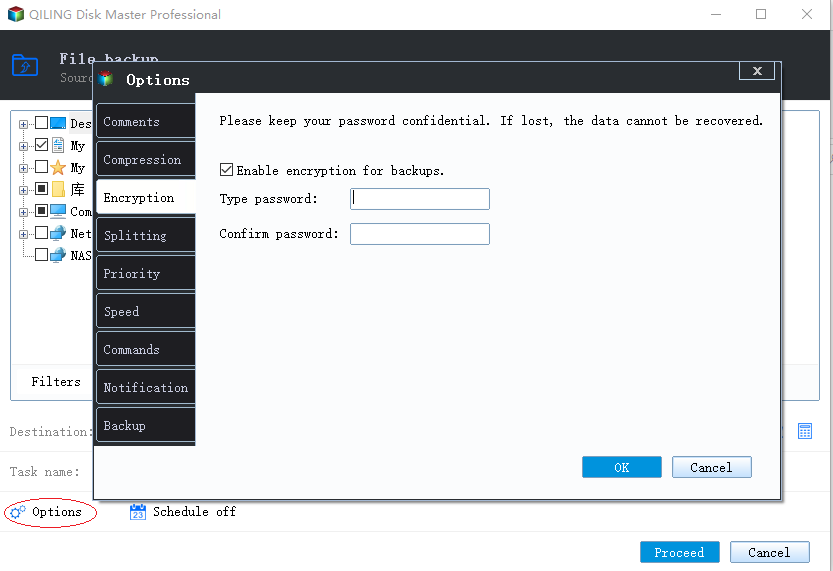
Step 4. Click "Options" to encrypt the backup with a password in "Backup Options" and explore other customizable options to tailor the backup task to your needs.
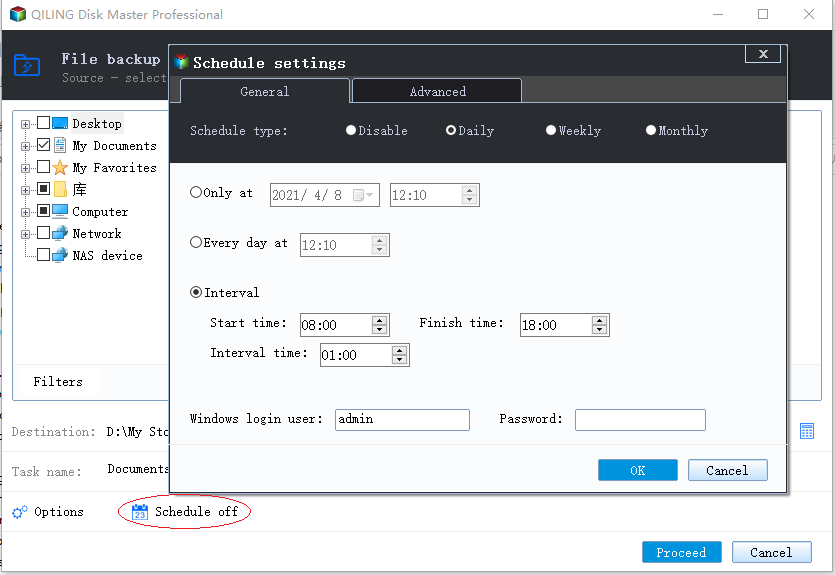
Set the backup schedule and choose to start back up at a certain event in "Backup Scheme".
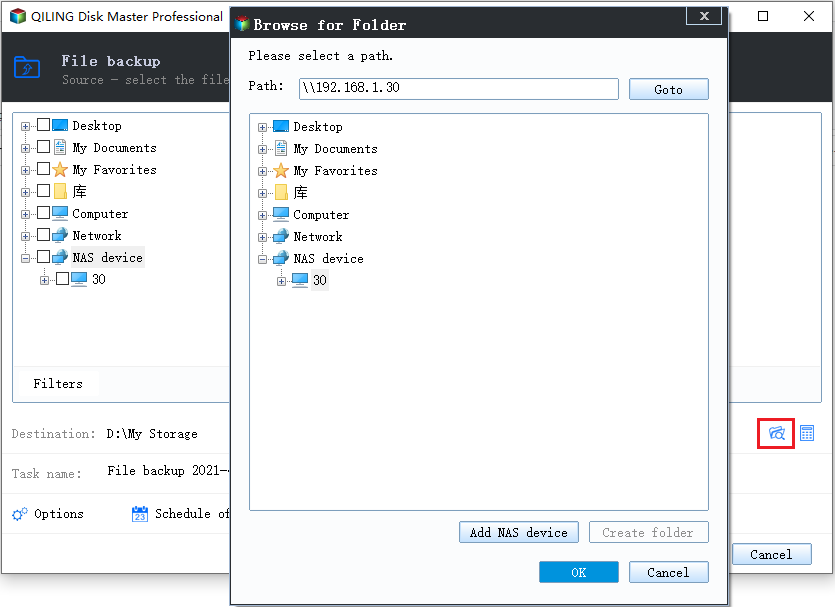
Step 5. You can store the backup to a local drive, Qiling's cloud service, or a Network-Attached Storage (NAS) device.
Step 6. Qiling Backup allows users to save their data to both external cloud drives and a personal cloud drive.
To back up data to a third-party cloud drive, select Local Drive, scroll down to add a Cloud Device, add and log in to your account.
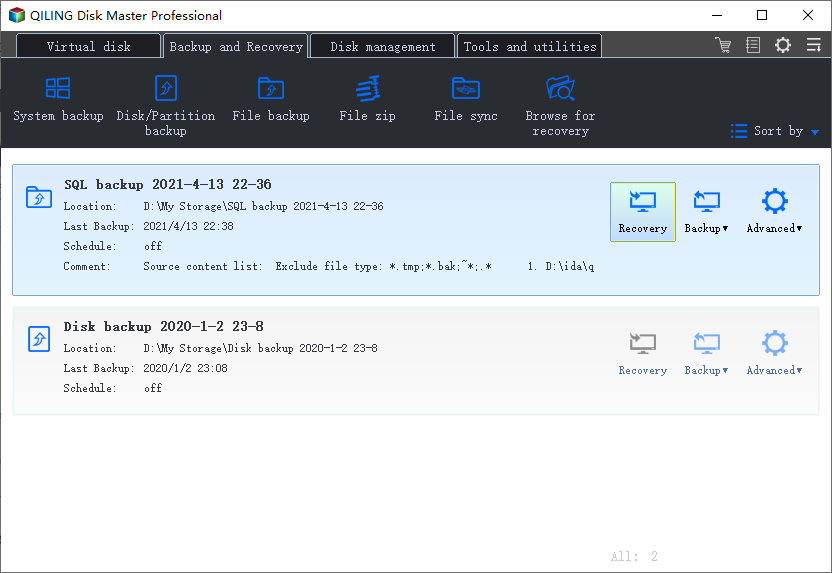
Step 7. Click "Proceed" to start the backup, and once the task is completed, it will be displayed as a card on the left panel. You can right-click the backup task for further management.
How to Use OneDrive for NAS Backup to Cloud
OneDrive is a cloud storage service developed by Microsoft that offers 5GB of free storage space, allowing users to store and access important files from any location, and providing a backup solution for data loss prevention.
Step 1: You can download files from NAS devices and save them on your computer by connecting to the NAS device using a network cable or wirelessly, accessing the files you want to download, and saving them to a designated folder on your computer.
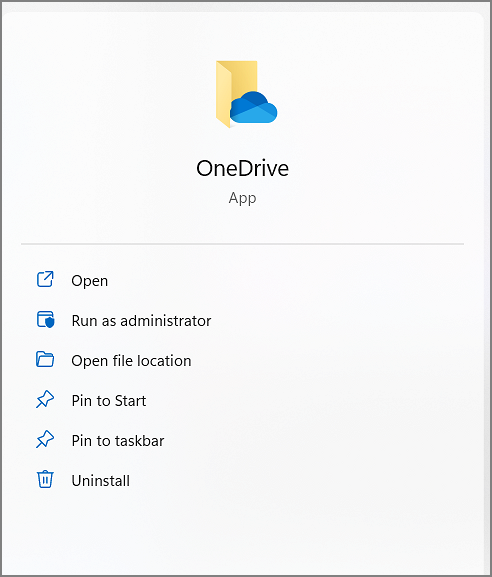
Step 2: After downloading files, you should open your OneDrive and log in.
Step 3: To create a new folder in the OneDrive interface, click on "My files" on the left side and then click on the "+New" button to initiate the folder creation process.
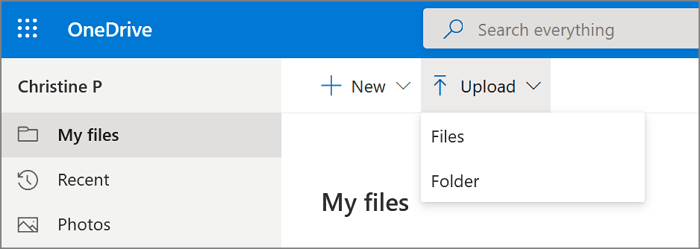
Step 4: Click "Upload" to backup the files you download from NAS.
How to Use Google Drive for NAS Backup to Cloud?
Google Drive is an online cloud storage service launched by Google, offering a free storage space of 15 GB. If you prefer to store data on Google Drive, you can follow the steps to backup your NAS (Network-Attached Storage) device.
Step 1: You need to download the files from NAS first.
Step 2: To start backing up your NAS to Google Drive, you need to log into your account on Google Drive. This will allow you to access your account and begin the backup process.
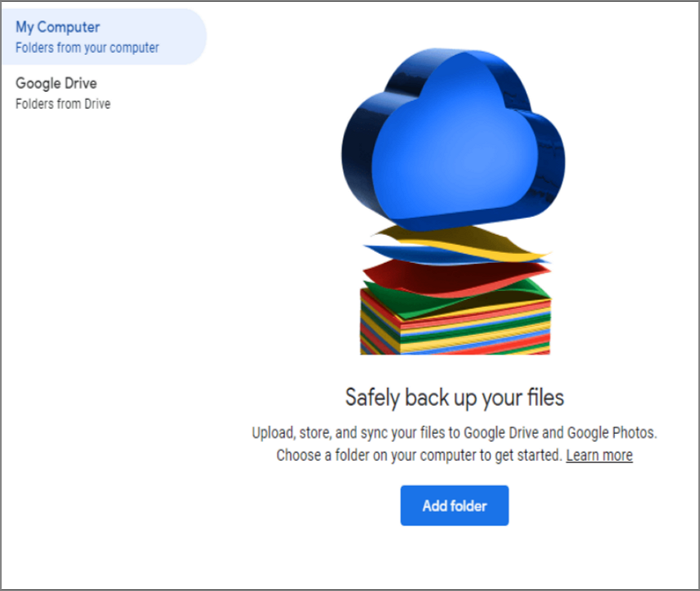
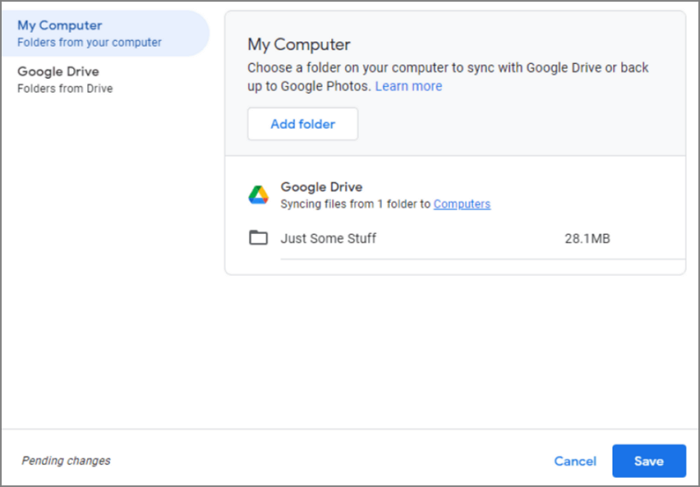
Step 3: To start backing up your NAS to the cloud, select "My Computer" on the left side and click "Add folders" to initiate the backup process.
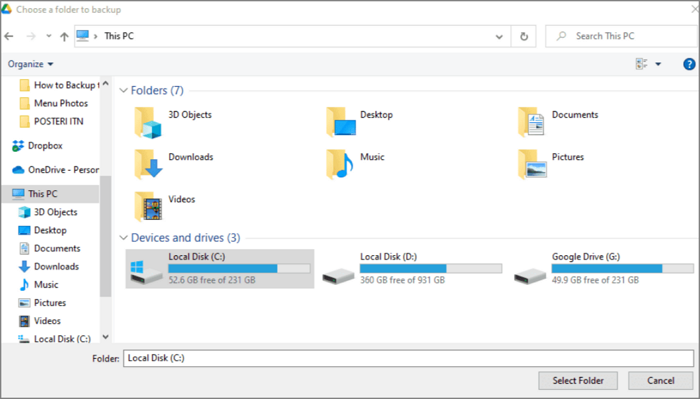
Step 4: Choose a folder on your computer.
Step 5: You can choose to backup either files or photos to the cloud, or both, and then click "Done" to complete the process.
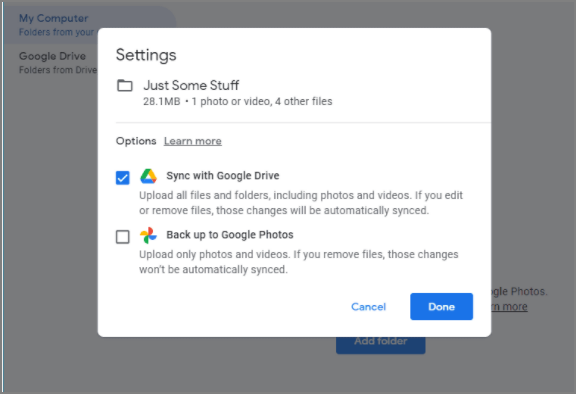
Step 6: Click "Save" to finish NAS backup to Google Drive.
How to Use Dropbox for NAS Backup to Cloud?
Dropbox allows users to store and share files and folders. To use Dropbox, users can drop any file into a designated folder through the Dropbox client, which then automatically backs up the files to a Network-Attached Storage (NAS) device, providing a convenient and secure way to store and share files.
Step 1: To access the file station, open your NAS device and navigate to the "File Station" web interface.
Step 2:Select the files you want to backup and then download them.
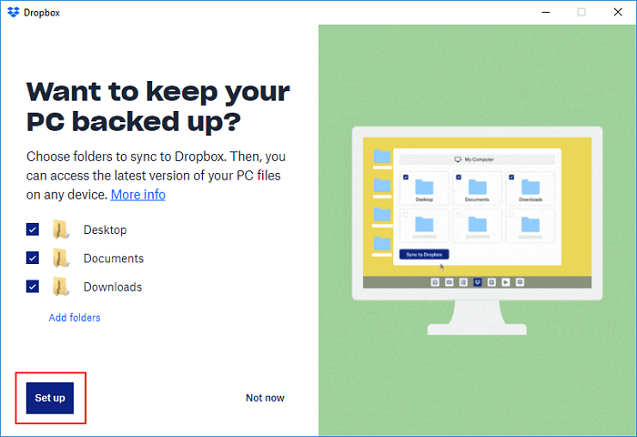
Step 3:To set up Dropbox NAS backup to cloud, log in to your Dropbox account, then click on "Set up" for NAS backup to cloud.
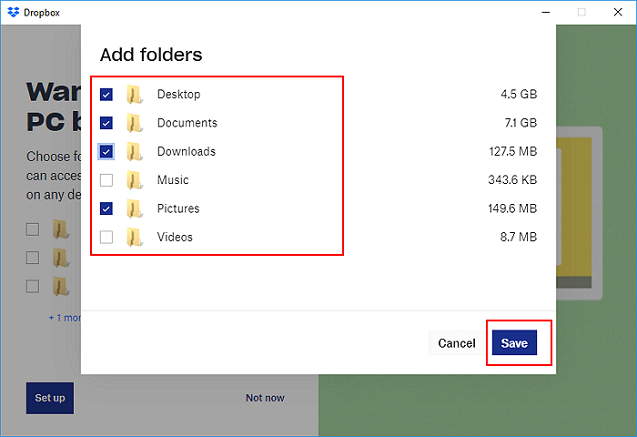
Step 4: To backup the NAS, select the files you've downloaded from it and click the "Save" button.
Conclusion
Using Qiling Backup for NAS backup cloud is the easiest method, eliminating the need for repeated downloads and uploads. This automatic backup feature significantly increases efficiency, allowing you to directly protect your data with Qiling Backup, which also offers additional valuable features.
FAQs about NAS Backup to Cloud
The importance of backing up your NAS to the cloud cannot be overstated, as it provides a secure and reliable way to protect your data from hardware failures, natural disasters, and other unforeseen events. There are four primary methods for backing up your files to the cloud: using a cloud-enabled NAS device, setting up a cloud backup service through your NAS's web interface, using a third-party cloud backup software, or manually uploading files to a cloud storage service.
1. What is NAS storage?
Network Attached Storage (NAS) is a type of storage device that contains one or more physical storage drives and is connected to a network through a router or distributor, allowing data to be shared across the network via a transport protocol.
2. Can NAS be backed up on Cloud?
Backing up your NAS to the cloud is a straightforward process. You can manually download files from your NAS and then upload them to cloud storage services like Google Drive or OneDrive. Alternatively, you can use professional software like Qiling Backup to automate the process, making it easier and more efficient to back up your NAS to the cloud.
3. Can I backup my NAS to OneDrive?
To backup your NAS to OneDrive, you can download files from NAS and then upload them to OneDrive, but this method is time-consuming and costly. A better option is to use Qiling Backup.
Related Articles
- How to Backup Outlook Emails 2010(2 Simple Ways)
- What's the Difference between Differential and Incremental Backups
- [All-in-One] Create Windows 11 Backup to NAS (Network drive)
- How to Backup Files in Windows 10 for Full Recovery (100% Work)
- How to Perform System Restore in Windows Server 2016 | 2 Ways
How to do system restore in Windows Server 2016? Without restore point option like in Windows Client, you need to create a backup including system state using Windows Server Backup, or try easier alternatives. - Your PC Ran into a Problem Loop – Fixes for Windows 10/8.1/8
Owing to driver update, system file corruption or a memory issue, your computer may be stuck at a blue screen with error message: your PC ran into a problem loop.
Products
Articles & Tutorials
- Data Recovery
- Data Backup
- File Recovery
- File Backup
- System Backup and Restore
- Disk and Partition Clone
- Technical articles
- Mobile articles
- Disk Master Help
- Windows Data Recovery Tutorials
- Windows Secure Delete Tutorials
- Windows Partition Management Tutorials
- Windows File Backup and Restore Tutorials
- Windows System Backup and Restore Tutorials
- Windows Disk Backup and Restore Tutorials
- Windows Clone Tutorials