How to Migrate Windows 10 from HDD to SSD
When considering upgrading your computer, I'd recommend upgrading your hard drive (HDD) to a solid-state drive (SSD) instead of replacing the entire computer. This will significantly improve your Windows 10 startup speed and overall performance. You can install your operating system on the new SSD, while keeping your other programs and personal files on the HDD, which provides more storage space. This is a cost-effective and efficient way to breathe new life into your computer.
You can benefit from downloading Qiling Backup software, which can help you migrate Windows 10 to a new SSD by cloning the system drive partition from the old HDD or SSD to the new SSD, making it easy to clean install Windows 10 on the new SSD without having to spend money on a computer maintenance shop.
What Does Clone Windows 10 to SSD Mean?
If you're fed up with waiting for your computer to boot up or programs to load, consider getting a solid-state drive (SSD) for your desktop machine. With SSDs now more affordable than ever, it's a great time to upgrade. However, if you're not familiar with the process, you might find it daunting to fresh install Windows 10 on a newly established storage drive, which is where the term CLONE comes in.
Cloning Windows 10 to an SSD involves creating an exact duplicate of the source drive's content and disk layout, including all Windows installation files, file system, configuration, program components, and data, resulting in an identical hard drive image.
What's the Best SSD Cloning Software for Windows 10?
This issue can occur on various versions of Windows, including Windows 10, Windows 8.1, Windows 8, Windows 7, Windows XP, and Windows Vista.
Users can install an SSD without reinstalling Windows by cloning the system drive with the help of disk imaging software, such as Qiling Backup, which can completely migrate Windows 10 from HDD to SSD.
Here we strongly recommend you take Qiling SSD cloning software to process the whole cloning task based on the facts that it supports cloning to any size SSD, supports cloning from any size SSD:
- Qiling Backup can handle SSDs of any size, whether they're smaller or larger than HDDs.
- It supports SSD 4K alignment, which is crucial for maintaining SSD performance.
- The software is not limited to just "Clone" functionality, it also offers additional features like backup and recovery, making it a versatile tool for Windows users.
- You can clone your SSD to a removable hard drive, allowing you to put your SSD in a hard drive case and start the cloning process.
- With both UEFI and BIOS supported.
- The user interface is simple and user-friendly.
How to Migrate Windows 10 to SSD with Qiling Backup
Qiling Backup software is a secure system backup and disk clone software that supports the latest Windows systems, allowing users to clone and migrate their entire computer data, including the system, to a new SSD without losing any data. It enables users to move Windows 10 from a HDD to an SSD by cloning the system disk.
To clone your hard disk to an SSD using Qiling Backup, you'll need to make some preparations beforehand to ensure a smooth cloning process. This includes using the Windows backup software to effortlessly clone your system disk or data disk to the SSD.
Guide: How to Clone Windows 10 to SSD
Notice:
If you're trying to clone Windows 10 to a new HDD or SSD, remember to empty the new disk first.
You can convert your HDD/SSD disk to MBR or GPT, matching your current system disk's format, which will allow for seamless booting of the system after cloning Windows.
Let's see how to clone your Windows 10 OS to a new HDD/SSD without reinstallation Windows OS now:
Step 1. Connect the new HDD/SSD to your PC.
Step 2. Run Qiling Backup for Windows 10 Clone.
To clone a system, click the "System Clone" icon located at the top right corner of the tool panel.
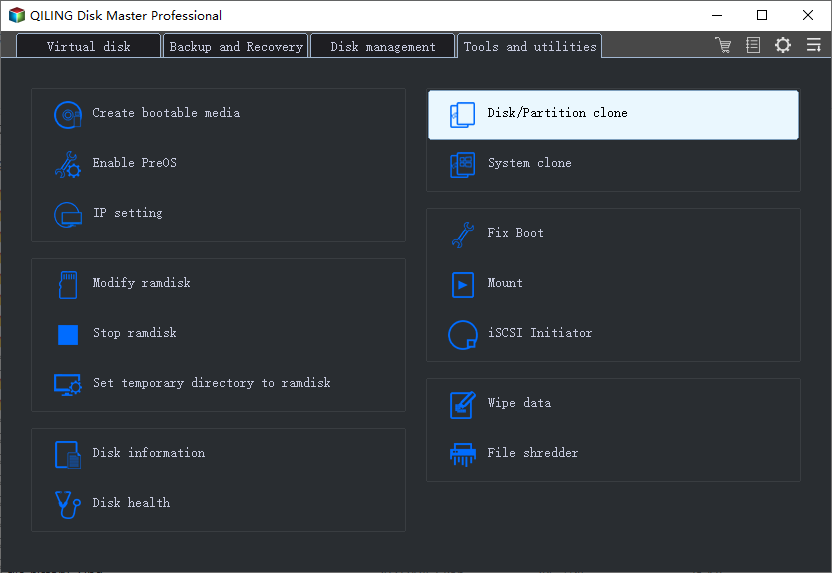
Tips: System Clone is not available for use when the system partition and boot partition are on the same drive.
Sector by sector clone - In the cloning process, a sector by sector clone ensures the destination hard disk/partition is an exact replica of the source, including all sectors, even if blank, resulting in the target being the same size as the original disk. This option is selected in the same step as choosing the destination hard disk/partition, available in both Disk clone and Partition clone wizards.
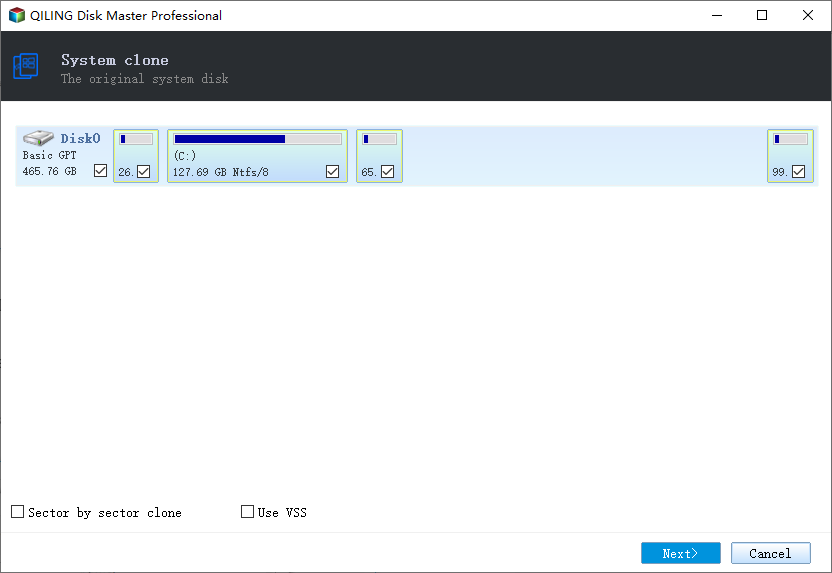
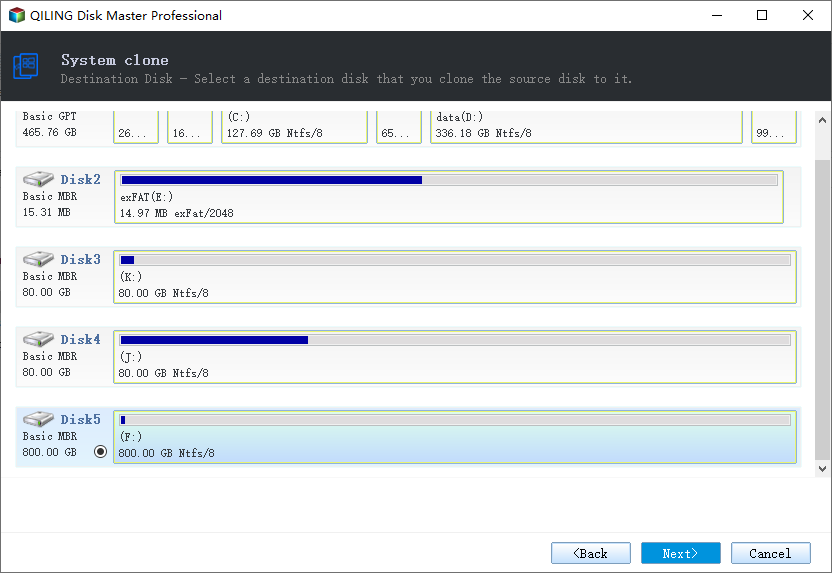
Step 3. Choose the destination disk - HDD/SSD to save Windows 10 system
Select the new HDD or SSD as the target disk for cloning the Windows 10 system.
Step 4. Preview and click "Proceed" to start cloning Windows 10 to HDD/SSD now.
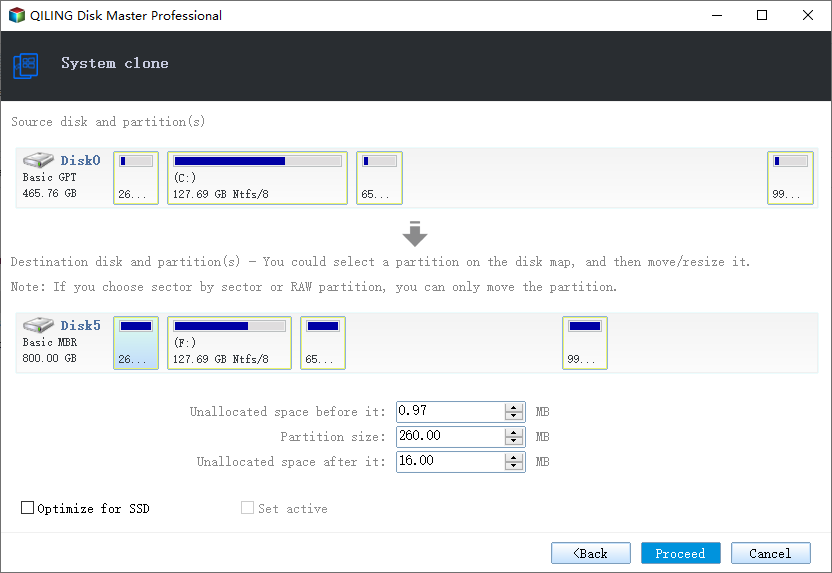
After cloning the Windows 10 system to the new HDD or SSD, insert the new drive into your computer and restart the PC. Next, change the boot order in your computer's BIOS settings to set it to boot from the new HDD/SSD with the cloned Windows 10 system.
- Restart your PC and press F2 or F8 to enter the BIOS settings.
- In the Boot option, select the new HDD/SSD as the new boot drive and save all the changes.
- After making the necessary adjustments in the BIOS settings, exit the BIOS and restart your computer. This should allow Windows 10 to run smoothly on your new disk without any issues.
To migrate Windows 10 OS from a hard disk drive (HDD) to a new solid-state drive (SSD), follow these simple steps. Additionally, Qiling Backup can also be used to backup and restore the Windows 10 disk/partition and data on both HDD and SSD.
How to Migrate Only Windows 10 to SSD
To exclude all installed programs, applications, and personal files from the cloned SSD, except for Windows 10 system-oriented files, you can use a combination of Qiling products. This allows for a selective clone, keeping only the system files, which is not possible with a single step using existing disk cloning software.
Once the HDD to SSD cloning completes, you can transfer selected files from the original hard drive to the new SSD, while the system drive has already been successfully migrated.
Related Articles
- How to Use the Best Kingston SSD Cloning Software to Clone HDD to SSD
- How to clone dual boot drive to SSD
- [Solved] How to Set Automatic Backup to OneDrive in Windows 10/8.1/8/7/Vista/XP
- How to Migrate System/Data/Programs from One Hard Drive to Another
- Fixed - Samsung Data Migration stuck at 0%, 99%, 100%
- Best Synology File Recovery Tools to Recover Files on/from NAS
Synology file recovery tools help you recover deleted files on Synology NAS and lost data on a PC from Synology NAS. Learn how to do it from this article.
Products
Articles & Tutorials
- Data Recovery
- Data Backup
- File Recovery
- File Backup
- System Backup and Restore
- Disk and Partition Clone
- Technical articles
- Mobile articles
- Disk Master Help
- Windows Data Recovery Tutorials
- Windows Secure Delete Tutorials
- Windows Partition Management Tutorials
- Windows File Backup and Restore Tutorials
- Windows System Backup and Restore Tutorials
- Windows Disk Backup and Restore Tutorials
- Windows Clone Tutorials