How to Clone HDD to Solid-State Disk Without Reinstalling Windows
SSDs (Solid-Solid State Drives (SSDs) outperform Hard Disk Drives (HDDs) in several key areas, including speed, reliability, and durability. As a result, many users, including yourself, now prefer SSDs for data storage and system installation. With their growing popularity and decreasing prices, SSDs are becoming an increasingly attractive option for those seeking a more efficient and reliable storage solution.
Why Choose SSD over HDD
When upgrading your hard drive, consider whether to migrate to a larger one for data storage or switch from a traditional HDD to a faster SSD for improved system performance, depending on the drive's purpose.
Advantages of SSD over HDD
SSDs and HDDs differ structurally, with SSDs being flash storage with no moving parts and HDDs being magnetic storage with mechanical parts. This design makes SSDs significantly smaller in size and capacity compared to HDDs, but their advantages make up for the size difference, especially considering the technology they use.
- Faster reading and writing speed
- Better performance and reliability
- Stronger durability
- More energy-saving and less noise-making
Tip
Given its pros and cons, the optimal use of an SSD is to apply it as the system disk on your computer.
What Can You Benefit After Switching to SSD
More directly, with an SSD installed on your computer as the system disk:
- With a solid-state drive, you can boot your computer, open applications, and access files much faster, as it uses flash memory to store data, eliminating the need for mechanical parts that can slow down traditional hard disk drives.
- Your data stored on SSD are much safer
- You'll save on electricity costs and have a peaceful workspace.
Cloning your existing HDD to an SSD is a wise choice, but the question remains: how to do it. Unfortunately, there is no built-in tool in Windows to accomplish this task. However, third-party software is available to help you clone your hard drive to a solid-state drive.
How to Clone an HDD to an SSD
Before cloning your hard disk to an SSD with Qiling Backup, you'll need to make some preparations to ensure a smooth process. This includes using the Windows backup software to clone your system disk or data disk to the new SSD.
- Before cloning your HDD to a new SSD, ensure you have backed up any existing files on the target SSD, as the cloning process will erase all data on the SSD. You can use a backup software like Qiling Backup to secure your files. This precautionary step is crucial to avoid losing important data.
- Make sure the capacity of the SSD is enough to hold all the data on your HDD, or you might experience boot issues or data loss after cloning the HDD to your SSD.
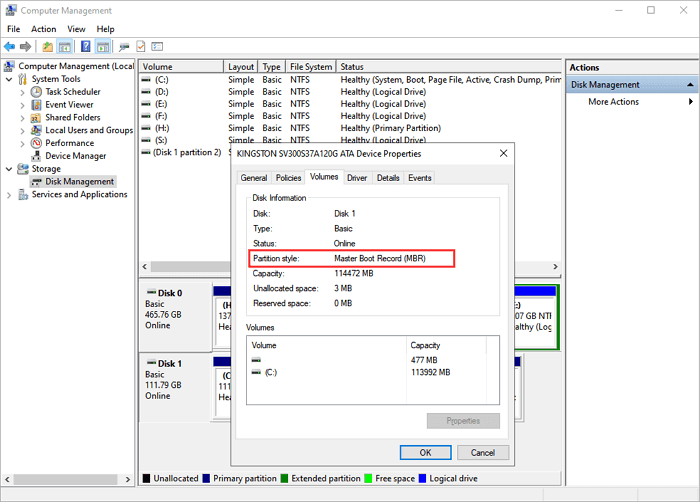
- To ensure a smooth cloning process, it's essential to confirm that the partition style of the target disk matches the source disk. If they differ, you may need to convert the target disk's partition style from MBR (Master Boot Record) to GPT (GUID Partition Table) or vice versa, depending on the requirements of your system. This step is crucial to avoid any potential issues or errors during the cloning process.
To check the partition style of the HDD and SSD:
Step 1. Connect the HDD/SSD to a computer.
Step 2. Right-click "This PC" and choose "Manage" > "Disk Management".
Step 3. Right-click on your disk and choose "Properties".
Step 4. Switch to the "Volumes" tab. Under Disk Information, you can see the partition style of your disk.
To clone your HDD to an SSD, meet the requirements above and follow the guide below:
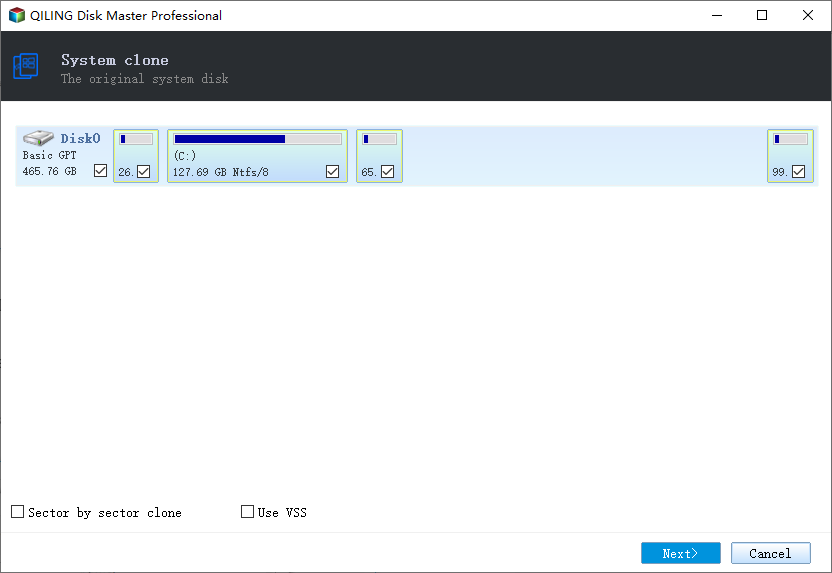
Step 1. Launch Qiling Backup, click "System Clone", and select the current system partition and boot partition. Click "Next" to continue.
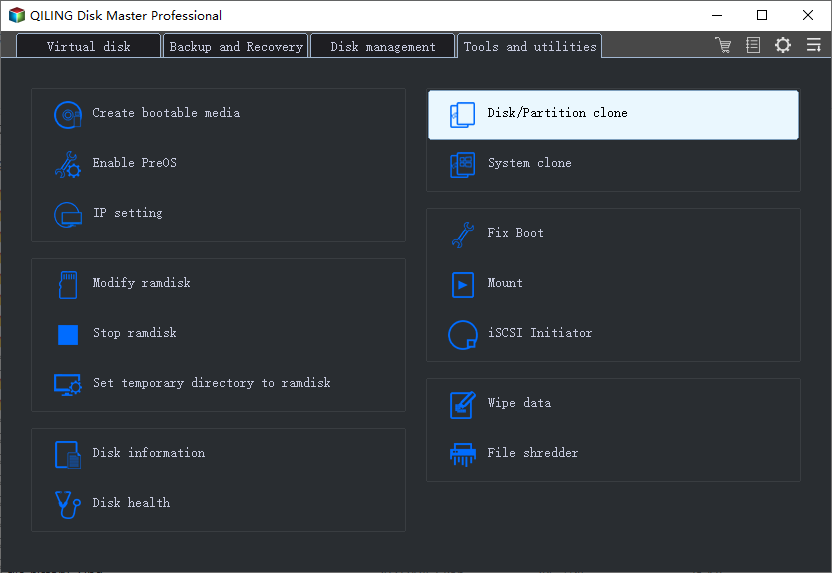
Tips: System Clone can't be used if the system partition and boot partition are on the same drive.
Sector by sector clone - A sector-by-sector clone creates an exact replica of the source hard disk or partition, including all sectors, even if they're blank, resulting in a target that's the same size as the original disk after the cloning process. This option is selected in the same step as choosing the destination hard disk or partition in the Disk clone and Partition clone wizard.
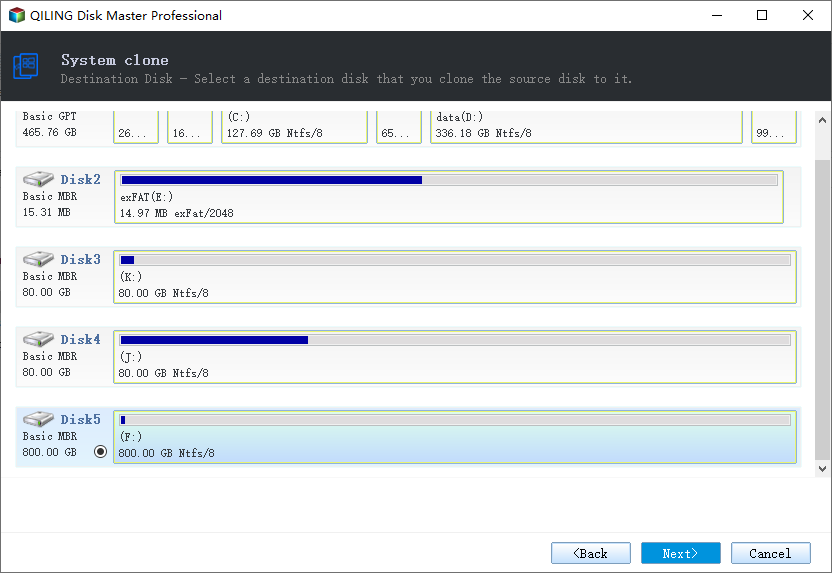
Step 2. Choose the target drive - It could be a hard drive or an SSD, and click "Next" button to continue.
Advanced options:
These advanced settings can help clone a drive more smoothly, but Qiling backup can still produce an exact clone even without them.
Optimize for SSD - If the destination disk is an SSD, checking this option ensures sector alignment during the process.
To create a portable Windows USB drive, you can clone your system disk to a USB drive, ensuring that the cloned system is bootable and can run normally. This is a great option for those who want to create a backup of their system or have a portable version of Windows that can be used on any computer.
Step 3. Preview and click "Proceed" to start to clone your system disk.
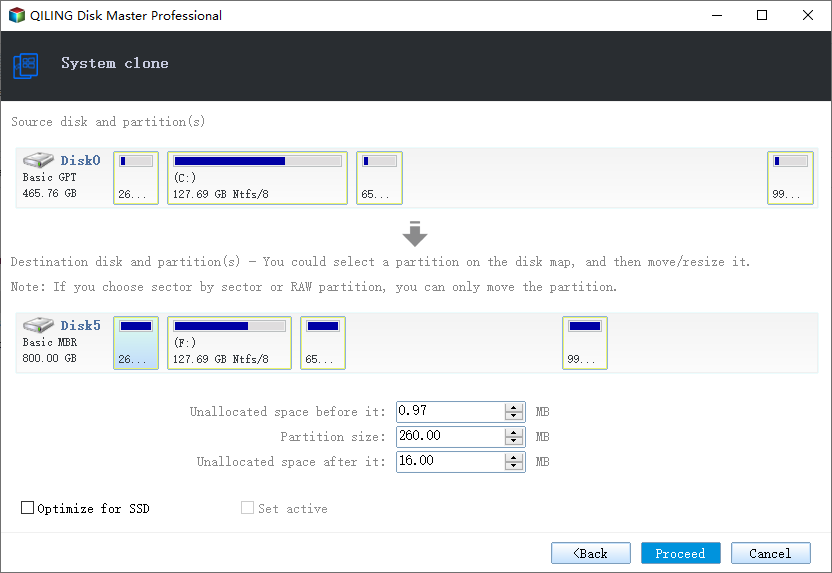
If you're considering cloning your Windows system to a new SSD, you can use the system clone option in Qiling Backup. If your SSD is larger than the used space on your system and boot drive, you can clone the OS from your HDD to the SSD without any issues. However, if your SSD is smaller than the used space on your HDD, you may want to consider migrating only the OS to the SSD. For other partitions on the HDD, you can either manually copy the files to another hard disk or use the partition clone feature in Qiling Backup to make the process easier.
Issues You May Encounter After Disk Cloning
Although many users can successfully clone an HDD to an SSD, there are always some expectations. Here we list some frequently asked questions and the corresponding solutions in case you need it.
Issue 1. Disk Boot Issues
The causes of disk boot issues are various. I'll show you three situations.
The Qiling Backup "Clone" feature allows manual selection of the disk or partition to clone, but attempting to clone the Windows OS from HDD to SSD by selecting only the C drive can cause boot issues if the system and boot partitions are separate. This is because the boot partition is a primary partition with the boot loader, while the system partition contains the OS folder. If this is the case, contacting the support team at support@idiskhome.com for remote assistance can help create the system partition and resolve the boot issue.
When cloning an HDD to an SSD, you may need to edit the Boot Configuration Data (BCD) on the cloned SSD, especially if you're using the HDD as a source via a USB drive. For a detailed guide on editing BCD, refer to Microsoft's official document.
After disk cloning, disk boot issues can be caused by a missing driver. To resolve this, you can use the Windows built-in command-line tool DSIM to add the necessary driver, or refer to Microsoft's official document for assistance.
If you're having issues after cloning your HDD to an SSD using Qiling Backup, you can reach out to our support team at support@idiskhome.com for help.
Issue 2. Software Asks or Activation
You may need to contact the software producer after cloning your HDD to SSD, as the software on your system disk may request activation, and they will assist you in reactivating it.
Issue 3. Get a Misaligned SSD After Cloning
If your SSD is misaligned after cloning, its performance will be reduced. To fix this, you can use the 4K alignment feature in Qiling Disk Master, a free partition manager. To check the alignment of your SSD, follow these steps.
Step 1. Press "Windows + R" and enter msinfor32.
Step 2. Go to "Components" > "Storage" > "Disks".
Step 3. Check the value of "Partition Starting Offset". If the value is not divisible by 4096, your SSD is misaligned.
The Bottom Line
To minimize potential issues when cloning an HDD to an SSD using Qiling Backup, it is recommended to follow the guidelines strictly. If unexpected issues arise that cannot be resolved, contacting the support team for assistance is encouraged.
Related Articles
- Best USB Image Tool for Windows 10/8/7 Free Download
- Clone SSD/HDD Sector by Sector
- Windows recovery & backup software to recover your files or folders
- How to Install an SSD without Reinstalling Windows
- How to Use the Best Kingston SSD Cloning Software to Clone HDD to SSD
- Top 3 Best Free Synology Backup Software: Which is Better?
In this post, you can master the top 3 Synology backup software to backup your computer to a Synology NAS. Read on carefully to gain more details by yourself.
Products
Articles & Tutorials
- Data Recovery
- Data Backup
- File Recovery
- File Backup
- System Backup and Restore
- Disk and Partition Clone
- Technical articles
- Mobile articles
- Disk Master Help
- Windows Data Recovery Tutorials
- Windows Secure Delete Tutorials
- Windows Partition Management Tutorials
- Windows File Backup and Restore Tutorials
- Windows System Backup and Restore Tutorials
- Windows Disk Backup and Restore Tutorials
- Windows Clone Tutorials