Best Macrium Reflect Alternative for Free Disk Cloning (2026)
If you are searching for a reliable Macrium Reflect alternative, you are not alone. After the free edition of Macrium Reflect was discontinued, millions of users began looking for replacement software to clone HDDs, migrate Windows installations, or upgrade to an SSD. Macrium Reflect is still a powerful backup and disk imaging tool, but it can feel overly technical and expensive for users who only need simple disk cloning.
Whether you are upgrading from an HDD to an SSD, replacing a failing drive, or moving Windows to a new NVMe SSD, the right cloning software can save hours of reinstalling Windows and applications. In this guide, we will explain why people switch away from Macrium Reflect and introduce the best alternative for disk cloning in 2026.
PAGE CONTENT
- Why Users Are Looking for a Macrium Reflect Alternative
- Quick Comparison: Top Macrium Reflect Alternatives
- Best Macrium Reflect Alternative — Qiling Disk Copy
- How to Clone HDD to SSD with the Macrium Reflect Alternative
- Macrium Reflect vs Qiling Disk Copy: Side-by-Side
- FAQs About Macrium Reflect Alternatives
Why Users Are Looking for a Macrium Reflect Alternative
Macrium Reflect has been a trusted name in backup and disk cloning for years, but several recent developments have pushed users to seek alternatives. Here are the main reasons:
1. The Free Edition Was Discontinued
The biggest reason for the surge in "Macrium Reflect alternative" searches is that Macrium Reflect Free was officially discontinued on January 1, 2024, and later reached End of Life (EOL) in 2025. This means no security patches, no bug fixes, and no support for modern Windows 11 hardware like NVMe and UEFI. Using outdated backup software for critical cloning tasks is risky, especially with new ransomware threats emerging every year.
2. The Interface Feels Overly Technical
Macrium Reflect is powerful, but its interface is designed for IT professionals. Many beginners struggle with image creation settings, rescue media setup, partition configuration, and backup scheduling. If you only want to clone Windows to an SSD, the Macrium workflow can feel overwhelming.
3. Subscription Pricing Is Expensive
Macrium's paid plans start at $49.99 per year for the Home edition. If you only need occasional disk cloning or a one-time SSD upgrade, a yearly subscription is hard to justify. More affordable or even free alternatives now offer comparable cloning features.
4. Most Users Only Need Simple Disk Cloning
Many home users are not creating weekly backup images. They simply want to:
- Upgrade from an old HDD to a faster SSD
- Migrate Windows to a new drive without reinstalling
- Clone a failing hard drive to a healthy one
- Create a bootable copy of their system
For these common tasks, a dedicated cloning tool is faster and easier than a full backup suite like Macrium Reflect.
Quick Comparison: Top Macrium Reflect Alternatives
Here is a quick overview of the best alternatives to Macrium Reflect for disk cloning and OS migration in 2026:
| Software | Free Version | Ease of Use | Best For | Key Features |
|---|---|---|---|---|
| Qiling Disk Copy | Yes (free trial) | Very Easy | SSD upgrades & OS migration | System clone, disk clone, SSD alignment, sector-by-sector clone |
| Clonezilla | Yes (open source) | Hard (text UI) | Advanced users & techs | Disk imaging, deployment, compression |
| AOMEI Backupper | Yes (limited) | Easy | Backup + cloning | Full, incremental, differential backups |
| EaseUS Disk Copy | Yes (free trial) | Easy | Simple disk cloning | Disk & partition cloning |
| Acronis True Image | No | Moderate | Premium backup suite | Backup + antivirus + cloud |
| Rescuezilla | Yes (open source) | Moderate | GUI Clonezilla alternative | Disk imaging, recovery |
For most home users upgrading to an SSD or migrating Windows, Qiling Disk Copy is the best Macrium Reflect alternative thanks to its intuitive interface, fast cloning speed, and one-click system migration.
Best Macrium Reflect Alternative — Qiling Disk Copy
Qiling Disk Copy is a professional disk cloning and OS migration tool for Windows 11/10/8/7. It is designed to be simple enough for beginners while powerful enough for IT professionals. Unlike Macrium Reflect, which focuses on complex backup imaging, Qiling Disk Copy specializes in fast, reliable disk cloning with minimal configuration.
Why Qiling Disk Copy Is the Best Macrium Reflect Alternative
- System Clone (one-click OS migration): Move Windows to a new SSD or HDD without reinstalling the OS, applications, or settings. The cloned drive boots directly after swap.
- Disk Clone & Partition Clone: Clone an entire disk or individual partitions to another drive, supporting large-to-small cloning when the used space fits.
- Sector-by-Sector Clone: Copy every sector byte-for-byte, including deleted files and bad-sector areas. Ideal for recovering data from a failing drive.
- SSD Alignment & Optimization: Automatically aligns partitions to 4K boundaries during cloning, ensuring maximum SSD performance and lifespan.
- WinPE Bootable Media: Create a bootable USB or CD/DVD to clone a disk even when Windows cannot start.
- Wide Compatibility: Supports MBR/GPT, UEFI/Legacy BIOS, SATA/NVMe/M.2 SSDs, and all major SSD brands (Samsung, WD, Crucial, Kingston, etc.).
- Simple User Interface: A three-step wizard (select source → select destination → start clone) makes cloning straightforward even for first-time users.
How to Clone HDD to SSD with the Macrium Reflect Alternative
Cloning your HDD to an SSD is one of the best upgrades you can make for faster boot times and smoother performance. With Qiling Disk Copy, the process is simple and beginner-friendly, even if you have never cloned a drive before.
Before You Begin
- Connect the new SSD to your computer (via SATA or a USB-to-SATA adapter).
- Make sure the SSD has enough space to hold all used data from the source HDD.
- Back up important files on the SSD, as cloning will overwrite it.
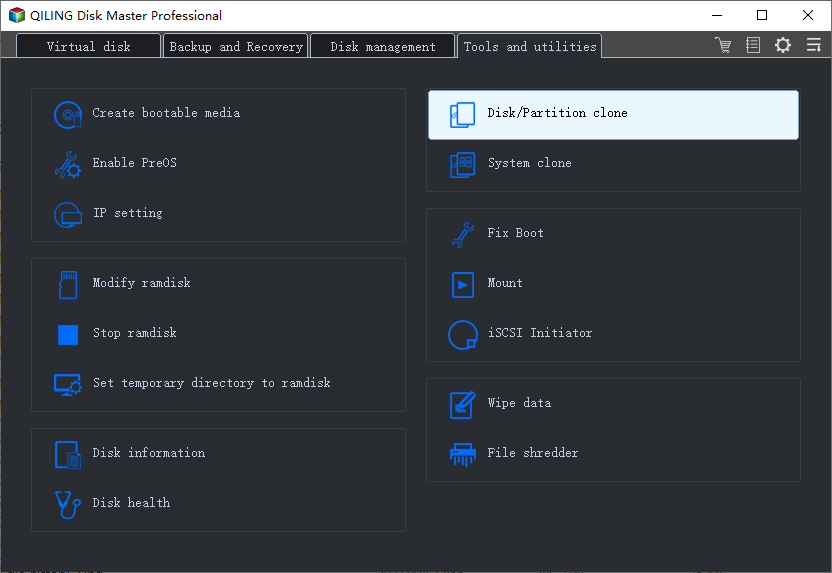
Step 1. Download, install, and launch Qiling Disk Copy. Click the "Clone" button on the left panel.
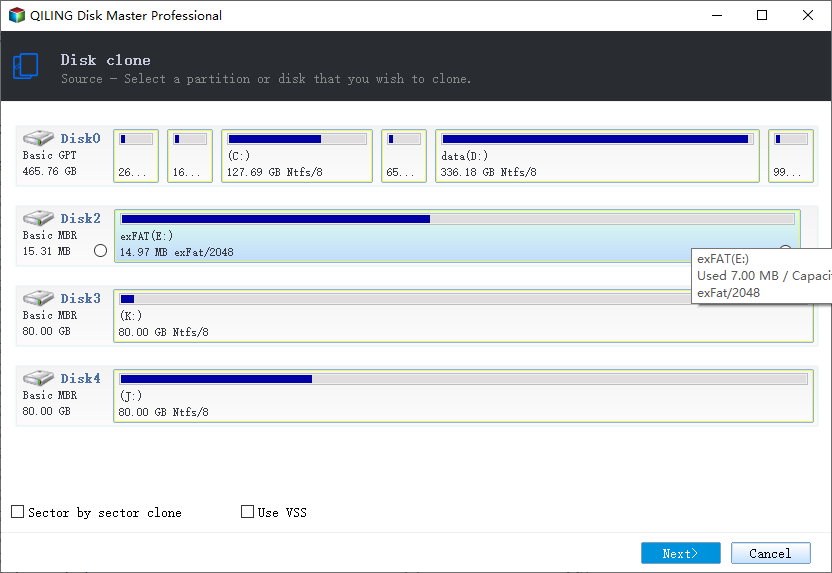
Step 2. Select the source disk (your old HDD) and click "Next".
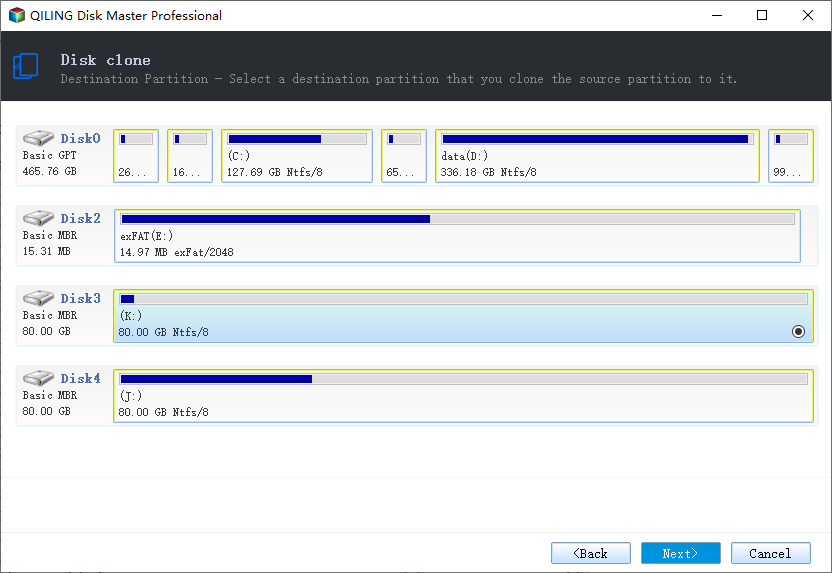
Step 3. Select the destination disk (your new SSD) and click "Next".
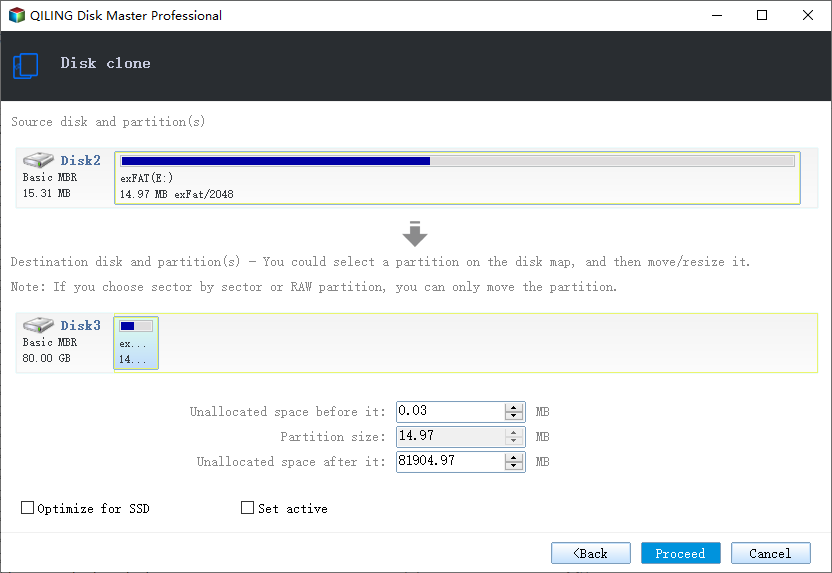
Step 4. Check "Optimize for SSD" to enable 4K alignment, then click "Proceed" to start cloning.
Step 5. Wait for the cloning process to finish. Then shut down your PC, replace the HDD with the SSD (or change the boot order in BIOS), and boot from the cloned SSD.
Macrium Reflect vs Qiling Disk Copy: Side-by-Side
| Feature | Macrium Reflect | Qiling Disk Copy |
|---|---|---|
| Free version | Discontinued (Jan 2024) | Free trial available |
| Disk cloning | Yes | Yes |
| System/OS clone | Yes (via image restore) | Yes (one-click) |
| Sector-by-sector clone | Yes | Yes |
| SSD 4K alignment | Yes | Yes |
| WinPE bootable media | Yes | Yes |
| Ease of use | Moderate (technical UI) | Very Easy (wizard-based) |
| Pricing | From $49.99/year | Affordable one-time license |
| Best for | Backup imaging & IT pros | SSD upgrades & OS migration |
If your primary need is disk cloning and OS migration, Qiling Disk Copy delivers a faster, simpler, and more affordable experience than Macrium Reflect. If you need a full enterprise backup suite with scheduling and incremental images, Macrium Reflect still has its place—though you will pay a recurring subscription for it.
FAQs About Macrium Reflect Alternatives
Is there a free alternative to Macrium Reflect?
Yes. Clonezilla and Rescuezilla are free and open-source, but they require technical knowledge. Qiling Disk Copy offers a free trial and is much easier to use for beginners, making it the best free Macrium Reflect alternative for most users.
Why was Macrium Reflect free discontinued?
Macrium Software retired the free edition on January 1, 2024, to focus on their paid product line. The free version no longer receives security updates or compatibility patches.
Can Qiling Disk Copy clone a larger HDD to a smaller SSD?
Yes, as long as the used space on the source HDD fits on the destination SSD. Qiling Disk Copy intelligently clones only the used data and can resize partitions automatically.
Will the cloned SSD be bootable?
Yes. Qiling Disk Copy automatically handles boot configuration, EFI system partition, and MBR/GPT conversion, so the cloned SSD boots directly after you replace the old drive.
Does Qiling Disk Copy support NVMe M.2 SSDs?
Yes. Qiling Disk Copy supports SATA, NVMe, and M.2 SSDs from all major manufacturers, including Samsung, Crucial, Kingston, Western Digital, and more.
Conclusion
Macrium Reflect was once the go-to tool for disk imaging, but the discontinuation of its free edition and its steep subscription pricing have made it less attractive for everyday users. If you need a reliable Macrium Reflect alternative for cloning HDD to SSD, migrating Windows, or backing up disks, Qiling Disk Copy offers the best balance of simplicity, speed, and affordability.
Download Qiling Disk Copy today and upgrade your drive in minutes—no reinstalling Windows required.
If your main goal is a restorable Windows 11 system image rather than a direct disk clone, see the imaging-focused Macrium alternative workflow.
Related Articles
- How to Clone SSD to Larger SSD in Windows 10/11
- How to Clone HDD to SSD in Windows 11 Without Reinstalling
- How to Clone a Failing Hard Drive in Windows 10 Without Data Loss
- Best SSD Cloning Software of 2026: Free & Paid
- How to Clone Windows 10 OS to New SSD (Step-by-Step)
Clone your Windows 10 system to a new SSD without reinstalling. Step-by-step guide using Qiling Disk Copy with SSD alignment for fast boot. - How to Convert MBR to GPT During Windows Installation
Learn how to convert an MBR disk to GPT during or after Windows installation to support UEFI boot and drives larger than 2TB.
Products
Articles & Tutorials
- Data Recovery
- Data Backup
- File Recovery
- File Backup
- System Backup and Restore
- Disk and Partition Clone
- Technical articles
- Mobile articles
- Disk Master Help
- Windows Data Recovery Tutorials
- Windows Secure Delete Tutorials
- Windows Partition Management Tutorials
- Windows File Backup and Restore Tutorials
- Windows System Backup and Restore Tutorials
- Windows Disk Backup and Restore Tutorials
- Windows Clone Tutorials