ISO Is Corrupted| How to Fix a Corrupted ISO Files in Windows 11/10
Quick Navigation:
| Workable Solutions | Step-by-step Troubleshooting |
|---|---|
| Fix 1. Repair third-party programs | From the list and click on the Repair button...Full steps |
| Fix 2. Uninstall third-party programs | From the list and click on Uninstall button...Full steps |
| Fix 3. Repair with SFC | Press Windows + R and type cmd in the Run...Full steps |
| Fix 4. Repair with DISM | Run DISM /Online /Cleanup-Image /CheckHealth...Full steps |
| Fix 5. Redownload ISO | Go to the same source where you downloaded...Full steps |
***Download Qiling free backup software To create a significant backup of photos, documents, videos, a whole disk/partition, and your operating system, you can use the built-in backup features in Windows, such as File History or System Image Backup. This will ensure that you have a safe and reliable copy of your important files and system in case of ISO corruption issues. By following these steps, you can effectively backup your data and be prepared to troubleshoot Windows 11 or 10 issues, including ISO corruption problems.
Why Is a Disk Image File (ISO) Corrupted?
An ISO file is a compressed archive that contains multiple files and folders, making it a convenient way to transfer them to other computers. Windows 11/10 has built-in tools that allow you to work with ISO files without needing additional software, making it easy to manage and use these files.
All About ISO File
ISO files, also known as Disk images or ISO image files, are compressed archive files that contain various types of data. They can be used to create a copy of an optical disk or compress large data for easier transfer purposes.
The term "ISO" originated from the file system used on optical disks, specifically the ISO 9660 file system used on CDs and DVDs. This means that an ISO file essentially contains data just like an optical CD or DVD, which holds its own data.
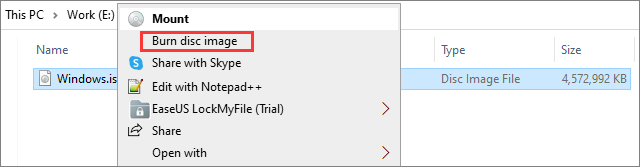
To burn an ISO file to a DVD on Windows 10/11, follow these steps: Insert a blank DVD into your computer's DVD drive. Open the File Explorer and navigate to the ISO file you want to burn.
To make a bootable DVD from an ISO file, you can use a burning software such as ImgBurn or PowerISO. First, download and install the software, then select the ISO file you want to burn and choose the DVD as the target media. Next, select the burning settings, such as the DVD's file system and burning speed. Finally, click the "Burn" button to start the burning process, and wait for it to complete.
Reasons Why ISO File Gets Corrupt
Here are the common reasons why an ISO file can get corrupt in Windows 11/10:
- The problem of mounting software can cause ISO file corruption, as different third-party software may have issues that can affect the integrity of the ISO file.
- If system files are corrupt, the ISO file created from them can also become corrupt.
- Viruses or malware can also corrupt your ISO file on your computer.
- Incomplete Windows 11 or Windows 10 ISO file download
How to Fix a Corrupted ISO File in Windows 11 or 10
The ISO file often gets corrupted due to various reasons. One possible solution is to use a tool like IsoBuster or Hiren's BootCD to recover the corrupted ISO file. Another option is to recreate the ISO file from the original source, such as a CD or DVD, or by re-ripping the files from a CD or DVD using a tool like ImgBurn.
Fix 1. Repair the Third-party Application
If you're using Windows 11/10, you may need to repair your third-party application software for unmounting ISO image files if it's causing problems. To do this, follow these steps:
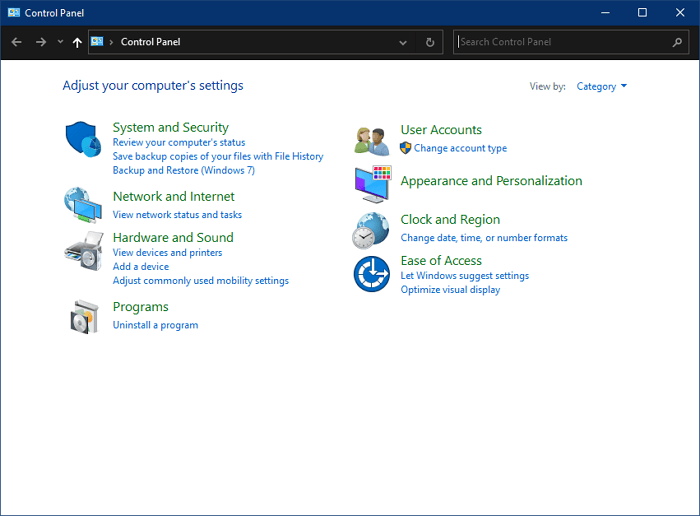
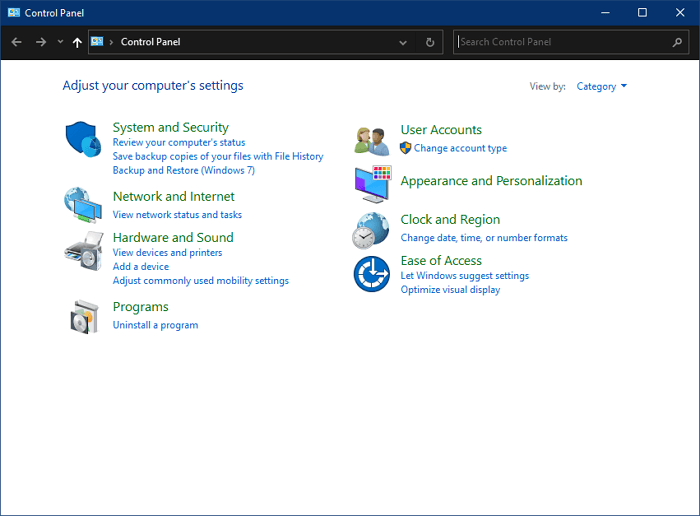
Step 1: Open Control Panel on your Windows computer through Search.
Step 2: Open Programs and features.
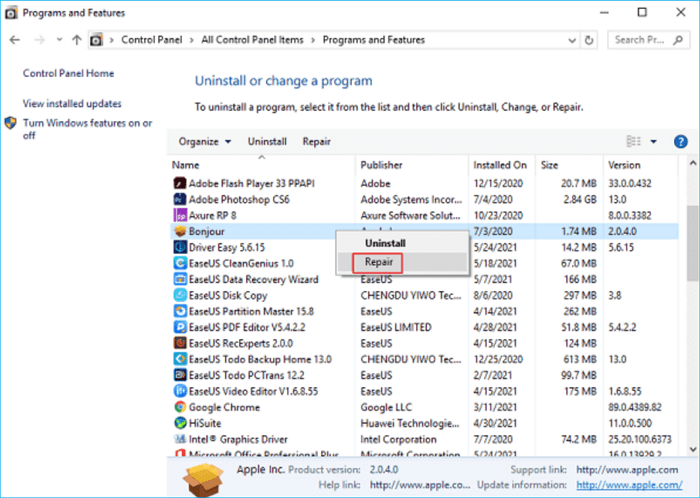
Step 3: Locate the third-party software you're trying to repair from the list of installed programs, then click on the "Repair" button to initiate the repair process.
If your computer is experiencing issues with its keyboard, start by checking if it's properly connected to the computer. If it's a wireless keyboard, ensure the receiver is plugged in, and if it's a wired keyboard, verify the cable is securely connected to both the keyboard and the computer. If the keyboard is properly connected, try restarting your computer to see if the issue resolves itself.
Fix 2. Uninstall the Third-party Application
If repairing the third-party application does not resolve the issue, you need to uninstall it. Follow the below steps to uninstall the third-party application from your Windows 11/10 computer.
Step 1: Open Control Panel
Step 2: Open Programs and features.
Step 3: Locate the third-party software you want to remove from your installed software list, then click on the Uninstall button next to it.
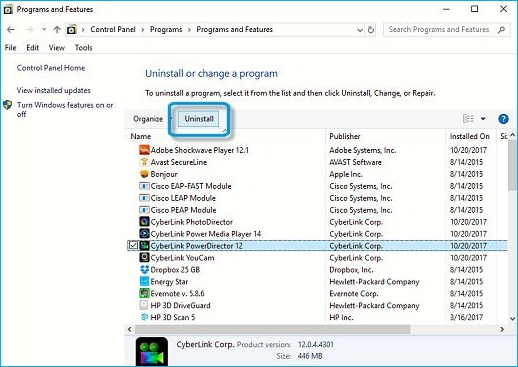
Once you click on the Uninstall button, you can remove the third-party application from your computer, then try mounting the ISO.
Fix 3. Repair with System File Checker
A corrupt System file is one of the reasons why your ISO file gets corrupt. To fix this, you need to repair the System file. You can do this by running the System File Checker (SFC), which is a built-in tool that scans and replaces any corrupted system files with a cached copy. This should help resolve the issue and prevent further corruption.
Step 1: To open the Command Prompt (CMD) on a Windows computer, press the Windows key + R to open the Run window, and then type "cmd" into the text field. Clicking "OK" or pressing Enter will open the Command Prompt window, allowing you to execute commands and interact with the operating system.
Step 2: Enter the command sfc /scannow
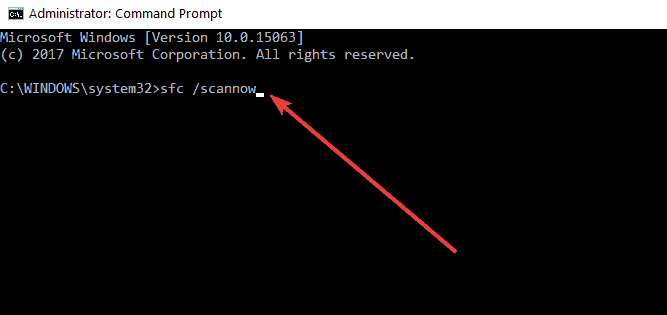
Step 3: The System File Checker is a utility in Windows that scans and restores corrupted system files. To run it, open Command Prompt as an administrator, type "sfc /scannow", and press Enter.
The System File Checker (SFC) will spend some time finding and correcting errors on your computer.
Step 4: Restart your computer.
Step 5: Try rerunning your ISO file and see if the issue is resolved.
Fix 4. Repair with DISM Command
DISM command can also help to repair and fix your ISO file. Follow the below steps to repair with the DISM command.
Step 1: Open CMD.
Step 2: Run the following commands in the order given below
- DISM /Online /Cleanup-Image /CheckHealth
- DISM /Online /Cleanup-Image /ScanHealth
- DISM /Online /Cleanup-Image /RestoreHealth
Run the DISM command, wait for it to complete, then rerun it to resolve the ISO issue. This process can take up to 30 minutes. After completion, the issue should no longer exist.
Fix 5. Redownload an ISO File
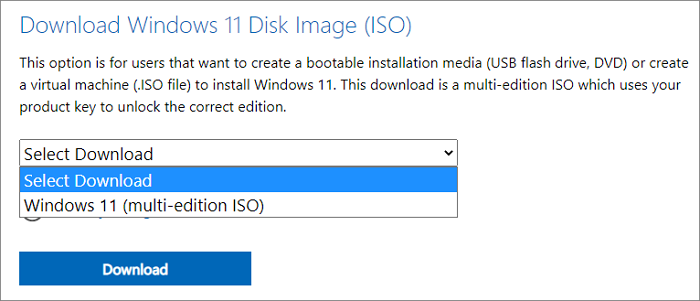
If none of the above solutions have worked for you, it's time to redownload your ISO file from the same source where you downloaded it initially.
Windows 11 Pro can be downloaded directly from the Microsoft website, offering a full version of the operating system. This download link is tested and trusted, providing users with a legitimate and authentic copy of Windows 11 Pro.
The Windows 11 Pro ISO image is a file that contains the entire installation contents of the Windows 11 Pro version, allowing users to install the operating system on their computer.
Necessary: Create Backups Before Clean Install Windows 11/10/7 with ISO
When cleaning installing Windows 11/10/7 using an ISO file, it's a good idea to create a backup of your computer first, as the setup process can be complex and may require a fresh start.
Importance of Backup
Here are the benefits of creating a backup before a clean install:
- To restore your files and applications after a clean install, it's essential to create a backup. This will allow you to recover all your data and programs, ensuring a seamless transition to your new system.
- Any changes made after a clean install can be undone using a backup, allowing users to revert to a previous state.
- You won't lose any data, and can recover it at any time with the help of your backup.
- If you want to transfer data between computers, you can do it with a backup.
Qiling Backup
It's not possible to backup data without automated software. Qiling Backup software is recommended for this purpose.
Before cleaning installing Windows with an ISO file, use Qiling Backup to create a backup of your disk/partition, OS, or any important data to ensure you have a safe copy of your files. This free backup software can help you create a backup of all your files, giving you peace of mind during the installation process.
To create a backup using Qiling Backup software, follow these steps: First, launch the Qiling Backup software and select the backup type you want to create, such as a full backup or incremental backup. Next, choose the location where you want to save the backup, and select the files and folders you want to include in the backup.
Step 1.To perform a disk backup in Open Qiling, go to the "Backup and recovery" page and select "Disk Backup".

Step 2.Qiling Backup allows you to choose between backing up an entire disk or a specific partition, giving you flexibility in your backup needs.
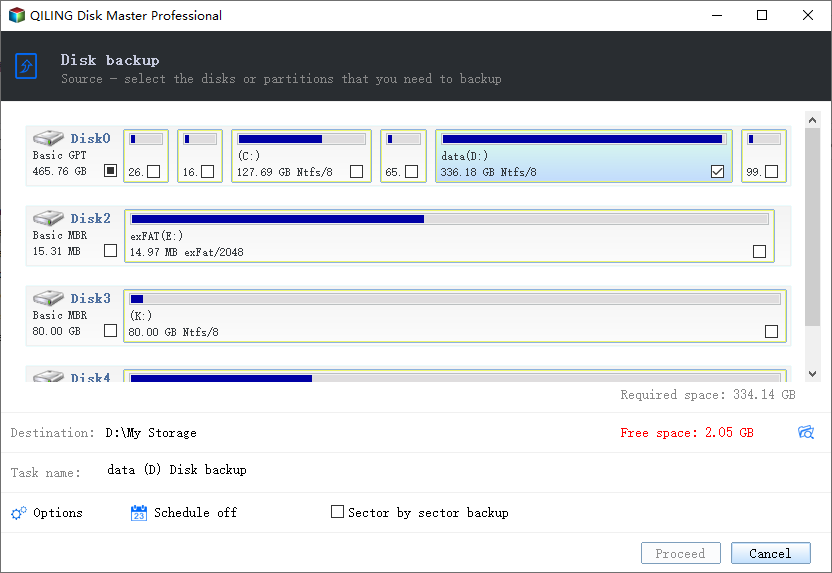
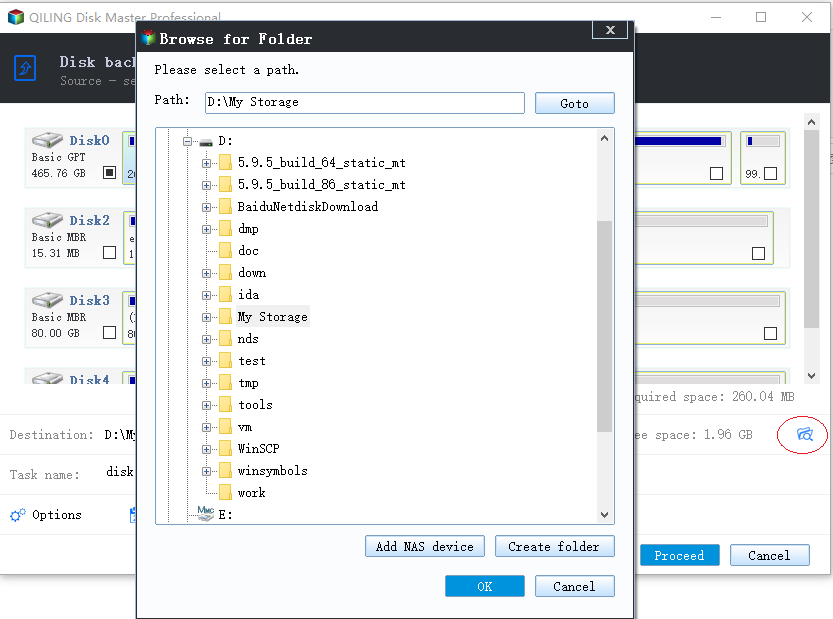
Step 3.To save the backup, select the desired destination where you want to store the backup, which can be either a local drive or a Network-Attached Storage (NAS) device.
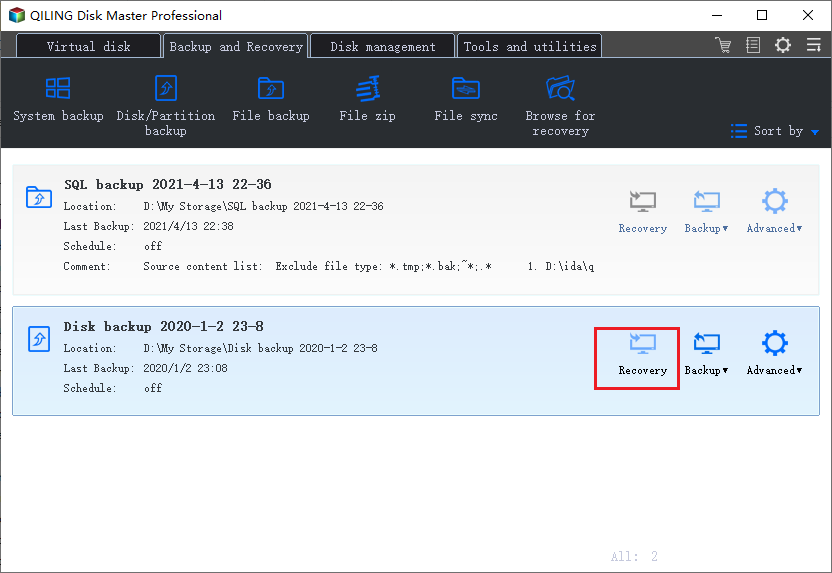
Step 4.After completing the backup process, click "Proceed" and then select a task, such as recovering the backup, creating an incremental backup, or managing the backup further.
People Also Ask
1. How can I open an ISO file?
You can open an ISO file using built-in tools in Windows 11/10, or third-party tools like PowerISO or Daemon tools.
If you don't have a Windows option or any other third-party tool, you won't be able to unmount or open your ISO file.
2. How do I know if my ISO file is corrupted?
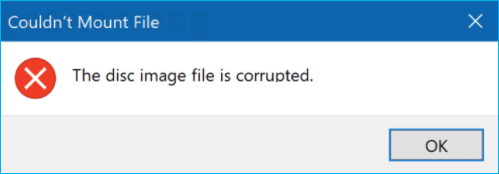
If you encounter an error message saying "The disc image file is corrupted" when trying to unmount or open your ISO file, it likely means the file itself is corrupted. Additionally, if your computer is unable to fully unmount your ISO file, it could also be a sign of corruption.
To fix a corrupt ISO file, you can try using a tool like PowerISO or UltraISO to repair it. Alternatively, you can use a command-line tool like isoburn to burn the ISO file to a DVD or CD, which can sometimes fix the corruption.
Related Articles
- The Cloud File Provider Is Not Running: Causes and Solutions
- Top 5 Third-party Time Machine Alternatives for Windows 11/10/8/7
- How to React to Windows 11/10/8/7 Defender Security Warning
- Halo Inifinite Keeps Crashing on PC: Solved by Specialists' 10 Ideas
- Fixed | Failed to Create Volume Snapshot (6 Ways)
This page illustrates what to do when you encounter the error "Failed to create volume snapshot" to backup or clone with Acronis or Macrium Reflect. - Fixed: "File History Element Not Found" Error on Windows 10
You can find solutions to fix the “File History element not found” error on this page. If you don't want to encounter this error again, try a professional backup software.
Products
Articles & Tutorials
- Data Recovery
- Data Backup
- File Recovery
- File Backup
- System Backup and Restore
- Disk and Partition Clone
- Technical articles
- Mobile articles
- Disk Master Help
- Windows Data Recovery Tutorials
- Windows Secure Delete Tutorials
- Windows Partition Management Tutorials
- Windows File Backup and Restore Tutorials
- Windows System Backup and Restore Tutorials
- Windows Disk Backup and Restore Tutorials
- Windows Clone Tutorials