Solutions for Intel Data Migration Software Not Working
Common Problems of Using Intel Data Migration Software
Intel Data Migration Software users have encountered issues when using the software to clone contents from old storage drives to their new Intel Solid-State Drive. Specifically, some users have found difficulty in cloning from a HDD to an Intel SSD.
- Intel Data Migration Software not detecting SSD
- Black screen after reboot Intel Data Migration
- Intel Data Migration Windows 10 not working
- Intel Data Migration Cloned SSD won't boot
Intel Data Migration Software only works with Intel SSDs as the source or destination disk, and not with other SSDs.
Solutions for Intel Data Migration Software Problems
For Intel users who are having trouble using the Intel Data Migration software to clone their HDD/SSD to a new/bigger SSD, finding an alternative is crucial, especially since the software is not compatible with non-Intel Solid-State Drives.
Qiling Backup, a top-rated backup software and disk cloning utility, has been chosen as an alternative to Intel Data Migration due to its seamless compatibility with Windows 10 and its ability to clone disks from/to various hard drive brands, including Intel, Samsung, Kingston, Toshiba, Crucial, and Sandisk.
How to use Qiling clone software
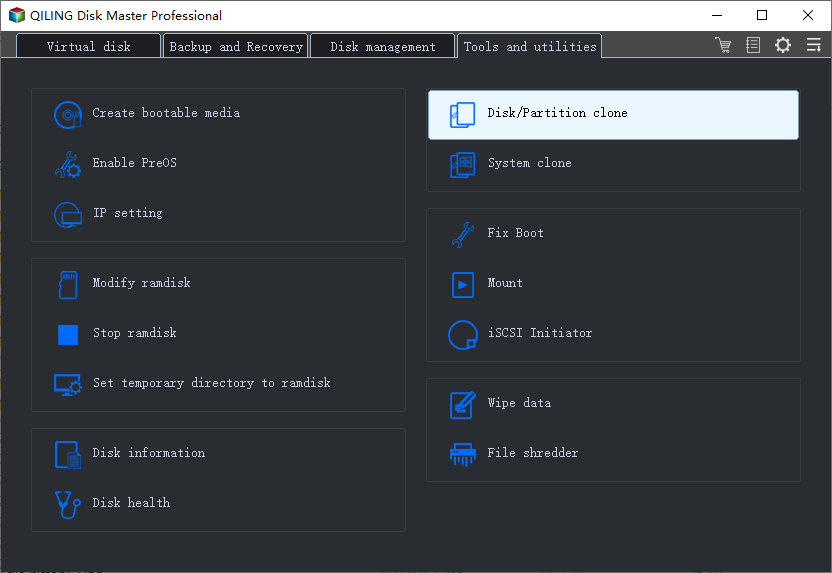
Step 1. Launch Qiling cloning software and choose "Disk/Partition clone" to start.
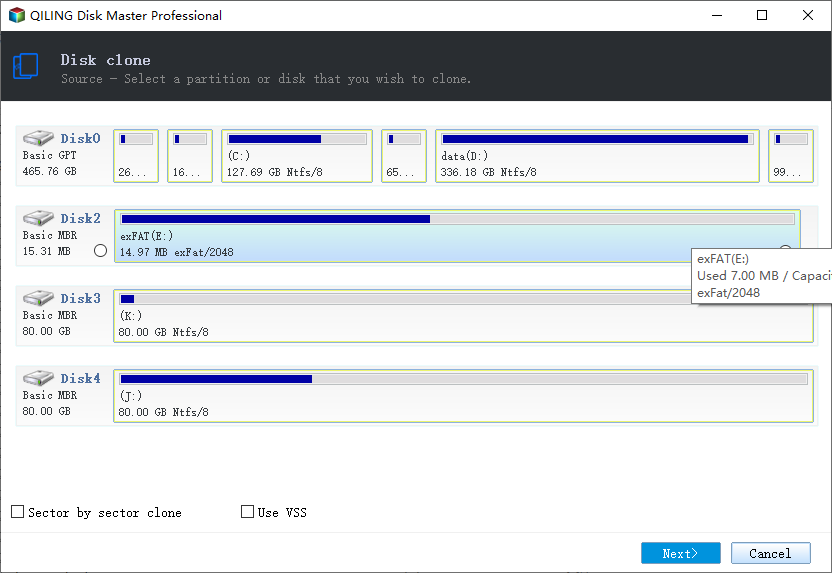
Step 2. Choose the entire hard disk or a single partition on it as the source disk, then click "Next".
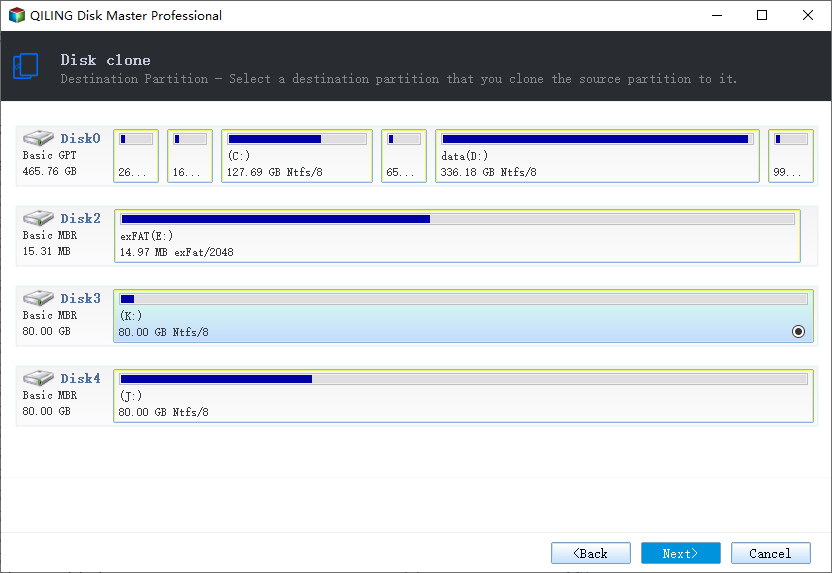
Step 3. Since you're going to clone the selected drive to an SSD, choose the SSD as the destination disk and then click "Next".
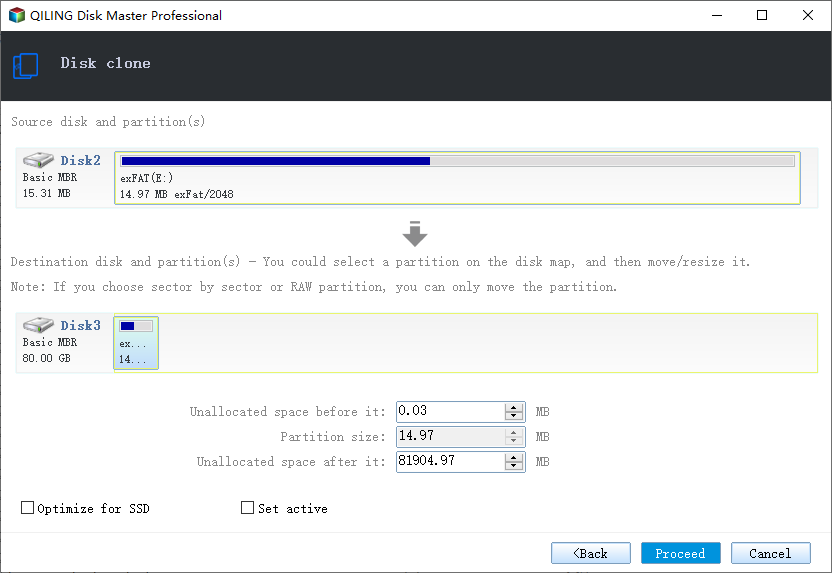
Step 4. Preview the disk layout and click "Proceed".
Also, tick the option "Optimize for SSD" to achieve a better SSD performance after clone.
How to Verify a Clone Before Erasing the Old Drive
A finished progress bar does not prove the clone will boot. Restart with the old drive still connected, enter the firmware setup and confirm the new SSD appears as a boot option; on UEFI systems it should be listed under Windows Boot Manager. Compare the partition style as well, because a GPT disk cloned to a machine booting in Legacy mode will not start.
Boot once from the new drive with the old disk physically disconnected. This catches duplicate boot entries and a missing bootloader, and it prevents Windows from repairing the wrong volume. Check sizes in Disk Management: the system partition should match, and the remaining space must be allocated rather than left unallocated.
Run chkdsk and open a few large files before you reuse the old drive. If the clone will not start, work through failed hard drive to SSD cloning troubleshooting and whether a new SSD needs formatting before cloning; alignment and boot-mode issues are also covered in cloning a UEFI boot drive to an SSD. Keep the original untouched until the new disk has booted twice.
Related Articles
- Download System Clone Software to Clone OS in 2 Procedures
- Cloned SSD Won't Boot | How to Make HDD/SSD Bootable Windows 10
- Clone Hard Drive with Paid/Free Cloning Software Windows 10
- Download Best EZ Gig IV Cloning Software Alternative - Qiling Backup Home
- Backup Computer to USB Flash Drive in Windows 10/8/7
- The Best Free Block Level Replication Software
Looking for a free block level replication software? Qiling Disk Master, the professional block level replication freeware, can be the best choice.
Products
Articles & Tutorials
- Data Recovery
- Data Backup
- File Recovery
- File Backup
- System Backup and Restore
- Disk and Partition Clone
- Technical articles
- Mobile articles
- Disk Master Help
- Windows Data Recovery Tutorials
- Windows Secure Delete Tutorials
- Windows Partition Management Tutorials
- Windows File Backup and Restore Tutorials
- Windows System Backup and Restore Tutorials
- Windows Disk Backup and Restore Tutorials
- Windows Clone Tutorials