How to Install Windows 11 on VirtualBox (Never Forget BACKUP!)
Quick Navigation:
| Workable Solutions | Step-by-step Troubleshooting |
|---|---|
| Benefits of Installing on VirtualBox | VirtualBox is a free and safe software tool ...Full steps |
| Preparation: Take Backups |
Create a copy of the data on a secondary medium; protect original data loss or corruption...Full steps |
|
Steps of Installing on VirtualBox |
1. Download and install VirtualBox application 2. Open Virtualbox VM Manager 3. Build a Windows 11 virtual machine 4. Assign Virtual Machine RAM Memory 5. Select the settings options...Full steps |
You can install various operating systems in a virtual computer like VirtualBox without needing to buy new hardware.
If you're new to virtual machines, you might be hesitant to get started. However, with VirtualBox, a user-friendly virtual machine designed for home users, you can easily learn how to use it and start running your preferred operating system without any hassle. We're here to guide you through the process, so you can set up and use VirtualBox with confidence.
Benefits of Installing Windows 11 on VirtualBox
VirtualBox is a free software tool that emulates the x86 computer architecture, allowing users to install another operating system on a virtual machine (VM).
VirtualBox runs on the host OS, with the guest OS being the operating system used by the virtual machine. The host OS can be Windows, Linux, or macOS.
When creating a virtual machine, users can customize its specifications, such as CPU cores, RAM, and disc space. The VM can be paused, temporarily halting the system's execution, allowing users to resume its use later.
Oracle's VirtualBox is a software that enables running an operating system on a PC as if it were on real hardware, allowing for various uses of virtual machines.
You can experience Linux on a virtual computer without risking a failed installation or dual-booting, and experiment with potentially dangerous applications or hacks without compromising your machine. This may also be necessary for compatibility reasons, allowing you to run a virtual clone of an earlier operating system.
Windows 11 ARM Download with ISO
To check out Windows on your MacBook or run Windows on a virtual machine using HyperV, you'll need to download a Windows 11 ARM64 ISO image.
VirtualBox is a safe and free way to install a new computer on your own machine without any risk, ideal for residential users.
Getting Ready: Data and System Backups
A backup is created to have a copy of the data that can be recovered in case the primary data fails. This can occur due to hardware or software failures, data corruption, a virus or malware, or accidental data erasure. Having backup copies allows data to be recovered from an earlier point in time, enabling an organization to quickly recover in the event of a disaster.
Storing a copy of data on a secondary medium, such as a USB drive or cloud storage, is crucial to prevent loss or corruption of the original data. This backup medium can be kept in the same area as the primary data or in a separate location, and may be necessary in case of events like natural disasters that require data to be stored remotely.
To minimize data loss, it's essential to create backup copies on a regular and consistent basis. This allows you to travel back in time to a point before data loss or attacks, giving you peace of mind and flexibility. The more recent your backups, the less likely you are to lose data when restoring from a backup. By having multiple copies of your data, you can recover from any situation with minimal disruption.
Use Qiling Backup to Make a Full Backup before making a VirtualBox of Windows 11
For personal use, Qiling Backup Free provides more than enough capabilities, allowing for manual or Windows schedule backup software of the system, disk/partition, and files, with options for full, differential, and incremental backups, making it a good choice for those who want more control over their backups.
Qiling Backup is a convenient and efficient way to quickly back up your system, making it an ideal solution for those looking to safeguard their data.
Step 1.Launch Qiling Backup and choose "System Backup" on the Backup and recovery page.

Step 3. The system partition will be automatically selected, so you only need to choose the location.
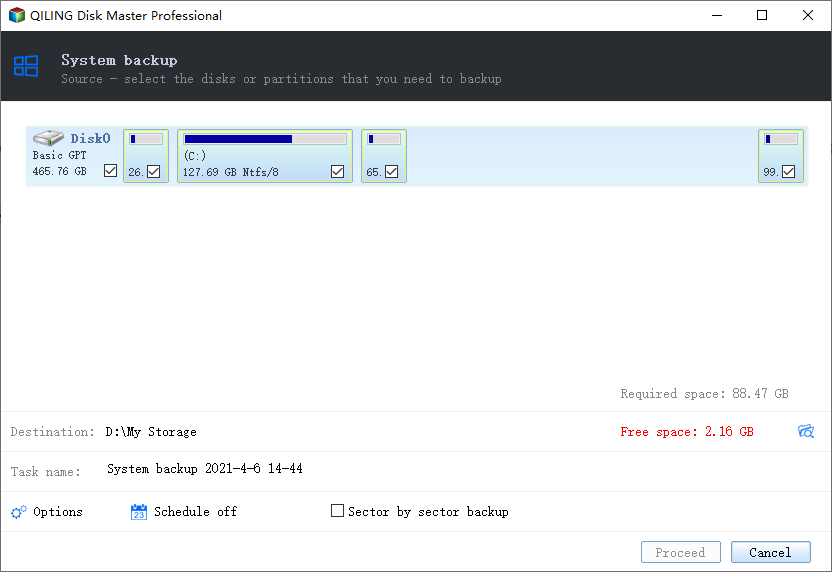
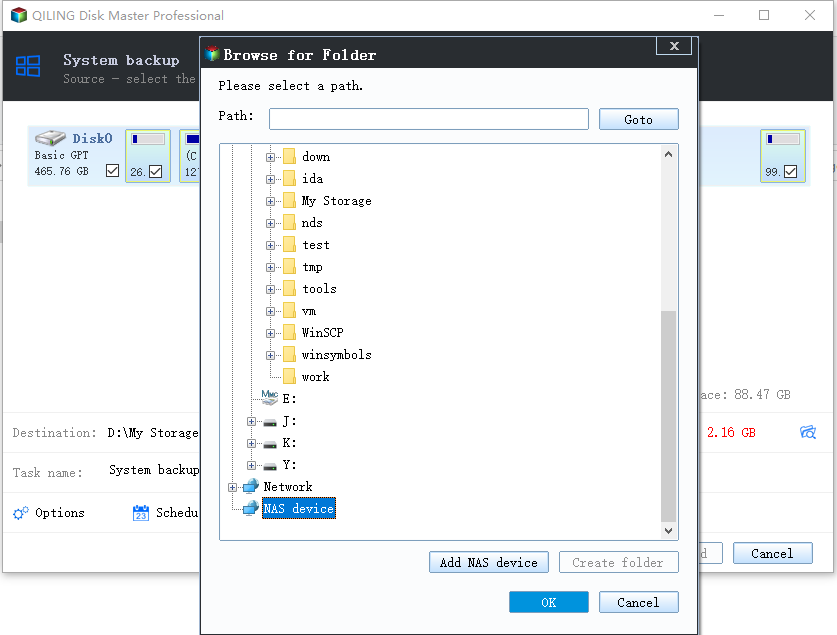
Step 4. You can save the backup file on your local drive, cloud storage, or NAS device, and also connect an external hard drive to store system backup files.
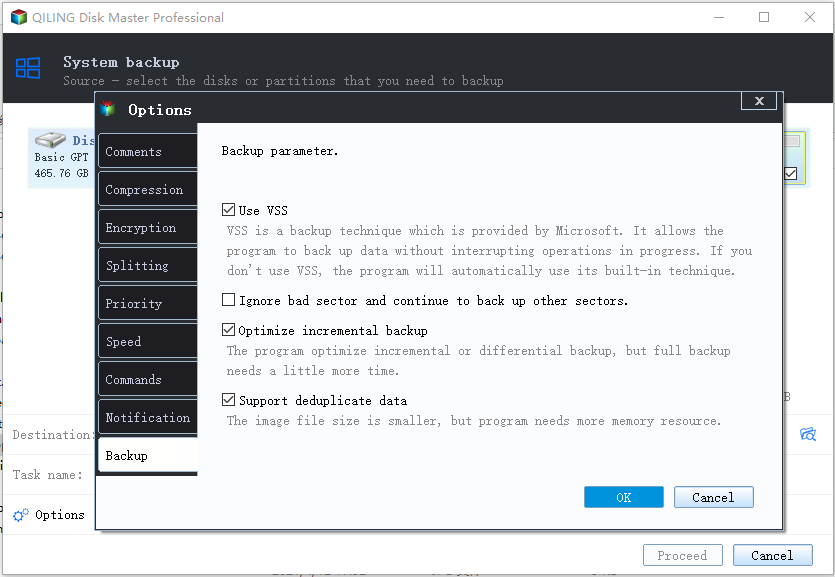
Step 5.You can customize the settings in "Options" at the left bottom. After that, click "Proceed", and the process will begin.
After finishing the backup process, you can check the backup status, recover, open, or delete the backup by right-clicking the backup task on the left.
How to Install Windows 11 on VirtualBox
Step 1. Download and Install VirtualBox Application
To get started, download and install Oracle VM VirtualBox on your computer. After downloading the setup file, click on it and follow the on-screen instructions to correctly install the software.
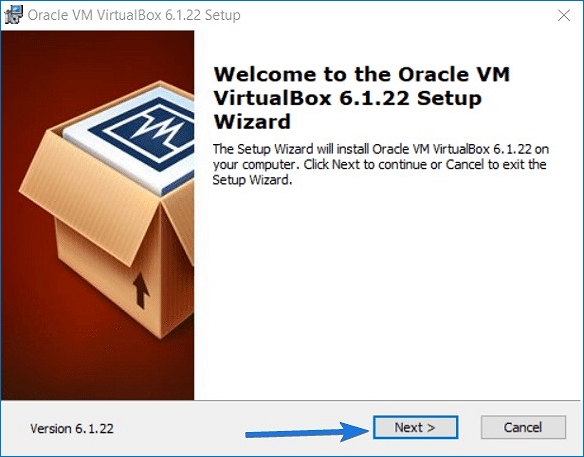
Step 2. Open Virtualbox VM Manager
To begin, install the Virtualbox software and the Extension pack, then open the Virtualbox.exe file from your desktop.
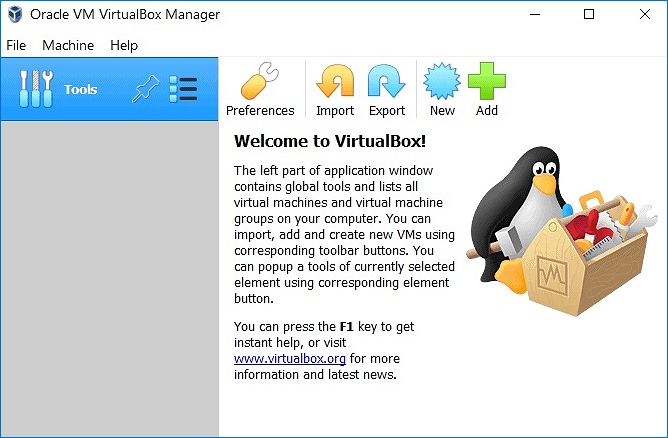
Step 3. Create Windows 11 Virtual Machine
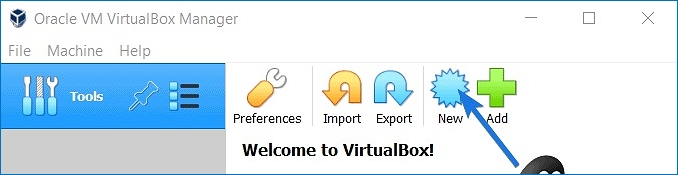
To create a Windows 11 virtual machine in Virtualbox, click the "New" icon located on the right-hand side area of the Virtualbox interface. This will initiate the process of building a new virtual machine, which will allow you to install and run Windows 11 within the Virtualbox environment.
Create a new virtual machine in Virtualbox by entering the name, type, and version of the operating system, such as "Windows 11 VM", "Microsoft Windows", and "Windows 10 (64-bit)" respectively, and then clicking the "Next" button.
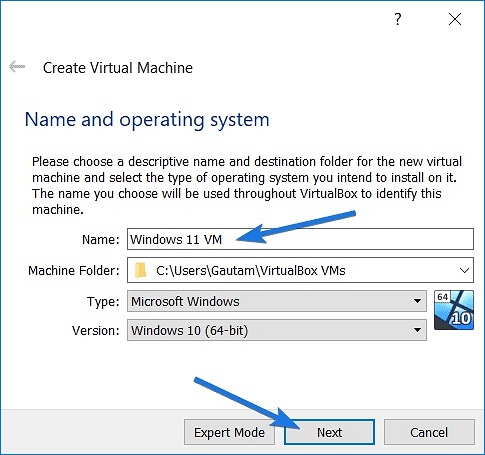
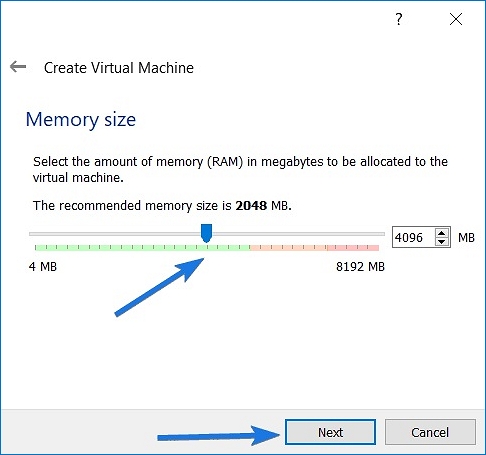
Step 4. Assign Virtual Machine RAM Memory
After creating the Win 11 virtual machine, set the virtual machine's RAM memory by moving the slider and clicking Next, following Windows 11's recommendation of 4GB (4096 MB) memory allocation.
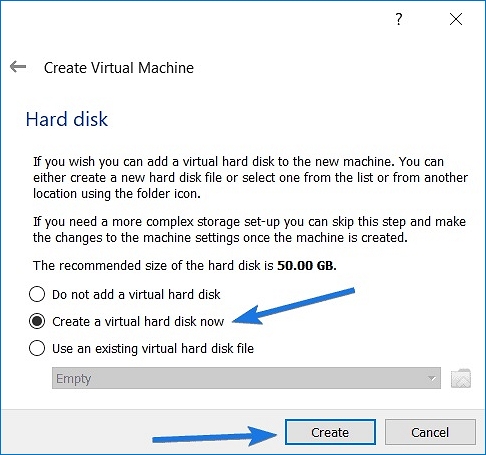
Step 5. Create Virtual Hard Disk
To create a virtual hard drive, select the "hard disk" section and click "Create a virtual hard disk now".
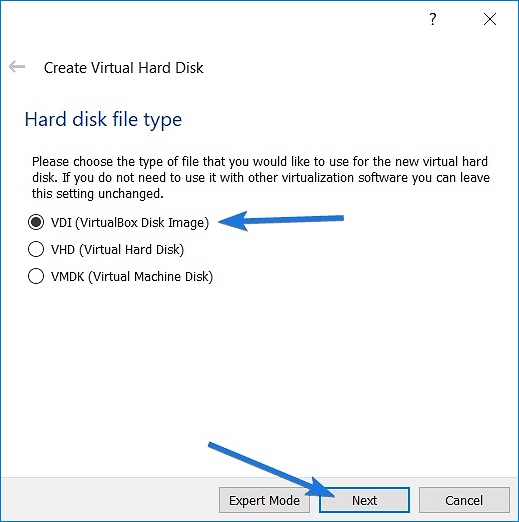
Select VDI as the file type under the hard disk file type column, and then click Next.
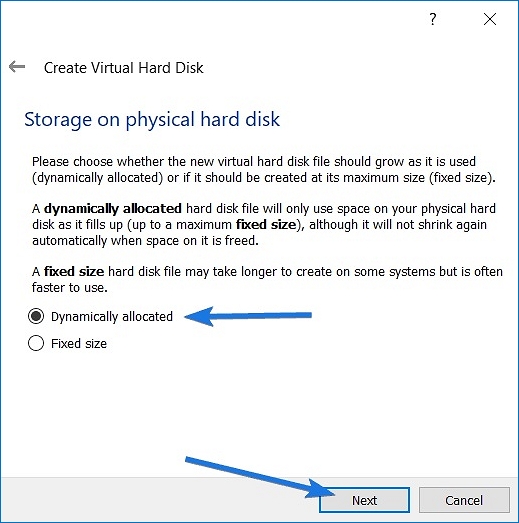
Select Dynamically allocated as the storage type under the Storage on physical hard disk section, then click Next.
After choosing the virtual hard drive's file location and size, click Create to finalize the process.
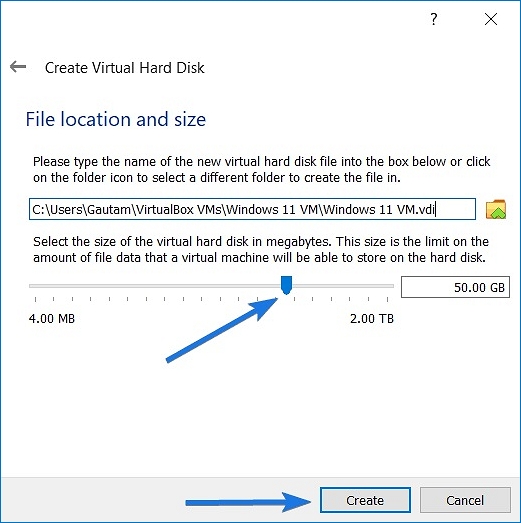
To get started, we need to set up the virtual machine's network settings. This will allow us to connect to the internet and access other virtual machines. We also need to install the necessary drivers for the virtual machine's hardware.
Step 6. Setting up Virtual Machine
Let's go through some fundamental options, including processors, display memory, USB ports, and Windows boot settings, to get a better understanding of what's available.
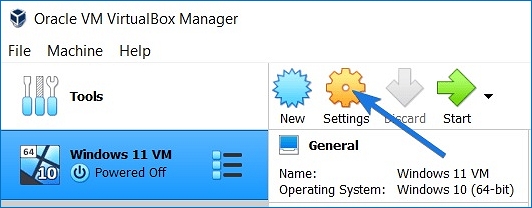
To access the Settings option, select the Windows 11 Virtual Machine.
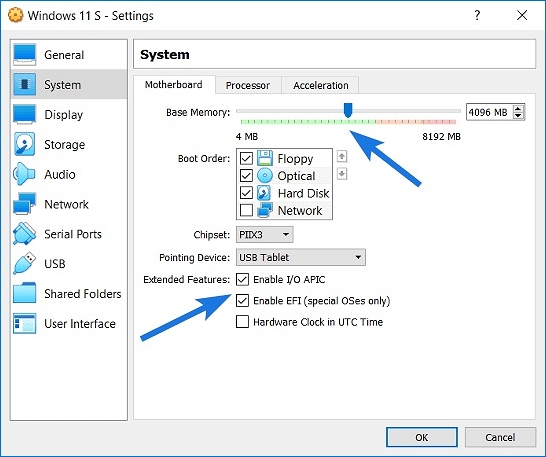
To configure the System settings, go to the tab and select 4GB for Base Memory, and also enable advanced options such as Enable I/O APIC and Enable EFI.
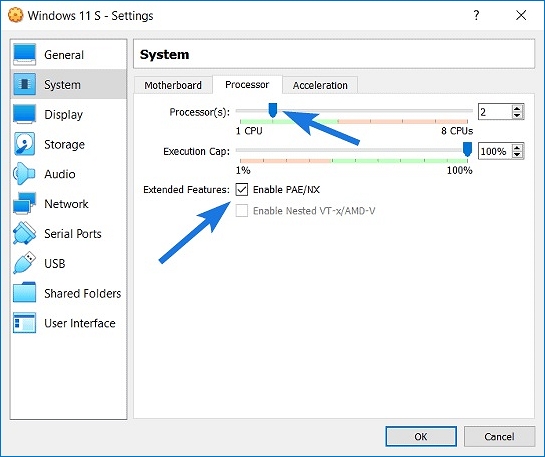
Set Processor(s) to 2 and enable PAE/NX under the Processors tab.
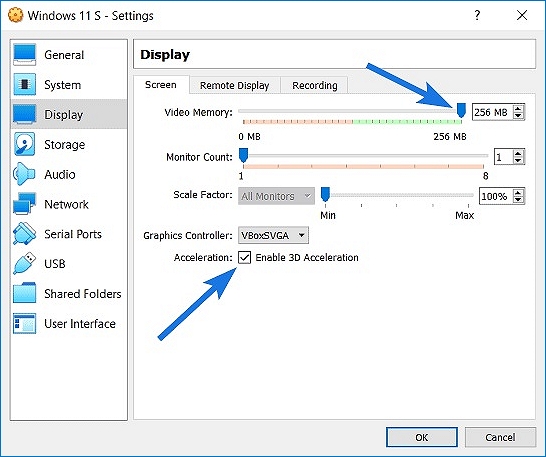
To resolve the issue, go to the Display tab and increase the Video Memory to 256 MB or higher, then select VBoxSVGA as the Graphics Controller and enable 3D Acceleration.
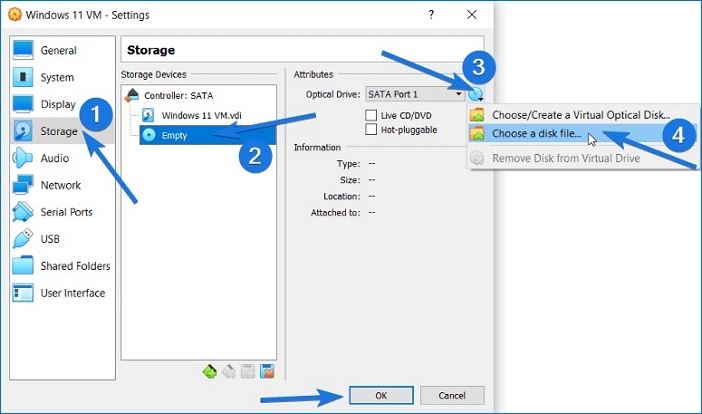
To prepare for a Windows 11 installation, navigate to the Storage Settings area. From the Storage Devices panel, select the CD symbol option. On the right-hand side, click the CD symbol and then select Choose a disc file, allowing you to boot directly from an ISO file instead of a USB drive.
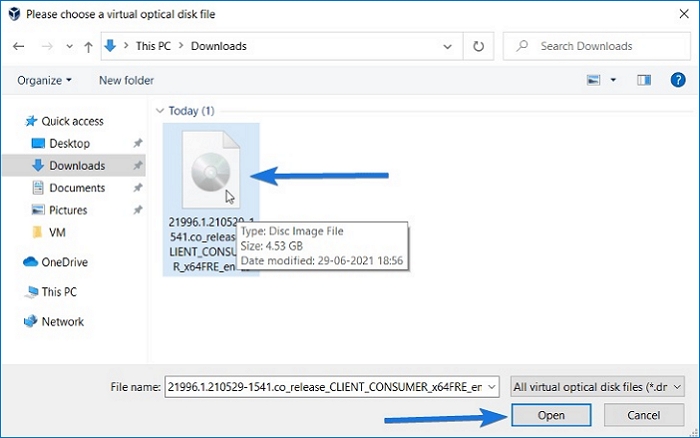
To install Windows 11, first, go to your computer's directory and find the Windows 11 ISO Image File, which you can then pick and open. Alternatively, you can use the Insider Preview ISO Image.
Once you've completed all of the settings, your Windows 11 Virtualbox virtual machine is ready to use.
Conclusion
You can quickly download and install Windows 11 on a virtual computer using Virtualbox. This method allows you to try out the latest version of Windows without risking your main computer becoming infected with bugs or security flaws, making it a great way to test Windows 11 in a safe and controlled environment.
Microsoft has made the Windows 11 Insider Preview build 22000 ISO available for download, allowing users to install Windows 11 in the same way as the previous version.
Related Articles
- Exclusive Tips for How to Reset Lenovo/HP/Acer Laptop
- Is Windows Defender Good Enough to Protect My PC? Check the Best Answer
- Top 5 Best External Backup Drive Windows 10 of 1-4 TB Capacity
- How to Delete Old Backup Files in Windows 10
- Best Free Cloud Backup for PC (Top 2 Ways Included)
This article will introduce you the best free cloud backup for PC. Whether you want to backup files or even the Windows system, you can finish this task simply and for free. - Best Free Incremental Backup Software: Save Storage and Time
Looking for the best free incremental backup software? Qiling Disk Master offers reliable incremental backups that save storage space and time by only backing up changed data.
Products
Articles & Tutorials
- Data Recovery
- Data Backup
- File Recovery
- File Backup
- System Backup and Restore
- Disk and Partition Clone
- Technical articles
- Mobile articles
- Disk Master Help
- Windows Data Recovery Tutorials
- Windows Secure Delete Tutorials
- Windows Partition Management Tutorials
- Windows File Backup and Restore Tutorials
- Windows System Backup and Restore Tutorials
- Windows Disk Backup and Restore Tutorials
- Windows Clone Tutorials