How to Stop OneDrive from Syncing in Windows 11/10 [ You Must know]
Microsoft OneDrive cloud storage is tightly integrated into Windows 11 and 10, and is also a built-in option for Microsoft 365 subscribers. However, if you're not invested in the Microsoft ecosystem and want to stop OneDrive from syncing, there are several easy methods to do so, applicable in both Windows 11 and 10. These methods can help you disable OneDrive syncing and are discussed in the article.
What is OneDrive?
OneDrive is a file hosting service run by Microsoft that allows logged-in users to sync and share files. It serves as the backend storage for the web-based version of Microsoft, syncing folders relatively quickly so that what is seen in File Explorer is what is stored on the cloud and vice versa.
OneDrive offers up to 5 Gb of free cloud storage, which people often use for work-related data, but some users run out of space and store files on their desktops instead. In some cases, users may need to disable OneDrive syncing on their Windows computer.
There are several reasons why you might want to stop OneDrive from syncing. Some users may not want their files synced across devices, or they might be running low on storage space and don't want OneDrive to consume more space. Others might be concerned about data security and privacy, or they might be experiencing syncing issues that are causing problems.
Why Would You Want to Stop OneDrive from Syncing?
There are several reasons why you might want to stop OneDrive from syncing, including the fact that it can be unpleasant for users to have their files automatically synced and potentially overwritten, or that it can take up too much space on your device, or that it can be a security risk if not properly configured, or that it can cause conflicts with other cloud storage services, or that you simply prefer to manage your files manually.
- OneDrive, while secure, raises some uncertainty around the level of privacy users can expect.
- When an employee leaves and their Microsoft 365 license is deactivated, Microsoft is not required to retain their data any longer.
- OneDrive has some limitations on the types of data it can sync and store, which may impact users' ability to use it for certain purposes.
- The number of objects that can be synchronized with OneDrive, based on Microsoft's SharePoint software, is restricted.
- OneDrive may be syncing files from your PC without your knowledge, syncing files that you may not want synced.
There are various reasons to stop OneDrive syncing, and this section will guide you through 10 different ways to do so. Before disabling the synchronization, it's essential to back up all your essential data. Fortunately, you've already done that. If you need help with backing up your OneDrive data, Qiling Disk MasterB can assist you in protecting your files from corruption.
For data protection, you may need to know:
10 Ways to Stop OneDrive from Syncing
If you're looking for ways to stop OneDrive from syncing on your Windows 11/10, there are several options available. You can try one of the ten methods listed to disable OneDrive syncing, giving you more control over your cloud storage.
- 1. Pause OneDrive
- 2. Quit the OneDrive application
- 3. Unlink PC from the OneDrive
- 4. Turn off the network connection
- 5. Alter the settings for automatic syncing
- 6. Delete the source files from the OneDrive folder
- 7.Uninstall OneDrive on Computer
- 8. Hide OneDrive on Computer
- 9.Turn off OneDrive's automatic launch
- 10. Stop Office Apps From Syncing to OneDrive
1. Pause OneDrive
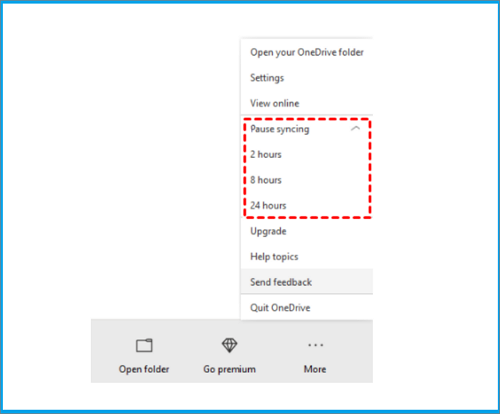
In Windows 11 and 10, you can temporarily pause OneDrive syncing at any time, with options to pause for 2 hours, 8 hours, or 24 hours. This feature allows you to control when OneDrive syncs data.
Step 1.Pick the OneDrive cloud symbol next to the notification area.
Step 2.Choose "Help & Settings" < "Pause syncing" to pause OneDrive.
Step 3.To determine the best time frame for a project, let's consider the scope and complexity of the task. If the project is relatively small and straightforward, a 2-hour time frame might be sufficient. However, if the project requires more time and effort, such as a complex analysis or a large-scale implementation, an 8-hour or even 24-hour time frame might be more appropriate.
Step 4.If you can't see the OneDrive icon on your taskbar, click the "Show hidden" icons arrow to reveal it.
2. Quit the OneDrive application
Additionally, closing OneDrive will stop it from synchronizing indefinitely.
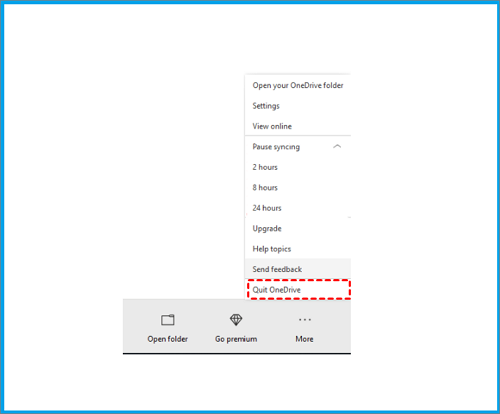
Step 1.To close OneDrive, go to the Microsoft OneDrive menu, select "Help & Settings", and then choose "Close OneDrive".
Step 2.Select "Quit OneDrive" once more to confirm.
3. Unlink PC from the OneDrive
OneDrive sync can be disabled by separating a computer from the OneDrive account, effectively stopping the syncing of files between the computer and the OneDrive account.
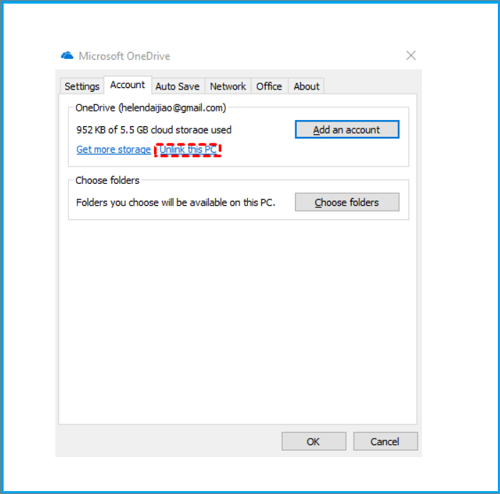
Step 1.As above, click "Settings" in the pop-up menu.
Step 2.To separate the account from the computer, click on the pop-up window's Account tab and select "Unlink this PC".
4. Turn off the network connection
To stop syncing on OneDrive, you can simply turn off your network connection, whether it's for your PC or smartphone. For PCs, disable the network supply, and for smartphones, turn off cellular data and Wi-Fi. Alternatively, switching your phone to "Airplane Mode" will also disconnect the network, preventing OneDrive from syncing your files. This indirect method effectively pauses syncing without deleting your files.
5. Alter the settings for automatic syncing
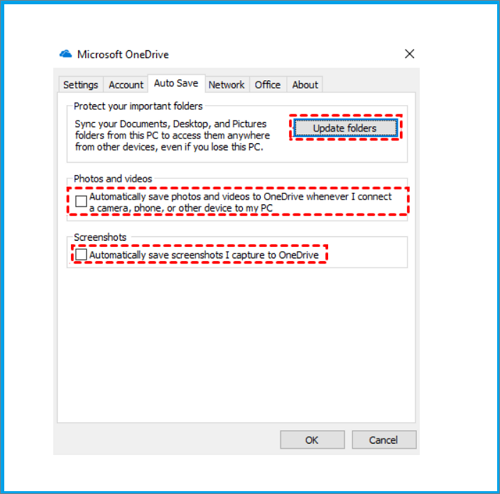
To stop OneDrive from syncing automatically, open OneDrive, go to Auto Save, and uncheck the options to save photos and videos from connected devices and screenshots.
6. Delete the source files from the OneDrive folder
To prevent OneDrive from accessing files, select no source folder, which effectively ends the sync process, allowing OneDrive to sync the local folder's data with the cloud.
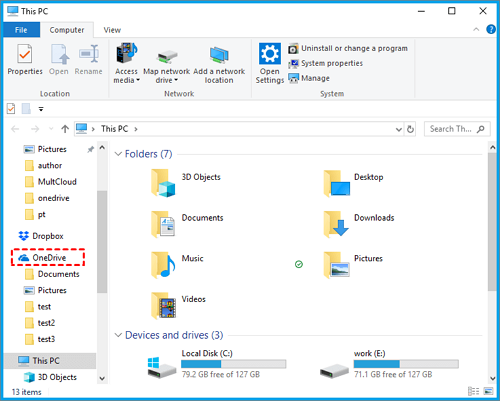
Step 1.Click the "OneDrive" icon in the system tray.
Step 2.Select the "Open folder" option to access the OneDrive local folder, where you can clear the data.
7.Uninstall OneDrive on Computer
If none of the above solutions work and OneDrive continues to sync, you can try uninstalling OneDrive. This will remove the software but not delete any existing files.
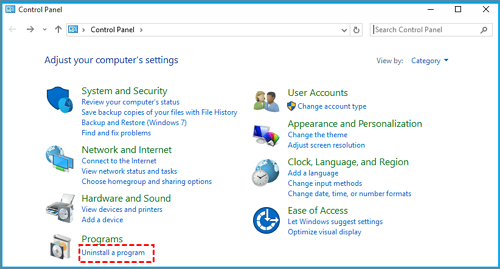
Step 1.To access the Control Panel on your Windows PC, navigate to the Start menu and select the "Control Panel" option from the list of available applications. This will open the Control Panel window, where you can manage various system settings and features.
Step 2.Now, select "Uninstall a program" to remove OneDrive.
To uninstall Microsoft OneDrive, go to the Start menu, open Windows Settings, select "Apps" > "Apps & features", find Microsoft OneDrive, and click the Uninstall button. Alternatively, press the "Win + I" shortcut to open Windows Settings directly.
8. Hide OneDrive on Computer
If OneDrive can't be uninstalled on your Windows PC, you can hide it to prevent it from syncing. This is a workaround for versions of Windows where OneDrive is built-in and can't be removed. Hiding it will still keep it on your system, but it won't sync your files.
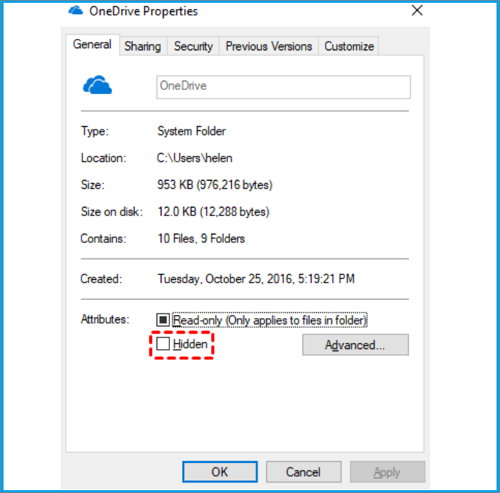
Step 1.To access OneDrive in the Windows file explorer, click on OneDrive in the navigation pane, then right-click on it and select "Properties" from the context menu.
Step 2.To check the "Hidden" box, open the OneDrive "Properties" box, then click on the "General" tab and select the checkbox next to "Hidden".
Step 3.To save and leave, click "OK".
Step 4.To stop OneDrive from synchronizing, close it from its system tray icon.
9.Turn off OneDrive's automatic launch
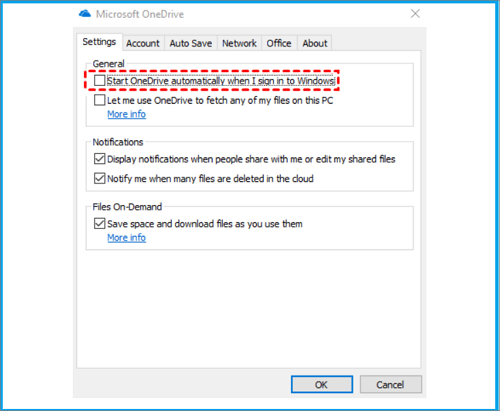
OneDrive can't sync your files automatically if you disable automatic startup.
Step 1.Select the "Settings" tab.
Step 2.Uncheck the box next to "Start OneDrive automatically when I sign in to Windows" to prevent OneDrive from launching automatically when you sign in to Windows.
10. Stop Office Apps From Syncing to OneDrive
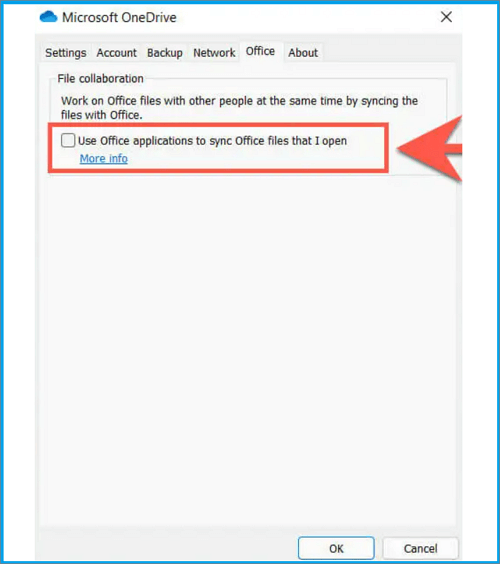
To stop Microsoft Office apps from syncing files to OneDrive, open OneDrive's Settings, then click on the Office tab and uncheck the box next to "Use Office applications to sync files that I open" before selecting "OK".
Conclusion
OneDrive is a helpful tool for individuals and professionals alike, allowing them to protect and store their files securely. It's particularly suitable for professional use under a Microsoft 365 subscription, streamlining workflows by enabling colleagues to share and access files through the cloud, making collaboration smoother and more efficient.
Some users feel that OneDrive is not necessary on their computer, as they can use other services or methods for data security. As a result, some people are critical of it. We have discussed the best ways to stop OneDrive from syncing in Windows 11/10.
To avoid losing your OneDrive data, it's recommended to back up all essential files before disabling synchronization. You can use a free data backup tool like QilingQiling backup to securely store your files and prevent them from getting corrupted. This ensures that your data is protected even if you stop syncing with OneDrive.
Qiling Disk Master is a free backup software that protects your data and future with its straightforward user interface and robust functionality. It allows you to back up your entire disc, partitions, OS, and data, and saves backups to local discs, NAS, networks, and more.
To use OneDrive, you can download it from the Microsoft website and continue your work on your computer or device.
If you're unsure about backing up your OneDrive data before stopping OneDrive from syncing, follow these steps. To operate this tool, you'll need to take a few minutes to back up your data first.
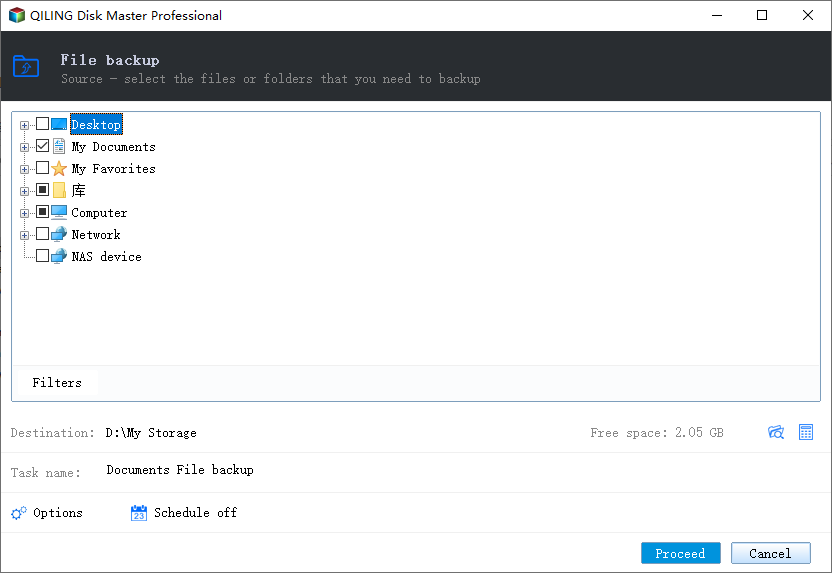
Step 1. To begin the backup process, click the File backup button.

Step 2. On the left-hand side of the screen, lists of both local and network files are displayed, allowing users to expand the directory and select the specific files to be backed up.
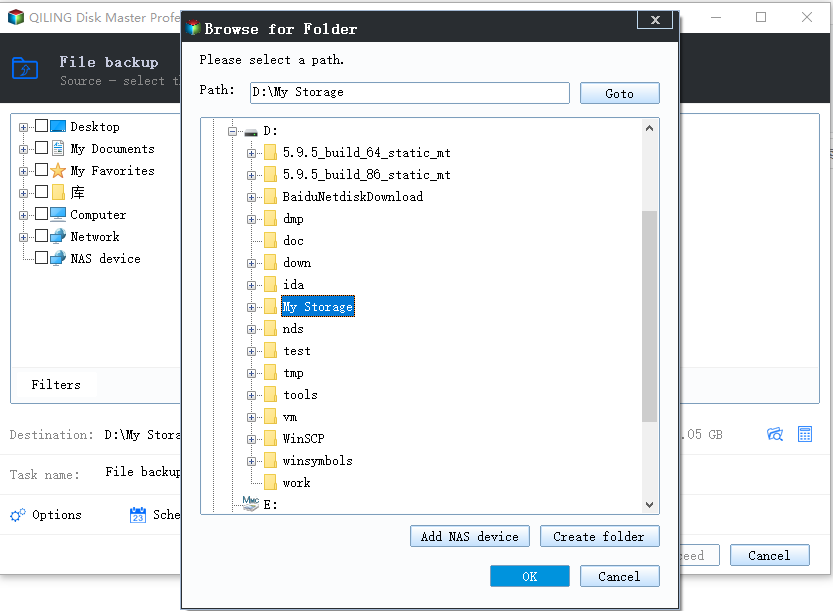
Step 3. Please follow the on-screen instructions and select the location where you'd like to store the backup.
Step 4. To ensure your backup is secure, encrypt it by clicking "Options" in "Backup Options" and set a schedule for automatic backups.
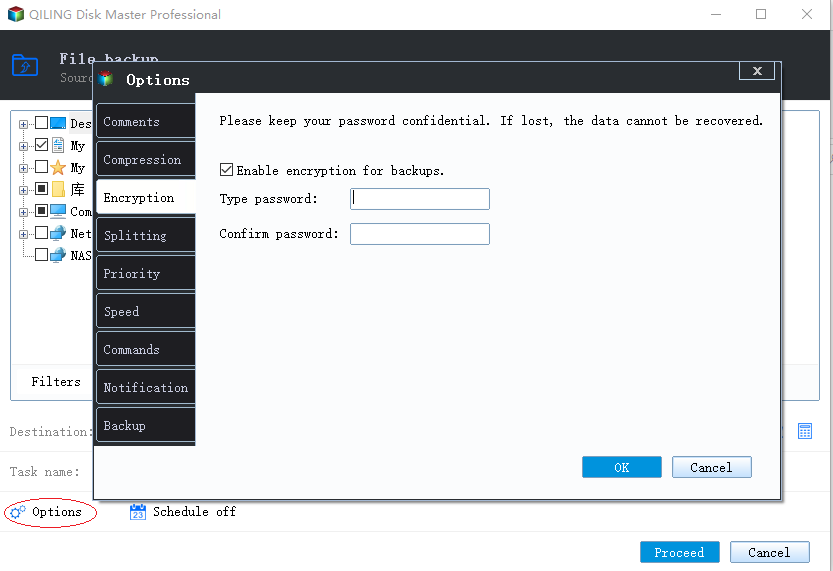
To start the backup at a certain time, go to Backup Scheme and click Options. There are many other customizable options available.
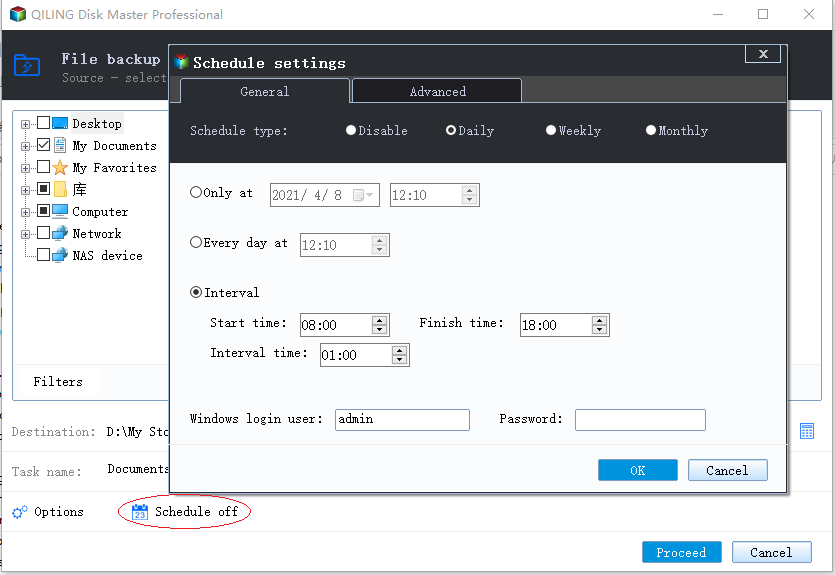
Step 5. You can save the backup file to your computer, Qiling's cloud service, or a network-attached storage device (NAS).
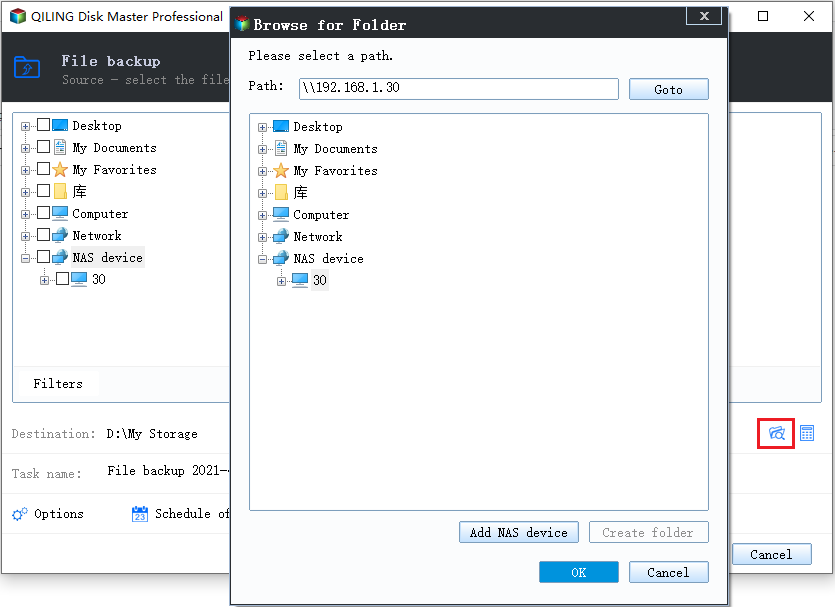
Step 6. Qiling Backup allows customers to store backup copies of their files on either a third-party cloud drive or on Qiling's own cloud storage.
To back up your data on a third-party cloud drive, select Local Drive and scroll down to add Cloud Device, then fill in your account information.
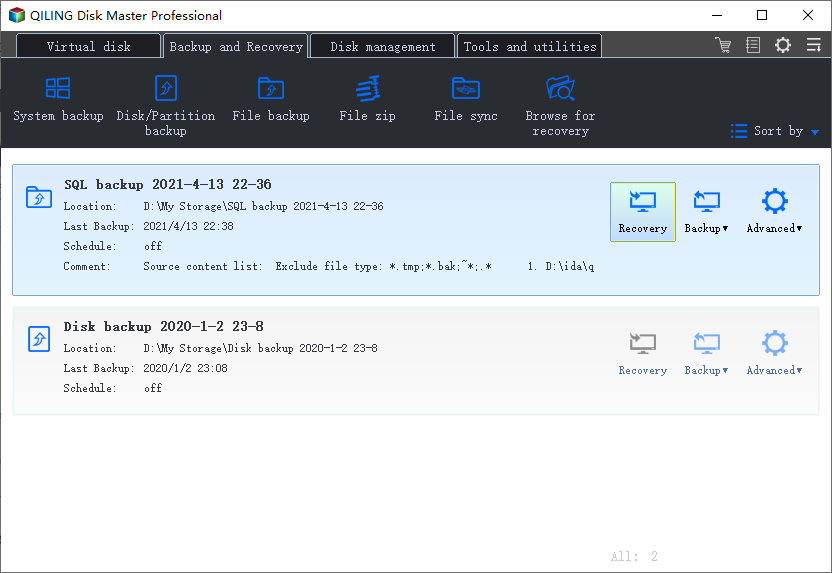
Step 7. To initiate a backup, click on the "Proceed" button. Once the backup process is complete, it will be displayed as a card in the list view, and clicking on it will provide more information on how to manage the backup job.
FAQ aboutOneDrive
Disabling the synchronization of your OneDrive can lead to several problems, including data loss, inconsistencies, and potential corruption of your files. If you disable synchronization, you may lose access to your files, especially if you're using a shared drive or collaborating with others.
1. How to stop OneDrive syncing folders without deleting files?
To keep OneDrive files on your device, open File Explorer, select your OneDrive folder, open the folder where you want the files to stay, select all files, and right-click to choose "Always keep on this device".
2. How do I disable OneDrive?
If you want to disable OneDrive, you can choose to disable it on startup.
Step 1. Right-click on the Taskbar and choose Task Manager.
Step 2. In the pop-up window, go to the Startup tab.
Step 3. Then select Microsoft OneDrive and choose Disable.
Step 4. To disable OneDrive from starting with Windows, go to Settings > Apps > Startup, find OneDrive and toggle it off. Then, restart your computer.
3. Do I really need OneDrive on my computer?
OneDrive is not necessary on your computer as it only allows syncing some files, photos, or Windows settings, and doesn't back up the operating system, with limited free storage space.
Related Articles
- How to Backup Data without Booting into Windows
- How to Backup PST File with 3 Outlook PST Backup Tools
- A Beginner's Tutorial on How to Make Windows 10 Backup to External Hard Drive
- What is File Level Backup? 5 Best File Level Backup Software Recommends 2022
- (Solved) No Disks Are Available for Use as a Backup Storage Destination
If you have a problem fixing the 'no disks are available for use as a backup storage destination' error, click on this article and learn 5 effective solutions. - Solved: One of The Volumes Specified for Backup is Invalid
You will find the several solutions to fix the one of the volumes specified for backup is invalid error message and get better way to create a system image in Windows 10, 8, 7.
Products
Articles & Tutorials
- Data Recovery
- Data Backup
- File Recovery
- File Backup
- System Backup and Restore
- Disk and Partition Clone
- Technical articles
- Mobile articles
- Disk Master Help
- Windows Data Recovery Tutorials
- Windows Secure Delete Tutorials
- Windows Partition Management Tutorials
- Windows File Backup and Restore Tutorials
- Windows System Backup and Restore Tutorials
- Windows Disk Backup and Restore Tutorials
- Windows Clone Tutorials