(10 Quick Access) How to Open Command Prompt in Windows 10
In this article, we'll provide a comprehensive guide on getting familiar with the Windows Command Prompt and how to access it in Windows 10. We'll cover the basics of what the Command Prompt is and how to use it, as well as the steps to open it in Windows 10.
What Is Windows Command Prompt?
The Command Prompt window is the initial interface when launched, also known as Windows Command Processor, command shell, or cmd prompt, and is often referred to as cmd.exe.
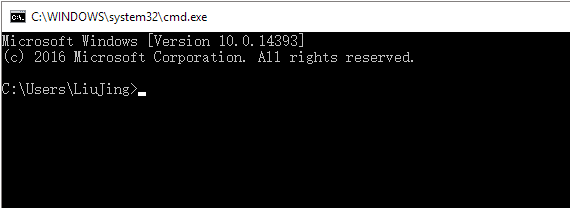
The Command Prompt is a text-based interface screen in Windows operating systems, where users can type commands to automate tasks, troubleshoot issues, and perform advanced administrative functions. It consists of a brief text string followed by a blinking cursor, where users input commands, and is used to manage hard drives and partitions, control networks, and modify files, among other tasks.
Here are some basic Windows cmd commands: dir, attrib, chkntfs, chkdsk, diskpart, format, copy, xcopy, ipconfig, and others.
Qiling Partition Master can replace the Windows Command Prompt for executing certain commands, making it easy to manage disk partitions without needing to learn command line scripts. It can resize, format, delete, wipe data, copy drives, convert FAT32 to NTFS, and change a disk from basic to dynamic.
10 Quick Ways to Open Command Prompt (Shortcuts Included)
To get a Command Prompt in Windows 10, simply type "cmd" in the search bar, click on the "Command Prompt" result, or press the Windows key + R to open the Run dialog box and type "cmd" in it. You can also search for "cmd" in the Start menu, use the Cortana search bar, or access it through the Power User Menu (right-click on the Start button). Alternatively, you can also type "cmd" in the File Explorer address bar or use the Task Manager to open a new Command Prompt window. The cmd.exe is the default command-line interpreter in Windows 10, so you can't miss it. Just pick your favorite way to get there!
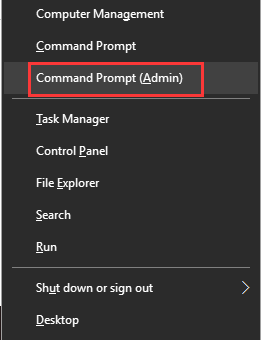
1. Open Command Prompt with Windows + X Shortcuts
To open the Command Prompt, press the Windows + X shortcut keys to open the Power Users menu, then double-click on Command Prompt or Command Prompt (Admin).
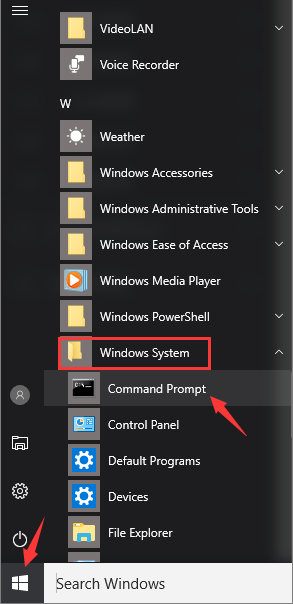
2. Open Command Prompt from Start
To open the Command Prompt, click the Start menu, scroll down to the Windows System shortcuts folder, expand the folder, and select the Command Prompt option.
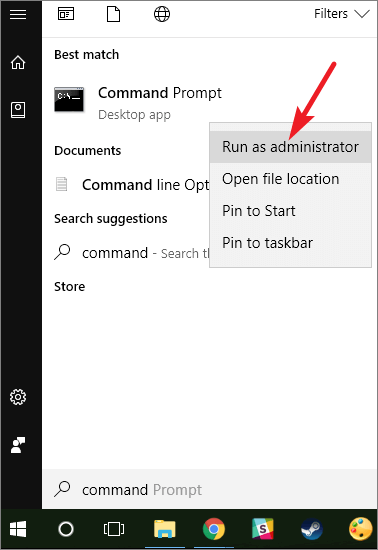
3. Open Command Prompt Through Search
To open the Command Prompt in Windows 10, type "cmd" or "command prompt" in the Search box, and then either double-click on the Command Prompt result or right-click on it to select "Run as administrator".
4. Open Command Prompt with Windows + R Shortcuts
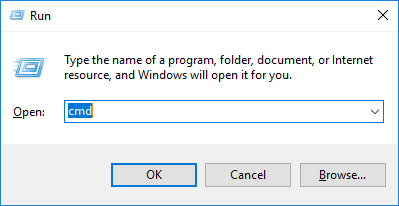
To open the Command Prompt, press the Windows key + R keys to bring up the Run box, type cmd, and click OK or hit Enter.
5. Open Command Prompt in Windows 10 File Explorer Address Bar
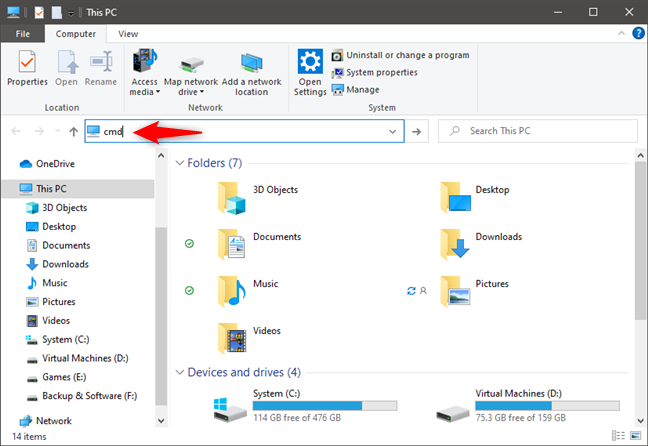
Press the Windows key + E keys to open File Explorer, then type "cmd" in the address bar and press Enter to open the Command Prompt.
6. Open Comand Prompt from Windows Explorer File Menu
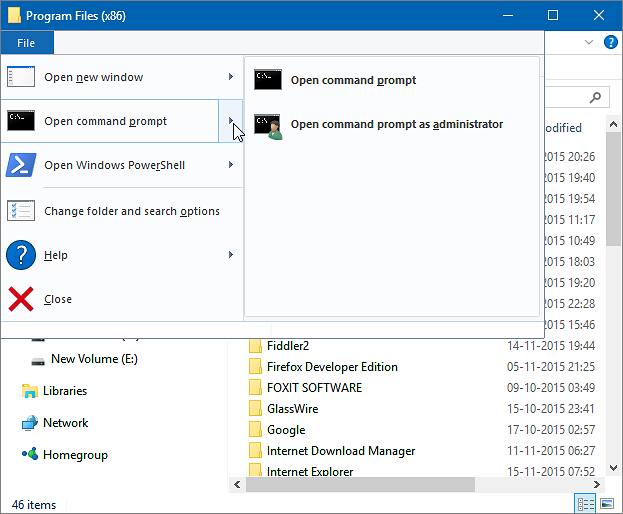
To access the Command Prompt in Windows Explorer, go to the File menu, select "Open command prompt" and proceed with either "Open command prompt" or "Open command prompt as administrator".
7. Open Command Prompt from the Windows System32 Folder
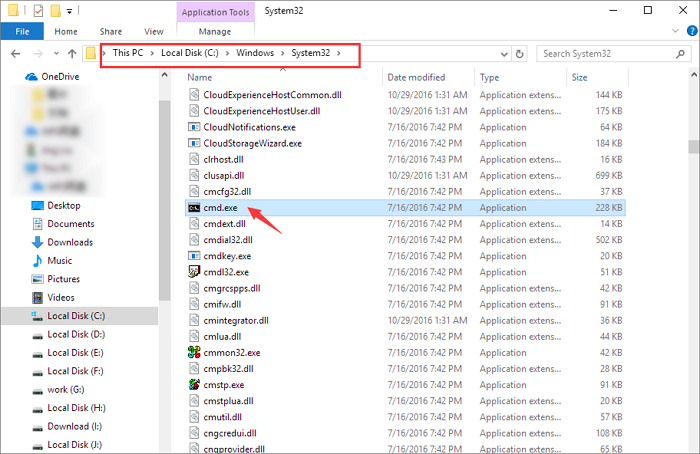
To open the Command Prompt as an administrator, press Windows + E keys to open File Explorer, navigate to the C: drive, then the Windows folder, followed by System 32, and locate the cmd.exe. Double-click or right-click on cmd.exe to run as administrator and open the Command Prompt.
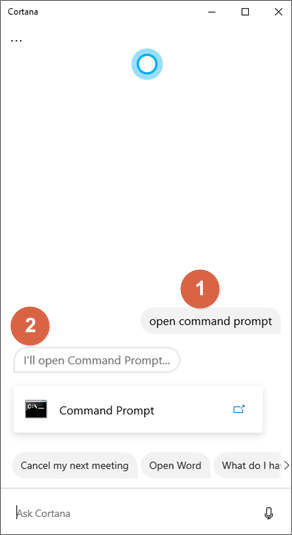
8. Ask Cortana to Open Command Prompt (Requires a microphone)
Say "hi, cortana" to enable Cortana to answer your question. When receiving a response, say "Open Command Prompt".
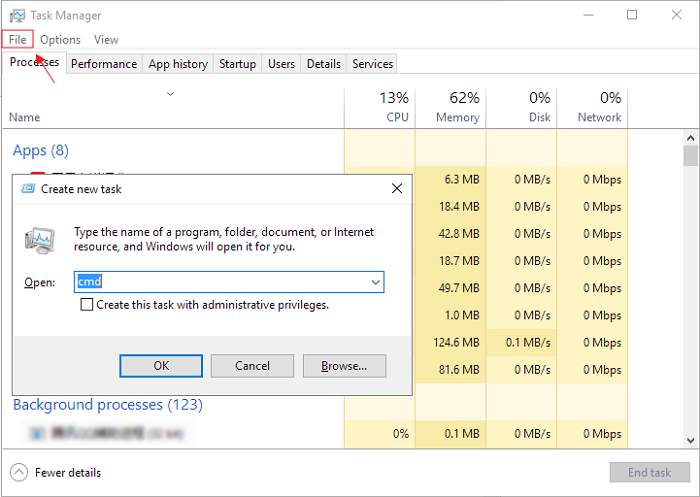
9. Open Command Prompt from the Task Manager
To open the Command Prompt, press Ctrl + Alt + Del (Delete) to open the Task Manager, click the File tab, select Create a new task, and then type "cmd" in the Run box before hitting Enter.
10. Open Command Prompt at Boot
- In Windows 10, click Start, then Settings, then Update & Security, then Recovery, and finally Restart now.
- While restarting, click Troubleshoot on the Choose an option screen.
- Click Advanced options and then Command Prompt.
How to Use a Command Prompt Alternative
We've shown you 10 simple ways to access the Windows Command Prompt, some of which may not be directly obvious. Once you've opened Command Prompt, you can start using it by entering the appropriate command lines.
You can use the built-in Disk Cleanup tool to free up space on your hard drive, and the Disk Defragmenter to optimize your hard drive's performance. Additionally, you can use the built-in Backup and Restore tool to back up your important files and restore them in case of a system failure. You can also use the File Explorer to manage your files and folders, and the Task Manager to close unresponsive programs. Furthermore, you can use the built-in Windows Update to keep your operating system up to date, and the System Restore tool to restore your system to a previous point in case of a problem. These tools are all accessible through the Start menu or by searching for them in the search bar.
Qiling Partition Manager is a software that can perform various tasks that Windows Command Prompt can handle, such as disk and partition management. By downloading and installing it, users can explore its features and have a user-friendly yet comprehensive tool for managing their disks and partitions.
What can you do with Qiling Partition Master:
- Resize/move partition
- Format a drive to FAT32, EXT2/3/4, NTFS...
- Convert FAT32 to NTFS without losing data
- Conver basic to dynamic or vice versa
- Clone/copy a drive to another
- Migrate OS to HDD/SSD without reinstalling Windows
- Merge multiple hard drive partitions into one
- And browse more in the video guide
Related Articles
- How to Format 128GB USB Flash Drive to FAT32
- Change GPT Disk to MBR Disk Without Formatting
- How to Troubleshoot Critical Process Died Error in Windows 10/8/7 (10 Solutions)
- How to Know If Windows Using UEFI or Legacy (1min-Check)
- Fixed: The Disk Is Write Protected Windows 11
- What is System Reserved Partition and How to Delete It [Windows 11 Available]
- How to Easily Extract Individual Files from System Image Backup in Windows 10
Need to extract individual files from system image backup in Windows 10/8/7? You can turn to Windows built-in tool and Image Explore of Qiling Disk Master.
Products
Articles & Tutorials
- Data Recovery
- Data Backup
- File Recovery
- File Backup
- System Backup and Restore
- Disk and Partition Clone
- Technical articles
- Mobile articles
- Disk Master Help
- Windows Data Recovery Tutorials
- Windows Secure Delete Tutorials
- Windows Partition Management Tutorials
- Windows File Backup and Restore Tutorials
- Windows System Backup and Restore Tutorials
- Windows Disk Backup and Restore Tutorials
- Windows Clone Tutorials