[Free] How to Make a Full Backup of Windows 10/8/7
Overview of Windows 10/8/7 Full Backup
A system backup is the process of duplicating the operating system, files, and essential data to serve as a backup or substitute when the primary system data is lost, corrupted, or deleted. This process preserves the state, files, and data of a computer system, allowing for recovery in case of system failure or data loss.
As we all know, Windows 10's newest update is coming out. In order to avoid Windows 10 data loss, we need to make a full backup of Windows 10. Backups help ensure that your system and files aren't permanently lost or damaged. Follow the two methods below to make a full backup of Windows 10/8/7.
Easy and Free - Use Qiling Backup to Make a Full Backup
Qiling Backup Free has enough features for personal use, allowing for manual or schedule Windows backups of system, disk/partition, and file backups, including full, differential, and incremental backups. You can download the free Windows backup software to have full control over your backups. It's a good option for making a full backup.
1. To backup your Windows 10 system, launch the Qiling Windows 10 backup software and select "System backup" on the "Backup and recovery" page.

2. The software will automatically recognize your operating system, and you'll need to fill in the Destination, Plan name, and Description fields accurately.

Note:
- Destination - Click the folder icon to modify your backup destination.
- Plan name and Description - An accurate plan name and description can help you quickly locate the desired image file. This is because a clear and concise plan name and description provide essential context for identifying the correct image, making it easier to find what you need.
- You should back up your data to an external device or another drive to avoid the risk of the backup file being corrupted or destroyed.
3. Click "Proceed" to start Windows 10 system backup.

To recover the system image, simply open the software, click the "Recovery" option of the image, and follow the instructions to restore the system. For more detailed guidance, refer to the system recovery instructions.
If the backup image will be restored to a new disk, follow the guide to transfer a disk image to a new hard drive. For a different computer, read whether you can use a Windows recovery disk on another PC and when a system image is safer.
Create a System Image of Windows 10 With the Built-in Tool
In this Windows 10 guide, we will walk you through the steps to create a full backup, including all your settings, apps, and files, using the built-in system image tool, although the process is a bit more complicated compared to using a free tool. Read on to learn how to create a system backup of Windows 10 using the built-in system image tool.
1. To access the Backup and Restore (Windows 7) feature, click on the Start button and select Control Panel, then choose Backup and Restore (Windows 7) from the options.
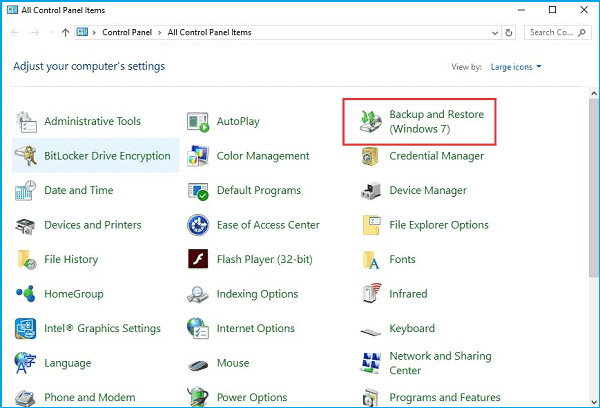
2. On the left pane, click the Create a system image.

3. Save the Windows 10 user profile backup on an external storage device, such as a USB drive, for easy transfer to other computers.
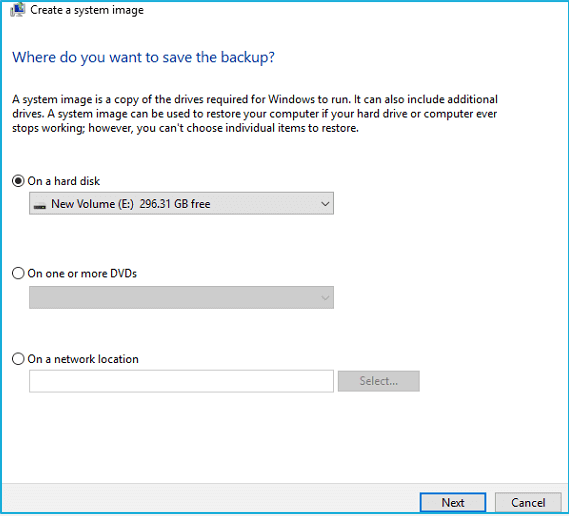
After completing the steps, the wizard will create a full backup of your system, including everything on the main drive and the system reserved partition, as part of the backup process.
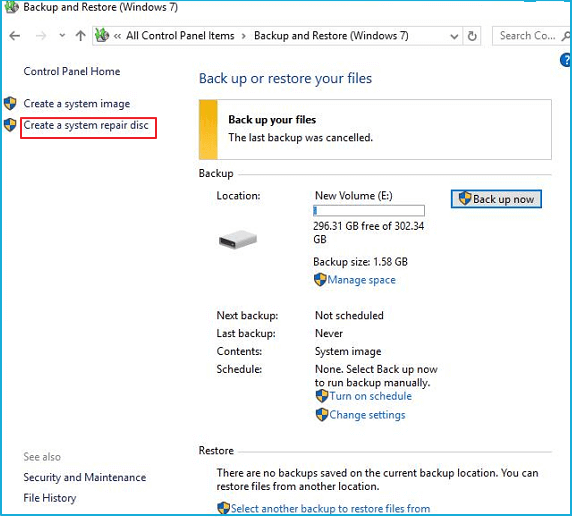
After the backup is done, you'll be prompted to create a system repair disc to access recovery options if your computer is unable to boot.
You can create a system repair disc by clicking the "Create a system repair disc" link within the Backup and Restore (Windows 7) settings page.
How to Restore the System Image Backup of Windows 10
Now that you have a backup of your Windows 10 and a system repair disc, you can also restore the system image. To do this, insert the system repair disc and follow the on-screen instructions to boot from it.
1. Connect the external drive with the system image backup to your device.
2. Connect the disk that contains the system repair files (or USB bootable drive with the Windows 10 installation files) to your device.
3. Reboot your computer. Press F2 and choose boot from USB
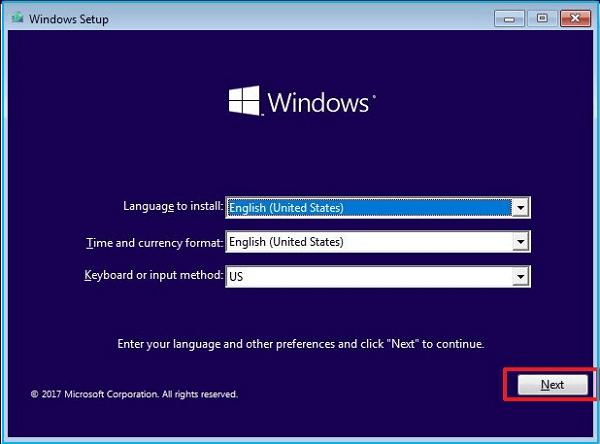
4. On the "Windows Setup" page, click the Next button.
5. To fix issues with your computer, click the "Repair your computer" link located at the bottom-left corner of the screen. Next, select the "Troubleshoot" option from the menu that appears.
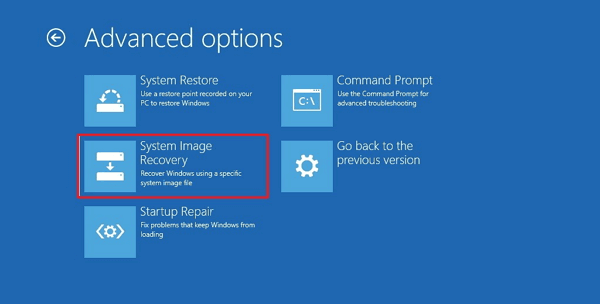
6. Click the System Image Recovery option.
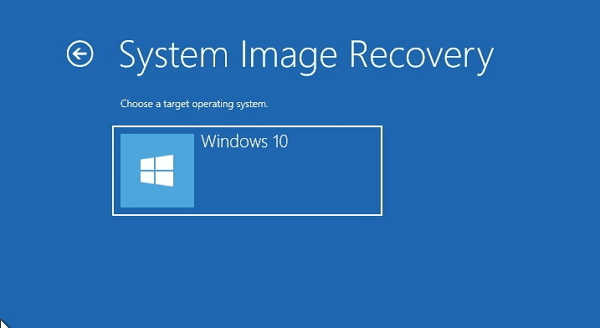
7. Choose the target OS. (In this case, Windows 10.)
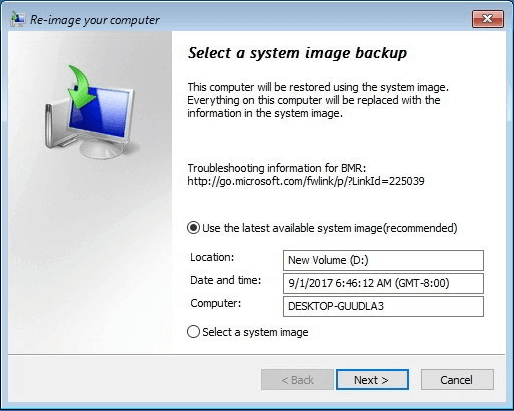
8. On the "Re-image your computer" page, select the "Use the latest available system image" option and click Next.
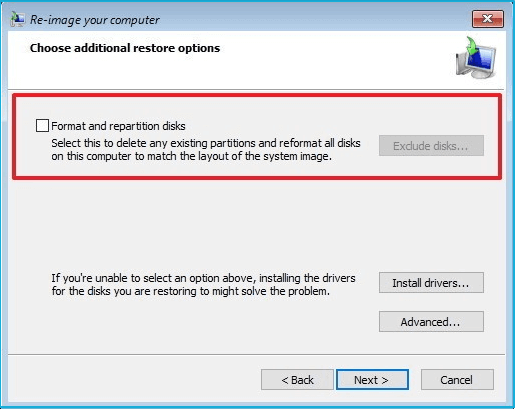
When restoring a full backup to a new drive, you can also choose to format and repartition disks, which will erase any existing partitions and disks on your computer. However, use this option with caution. After selecting this option, click the Next button.
9. Click Finish, and click Yes to confirm that the backup will replace the data on the drive.
If Windows 7 reports that a USB drive is not a valid backup location, use this guide for Windows 7 system image USB backup errors before changing backup media.
The Conclusion to the Whole Page
You can easily make a full backup of your system using either Method 1, a simple and free approach, or Method 2, a slightly more challenging option that requires more time and patience, but is still a viable choice if you're willing to put in the effort.
For backup destinations when you have no external drive, read Can You Back Up an Entire Windows PC Without an External Drive?
Related Articles
- ISO to USB: How to Burn ISO to USB in Windows 10
- How to Backup/Export and Restore Chrome History and Cookies
- Windows 10/8/7 System Restore Points Not Working
- [Guide] Backup Windows 10 to USB | Create a Windows 10 Recovery Drive
- Deploy Windows 10 with Best Windows 10 Deployment Tool
- Error 0x80071AC3 on an External Hard Drive – Solved Now!
This page focuses on the error 0x80071AC3 on an external hard drive, analyzes possible causes for the error and provides quick fixes to it.
Products
Articles & Tutorials
- Data Recovery
- Data Backup
- File Recovery
- File Backup
- System Backup and Restore
- Disk and Partition Clone
- Technical articles
- Mobile articles
- Disk Master Help
- Windows Data Recovery Tutorials
- Windows Secure Delete Tutorials
- Windows Partition Management Tutorials
- Windows File Backup and Restore Tutorials
- Windows System Backup and Restore Tutorials
- Windows Disk Backup and Restore Tutorials
- Windows Clone Tutorials