How to Fix Windows 10 Upgrade Error Code 0xc0000017
5 Ways to Fix Error Code 0xc0000017 in Windows 10
One common issue of Windows 10 upgrade/update is "There isn't enough memory available to create a ramdisk device" (error code 0xc0000017). A fresh install is undesirable. Therefore, check the workaround in the following content, and fix Windows 10 upgrade error 0xc0000017 during installation by yourself.
| Workable Solutions | Step-by-step Troubleshooting |
|---|---|
| Fix 1. Copy System Files to Config | Download and install WinPE. Enter Windows Preinstallation Environment...Full steps |
| Fix 2. Clean Up Bad Memory Entries | Since the computer is unbootable, you need the help of the recovery drive...Full steps |
| Fix 3. Disconnect External Devices | Disconnect the external devices. Reboot your computer and check...Full steps |
| Fix 4. Update Motherboard Drivers | Visit the manufacturer's official site and download the latest drivers to a USB drive...Full steps |
| Fix 5. Disable Hybrid Graphics | Press the power button to turn off the workstation. Press the power button again to turn on...Full steps |
Overview - What Is Error Code 0xc0000017
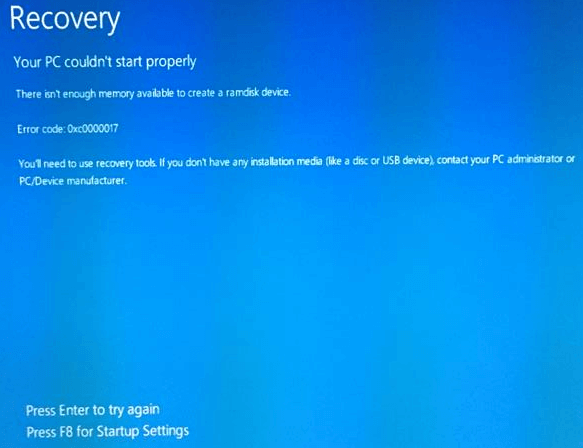
0xc0000017 error code in Windows 10/8.1 means there's not enough virtual memory or swap file quotas for the operation, often occurring after an update installation, resulting in a blue screen with the given message.
- Your PC/Device needs to be repaired.
- There isn't enough memory available to create a ramdisk device.
- Error code: 0xc0000017
- If you don't have any installation media (like a disc or USB device), contact your PC administrator or PC/Device manufacturer. You'll need to use recovery tools.
Also Read: How to Fix Error Code 0x80070002 in Windows Update
Scene - Not Enough Memory Available to Create a Ramdisk Device
To resolve the error 0xc0000017 and complete the Windows 10 upgrade, try the following: After the error occurs, restart your computer in Safe Mode, go to the Advanced Boot Options menu, and select Safe Mode with Networking. Then, open the Disk Cleanup tool to free up some disk space, and run the System File Checker (SFC) tool to scan and replace any corrupted system files. Finally, try to upgrade Windows 10 again via Windows Update. If the issue persists, consider seeking further assistance from Microsoft Support.
Even with plenty of RAM unused, you may still get stuck in a Windows 10 upgrade due to insufficient hard drive memory, specifically a lack of contiguous space. The error code 0xc0000017 implies that areas of memory have been marked as bad by Windows' Boot Configuration Data (BCD), interfering with the Windows 10 installer's ability to use RAM as a temporary store. This can be easily resolved by taking a few steps.
Resolution - How to Fix Error Code 0xc0000017 (5 Ways)
Here are five ways to fix error code 0xc0000017: first, check if the RAM is sufficient and upgrade if necessary; second, remove any external devices that may be causing conflicts; third, run a memory check using built-in tools or third-party software to identify and fix bad memory blocks; fourth, check for any malware or viruses and run a full system scan; and fifth, consider reinstalling Windows or running a System File Checker to repair corrupted system files.
Fix 1. Fix Error 0xc0000017 by Copying System Files
If your system files are lost, you may encounter error code 0xc0000017. To fix this issue, follow the steps below.
Step 1. Download and install WinPE.
Step 2. Enter Windows Preinstallation Environment and navigate to C:\Windows\System32\config\RegBack.
Step 3. To resolve the issue, copy the backed up system file to the config folder, which will allow the system to boot normally.
Fix 2. Clean Up Bad Memory Entries to Fix Error Code 0xc0000017
Error code 0xc0000017 occurs when there isn't enough memory available to create a ramdisk device. This issue can be resolved by cleaning up bad memory entries in Windows 10.
Step 1. Since the computer won't boot, you'll need a Windows 10 recovery drive or installation disk to get help.
Step 2. Connect the installation disk to your computer.
Step 3. To resolve the issue, open the Command Prompt, type "sfc /scannow" and press Enter. This will scan and replace any corrupted system files.
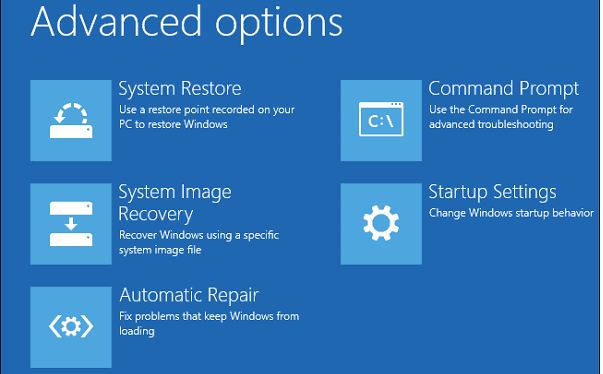
Step 4. To identify and remove bad memory locations, type `bcdedit /enum` in the Command Prompt and press Enter. This will display a list of all memory locations labeled as "bad", which can then be removed or deleted.
Step 5. Type bcdedit /deletevalue {badmemory} badmemorylist and hit "Enter".
Then you can exit and restart your PC and perform the update.
Fix 3. Disconnect External Devices to Fix 0xc0000017 Error
Error 0xc0000017 can be fixed by disconnecting external devices, as the conflict between these devices may be causing the issue. This is a simple and quick solution to resolve the problem.
Step 1. Disconnect the external devices.
Step 2. Rebooting your computer may resolve the issue, so try restarting it and see if the error persists.
Fix 4. Update Motherboard Drivers to Fix 0xc0000017 Error
Last but not least, you can update motherboard drivers. You can be faced with a 0xc0000017 error if your driver is outdated. You also need a recovery drive or WinPE USB because your computer cannot boot. Then, follow the steps below to update motherboard drivers.
Step 1. Visit the manufacturer's official website and download the latest drivers to a USB drive.
Step 2. Boot the unbootable computer from the recovery drive.
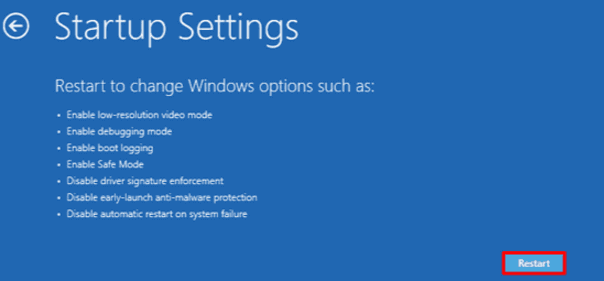
Step 3. To continue, click on "Troubleshoot" and then select "Advanced Options". From there, choose "Startup Settings".
Step 4. Click "Restart" and Press "F4" to enable Safe Mode.
Step 5. Connect the USB drive containing the latest driver to the unbootable computer, then run the executable file and follow the on-screen prompts to install the driver.
Fix 5. Disable Hybrid Graphics If Error 0xc0000017 Occurs
Users claim that disabling hybrid graphics has resolved error 0xc0000017 for them, a solution aimed at balancing high performance and power saving capabilities on computers with two graphics cards.
Step 1. Press the power button to turn off the workstation.
Step 2. Press the power button to turn on the workstation, and then repeatedly press the ESC key to enter the Startup Menu.
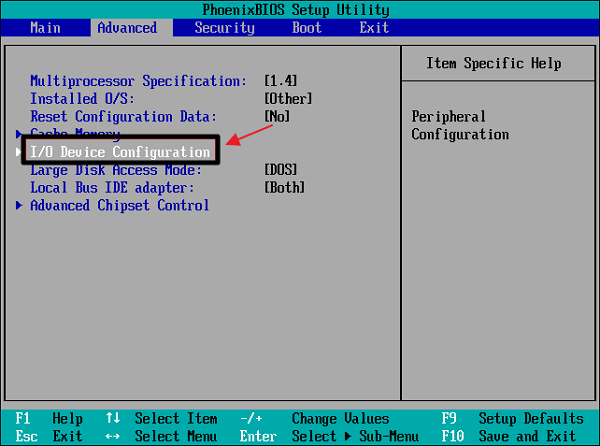
Step 3. Press the F10 key in the Startup Menu to access the BIOS setup utility.
Step 4. To disable hybrid graphics, click on "Advanced" in the BIOS settings, followed by "Device Configurations" and then select "Hybrid Graphics". Finally, click on "Disable".
Step 5. Click "Save > Save changes" and exit BIOS.
Hard Drive Memory Management After Fixing Error 0xc0000017
If you're experiencing the 0xc0000017 error during Windows 10 installation or updates, I wish you good luck in resolving the issue. Additionally, here are some bonus tips on how to optimize your computer's hard drive memory by organizing and managing it in a logical way, allowing you to make the most of your device's storage capacity.
Qiling Partition Master can help customize your hard drive volumes by resizing/moving partitions, merging partitions, and splitting partitions, which can be used to create larger volumes without data loss.
Step 1. Check for free space
To divide a disk partition into multiple ones, you must ensure that there is adequate free space to be allotted.
Step 2. Shrink a disk partition to create unallocated space
To resize a partition, start by clicking on the "Resize/Move" feature, then select a partition with ample free space and click on it to initiate the resizing process.
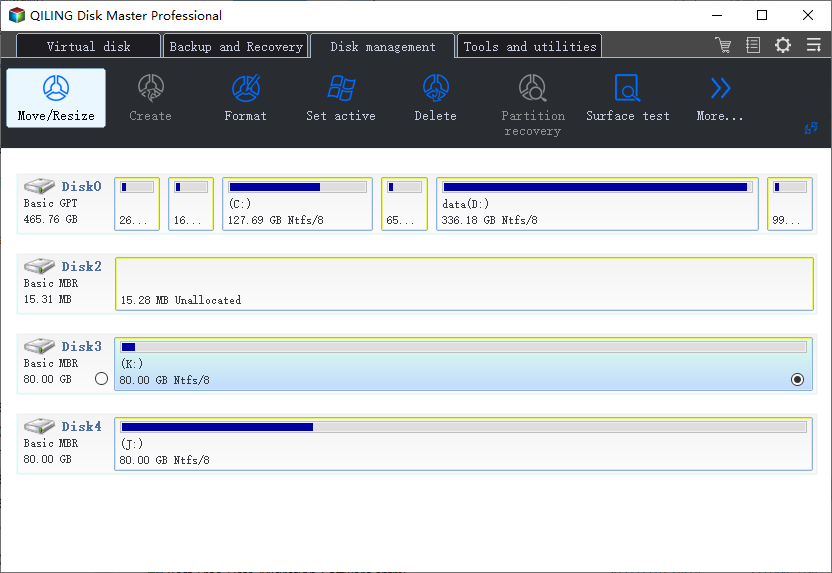
To free up space, drag the partition to the right or left, reducing its size, and monitor the "Partition size" area to see the decrease in space. This action creates unallocated space.
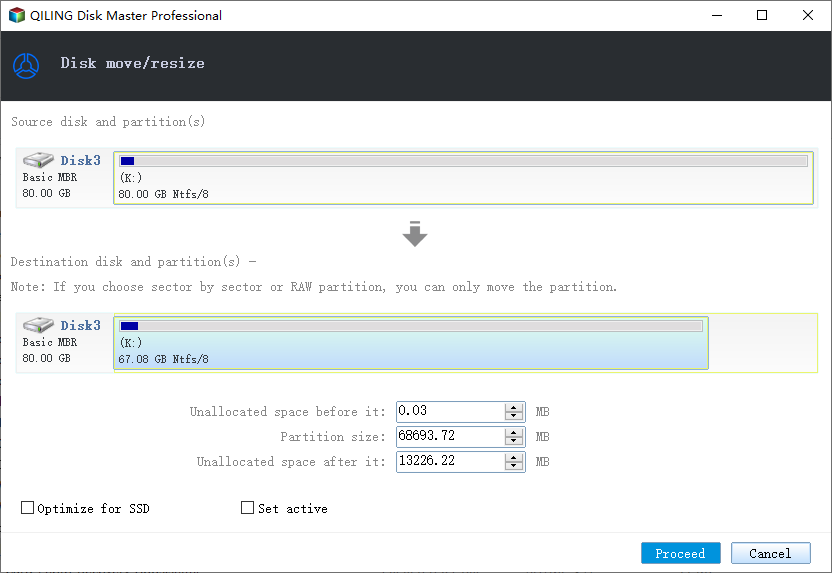
To finalize the shrinking process, click the "Proceed" button to save all changes. Then, go back to the main window, where you should see unallocated space appearing under the same disk as the one you just shrunk.
Step 3. Create a new partition on unallocated space
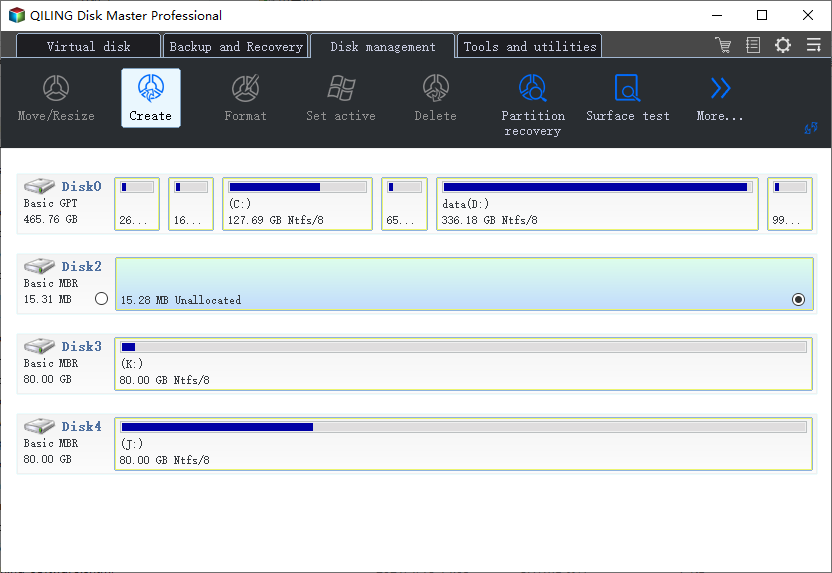
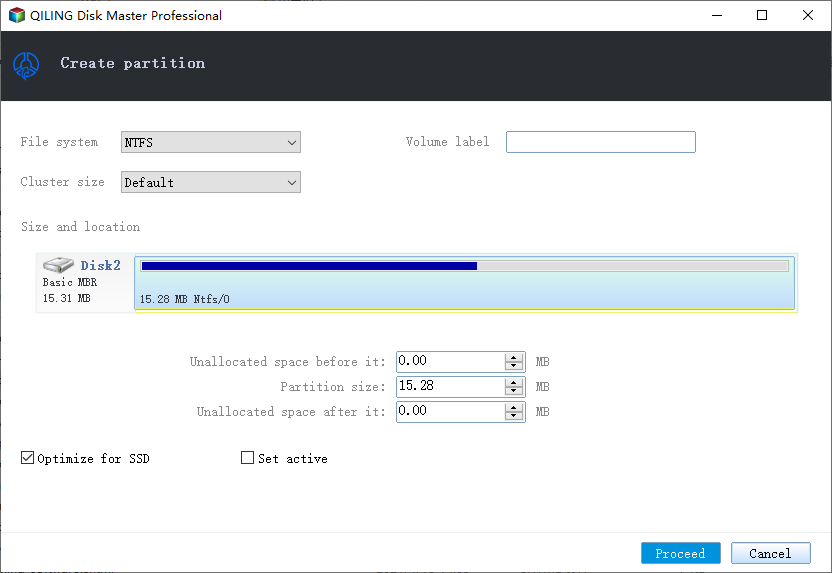
The final step is to create a usable partition drive with a recognized file system from the unallocated space. To do this, right-click on the unallocated space and select "Create".
To customize the partition information, select a drive letter, partition label, and file system (such as NTFS, FAT32, EXT2/3/4, or exFAT) from the Advanced Settings. This allows for detailed control over the partition's configuration.
To partition a hard drive in multiple partitions, first, open the Disk Management tool by searching for it in the Start menu. Next, select the hard drive you want to partition and click on "New Simple Volume" to create a new partition. Assign a drive letter and file system to the partition, then click "Next" to proceed.
Conclusion
If you're experiencing error code 0xc0000017, don't worry - there are 5 ways to fix it. You can try any of these solutions to resolve the issue. Additionally, if you need to partition a hard drive or change the file system, you can use Qiling Partition Master to achieve this.
Error Code 0xc0000017 Related Questions
If you still have problems, you can read these questions and answers.
How do I fix error code 0xc0000017?
To fix 0xc0000017:
- Fix 1. Fix Error 0xc0000017 by Copying System Files
- Fix 2. Clean Up Bad Memory Entries
- Fix 3. Disconnect External Devices
- Fix 4. Update Motherboard Drivers
- Fix 5. Disable Hybrid Graphics
What is error 0x8007139f?
Windows Update error 0x8007139f typically occurs after a failed Windows update or issues during the update download/installation process. It may also arise due to corrupted system components or software that trigger the error code.
How do I fix error code 0x8007139f?
To fix Windows update error:
- Check your antivirus
- Run Windows Update troubleshooter
- Run SFC and DISM scans
- Create a new user account
- Reset Windows Update components
- Perform a System Restore
- Try to install the update manually
- Perform an in-place upgrade
What is error code 0xc00000e9?
Windows error code 0xc00000e9 is a common Windows Boot Manager error that indicates either a hardware failure or a corrupted system file encountered during the boot process.
Related Articles
- 6 Solutions to Fix Unmountable Boot Volume Windows 10/8/7
- How to Fix Windows 10 Update with Error Code 0x800F0922 Issue
- Fix Windows (11/10/8/7) Won't Boot From USB Error
- How to Transfer Data from Xbox 360 to Xbox One
- How to Backup HP Recovery Partition in Windows 11/10/8/7
There are several ways to backup HP recovery partition, but all with many limitations. To backup recovery partition on any OS, here's an easier way. - Best Way to Backup PC to Cloud in Windows 10 or 11 (FREE)
Need the best free way to backup PC to cloud drive like Google Drive? Try Qiling Disk Master Standard, not only free, but also protect data continuously.
Products
Articles & Tutorials
- Data Recovery
- Data Backup
- File Recovery
- File Backup
- System Backup and Restore
- Disk and Partition Clone
- Technical articles
- Mobile articles
- Disk Master Help
- Windows Data Recovery Tutorials
- Windows Secure Delete Tutorials
- Windows Partition Management Tutorials
- Windows File Backup and Restore Tutorials
- Windows System Backup and Restore Tutorials
- Windows Disk Backup and Restore Tutorials
- Windows Clone Tutorials