How to Back up Computer? What's the Best Way for Computer Data Backup
In today's digital age, we rely heavily on our computers to store and access our data. However, this reliance also makes us vulnerable to data loss due to hardware issues, accidental file deletion, or other unforeseen circumstances. To avoid the hassle and stress of losing important files, it's essential for computer users to maintain regular backups of their critical data, ensuring that they have a safety net in case of any digital mishaps.
PAGE CONTENT:
- Part 1: The Importance of Computer Data Backups
- Part 2: List of Ways to Backup a Computer
- Part 3: Conclusion
Part 1: The Importance of Computer Data Backups
Keeping backups of your files can be beneficial in multiple ways, including protecting against sudden data loss and allowing you to revert to previous versions of a file if needed. This can be particularly useful when editing files, as it enables you to recover a previous version if an issue or mistake is encountered.
Keeping backups is not limited to files and folders, but also entire partitions, disks, or even the operating system, using reliable backup software, allowing for a complete system restore in case of damage or destruction.
Backing up data can be done in various ways, including manually copying files, syncing them to cloud storage, or using software to automatically store copies of necessary data. This article will demonstrate how to backup files using these three methods and compare their advantages and limitations.
Part 2: List of Ways to Backup a Computer
To ensure your data is safe, consider using reliable migrate Windows OS to SSD like Qiling Backup, which allows you to automatically backup files, systems, and disks to a hard drive, external device, or cloud storage, and features scheduling, encryption, compression, and cloning capabilities.
Simple methods are generally only used for backing up individual files and folders. Users looking to clone a hard disk partition or the operating system may refer to Method 3 for detailed guides on Qiling backup software.
- Method 1: Copy to External Hard Drive or USB Drive
- Method 2: Backup via Cloud Storage and File Sync
- Method 3: Use a Backup Software to Backup the Computer Data
Method 1: Copy to External Hard Drive or USB Drive
Backing up your files can be as simple as copying them to another device, such as an external hard drive or USB drive. However, this method may not be efficient for users who need to regularly back up large amounts of data.
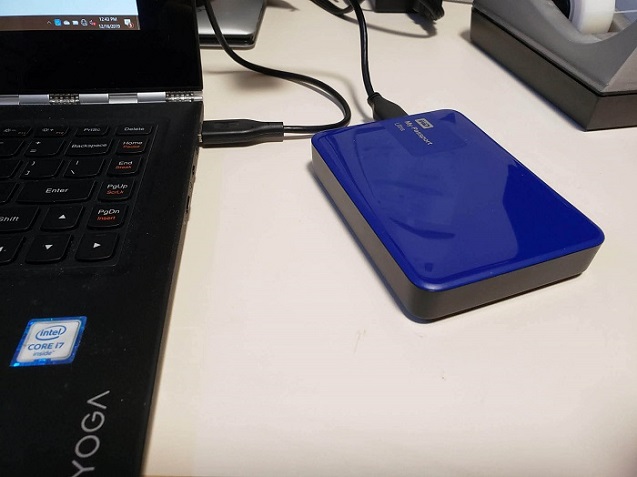
The time it takes to copy files depends on the external device and connection type used. For optimal results, I recommend using an external SSD connected through a computer's USB 3.0 port for faster write speeds.
Step 1. Locate all files and folders that you want to backup.
Step 2. Copy and Paste (or click and drag) the files into your external hard drive or USB drive.
Step 3. Once finishing the copying process, safely eject the device.
Pros:
- Simple and intuitive
- Easily done and efficient for small files
Cons:
- Is time-consuming and not suitable for regular backup of larger files
- Risks running into errors when copying
- Prone to user error when selecting files to copy
Method 2: Backup via Cloud Storage and File Sync
You can store important files on free and accessible cloud storage services like Dropbox, Google Drive, or OneDrive, which allow you to sync files across multiple devices, keeping your data safe if one device becomes inaccessible.
Users may need to pay for storage upgrades and face syncing issues due to slow internet, and files must be downloaded beforehand for offline access.
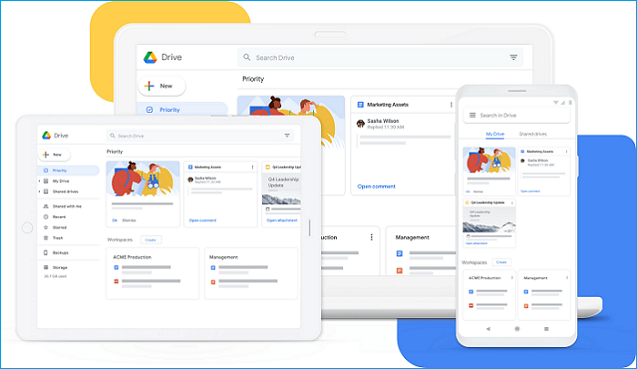
Accessing cloud storage can vary for each service, but here's a general example with Google Drive: you can access your files by logging into your Google account, navigating to the Drive tab, and selecting the files you want to view or download. This process may differ slightly for other cloud storage services like Dropbox, Microsoft OneDrive, or Amazon Drive, but the overall concept remains the same - you need to have an account and log in to access your stored files.
Step 1. Go to Google Drive on your web browser
Step 2. Log in with your Google account or register one
Step 3. Upload files or create new files as needed
To access your Google Drive on a mobile device, install the Google Drive app and sign in with the Google account you used earlier.
Pros:
- Easily access your stored files from any device
- Any edits are synced to the cloud immediately
Cons:
- Limited storage for free services
- Requires stable internet connection to function properly
Method 3: Use a Backup Software to Backup the Computer Data
You can install backup software to manage your important data easily and automatically, making it suitable for all beginners looking to backup files to an external hard drive. This allows you to backup an entire hard drive partition or the operating system as a whole with a few a few clicks.

Qiling Backup is an easy-Qiling Backup is a data backup software that helps users protect their essential data by automating scheduled backups of selected files, safeguarding frequently changed files, and allowing for seamless migration of the operating system to another drive without reinstallation. Additionally, the software enables users to clone Windows into a USB drive, making their operating system portable and accessible everywhere.
Qiling Backup offers a range of backup methods and strategies, allowing you to manage your data backups efficiently. To get started, please follow the detailed user guide provided to protect your essential data.
What Can Qiling Backup Do For You?
- Safely back up and restore personal files in a few clicks.
- One-click to clone, upgrade, or transfer your system quickly.
Step 1. Open Qiling Disk Master and select "File backup" as the backup mode in the "Backup and recovery" page.
You may have a large amount of vital data to be protected, such as documents, pictures, music, and videos, which requires regular backups to prevent unexpected data loss, and File Backup is a good choice for this purpose.
Step 2. Select the files that you want to back up.
You can also enter "Plan name" and "Description" for specifying your file backup.

Step 3. Select a destination to save your backup of the selected files.
You should create the backup file in a different storage media or drive to avoid the risk of it getting corrupted or destroyed.

Advanced backup settings allow you to create a customized backup plan that suits your specific needs, enabling you to automate the backup process and ensure that your data is safely stored.
The schedule is to create an automatic backup plan.

The Image-The reserve strategy is to reserve the limited image based on the image retention rule.
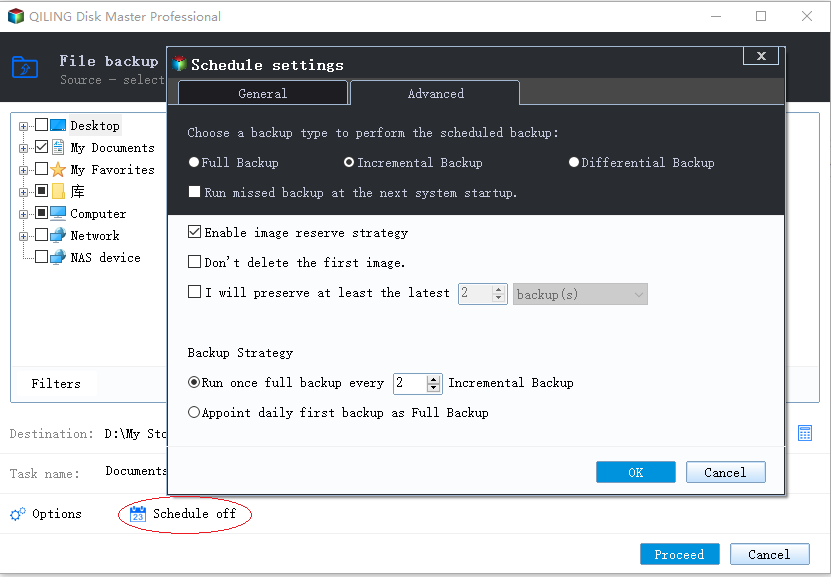
Backup options are to edit the advanced parameters.

Step 4. Click "Proceed" to execute your operation.
Pros:
- Easily access your stored files from any device
- Any edits are synced to the cloud immediately
Cons:
- After the free trial period ends, users must purchase a software license to continue using the software, which typically involves a one-time payment or subscription fee.
- Maybe excessive for situations that only require simple file copying
Part 3: Conclusion
Regularly maintaining backups of digital data on an external device or cloud is crucial to prevent damage and loss, just like physical data. This ensures that your system remains safe and intact from potential risks such as data corruption or hardware damage. Reliable backup software can also be used to automatically manage backups for users looking for a simple solution.
Download Qiling Backup now to start protecting your computer from data loss issues, manage your drives, and much more.
Related Articles
- Windows 10/8/7 System Restore Points Not Working
- Lenovo OneKey Recovery Free Download for Windows 10 64 Bit/32 Bit
- Create System Image on USB Drive in Windows 10/8/7
- How to Create a Windows 10 Recovery USB for Another Computer
- How to Clone Laptop Hard Drive
- How to Rescue Data and Programs When Windows 11 Dies
When Windows 11 dies, you can rescue your data and programs by following these steps. First, you can use the built-in File History feature to back up your files, or use an external hard drive or cloud storage to manually copy your files.
Products
Articles & Tutorials
- Data Recovery
- Data Backup
- File Recovery
- File Backup
- System Backup and Restore
- Disk and Partition Clone
- Technical articles
- Mobile articles
- Disk Master Help
- Windows Data Recovery Tutorials
- Windows Secure Delete Tutorials
- Windows Partition Management Tutorials
- Windows File Backup and Restore Tutorials
- Windows System Backup and Restore Tutorials
- Windows Disk Backup and Restore Tutorials
- Windows Clone Tutorials