[Error 0x8007016a] Fix OneDrive Cloud Error Code
Cloud services have become essential for storing and maintaining data across devices, with Microsoft OneDrive being a prominent platform that offers cloud services across Windows devices. However, despite its popularity, users have reported various issues related to its cloud operations.
Error 0x8007016a This error occurs when users cannot access or copy files stored on both their local machine and cloud-based service, specifically OneDrive. It often happens when trying to delete or move OneDrive folders or files, causing issues with the cloud provider's operation. The error is typically associated with OneDrive installed on the device.
This article reviews the issue of OneDrive error code 0x8007016a, providing a comprehensive overview of the problem and potential solutions to resolve it across various devices.
Part 1: Why OneDrive Cloud Shows Error Code 0x8007016a
The error 0x8007016a may appear due to various reasons related to the non-operational OneDrive Cloud File Provider. This issue could be caused by several factors, including issues with the provider itself, problems with the OneDrive account, or conflicts with other applications using the cloud file provider.
1. Synchronization is Deactivated
One of the basic reasons for such an error across OneDrive is the disabled or paused synchronization, which can occur if OneDrive is unable to resume syncing across the desktop, or if third-party power-saving tools are deactivating the synchronization.
2. System Files May Have Corrupted
The issue may be caused by corrupted system files across the computer, which can be resolved by removing OneDrive and all related files from the system.
3. File On-Demand Feature Enabled on Desktop
If you have the File On-The demand feature enabled across OneDrive's Settings has caused errors, including the "Error 0x8007016a," which occurs while managing files across the cloud service.
4. Battery Saving Enabled
The cause of the Error 0x8007016a can be due to the desktop's power-saving settings, which disrupt the OneDrive synchronization process, leading to errors.
How to Backup Windows 10/11 to OneDrive?
This post will guide you through various methods to back up your essential files and entire computer system, as well as introduce you to Qiling Backup, the top choice for backing up your Windows computer.
Part 2: How to Fix OneDrive Error 0x8007016a - 6 Ways
We've explored the causes of error 0x8007016a in detail. Now that you understand the reasons behind this OneDrive error code, it's time to identify the remedies that can resolve it.
- 1. Update Windows to the Latest Version
- 2. Disable the Files On-Demand Feature
- 3. Enable OneDrive Sync Process
- 4. Turn-off Power Saving Mode
- 5. Reset OneDrive
- 6. Reinstall OneDrive
Method 1: Update Windows to The Latest Version
Outdated operating systems can cause errors across your desktop, disrupting system processes and affecting cloud-based services and third-party procedures. To resolve this, updating your Windows to the latest version can help. This can be achieved by following a series of steps, including checking for updates, restarting your computer, and installing the latest version of Windows. By doing so, you can ensure that your system is running with the most recent security patches and features, minimizing the risk of errors and improving overall performance.
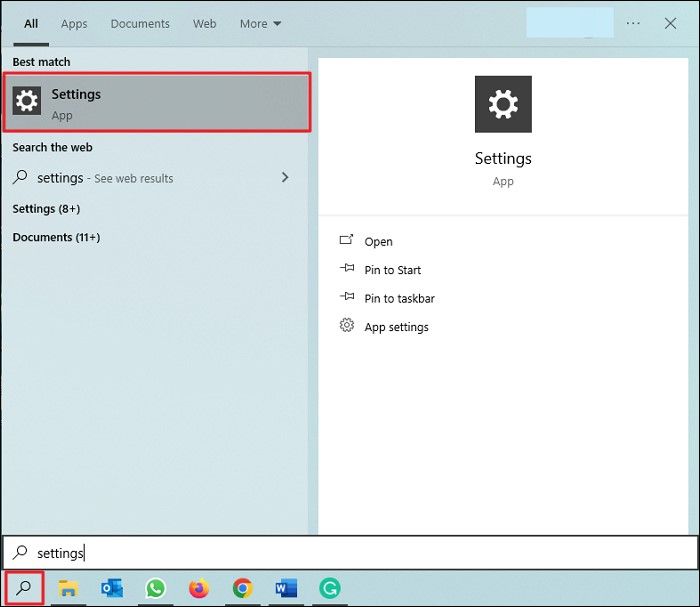
Step 1: To open the desktop's settings, access the "Search" icon from the taskbar, type "Settings" in the field, and click on the result to open the settings.
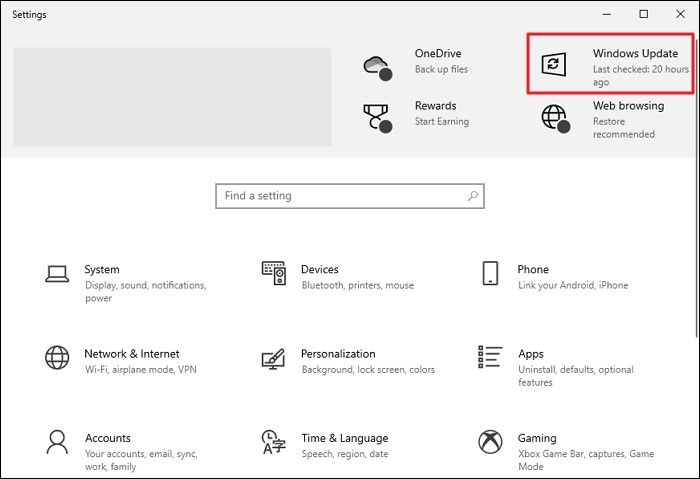
Step 2: To update Windows, open the Settings screen and navigate to the Windows Update option located on the top-right section of the window.
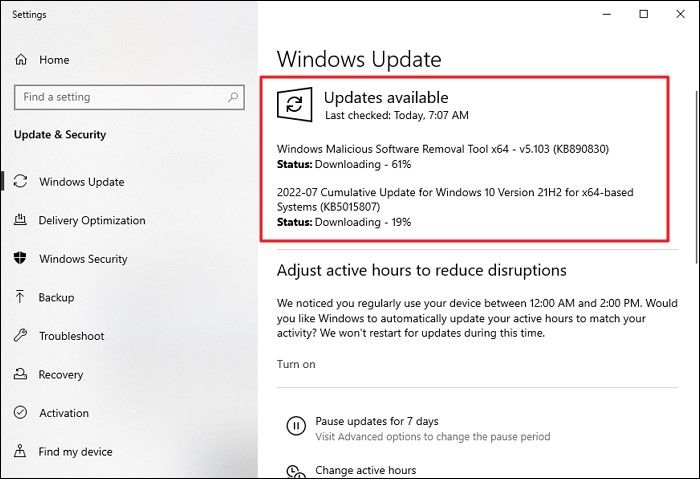
Step 3: To check for updates, click on the "Check for Updates" button, and if available, click on "Download and Install" to update your Windows to the latest version.
Method 2: Disable The Files On-Demand Feature
To resolve the error 0x8007016a in OneDrive, disabling the Files On-Demand feature is recommended, which can be done by opening OneDrive, clicking on the "Help & Settings" icon, selecting "Settings", clicking on the
Step 1: To open the Run dialog box on your desktop, press the shortcut keys "Win + R". Then, launch the Command Prompt (CMD) and type the command: "systeminfo" (without quotes). This will display detailed information about your computer's system, including its hardware, software, and operating system.
"Start %LOCALAPPDATA% \Microsoft\OneDrive\OneDrive.exe /client=Personal"
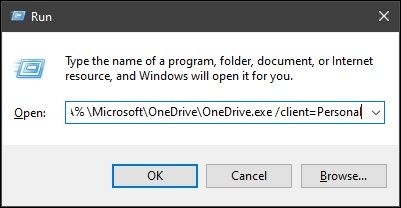
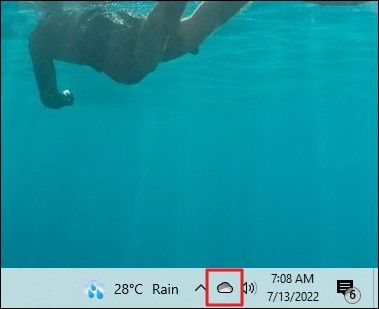
Step 2: To enable OneDrive on your desktop, find the OneDrive icon in the taskbar, which is a list of icons at the bottom of your screen.
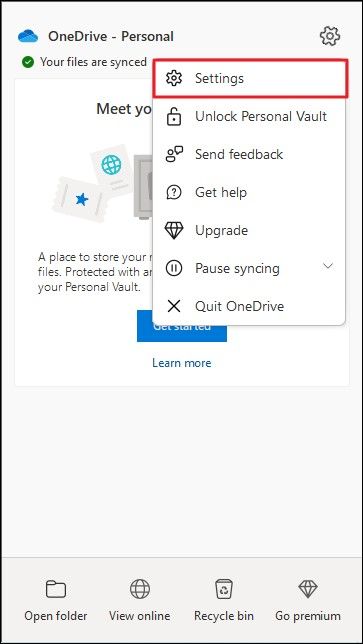
Step 3: To access OneDrive settings, click on the "Gear" icon in the top-right section of the screen and select "Settings".
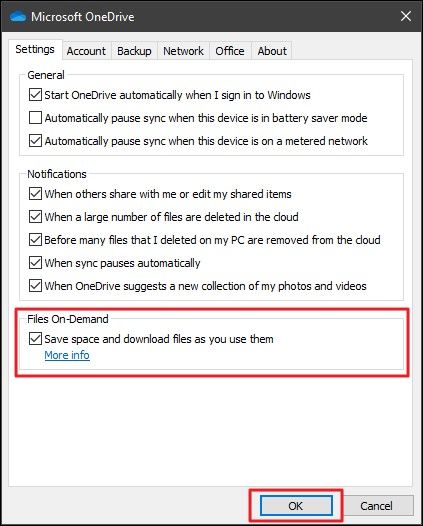
Step 4: To resolve the error, go to the Settings tab, uncheck the option in the File On-Demand section, and click OK to save the changes, which should resolve the issue with OneDrive.
Method 3: Enable OneDrive Sync Process
If OneDrive's synchronization process is disabled on your desktop, it can lead to issues like the Error 0x8007016a. To resolve this, you can enable the synchronization process by following the necessary steps.
Step 1: To access the OneDrive settings, click on the OneDrive icon from the taskbar, which will open a pop-up menu displaying various settings options for your OneDrive account.
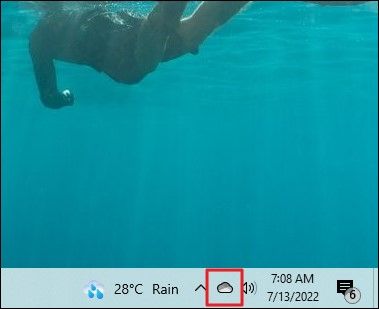
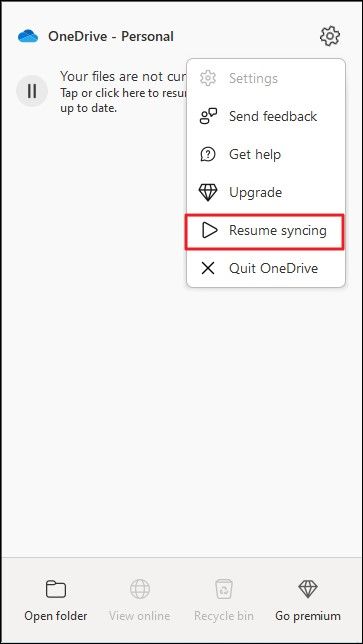
Step 2: To enable the sync process, click on the "Gear" icon located in the top-right corner of the menu and select the "Resume syncing" option.
Method 4: Turn-Off Power Saving Mode
As discussed before, the power-To avoid the error 0x8007016a with OneDrive, turn off Power Saving Mode across your device. This can be done by going to Settings, then selecting System, and finally clicking on Power & sleep. From there, toggle off the switch next to "Screen and sleep" to turn off Power Saving Mode.
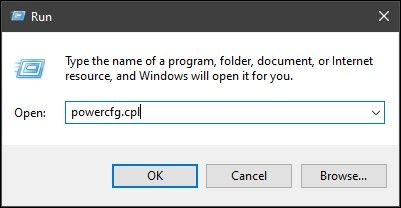
Step 1: Use the "Win + R" button to open the Run project. Type in the command "powercfg.cpl" and hit "OK."
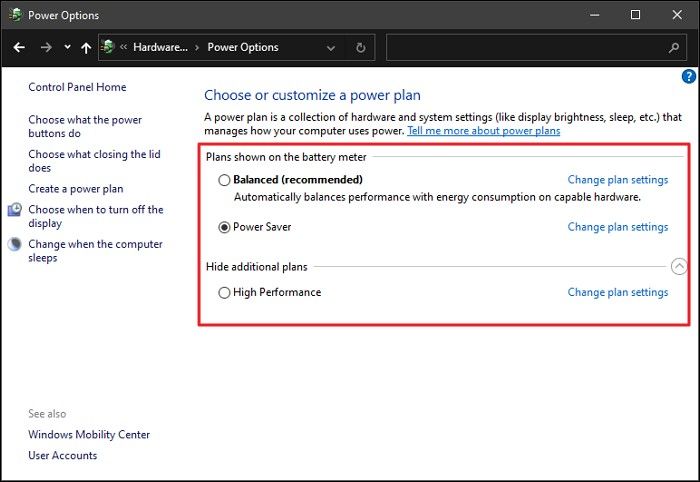
Step 2: To adjust your computer's power settings, open the "Power Options" page, and toggle between the "Balanced" and "High performance" plans as needed.
Method 5: Reset OneDrive
If none of the above methods work properly, you may have to reset all your OneDrive settings to restart the complete cloud service from the start, which can help resolve issues like these. To do this, follow the steps to reset OneDrive on your computer.
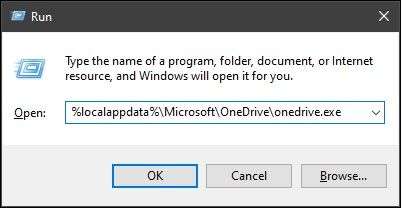
Step 1: To open the Run program, go to the "Search" icon on the taskbar and type the command in it:
"%localappdata%\Microsoft\OneDrive\onedrive.exe /reset"

Step 2: This will reset and restart OneDrive across your system. If it doesn't restart, use the following command to reset OneDrive manually:
"%localappdata%\Microsoft\OneDrive\onedrive.exe"
Method 6: Reinstall OneDrive
If the above methods have not worked properly, reinstalling OneDrive on your system is a perfect solution. To do this, follow the steps: (insert steps here).
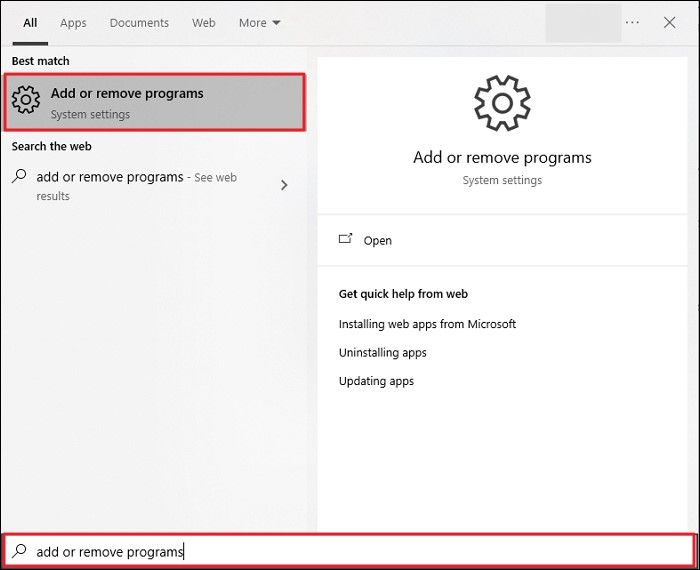
Step 1: To open the "Add or remove programs" window, tap on the "Search" icon on the taskbar and type in "Add or remove programs" to bring up a new window.
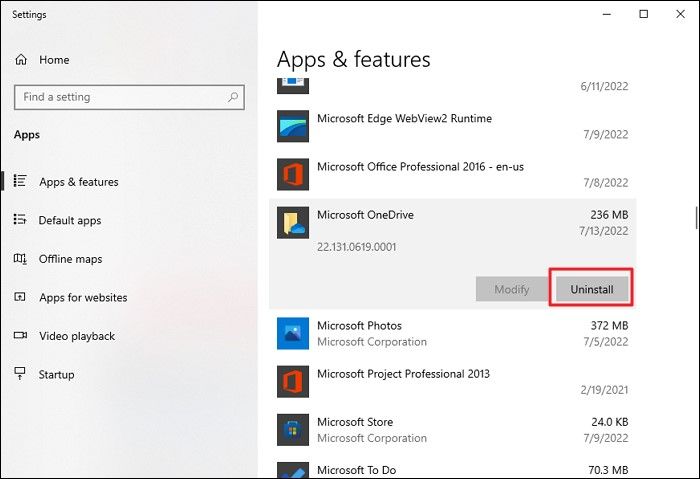
Step 2: To uninstall Microsoft OneDrive, search for "Microsoft OneDrive" in the list and select it, then click on "Uninstall" to delete it from your system.
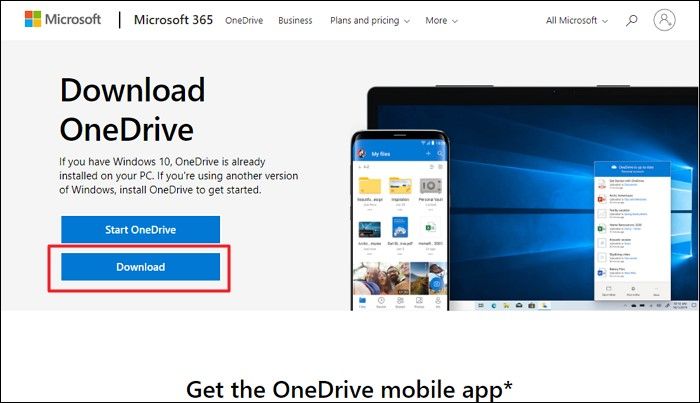
Step 3: To access OneDrive, you can download it from the browser and install it on your computer. Simply search for OneDrive in your browser, click on the official OneDrive download link, and follow the installation instructions to get it up and running. Once installed, you can access your OneDrive files and folders from the desktop icon or by searching for OneDrive in your computer's start menu.
Part 3: OneDrive Backup Alternative – Qiling Backup
OneDrive is not the best backup and sync software, with many users wanting to stop OneDrive backup on their computers. If you're experiencing issues with OneDrive for desktop, such as errors, you deserve better. Qiling Backup offers a smoother, better, and quicker system of backing up data, with one-click backup functionality for high efficiency.
Qiling Backup offers a top-notch cloud backup system that simplifies the process while keeping it quick and complication-free, backing up all data without any hassle.
- There are multiple backup options and modes available across the platform, including backing up on events, scheduled backups, and incremental and differential backups.
- Qiling Cloud Storage, which is based on AWS, offers 250 GB of free storage space.
- It provides data backup to multiple destinations, including cloud services, NAS, local drives, and Qiling Cloud, for added security and convenience.
- This tool enables users to create a WinPE bootable disk, providing a convenient and efficient means for computer recovery and troubleshooting.
Steps to Backup Data With Qiling Backup
To backup data with Qiling Backup as a OneDrive alternative, follow these simple steps: First, download and install the Qiling Backup software. Next, create a new backup job by specifying the files or folders you want to backup, as well as the destination storage location.
Step 1. When you first use Qiling Backup, go to the Backup and recovery page and click on File backup to start backing up your files.

Step 2. To back up files and folders on your computer, you can select various types of files, such as pictures, videos, documents, and more, to include in the backup.
Step 3. To back up files, folders, or directories, follow the paths to locate the items you want to save, and then select them all.
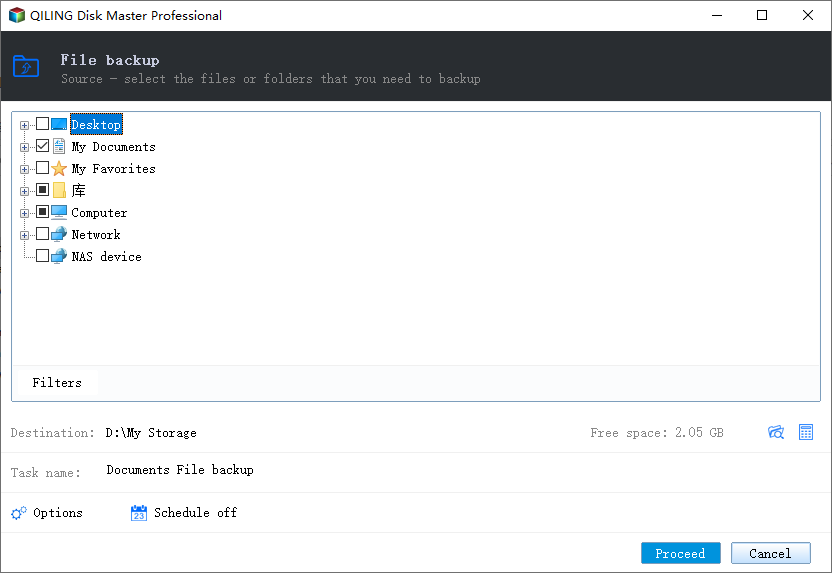
Step 4.To select a backup location, you will need to choose a folder or drive where you want to save the backup. This could be an external hard drive, a network drive, or even a cloud storage service like Google Drive or Dropbox.
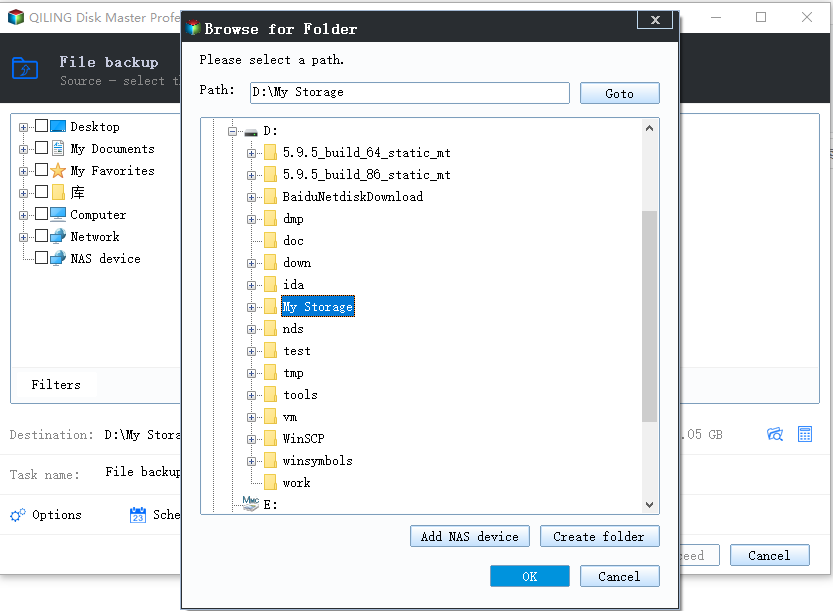
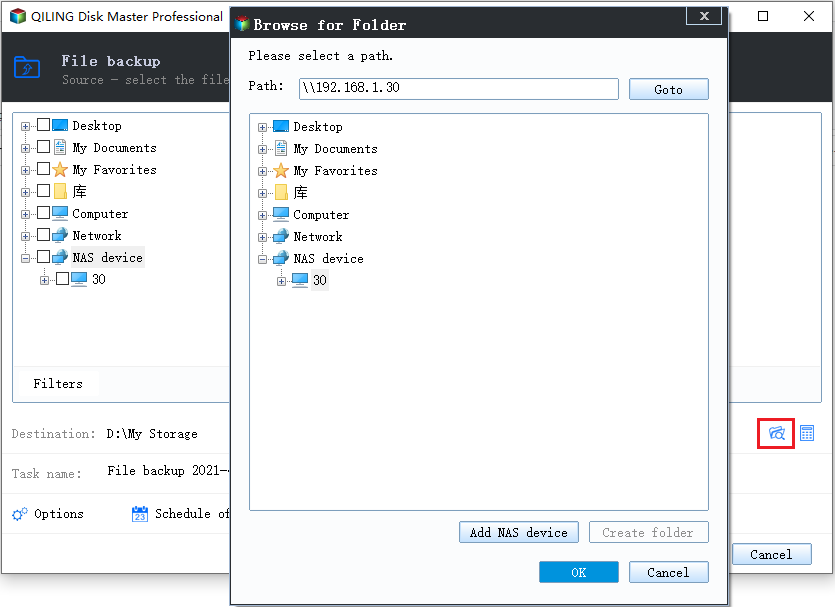
Step 5. Qiling Backup allows users to save backup files to various devices, including local hard drives, external USB drives, SD cards, network drives, and NAS drives, as well as cloud drives from Qiling. It's recommended to prioritize cloud drives for their greater accessibility, flexibility, and safety.
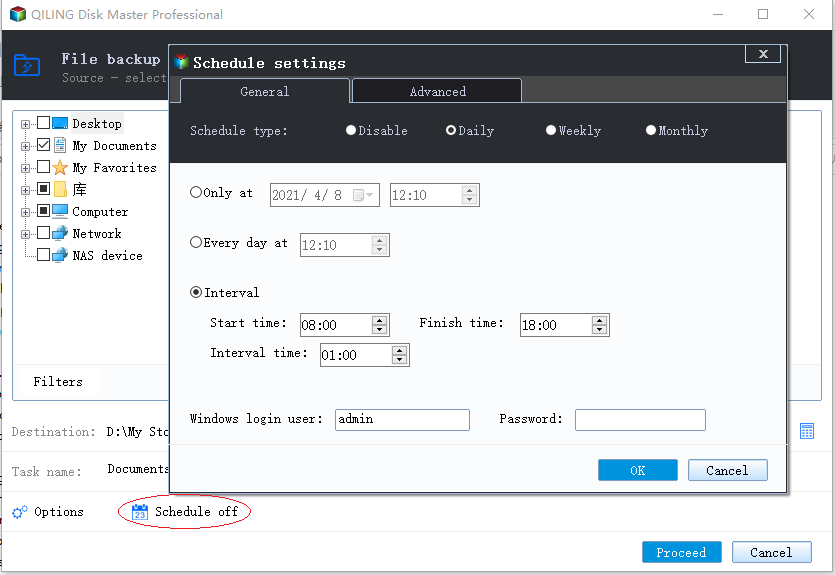
Step 6.To set up an automatic and intelligent backup schedule for the next file backup task, go to the "Options" setting. There, you can choose to encrypt confidential files, compress the backup image size, or customize a backup schedule to specify the start time of the next backup.
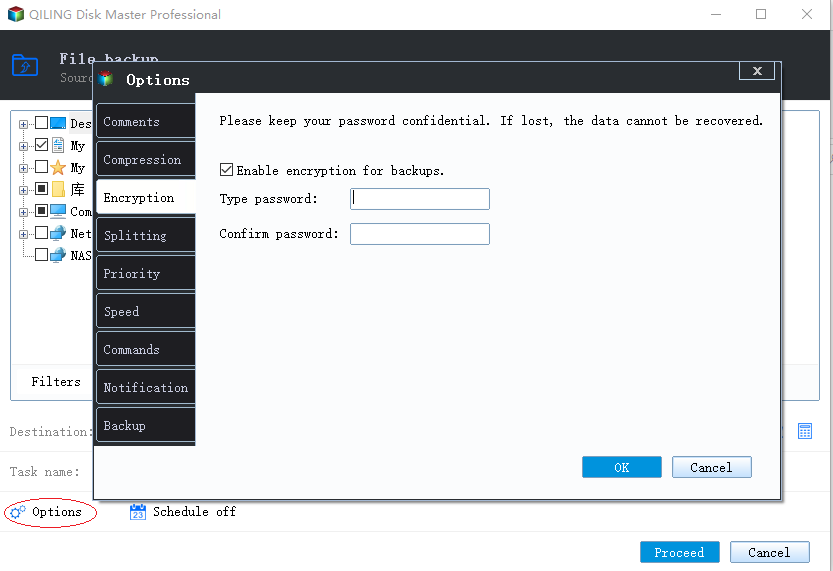
Customize an advanced and automatic backup task here:
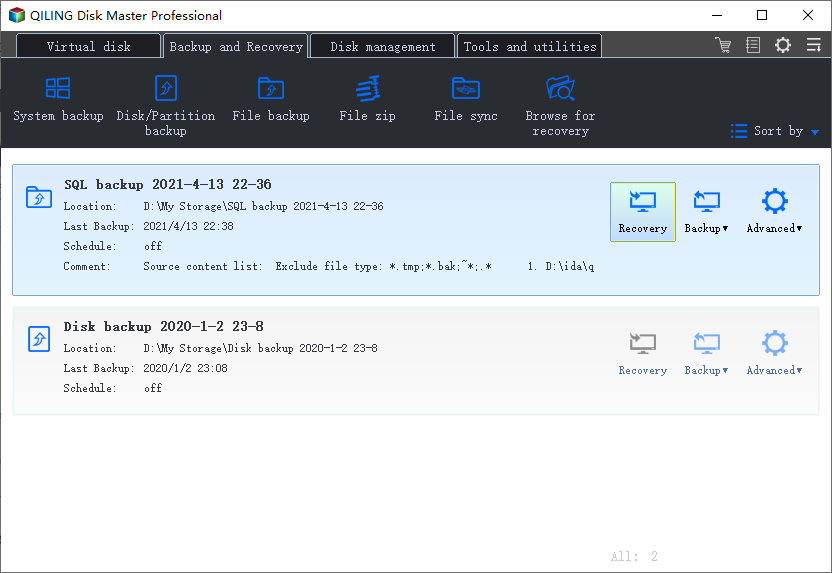
Step 7. Click "Proceed" to start the file backup process. Your completed backup files are then displayed on the left side in a card format.
Conclusion
The article provides detailed information about Error 0x8007016a and its causes. It offers clear methods in chronological order to address the issue, including using Qiling Backup as an alternative to avoid problems like the OneDrive cloud file provider not running.
Related Articles
- How to Set Chrome as My Default Browser?
- Windows 10 Backup No Usable Drives Found [Updated Issue Solved!]
- Disk & System | How to Clone Windows 11 to SSD
- For Beginner's: Put a Windows 11 PC to Sleep
- How to Backup Onedrive to Synology NAS - 3 Effective Ways
If you're looking for a way to back up OneDrive to your Synology NAS, this guide provides a solution. It outlines three working methods to ensure your OneDrive files are safely backed up to your Synology NAS, with step-by-step instructions provided. - Backup Outlook Calendar to a New Computer Easily [2024]
Learn how to back up Outlook Calendar to a new computer. Use Outlook export or backup software to protect appointments, meetings, and calendar data.
Products
Articles & Tutorials
- Data Recovery
- Data Backup
- File Recovery
- File Backup
- System Backup and Restore
- Disk and Partition Clone
- Technical articles
- Mobile articles
- Disk Master Help
- Windows Data Recovery Tutorials
- Windows Secure Delete Tutorials
- Windows Partition Management Tutorials
- Windows File Backup and Restore Tutorials
- Windows System Backup and Restore Tutorials
- Windows Disk Backup and Restore Tutorials
- Windows Clone Tutorials