What's the Difference between Differential and Incremental Backups
Differential and incremental backups are "smart" backup options that save time and disk space by only backing up changed files. While they share the goal of minimizing data redundancy, they differ in their approach: differential backups save all changes since the last full backup, whereas incremental backups save only the changes since the last backup of any kind. The result is that differential backups are generally more useful for disaster recovery, as they allow for a quick return to a known good state, whereas incremental backups are more useful for continuous data protection, as they enable the recovery of specific files or folders.
Most computer information remains static, including applications, operating systems, and user data, with only a small percentage changing daily or weekly. Therefore, backing up only the changed data on a daily basis makes sense, forming the basis of sophisticated backup strategies.
What is a differential backup
A differential backup is a practical method for backing up single files or folders that change daily, involving backing up only the files that have changed since the last full backup. This approach is more efficient than a full backup, which copies all files every time, by only duplicating the changes made since the last complete backup.
A full backup is done on a regular interval, such as Sunday. Then, on subsequent days, only the files that have changed since the last full backup are backed up, until the next full backup is done. This incremental backup approach saves time and storage space compared to doing a full backup every day.
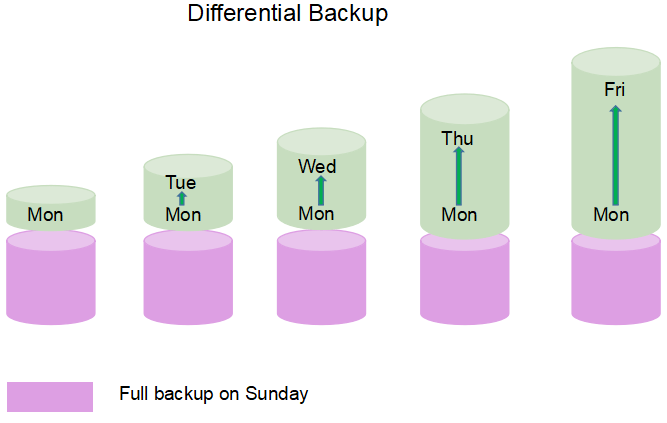
Differential Backup .vs Full Backup
- Differential backups are quicker than full backups because they only back up the data that has changed since the last full backup, but the amount of data being backed up grows with each differential backup until the next full backup.
- Differential backups are more flexible than full backups, but still unwieldy to do more than about once a day, especially as the next full backup approaches.
What is an incremental backup
Incremental backups only back up the data that has changed since the last backup, whether that was a full or incremental backup, making them a more efficient option for frequent backups.
If you do an incremental backup on Tuesday, it will only back up the data that has changed since the incremental backup on Monday, resulting in a much smaller and faster backup. This method is beneficial when the time intervals between backups are short, as it reduces the amount of data to be backed up.
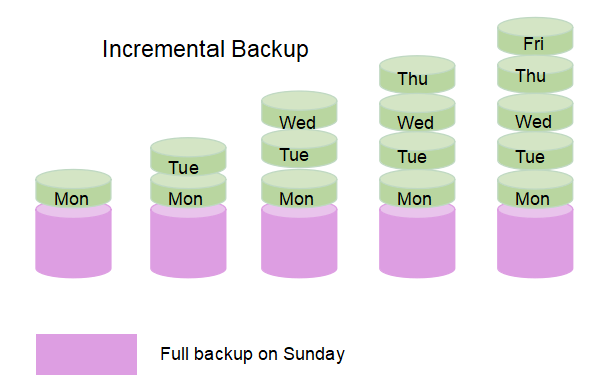
Differential Backup .vs Incremental Backup
The differences between the two are not immediately clear, but a comparison form is available on the VS website to help illustrate the distinctions. If you're still unsure, checking out the form may help clarify things for you.
| Backup Strategy | Backup Basis | Backup Speed | Space Taken | Similarity | Media Required for Recovery |
|---|---|---|---|---|---|
| Full Backup | Full Backup | Slow | Big | / | Most recent backup only |
| Differential Backup | Full Backup | Medium | Big | Backup only files that have changed | Most recent full + most recent differential |
| Incremental Backup | Last Backup of Any Type | Fast | Small | Backup only files that have changed | Most recent full + all incremental since full |
Incremental backups are faster and more space-efficient than full backups, requiring less time and producing smaller backup files.
Incremental backups are more space-efficient than differential backups, making them the preferred choice for many users. This is because incremental backups only store the changes made since the last backup, whereas differential backups store the changes since the last full backup. As a result, incremental backups require less storage space, making them a more practical option for users looking to save space.
Now that you've noted the differences between Incremental and Differential backups, you should be able to choose the best method for backing up your files. Incremental backups are ideal for large datasets and provide a more efficient backup process, while Differential backups offer a balance between backup speed and data recovery speed. When it comes to executing these backup tasks, the best tool will depend on your specific needs and preferences, but popular options include backup software and cloud storage services.
RECOMMENDED: Best Incremental/Differential Backup Software
To protect your PC, consider using incremental or differential backup software, such as Qiling Backup, which can provide a reliable backup and restore solution. Incremental or differential backup allows you to save space and time by only backing up changes made since the last backup, making it a convenient and efficient way to safeguard your data. By using this method, you can ensure that your important files are protected in case of a system failure or other disaster.
Here’s how to create an incremental backup of your files on a Windows PC: To create an incremental backup of your files, you can use the built-in Backup and Restore feature in Windows. This feature allows you to create backups of your files and folders, and also allows you to schedule backups to run automatically at set intervals.
Step 1. Open Qiling Backup and select "File backup".
As time passes, you accumulate a significant amount of important data, including documents, images, music, and videos, among other things. Regular backups are a good habit to get into to protect this information.

Step 2. Select the files that you want to back up.
If you just want to back up one or some specific file types from one folder, the option at the top right corner can help you exclude other files.

Step 3. Select a destination to save your backup file.

Step 4. Click "Schedule" to create an automatic incremental backup.
To schedule a weekly backup, select the "Weekly" option and choose the specific day of the week you want to back up, such as Sunday. Set the backup method to Incremental.
Our software will perform a full backup initially, and then every Sunday, it will only back up files that have changed since the last backup.

Notice:
Since it's the first-time backup for creating a full backup image, the process normally takes longer as it needs to image all selected files, so just take a little rest and wait patiently.
If you have enough space, you can choose to take both a full and an incremental backup on the same day, which can save time but requires a lot of disk space.
Step 5. Click "OK" and then click "Proceed" to execute the full back up.
Once done, it will automatically execute an incremental backup on a set day.
Related Articles
- Is It Possible to Backup RAID in a Safe and Easy Way
- 2021 Windows XP Backup Software & Backup Utility Free Download
- How to Migrate System/Data/Programs from One Hard Drive to Another
- Windows Server Migration Tools: How to Migrate Operating System to A New Server
- Download Crucial Data Transfer Software to Migrate SSD Data and OS
- [Solved] How to Set Automatic Backup to OneDrive in Windows 10/8.1/8/7/Vista/XP
- Is It Possible to Create an ISO Image from an Installed OS?
Is it possible to create an ISO image from an installed OS? Do you want to get the answer? This post will answer whether you can create an ISO image of your installed operating system and offer Qiling Disk Master to help you.
Products
Articles & Tutorials
- Data Recovery
- Data Backup
- File Recovery
- File Backup
- System Backup and Restore
- Disk and Partition Clone
- Technical articles
- Mobile articles
- Disk Master Help
- Windows Data Recovery Tutorials
- Windows Secure Delete Tutorials
- Windows Partition Management Tutorials
- Windows File Backup and Restore Tutorials
- Windows System Backup and Restore Tutorials
- Windows Disk Backup and Restore Tutorials
- Windows Clone Tutorials