How to Clone a Hard Drive on Windows and Mac
Cloning a hard drive is surprisingly easy. With the right tools, you can transfer everything from your old hard drive to a new one, whether it's a hard drive or a solid state drive (SSD), with minimal effort required.
PAGE CONTENT:
- Overview of Cloning a Hard Drive
- Preparations for Cloning Hard Drive
- How to Clone a Hard Drive on Windows
Case: Can I Clone My Hard Drive Including Operating System?
You can clone your hard drive, including the operating system, using hard disk cloning software, which will copy the entire contents of your old drive to the new one, including the OS, programs, and data. This way, you can upgrade your old disk to a new drive without reinstalling the OS and programs. Just make sure to use a reliable and reputable cloning software to avoid any potential issues.
You can clone your hard drive, including the operating system, using a cloning software. This will create an exact copy of your old hard drive on the new one, including all files, programs, and settings. However, it's recommended to check the compatibility of the cloning software with your operating system before proceeding.
Many Windows and Mac users are unaware that they can upgrade their computer's hard drive to a larger one when it becomes outdated or runs out of space. Some may be familiar with the concept but don't know how to perform the disk cloning process themselves without risking data and OS loss.
Cloning a hard drive to a new or bigger hard drive/SSD is a straightforward process that can be completed with a few simple steps. To upgrade your computer's disk, you'll need to use a cloning software or tool, which can be used on both Windows and Mac operating systems. This process involves selecting the source and target drives, initiating the cloning process, and verifying that the data has been successfully transferred to the new drive. With these steps, you can easily clone your hard drive to a new or bigger hard drive/SSD, ensuring that your files and operating system are preserved in their entirety.
Overview of Cloning a Hard Drive
In this part, you will learn:
- 1. What does cloning a hard drive mean?
- 2. When do you need to clone a hard drive?
Cloning a hard drive creates an exact copy of the original disk, including the operating system, all files, and boot files, on a new or larger hard drive or solid-state drive (SSD).
When Do You Need to Clone a Hard Drive
You may need to clone a hard drive to a new one in various situations, such as when upgrading to a larger storage capacity, replacing a failing or dead hard drive, transferring an operating system and programs to a new computer, or creating a backup of your important files and data. Cloning a hard drive can be a quick and efficient way to transfer all your files, settings, and programs to a new device, minimizing the time and effort required to set up a new system from scratch.
- The old disk is out of space - Upgrade hard drive to larger hard disk
- Upgrading the computer's hard drive to a newer disk can improve its performance and speed. This can be done by replacing the old hard drive with a newer one, which can be either an SSD (solid-state drive) or a traditional hard drive.
- To transfer the whole contents of your hard drive
- You can't migrate an operating system by simply copying and pasting Windows files to a new hard drive. This is because the operating system is not just a collection of files, but also a complex system that relies on a specific configuration and settings.
- To safeguard data from virus or malware infection, create a full backup of disk data.
To clone or upgrade your hard drive safely and successfully, follow these steps. You'll need reliable disk clone software, which can be found through a quick search. Once you have the software, you can follow a complete guide to clone one hard drive to another disk on your own, ensuring a smooth and error-free process.
Preparations for Cloning Hard Drive
Before you start cloning a hard disk, you need to prepare by ensuring the target disk has enough free space to accommodate the data from the source disk. This may involve formatting the target disk or deleting unnecessary files to free up space.
#1. Make Hard Drive Ready
- To ensure a smooth disk cloning process, get a second drive with a capacity that is equal to or larger than your current hard drive. This will allow for a complete and accurate copy of your existing data.
- Connect the new drive to your PC, either directly to a disk slot via a SATA cable or using a SATA-to-USB connection cable if there's only one slot available.
- If you need to clone and upgrade the hard drive in Windows PC, initialize the new drive in Disk Management.
#2. Download Reliable Hard Drive Cloning Software
To clone a disk, you'll need to download and install the correct disk cloning software based on your operating system - Windows or Mac. The tools for cloning a disk on each platform are different, so it's essential to choose the right one to ensure a successful cloning process.
Best Windows Disk Cloning Software Free Download
To clone a Windows disk, you'll need to download a third-party disk clone software, such as Qiling, which has a built-in disk clone feature.
This software supports two levels of hard drive cloning: file-by-file copy and sector-by-sector copy, allowing users to clone their entire hard drive to another disk.
How to Clone a Hard Drive on Windows
You can clone a hard drive to an HDD or SSD in Windows 10/8/7/XP, as well as in Windows Server machines.
To clone your current computer hard drive to another disk using Qiling backup, simply follow their safe hard drive disk copy/clone solution to transfer your data from the old disk to a new one. This allows you to safely transfer all your data from the old disk to the new one, making it a reliable solution for upgrading or replacing your hard drive.
With this tool, you can backup your system, such as cloning your Windows 10 system disk or imaging your hard drive, in case of a computer crash or system failure. The process involves two phases.
Phrase 1 - Clone a Hard Drive
Detailed Steps to Clone a Hard Drive
If you prefer a step-Here is a one-paragraph, step-by-step guide to cloning a hard drive using the hard drive clone software:
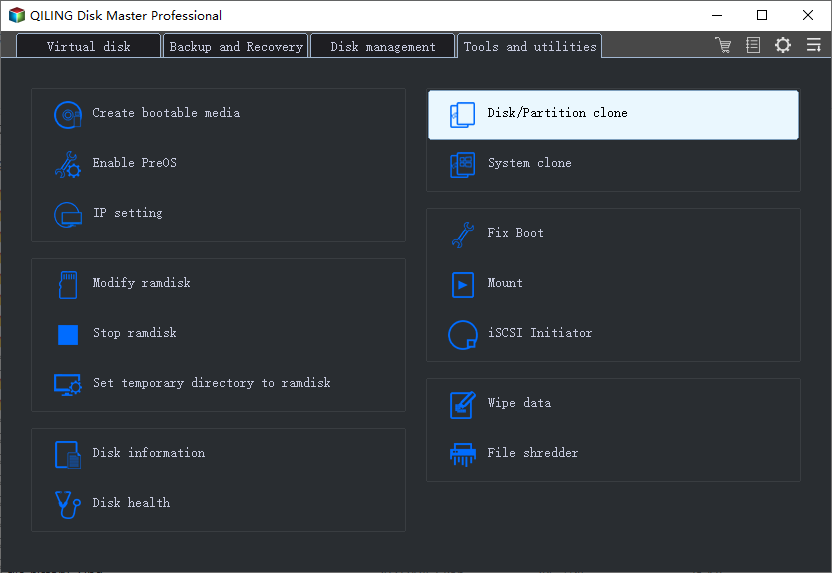
1. Launch Qiling disk cloning software, then click "Disk/partition clone" feature in the tools page.
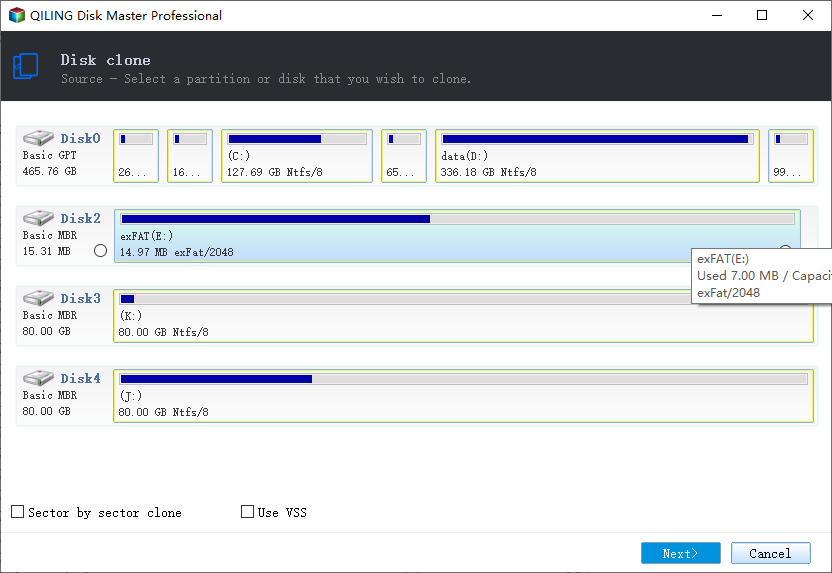
2. Select the source disk you want to clone and click Next.
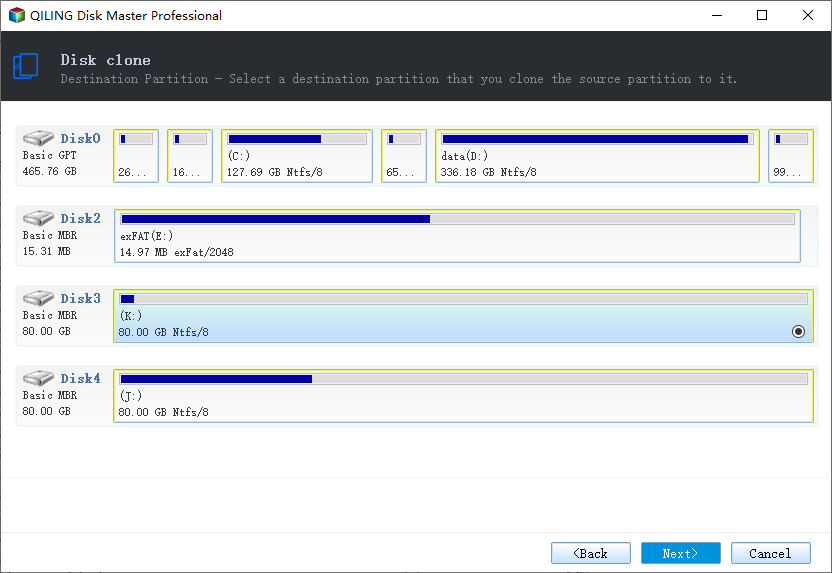
3. Select the destination disk and click Next.
4. Preview the disk layout to confirm the settings of the source and destination disk, and check the box for "Optimize for SSD" to optimize SSD performance.
Tips:
- The destination disk should be a hard disk or an SSD with sufficient storage capacity.
- Optimize for SSD - If the destination disk is an SSD, selecting this option will ensure sector alignment during the process.
- Sector by sector clone - A sector-by-sector clone copies the exact same sectors from the source to the destination, including blank sectors, ensuring the destination is an exact replica of the source.
- To create a portable Windows USB drive, you can clone the system disk to a USB drive, ensuring the cloned system disk can boot normally.
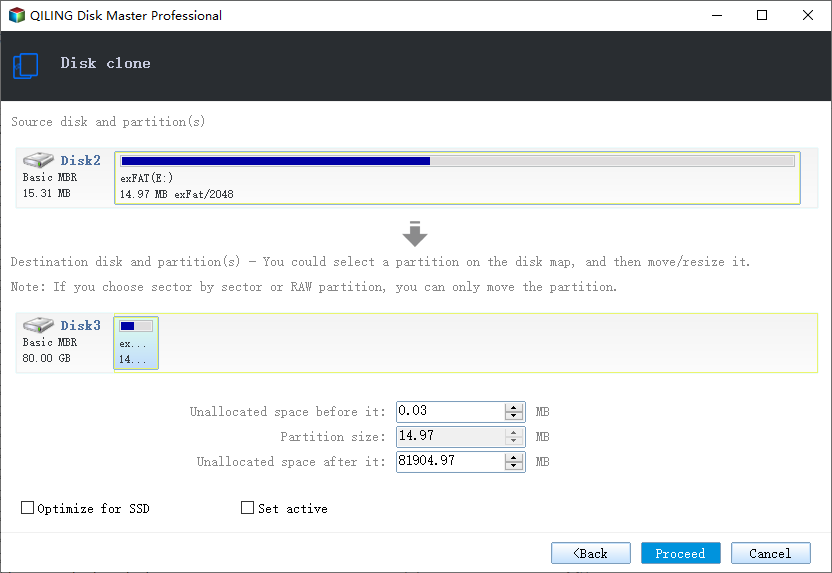
5. Click Proceed to execute disk clone.
Phrase 2- Make Cloned Hard Drive Bootable
After completing the disk cloning process, install the new hard drive into your computer. Finally, configure your computer to boot from the new disk.
Here are the steps to make your cloned HDD/SSD bootable:
Step 1. Restart PC and press F2/F12/Del to enter BIOS.
Step 2. Go to the Boot menu, set the new disk as the first boot drive at the Boot Priority section.
Step 3. Save all the changes and restart PC.
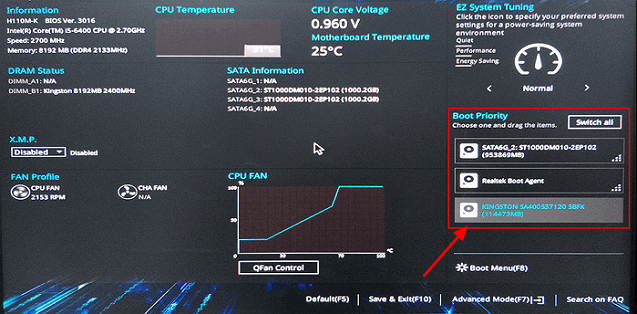
Your computer will automatically boot up from the newly cloned disk.
To Sum Up
This page provides an overview of the disk cloning process and highlights when it's necessary to clone a hard drive. Additionally, it offers a comprehensive solution to successfully clone a hard drive in both Windows and Mac systems using reliable disk cloning hard drives.
To ensure a smooth disk cloning and upgrading process, it's recommended to prepare the new hard drive or SSD in advance and use a reliable disk cloning tool. This will help guarantee a successful transition to the new drive.
If you still have some questions on this issue, check answers in the FAQs section as listed below.
FAQs About Cloning Hard Drive
1. How Long Does It Take to Clone a Hard Drive
The time it takes to clone a hard drive depends on the used space of the original disk. For example, cloning a 500GB hard drive would take significantly less time than cloning a 2TB hard drive, even if the 2TB drive has only 500GB of used space, because the process is based on the total capacity of the drive, not just the used space.
At a cloning speed of 100Mb/s, it takes 1.5 hours, and at 50Mb/s, it takes 3-4 hours.
If you use Qiling Backup for disk cloning and upgrading, the process will be completed within 1 hour.
2. Any Risks While Cloning a Hard Drive
Cloning a hard drive is a highly secure and safe process that poses minimal risks to data and the operating system on the computer.
Be careful not to interrupt the cloning process once it has started.
To ensure stable power supply to your computer and the hard drive, you can use a high-quality power supply unit (PSU) that is capable of handling the power requirements of your system. This will help prevent power-related issues such as overheating, shutdowns, and data loss.
3. How to Deal with the Old Disk after Cloning a Hard Drive
Here are the tips to deal with your old hard drive after replacing it with the new disk:
Clean and wipe the hard drive, sell it.
Delete all partitions and partition Windows 10 hard drives as a secondary data drive.
Related Articles
- transfer data to another computer
- Three SQL Server recovery models: simple, full, bulk-logged recovery model
- Windows Server Migration Tools: How to Migrate Operating System to A New Server
- How to Clone M.2 SSD to Larger M.2 SSD on Laptop/Desktop [New]
- How to fix Macrium Reflect clone failed
- Does Cloning a Hard Drive Copy Bad Sectors?
Does cloning a hard drive copy bad sectors? Do you know the answer? If not, this short post can help you. You can learn if you can clone a hard drive with bad sectors and how to clone a hard drive with bad sectors.
Products
Articles & Tutorials
- Data Recovery
- Data Backup
- File Recovery
- File Backup
- System Backup and Restore
- Disk and Partition Clone
- Technical articles
- Mobile articles
- Disk Master Help
- Windows Data Recovery Tutorials
- Windows Secure Delete Tutorials
- Windows Partition Management Tutorials
- Windows File Backup and Restore Tutorials
- Windows System Backup and Restore Tutorials
- Windows Disk Backup and Restore Tutorials
- Windows Clone Tutorials