Copy a Flash Drive to Another Flash Drive on Windows & Mac
Copy vs Clone
Copying files from one USB flash drive to another might seem like a straightforward task, but it's often confused with cloning devices. While copying involves simply transferring files, cloning involves duplicating the entire contents of one device onto another, including the operating system, settings, and all files. To determine which to use, consider the scenario: if you only need to transfer specific files, copying is sufficient. However, if you want to replicate the exact state of one device onto another, including its operating system and settings, cloning is the way to go. This distinction is crucial to avoid overwriting important data or settings. By understanding the difference between copying and cloning, you can ensure a smooth and accurate transfer of data between devices.
Copy: Copying a USB flash drive to another means duplicating the files, not the drive's master boot record and partition tables, resulting in a duplicate of the original files in the new location.
Clone: Disk cloning is a process of copying the entire contents of one disk to another, including the system files, to create a fully operational duplicate. This can be used to replace a failed original disk, ensuring continuity and minimizing downtime.
To resolve the issue of a corrupted USB drive, you can either copy the desired files to the target USB drive or clone the entire drive. If you only need to transfer specific files, copying them directly will suffice. However, if you want an exact replica of the original drive, cloning is the way to go. We'll provide guidance on both methods in the next section.
How to Copy a Flash Drive to Another Flash Drive
Step 1. Connect both USB flash drives on your computer.
Step 2. Open Windows File Explorer, and open the two flash drives.
Step 3. Drag-and-drop or press Ctrl C + Ctrl V to copy and paste your wanted files to the target USB.
To copy all files on a USB flash drive, select all files by pressing Ctrl-A, then use Ctrl-C to copy and Ctrl-V to paste, initiating a fast copy.
How to Duplicate a Flash Drive by Cloning
Cloning a flash drive means duplicating its content using cloning software. A recommended option is Qiling Backup, which can backup and clone hard drives, USB drives, and external hard drives, as well as create backup images.
You can download the Qiling USB cloning software from the button below, and then use the following steps to duplicate your USB flash drive.
Insert both your flash drives on the computer, and run Qiling Backup.
Tip
If you've saved data on the new USB flash drive, move those files to the current drive and empty the new one before cloning. Cloning directly from the current drive to the new one could result in data loss.
Step 1. Connect new USB flash drive to your PC
First of all, please connect the new flash drive to your PC, making it recognizable by the PC.
Step 2. Run Qiling Backup for cloning USB to USB
To start cloning a USB drive using Qiling Backup, run the software on your PC and click on the "Clone" option in the left pane. This will initiate the cloning process for the USB drive.
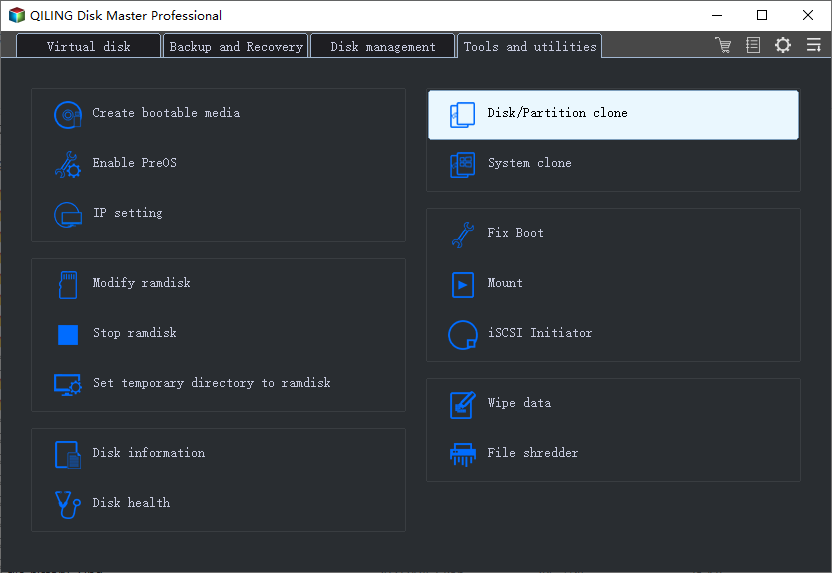
Step 3.Clone USB to USB with easy clicks
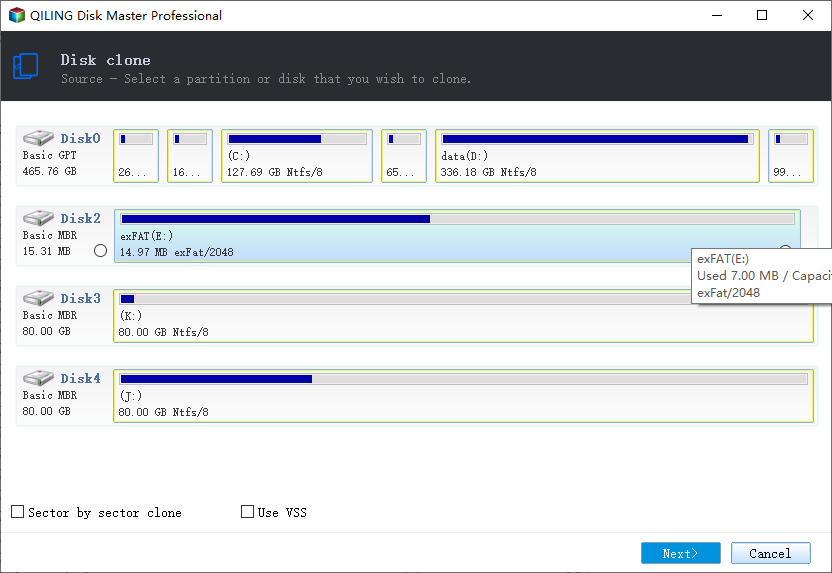
1. Choose your old USB as the original source disk.
The target disk will have the same layout as the source disk if a sector level clone is enabled, which means the target disk will be allocated with the same layout as the source disk.
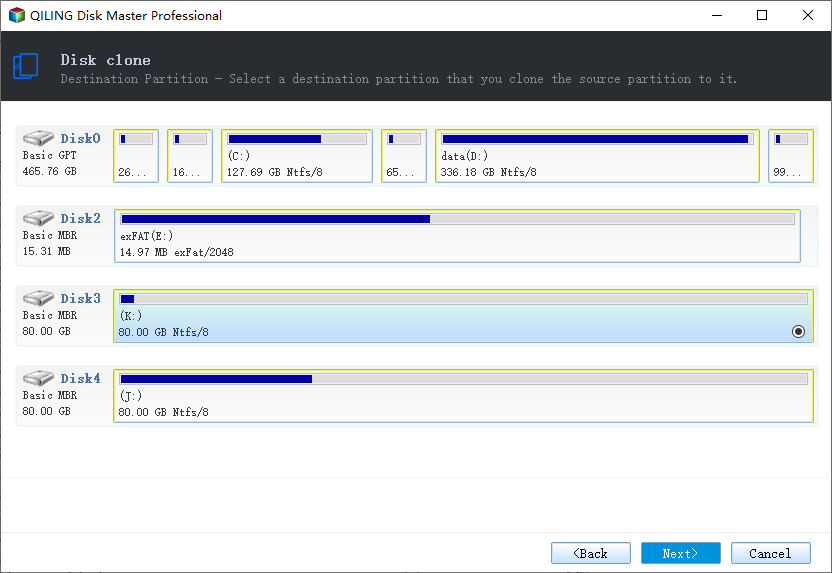
2. Select the destination disk - new USB flash drive for saving cloned data. This will ensure that your cloned data is saved to the correct drive, avoiding any potential data loss or corruption.
3. Click Proceed to start cloning USB to USB now.
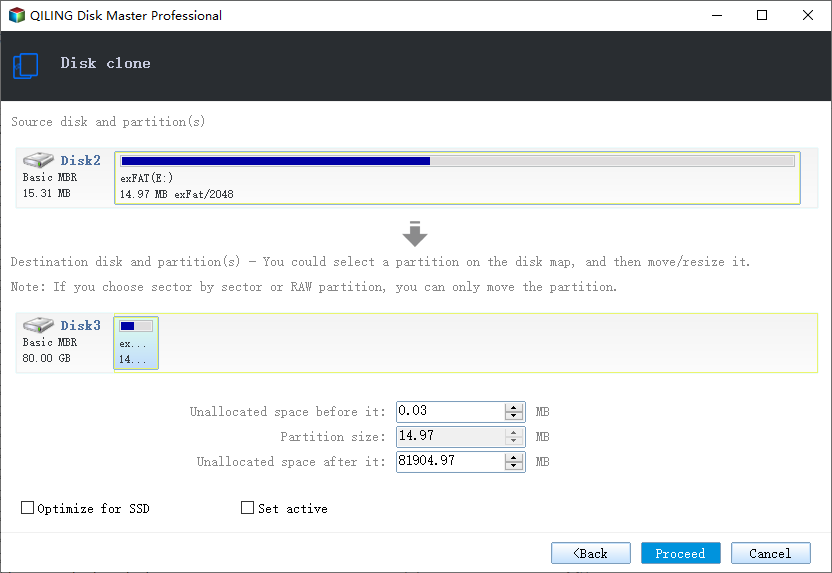
After cloning, you should now have two identical flash drives with the same partitions, data, and files.
Sum Up
To copy a flash drive to another flash drive on both Windows and Mac, you can follow the methods outlined in this article. Note that copying and cloning differ, and the steps provided here are for copying USB to USB. You can choose to use either method depending on your needs, and with these instructions, you'll be able to transfer data from one flash drive to another in no time.
Related Articles
- How to Move Windows 8/8.1 to SSD Without Reinstalling Windows and Applications
- Best Alternative to Carbon Copy Cloner for Windows
- How to Clone a Bootable Hard Drive in Windows 10/8/7
- How to Backup PC Files to Dropbox
- How to Password Protect Flash Drive Windows 10
- How to Clone Windows 10 Operating System
- Does Backup Protect Against Ransomware? Why Ask
A computer backup can protect against ransomware by serving as a data prevention measure for disasters, including malware attacks, allowing a reliable backup service provider to safeguard against such threats.
Products
Articles & Tutorials
- Data Recovery
- Data Backup
- File Recovery
- File Backup
- System Backup and Restore
- Disk and Partition Clone
- Technical articles
- Mobile articles
- Disk Master Help
- Windows Data Recovery Tutorials
- Windows Secure Delete Tutorials
- Windows Partition Management Tutorials
- Windows File Backup and Restore Tutorials
- Windows System Backup and Restore Tutorials
- Windows Disk Backup and Restore Tutorials
- Windows Clone Tutorials