How to Cloud Backup for Windows 7 | 2022 Detailed Guide
Cloud storage has become increasingly popular in recent years, thanks to its numerous advantages over traditional storage methods. One key benefit is its affordability, as Cloud storage is often significantly cheaper than conventional storage methods. Additionally, Cloud storage is also more reliable and secure, providing users with an added layer of protection for their data.
As the benefits of cloud backup become more apparent, an increasing number of people are opting for cloud backup for Windows 7, allowing them to safeguard their data and reduce storage costs.
The Advantages of Cloud Backup
Cloud backup offers several advantages, including the ability to store and access data from anywhere, automatic backups, and scalability to meet growing storage needs. With cloud backup, users can store their files, photos, and other data online, allowing them to access and share them from any device with an internet connection. Additionally, cloud backup services often provide automatic backups, ensuring that data is regularly saved and protected, and can scale to meet growing storage needs, eliminating the need for physical storage devices. This provides a convenient and secure way to protect and access important data.
- Accessible & Convenient
With cloud backup services, you can access your backups from anywhere in the world as long as you have an internet connection, and also easily share files between multiple computers and devices.
- Safe & Reliable
Cloud backup services store your data off-site, keeping it safe even if your computer is lost or stolen, and often include encryption and other security features.
- Flexible Storage Space
With Cloud backup, you only pay for the storage space you use, allowing you to scale your storage needs up or down as required.
- Affordable & Scalable Pricing
Cloud backup is a cost-effective alternative to traditional storage methods, with prices typically charged per month or year, allowing for easy scalability to fit your budget.
- Quick Data Recovery Speed
Cloud backup allows you to restore data quickly and efficiently over the network, saving time compared to traditional backup methods.
3 Ways to Back Up Windows 7 to Cloud
| Workable Solutions | Step-by-step Troubleshooting |
|---|---|
| Method 1. Use Qiling Cloud (250GB Free Cloud Storage) | Launch Qiling Backup and choose "Create Backup" on the home...Full steps |
| Method 2. Use OneDrive (5GB Free Cloud Storage) | Open the OneDrive app on your computer, and sign in with your Microsoft account...Full steps |
| Method 3. Use Dropbox (2GB Free Cloud Storage) | Install and open Dropbox on your computer and create a Dropbox account and ...Full steps |
Method 1. Cloud Backup Windows 7 to Qiling Cloud (250GB Free Cloud Storage)
Qiling Backup, One of the Windows backup software, is a good tool for Cloud backup for Windows 7, and it comes with a number of features, including.
- – Easy-to-use interface
- – Back up files to local drives, external drives, NAS, or cloud storage services.
- – Schedule backups to run automatically
- – Restore files from backups with just a few clicks
Qiling Backup offers 250 GB of free Cloud storage space, making it suitable for backing up large files or entire folders.
To backup Windows 7 to Qiling Cloud, you can use the built-in Windows Backup feature or a third-party cloud backup software. Here's a brief overview of the process:
Step 1. Launch Qiling Backup and select "System Backup" from the home page.

Step 2. The system partition will be automatically selected, you only need to choose the location.
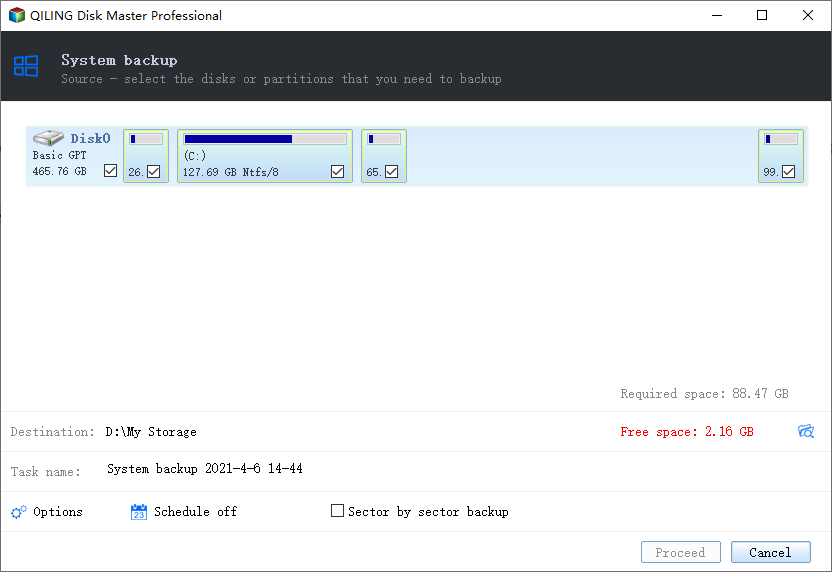
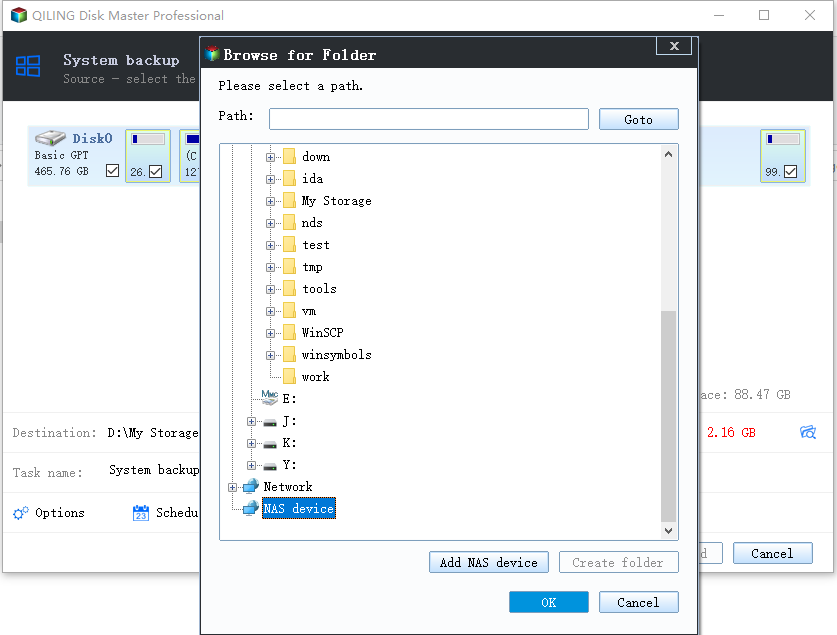
Step 3. You can save the backup file to your local drive, cloud storage, or network-attached storage (NAS), and also connect an external hard drive to store system backup files.
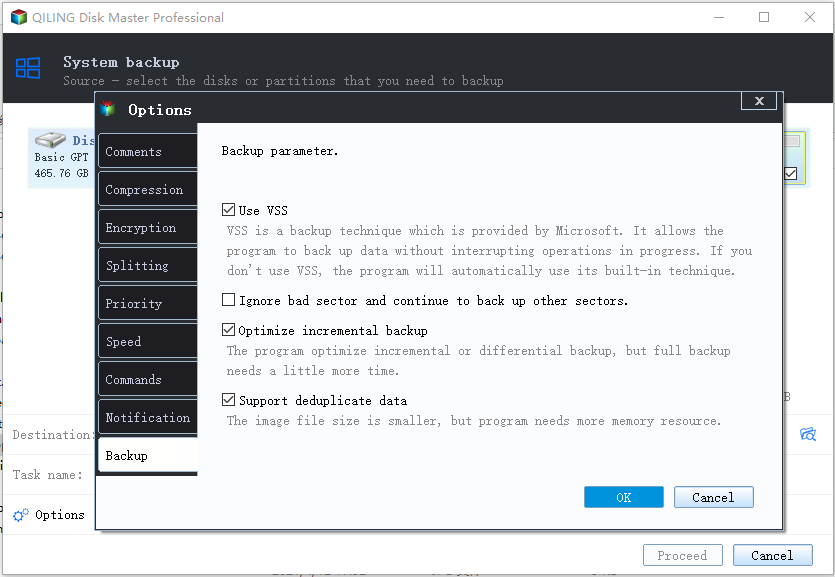
Step 4. In the "Options" section at the bottom left, you can customize the settings. Once done, click "Proceed" to initiate the process.
After completing the backup process, you can check the backup status, recover, open, or delete the backup by right-clicking the backup task on the left.
Method 2. Cloud backup Windows 7 to OneDrive (5GB Free Cloud Storage)
OneDrive OneDrive is a personal cloud storage service from Microsoft that offers 5GB of free storage space, allowing users to access, edit, and share their data on any device. It's integrated into Windows 10 and offers features such as cloud backup, file sharing, and collaboration tools.
- – File syncing across devices
- – File sharing
- – Easy file restoration
This is a step-by-step guide:
Step 1. To access OneDrive, start by opening the OneDrive app on your computer. If you don't have the app installed, you can download it from Microsoft's website. Once the app is open, you can begin using OneDrive to store and access your files.
Step 2. Sign in with your Microsoft account.
Step 3. Right-click the OneDrive icon on the taskbar of Windows.

Step 4. To access the backup settings, go to Help & Settings, then select Settings, followed by Backup, and finally Manage backup.
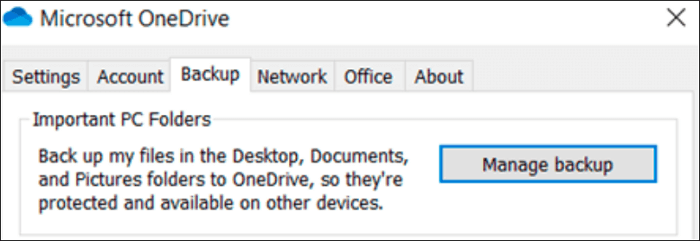
Step 5. Select the files or folders you want to back up.
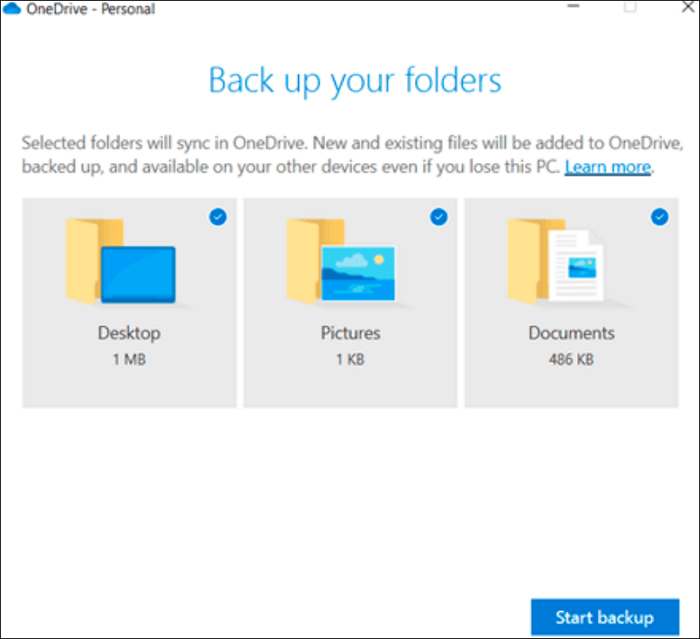
Step 6. Click "Start backup" to start the backup process.
Method 3. Cloud backup Windows 7 to Dropbox (2GB Free Cloud Storage)
Dropbox offers 2GB of free storage space, with users needing to pay for additional space. It can create a "Dropbox" file folder and sync it to the Dropbox Cloud service.
It's known for its ease of use and features, including:
- – Easy file sharing
- – File syncing across devices
- – File versioning
Follow these steps:
Step 1. Install and open Dropbox on your computer.
Step 2. Create a Dropbox account and log in.
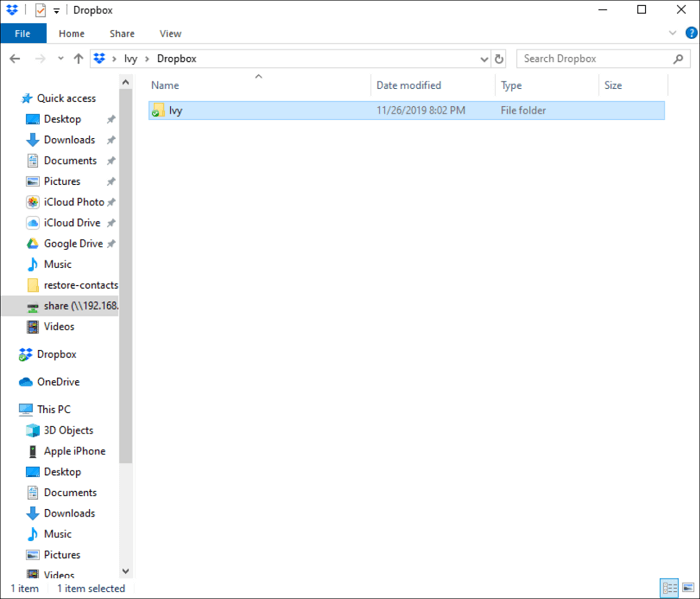
Step 3. To back up files, locate the Dropbox folder on your PC, then drag or copy any desired files or folders into it, which will automatically sync them to the Dropbox cloud.
Conclusion
For Windows 7 users, there are several top-notch cloud backup options available, each with its own unique features and pricing plans. By considering these alternatives, users can select the best cloud backup solution that suits their specific needs and preferences.
Qiling Backup is a popular cloud backup software for Windows 7 that offers a free 250 GB of cloud storage space, making it an excellent tool for cloud backup.
5 Best Cloud Backup Software Recommended
If you want to back up your data to the cloud, you have numerous options to choose from. To help you decide, this article will introduce five of the best cloud backup tools available in the market.

Cloud Backup for Windows 7 FAQ
1. Does Windows 7 have Cloud storage?
Windows 7 doesn't have built-Microsoft provides a OneDrive client that allows users to backup data to the Cloud, offering 5GB of free storage space. If additional space is needed, users must pay for it.
2. How do I back up my entire computer Windows 7?
To back up an entire Windows 7 computer, you can create a system image using Qiling Backup. Open the software, select "Create Backup", choose "OS" as the backup content, and pick a destination for the backup, such as a local drive, Qiling Cloud, NAS, or security zone. Then, click "Backup Now" to initiate the process.
3. Does Windows 7 have a backup program?
Windows 7's Backup and Restore feature allows users to back up systems and files, with scheduling capabilities, but lacks incremental and differential backup support.
4. Will OneDrive work on Windows 7?
OneDrive is compatible with Windows 7, both 32-bit and 64-bit versions, allowing you to use it on your Windows 7 system.
Related Articles
- Download System Clone Software to Clone OS in 2 Procedures
- How to Backup Quick Access in Windows 10 [ 2022 Update]
- Windows To Go Creator for Windows 10/8/7
- How to Backup Outlook Emails 2010(2 Simple Ways)
- How to Backup Laptop to Google Drive Step by Step
How can I back up the laptop to Google Drive? Basically, there are three ways – One automatic way with backup software and two manual ways with Google Drive utility. - How to Backup NAS? Top 3 Strategies
To back up your NAS, you have three options. You can simply copy your NAS data to an external hard drive, use backup software to securely transfer your files, or back up your NAS to a cloud drive for remote access and protection.
Products
Articles & Tutorials
- Data Recovery
- Data Backup
- File Recovery
- File Backup
- System Backup and Restore
- Disk and Partition Clone
- Technical articles
- Mobile articles
- Disk Master Help
- Windows Data Recovery Tutorials
- Windows Secure Delete Tutorials
- Windows Partition Management Tutorials
- Windows File Backup and Restore Tutorials
- Windows System Backup and Restore Tutorials
- Windows Disk Backup and Restore Tutorials
- Windows Clone Tutorials