Clone VS Image | What's the Difference? How to Clone or Image a Hard Drive [Get Full Guides Now]
What Is Disk Clone
Hard disk cloning involves duplicating all partitions of a hard disk, including files and data within those partitions, to another hard disk. If the source disk is the system disk, the cloning process will also replicate the necessary boot partition and files required to boot the system.
During the cloning process, the cloning software creates identical partitions on the target hard disk, mirroring the partition structure of the source disk. It then clones the files and data in each partition one by one, resulting in a fully operational cloned disk that can replace the original disk if it fails.
When to Use Disk Clone
- Upgrading your hard disk to a bigger one, whether it's a traditional Hard Disk Drive (HDD) or a Solid-State Drive (SSD), can significantly improve your computer's performance and storage capacity. This upgrade can help to free up space on your existing drive, making it easier to install new programs and store large files.
- Replace the disk when it is damaged, corrupted, or failing
- Clone system disk without reinstalling the operating system
What Is the Disk Image
A disk image is a compressed file that contains a complete copy of a hard drive, including all data and system boot information. It's created by archiving or backing up everything on the hard disk, essentially making a snapshot of the drive. This process creates a large, compressed file of your drive, which can be used for backups or to restore your system to a previous state.
To make this image work, you need to save the image file to your hard drive and then use an image restoration tool to restore it. Unlike disk cloning, multiple disk image files can be saved to a single hard drive, allowing for easy storage on a USB drive, external hard drive, or even in the cloud.
When to Use Disk Image
- Make backups of important files on your computer
- Make a backup of your system in case it gets damaged and your computer can't boot, so you can restore it to a previous working state.
- To transfer large amounts of data, you can create a disk image of your computer's hard drive or a specific folder and then restore it on the new device. This method is useful when you need to transfer a lot of files, such as after a system upgrade or when switching to a new computer.
Difference of Clone VS Image in Tabular Form
Disk cloning and disk imaging serve the same purpose of copying a hard disk's contents, but they differ significantly. Disk cloning creates an exact, uncompressed replica of the original hard disk on another, whereas disk imaging creates an archive file that can be used to create identical copies of the original disk.
The specific differences of clone VS image are as follows.
| Comparison | Clone | Image |
|---|---|---|
| Process | Make a one-to-one usable copy | Create a byte-by-byte archive as a compressed file |
| Efficiency | Run quickly for recovery | Only useful after being restored |
| Flexibility | Put one clone on a drive | Store multiple image backups on one drive |
How to Clone a Hard Drive on Windows 10/8/7
You can clone a hard drive using Qiling Disk Copy, a user-friendly and well-known disk clone tool that makes a complete copy of your hard drive.
- Clone HDD to SSD to speed up your computer
- When a hard drive has bad sectors, sector-level cloning can still be supported by using specialized software that can identify and work around the faulty sectors, effectively creating a clone of the original drive while avoiding the problematic areas. This approach allows for a complete and accurate copy of the data to be made, even if the original drive has some areas that are no longer readable due to physical damage or other issues.
- Migrate OS to HDD/SSD without reinstalling when upgrading PC
- Clone failing hard drive to new HDD/SSD
- To create a WinPE bootable disk for cloning and rescuing data in a Windows PE environment when the OS can't boot, follow these steps:
To clone a hard drive, download Qiling Disk Copy, a free tool that makes the process simple. With this software, you can easily copy the contents of one hard drive to another, including all files, operating systems, and programs.
Step 1. Download, install and run Qiling Disk Copy on your PC.
To clone a hard drive, start by clicking on the "Disk clone" option in the tools page. Then, select the hard drive that you want to copy or clone. After that, click "Next" to proceed with the cloning process.
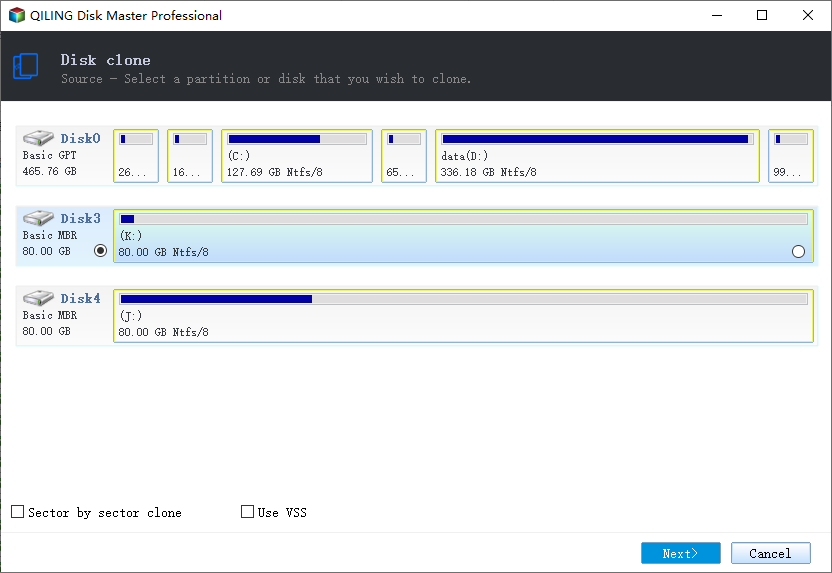
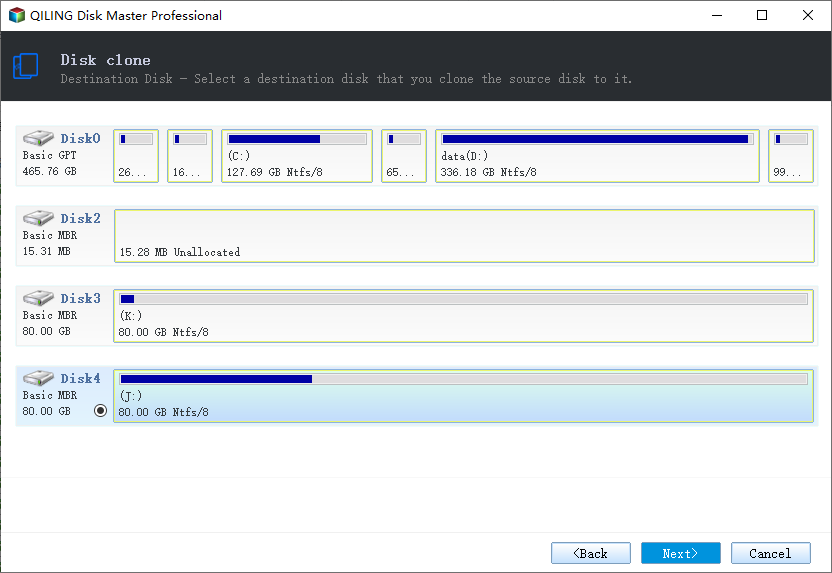
Step 2. Select the destination disk.
Note: To successfully copy or clone a hard disk, the destination disk should be at least as large as, if not larger than, the source disk. This ensures that all data from the source disk can be transferred to the destination disk without any issues.
Step 3. Check and edit the disk layout.
If your destination disk is an SSD drive, make sure to check the option that indicates the target is an SSD.
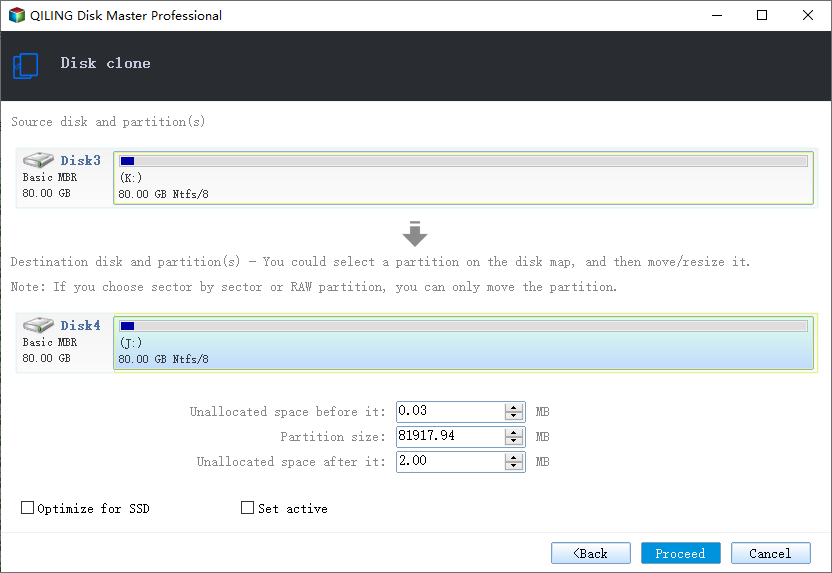
Step 4. Click "Proceed" to start the hard drive cloning process.
Step 5. Click "OK" to confirm if the program asks to erase data on the destination disk, which is a crucial step to ensure a successful data transfer. This confirmation is essential to proceed with the data erasure process, allowing the program to overwrite the existing data on the destination disk and replace it with the new data from the source disk.
How to Create Disk Image on Windows 10/8/7
To easily back up and image a hard drive, you can try Qiling Backup, a recommended tool that supports various backup options, including file backup, system backup, disk, and partition backup.
Qiling backup offers smart backup options, including full, incremental, and differential imaging of hard drives. It also allows for automated backup scheduling based on time or events, providing a reliable file backup solution.
Download this disk backup tool to easily back up your hard drive.
Step 1. To start a backup of your Qiling system, open Qiling Backup and select the "Disk/partition Backup" option on the home page. This will initiate the backup process.

Step 2. Qiling Backup allows you to select the backup scope, giving you the flexibility to back up either an entire disk or a specific partition, depending on your requirements.
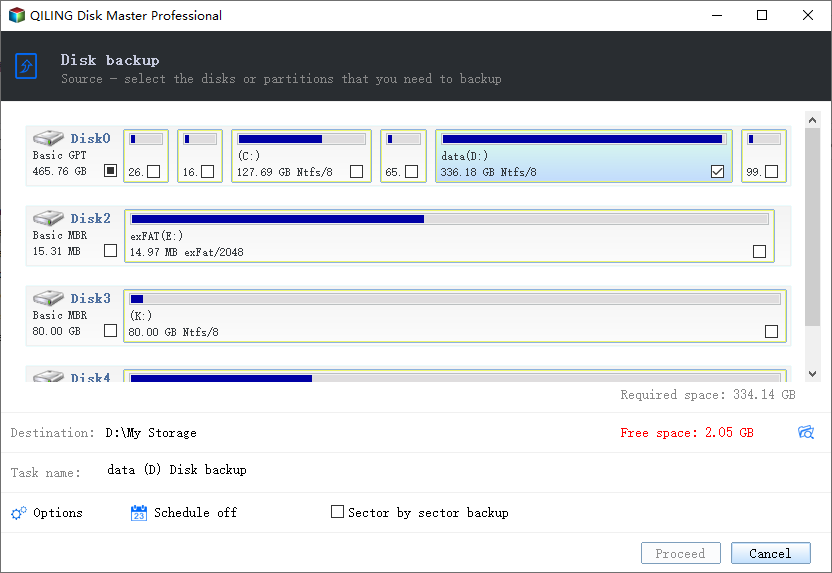
Step 3. You can choose to save the disk to a local drive or to NAS.
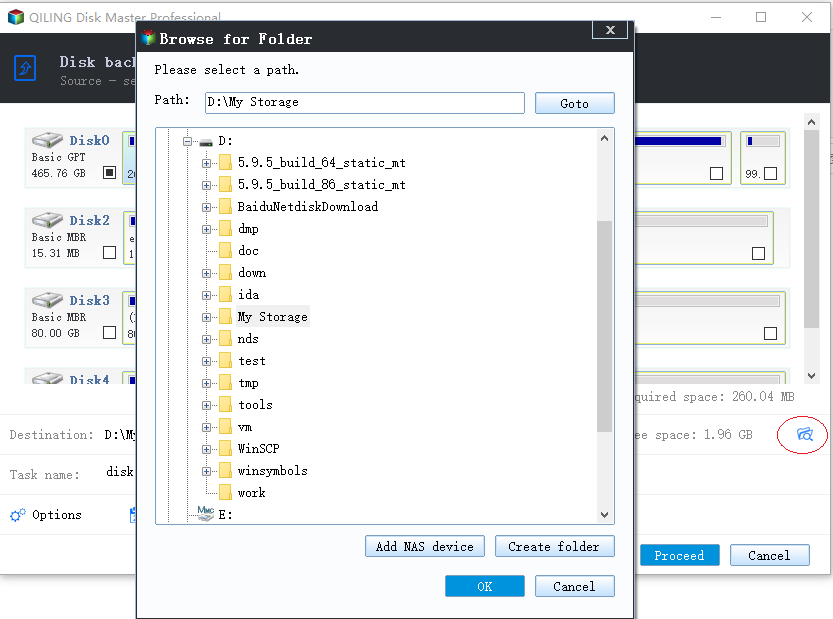
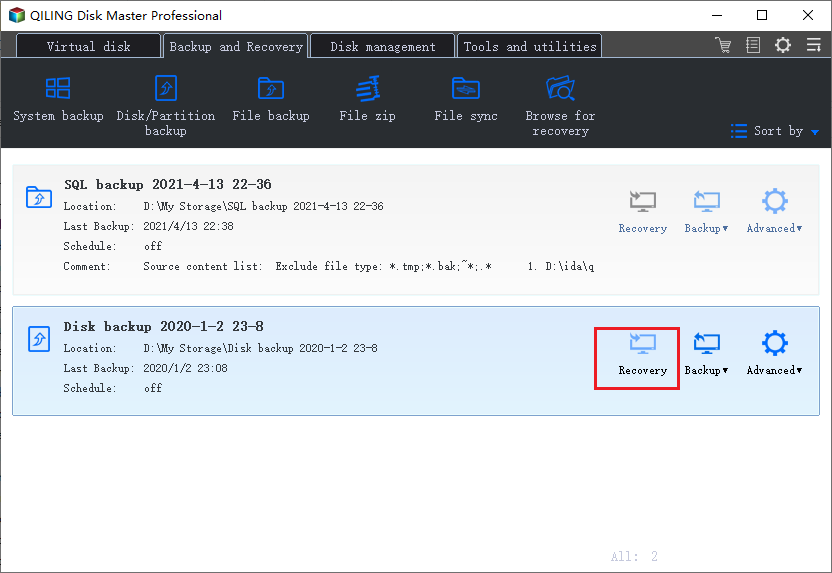
Step 4. After completing the backup process, click "Proceed", then click on any task to further manage your backup, such as recovering it or creating an incremental backup.
Clone VS Image FAQs
Here are more frequently asked questions and answers about hard drive cloning. Check out if you are interested.
Does cloning a hard drive copy the OS?
When using Qiling Disk Copy to clone your system disk, it will copy the OS and boot partition, allowing you to upgrade to a new HDD/SSD or computer without reinstalling Windows.
Does cloning copy or move?
Disk cloning is the process of making a precise, one-to-one copy of an entire hard drive, including all its contents, to another drive without moving or cutting any original files.
Does cloning a drive delete everything?
Disk cloning involves creating an exact copy of an entire hard drive or specific partitions on it, including all files, data, and disk layout. This process will copy the Master Boot Record (MBR), file allocation table, and everything else to the target hard drive. Before cloning, it's essential to back up your files and wipe the target hard drive, as the cloning software will delete files on it.
Conclusion
Disk imaging and disk cloning are two related but distinct methods for copying and restoring data. While both can be effective, they serve different purposes: disk cloning allows for a direct replacement of a hard drive, whereas disk imaging is more useful for file backups, enabling you to create and save multiple images on a single storage device.
Qiling Disk Copy is a helpful tool for cloning a hard drive or migrating an OS from HDD to SSD, while Qiling Backup provides one-stop and smart backup solutions for backing up a disk/partition or system.
Related Articles
- Clone Hard Drive VS Clean Install SSD - Which One Is Better
- How to Clone Hard Drive Without Windows Operating System [Simple as a Few Clicks]
- Clone UEFI Disk to SSD without Boot Issue (Full Guide)
- Best Microsoft Cloning Software for Windows 11/10/8/7
- Best Windows Server Backup Alternative - Qiling Disk Master
This article will introduce you to Windows Server Backup and the best Windows Server Backup alternative - Qiling Disk Master Server as well as steps to backup Windows Server 2019 or 2022 in simple steps. - [Solved] Windows Server Backup Schedule Not Running Error
Windows Server 2012, 2016, 2019, 2022 backup schedule not running as expected? Read this article patiently to get the possible reasons and solutions, including an easy alternative.
Products
Articles & Tutorials
- Data Recovery
- Data Backup
- File Recovery
- File Backup
- System Backup and Restore
- Disk and Partition Clone
- Technical articles
- Mobile articles
- Disk Master Help
- Windows Data Recovery Tutorials
- Windows Secure Delete Tutorials
- Windows Partition Management Tutorials
- Windows File Backup and Restore Tutorials
- Windows System Backup and Restore Tutorials
- Windows Disk Backup and Restore Tutorials
- Windows Clone Tutorials